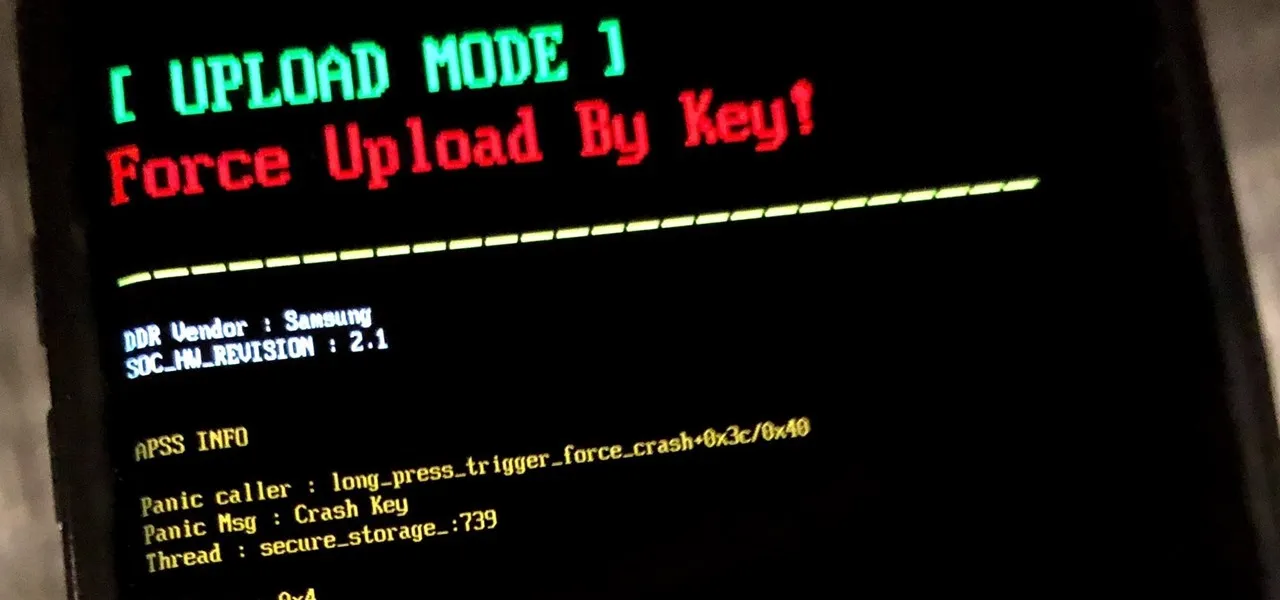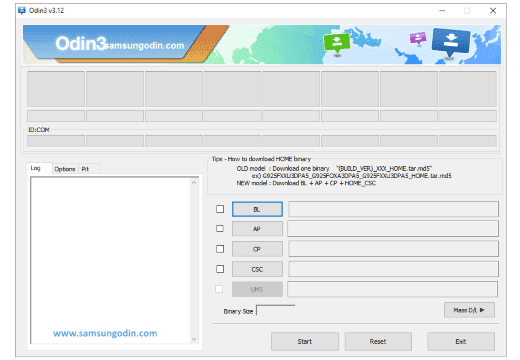
Odin is a Windows program which is used in Samsung smartphones and tablets for flashing stock ROMs, custom ROMs, custom recoveries (CWM or TWRP), etc. If you are using a Samsung smartphone and are searching for a way to flash a custom ROM firmware, then the best option is to use Odin.
Odin is officially made available by Samsung. Using Odin, almost all Samsung devices including the newest Samsung smartphones, laptops, and phablets (Galaxy Note series) will obtain root privileges.
Odin features
1) Flash Stock ROM: If you have bricked your Samsung device and looking for a way to unbrick it, then you can use Odin and flash the stock ROM of your device. Once you flash the stock ROM, your device will get back to working condition again. Odin also helps in fixing the bootloop issue in your device.
2) Flash Kernel & Custom Recovery: Using Odin, you can flash modified kernel in your Samsung device. Apart from that, you can flash custom recoveries like CWM (ClockWork Mod) and TWRP (Team Win Recovery Project) using Odin.
3) Flash Custom ROM & Root Packages: If you have gone tired of using the stock Android version in your device, then using Odin you can flash custom ROM firmware of your choice. Also, if you would like to gain root privileges in your Samsung smartphone, Odin will help!