Tag: network

  • 6 useful connectivity features you should know

    6 useful connectivity features you should know

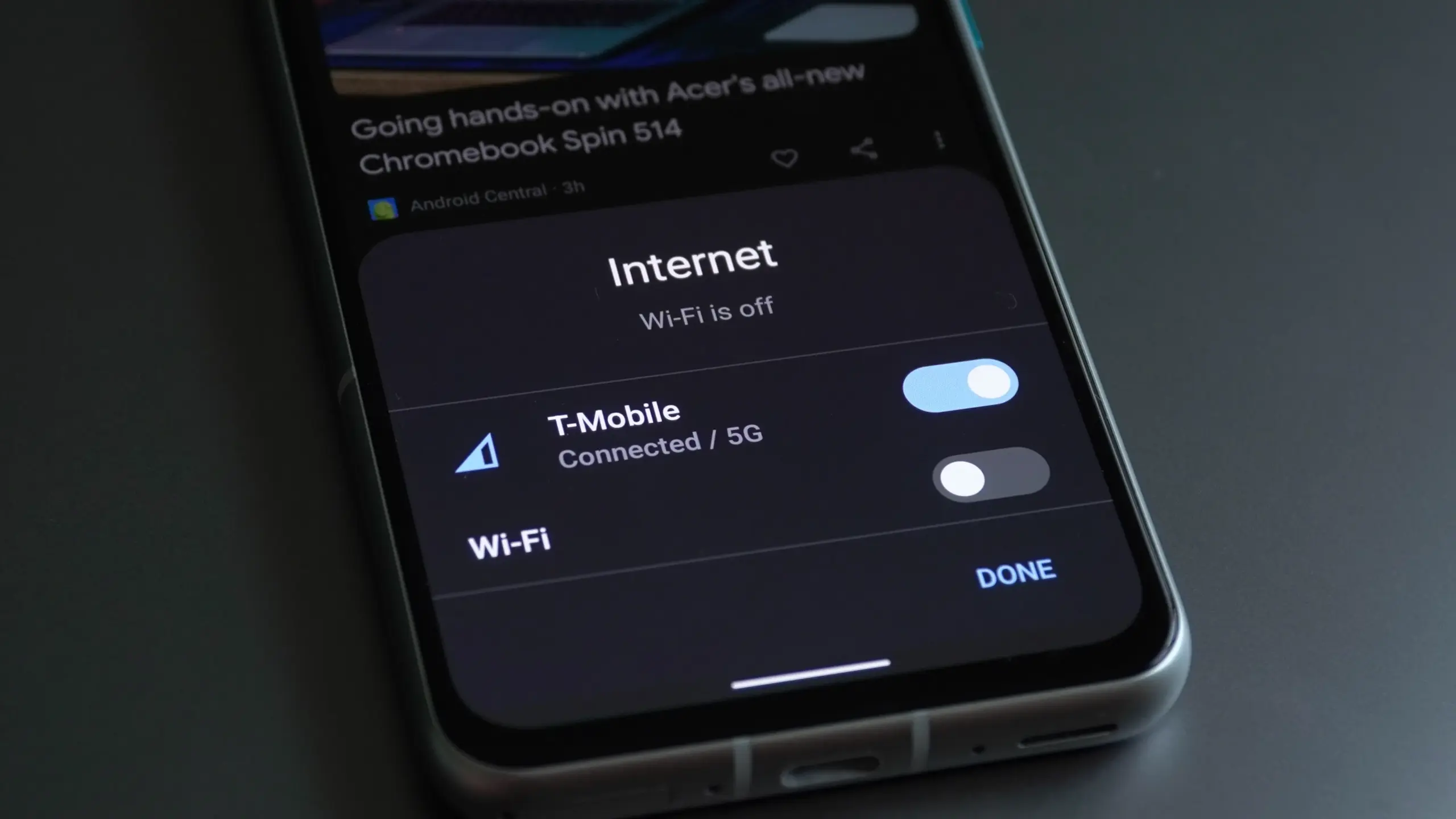
    Connectivity features enable communication between networks and devices. Numerous tools are available on Android, with Bluetooth, Wi-Fi, Near-Field Communication, and mobile hotspot being among the most widely used. There are very few users that do not utilize any of them in a given day.

    You might be using a wireless connection to watch videos or pair your wireless headphones with your phone. You may be surprised to learn that there are more features available to improve your experience. Let’s examine your device’s settings in more detail and get you using them immediately.

    Use QR code to share your internet connection

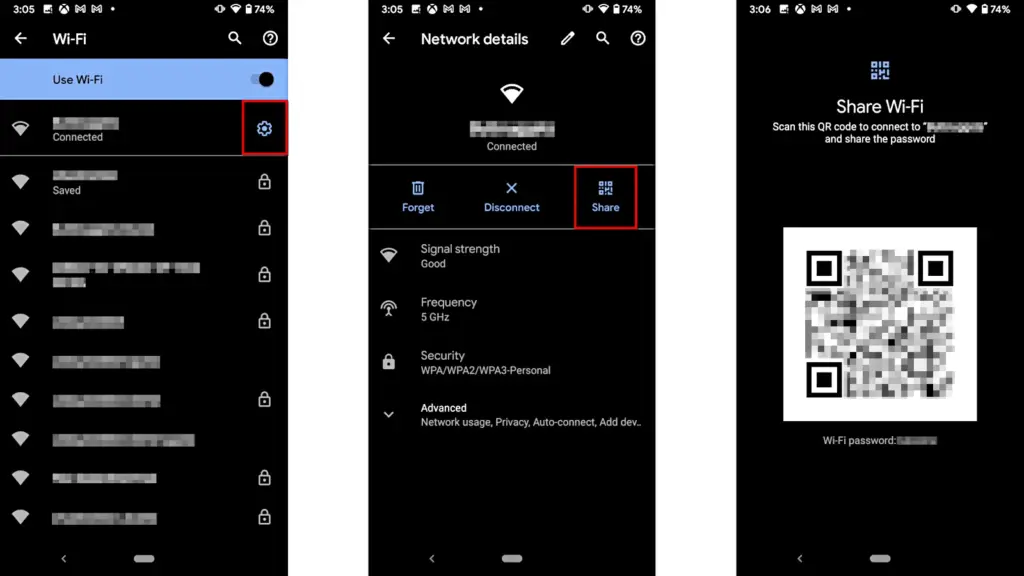
    It’s uncomfortable to pause what you’re doing, type or speak out your Wi-Fi or mobile hotspot password, and ensure sure no one else can see or hear it. Use a QR code if you want to share it more quickly. Here’s how:

    For wi-fi network

    • Go to Settings > Wi-Fi.
    • While your device is connected to a network, tap the information icon beside the network.
    • Tap Share. You may need to enter your security method to continue.
    • You should see a QR code. It’s a square filled with a black and white pattern.
    • From the device you’re sharing to, access the QR code tile from Quick Settings.
    • Scan the QR code to get access immediately.
    android share network password

    Mobile hotspot password

    1. Open Settings.
    2. Go to Network & internet or Connection & sharing.
    3. Tap Hotspot & tethering or Personal hotspot.
    4. Tap the toggle button to enable hotspot.
    5. Tap the tiny QR code icon beside the hotspot name. You should see the enlarged version after entering your security unlock method.
    6. On the other devicce, access the QR code tile from Quick Settings and scan it to gain access.

    Share files to iPhone wirelessly

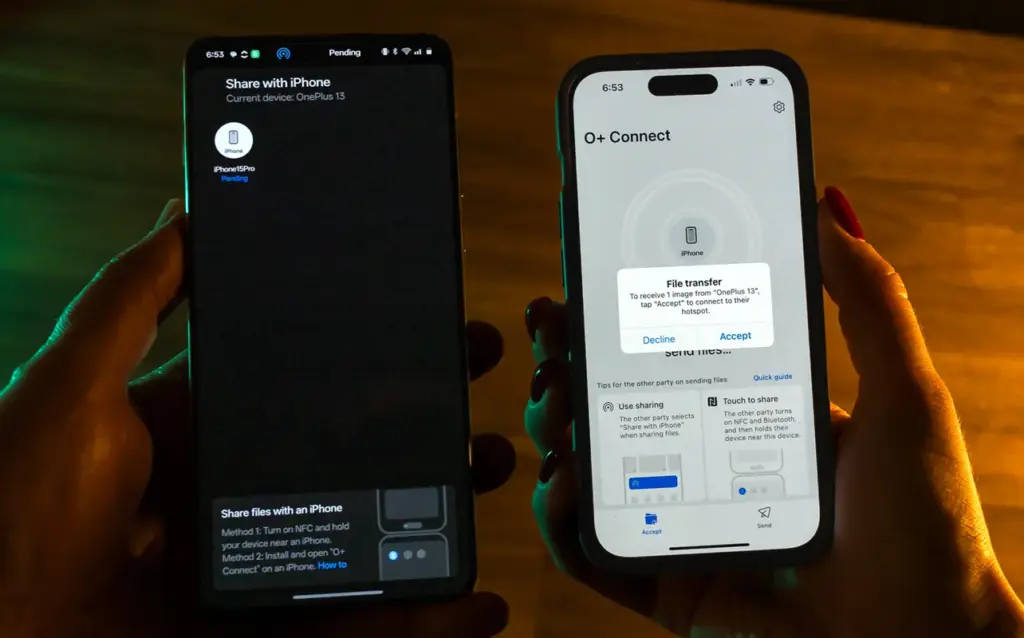
    It can be frustrating and difficult to move files and data between the iOS and Android environments. Due to Apple’s closed-off ecosystem design, cross-platform compatibility necessitates a significant amount of manual labor. Although it is incompatible with iPhones, Quick Share for Android is an alternative to Apple’s AirDrop. But on Android 15, OnePlus’ new Share with iPhone feature unites the worlds of Oppo, Realme, and OnePlus devices. Since the receiving device needs to download the O+ software in order to connect, the solution isn’t entirely native. Nevertheless, it’s quick and not too difficult. To utilize it, follow these steps:

    1. Open Settings.
    2. Go to Connection & sharing.
    3. Select Share with iPhone. Then tap the toggle button to turn on the feature.
    4. On the iPhone, install the O+ Connect app from the Apple App Store. Then open it and turn on Bluetooth.
    5. Select the files you want to send from either phone.
    6. You should see the detected devices while preparing to send them. Tap your preferred device.
    7. Accept the transfer request on the receiving device. The files should arrive in seconds, depending on the size.
    OnePlus 13 share with iPhone

    Use Wi-FI calling and texting

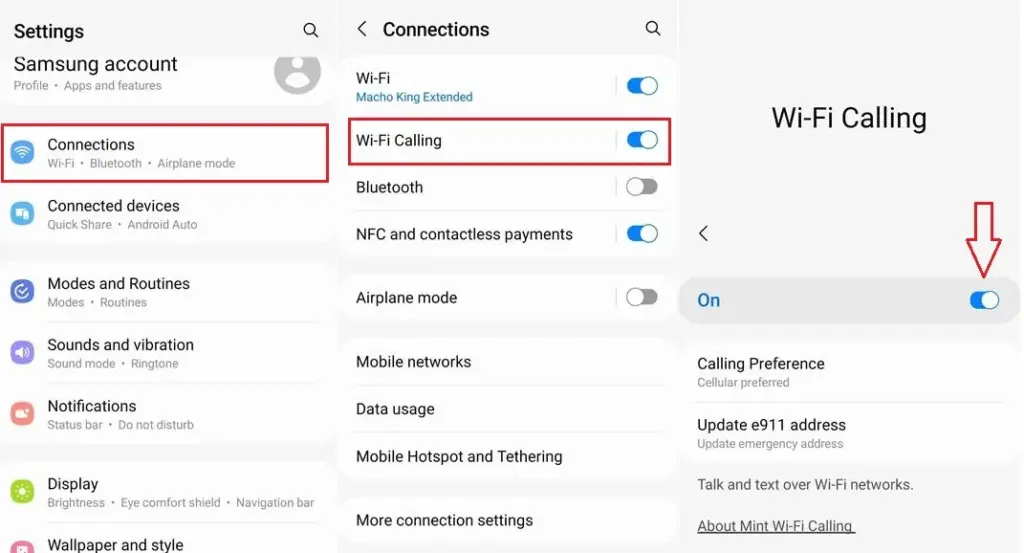
    Signals from routine phone calls and texts travel through cell towers before they are received by the recipient. Connecting with individuals will be difficult if you’re in a rural location far from a cell tower or in a building with high walls. Use Wi-Fi calling instead for better outcomes. Your phone uses Wi-Fi to send a message or make a call over the internet, avoiding the cell tower, as long as you have access to a Wi-Fi network. To utilize it, follow these steps:

    1. Ensure that Wi-Fi is turned on and you’re connected to a network.
    2. Open the Google Phone app.
    3. Tap the three-dot icon in the upper-right corner. Then select Settings.
    4. Tap Calls.
    5. Select Wi-Fi calling.
    6. Turn on the toggle button beside Use Wi-Fi calling.
    enable android wifi calling og

    Use your phone as a PC webcam

    The size of the camera sensor and lens is constrained by the tiny area in the top bezel of a laptop. PC cameras are typically blurry and uninteresting for proper video calls because of this. Thankfully, your phone has more space for wider apertures and larger sensors, which provide sharper images. With Android 14, you can now take advantage of that feature and use your smartphone as a camera. It was enhanced with Android 15’s high-quality mode. To enhance your virtual meetings using the functionality, take the following actions:

    1. Connect your PC and phone with a USB cable. You should see a notification on your phone recognizing the connection.
    2. Tap the notification and choose to use USB for Webcam.
    3. Tap the HQ button in the upper-right corner of the call screen to use High Quality mode.

    Activate Bluetooth automatically every day

    iOS has had automatic Bluetooth activation for many years. It is only temporarily disabled when you disable it from the Control Center. Unless you disable the option from the settings menu, it reactivates. Keep it on if you’re constantly connecting to Bluetooth speakers, earphones, or even your automobile, even though most people find it annoying. The automation setting was first available on Pixel phones running Android 15, and it might eventually be available on other devices. Here’s how to make it active:

    1. Open the Settings app.
    2. Go to Connected devices Connection preferences.
    3. Tap Bluetooth.
    4. Turn on the toggle button beside Bluetooth, then the button beside Automatically turn on tomorrow.

    After you deactivate Bluetooth, it can now turn on by itself the next day. It probably tries to avoid interfering with your short-term preferences and believes you need it during your regular activity hours. As long as you aren’t actively using the linked device, it will drain the battery a little but not significantly. When no music is playing on the speaker or earphones you’re wearing, the connection remains in a low-power mode.

    Android’s best-kept secrets

    Every phone brand on Android has special features that are just waiting to be found, making it a labyrinth of capabilities. What you see on a Samsung may not be the same on a OnePlus or Pixel, and it’s precisely this diversity that adds excitement to the ecosystem. Digging behind those layers will reveal more hidden gems in productivity, privacy, accessibility, and multitasking.
  • Fix Google Pixel 6/6 Pro network standby battery draining issue

    Fix Google Pixel 6/6 Pro network standby battery draining issue

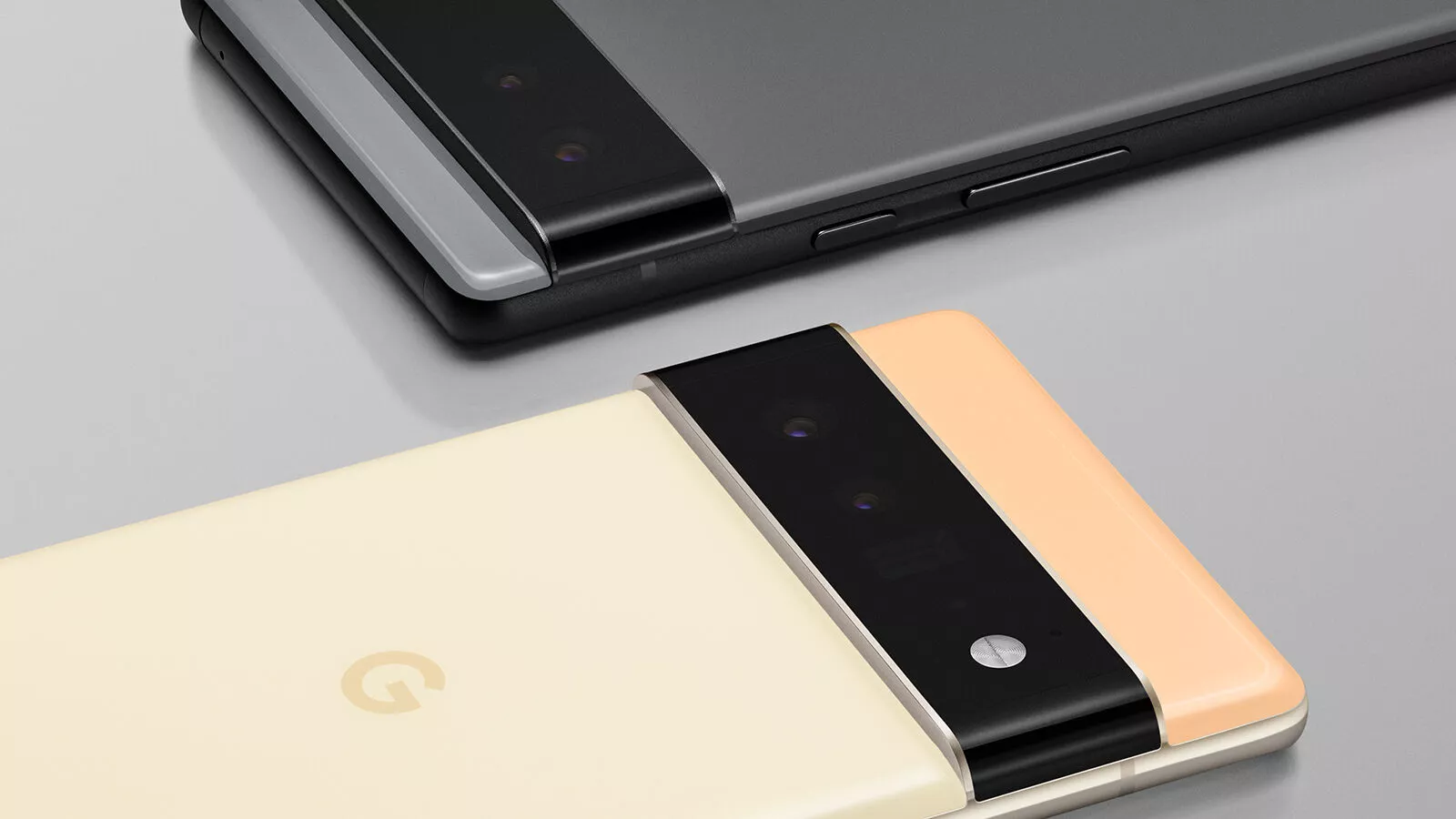
    Devices from the Google Pixel 6 series are featured in the news for their performance and design as well as for their problems and flaws. Google’s Pixel device segment doesn’t seem to be evolving all that much even after years on the market. A large number of Google Pixel 6/6 Pro users have recently reported that, in addition to other defects or issues, they commonly experience the Network Standby Battery Draining Issue. It now accumulates problems.

    For a quicker switch between connections, the Mobile Network Standby (MTS) feature keeps the device’s data connection active in the background even when utilizing Wi-Fi. In essence, it enables users to seamlessly use their mobile data and Wi-Fi connections to access the internet while one of the networks is down. Through the Settings menu’s Developer Options, it is simple to disable. Now, if you’re having the same problem, you may fix it by using this approach.

    ezgif.com gif maker 3

    Google Pixel 6/6 Pro Network Standby Battery Draining Issue

    Multiple Google Pixel 6 and Pixel 6 Pro users are reporting on Reddit that their devices are experiencing excessive battery drain even in the standby mode which is unexpected. Whereas the ‘mobile network’ option in the battery details settings is nearly consuming 30%-40% of juice every day. Some affected users are also facing the Google Pixel 6 series sudden losing all network coverage for a couple of seconds automatically and then regaining it soon.

    This particular issue is happening to a lot of users randomly every 2-3 minutes which becomes frustrating. As the losing and regaining of the network signal put additional pressure on the Pixel 6/6 Pro device modem consistently, it leads to an excessive battery drain unexpectedly. Luckily, there are a couple of possible workarounds mentioned below that should gonna help a lot. So, without wasting any more time, let’s jump into it.

    Also Read

    Fix: Pixel 6 Pro Sound Not Working/ Audio Cutting Out, Delay or Lag

    1. Turn OFF Adaptive Connectivity

    Some reports are claiming that turning off the ‘Adaptive Connectivity’ option on your Google Pixel 6/6 Pro device can easily fix the network standby battery draining issue in most scenarios. The Adaptive Connectivity feature automatically switches between Wi-Fi and mobile data networks whenever any of the networks don’t have internet access. You can also try turning off the adaptive connectivity option on your handset. To do so:

    • Open your phone’s Settings app.
    • Tap on Network & internet > Select Adaptive connectivity.
    • Turn OFF the toggle to disable Adaptive connectivity.

    2. Turn On Adaptive Battery

    You should also turn on the adaptive battery feature on your Pixel 6/6 Pro device to maintain the battery level by eliminating unnecessary background running tasks and connectivity options like GPS, Bluetooth, etc. You’ll be able to reduce battery draining with the help of system optimization. To do that:

    • Open your phone’s Settings app.
    • Tap on Battery > Tap on Adaptive Battery.
    • Make sure to Turn ON the Adaptive Battery toggle to enable it.

    3. Change Screen Display Settings

    It’s highly recommended to change the screen display brightness settings on the device by following the steps below. A couple of unnecessary options may consume a lot of battery juice in a full day no matter whether you’re using them or not.

    • Make sure to reduce the screen brightness to an optimal level as per your requirement.
    • You can also turn on Dark Mode on the device to reduce battery strain.
    • If in case, you’re using any live wallpapers on the lock screen or home screen, make sure to turn it off, and use a static wallpaper.
    • Turn off the screen when you’re not using it by simply short pressing the power button to lock the screen.
    • Adjust the screen timeout option from the Settings > Display > Screen Timeout > Set it to 15/30 seconds which is more than enough. However, if you want the screen to have a higher timeout ratio then you can set it to higher.
    • Make sure to turn off screen attention mode too. Head over to the Settings app > Tap on Display and then Advanced > Screen attention > Turn ON the Screen attention feature.
    • You should also turn off the smooth display option. Open your phone’s Settings app > Tap on Display > Tap on Smooth Display > Turn OFF the Smooth Display feature.

    4. Restric Battery Hungry Apps

    Try restricting the battery-consuming apps on the device which may run always in the background and drain a lot of battery juice. To do so:

    • Open your phone’s Settings app > Tap on Battery.
    • Tap on Battery usage > You can see a list of apps with the percentage of your battery used for the past 24 hours. Or you can also see system usage by tapping System usage for the past 24 hr.
    • To see or change how a listed app uses the battery, tap on it.​
      • For some apps, you can turn on Background Restriction.
      • For all apps, we recommend keeping Battery optimization on.

    5. Delete Unused Apps and Games

    Whatever apps or games you’ve already installed or come preinstalled on the device and you’re not using them regularly, make sure to delete those unused apps & games.

    • Just head over to the installed app or game > Tap and hold on the specific app/game icon.
    • Select Uninstall and confirm the task to delete it.
    • Do the same steps for each unnecessary or unused program.

    6. Use the Stock Charger

    Ensure to use the stock charger or adapter that comes with your phone. Don’t use any local non-branded charging cables and adapters to charge your expensive Pixel 6 series as they’re not certified to work properly. You can easily avoid battery chemical damage or overheating.

    7. Keep Ambient Temperature Cool

    You should avoid such situations where your Pixel 4 XL smartphone can overheat. Your device battery will drain much faster when the temperature is hot enough. Even using the device extensively while charging can also cause overheating issues and it’ll eventually lead to battery draining. Try not using the device or not plugging in the device for longer while charging it.

    8. Stop Charging Overnight

    Advertisement

    Either you should use adaptive charging on the device or try charging the device before you go to sleep or even just after waking up from sleep in the morning to avoid overcharging. Most users prefer overnight charging which may lead to battery health issues or overheating issues over a period of time.

    9. Use Battery Saver

    Try using the battery saver option on the handset to precisely using the battery juice whatever and whenever required. To do so:

    • Go to the device Settings app.
    • Tap on Battery > Go to Battery Saver > Set a schedule.
    • Pick a setting when Battery Saver should turn on. Select according to your preference.
      • No schedule: Only when you turn on Battery Saver manually.
      • Based on your routine: If your battery is likely to run out before your next typical charge.
      • Based on percentage: When your battery reaches a certain percentage charge.

    10. Update Device Software

    Make sure to check for software updates on your device and install the latest version (if available) to reduce multiple bugs or issues.

    • Open the device Settings menu.
    • Head over to the bottom of the page and tap on System.
    • Go to System update > Your update status will appear whether there is a new version available or not.
    • Just follow the on-screen steps to update it > Once done, you’ll need to reboot the device to apply changes.

    11. Install Pending App Updates

    The chances are high that some of the installed apps or games are basically conflicting with the current software version on your device. It’s always a better idea to update apps and games on the device. To do that:

    • Open the Google Play Store app.
    • At the top right side, tap on the profile icon.
    • Now, tap on Manage apps & devices.
    • Here you can see the ‘Updates available’ option > Choose to ‘Update all apps’. [You can just select a specific app update to install]
    • Once done, close the Play Store, and reboot the device to apply changes.

    12. Perform a Factory Reset

    Sometimes performing a factory reset on the device can fix plenty of issues related to software, crashes, app issues, battery issues, networking issues, etc. You should also try resetting the device to the factory default.

    • Open the device Settings app.
    • Select Google > Tap on Backup.
    • If you’re one of the Google One users then you can turn on Backup by Google One and follow the on-screen instructions. [Optional]
    • Tap on Back up now.

    Note: Your Google One backup can take up to 24 hours. When your data is saved, “On” will be below the data types you selected. Also, keep in mind that you’ll require a Google account credential to sign back into the service after reset.

    • Head over to the Settings app.
    • Tap on System > Tap on Reset options.
    • Select Erase all data (factory reset).
    • To erase all data from your phone’s internal storage, tap on Erase all data.
      • If required, your phone asks for your PIN. Enter your PIN > Select Erase all data.
    • It may take a couple of minutes depending on the device storage and performance. So, have some patience until the process completes.
    • When your phone finishes the factory reset, select the restart option.
    • Now, you can easily set up your phone and restore your backed-up data.

    13. Replace the Battery

    If none of the methods worked for you then it’s better to ask for a battery replacement by visiting the nearest Google Pixel authorized service center (if the warranty is still there). Otherwise, simply visit the nearest local mobile repairing shop and ask for a battery replacement. You should also ask the repair guy to cross-check the internal board whether it has any issues or not.