Without a question, Magisk is one of the best tools a rooted user can utilize to customize any Android device. You can install modules to accomplish almost anything you want that aren’t system-dependent, which means they won’t replace your system files permanently. You’ll be back to stock after uninstalling them and rebooting. Certain module-related properties have changed in recent versions of Magisk; to learn more about how to install and use it, see the tutorial below.
Download official Magisk repo
This official repo was built directly into the Magisk app to make installing and updating your modules quick and easy. However, starting with Magisk v24.0, developer John Wu has decided to remove it entirely from the app. If you previously relied only on the app for your module needs, you might be unsure of what to do now that the feature is missing.
Smartphone makers may consider rooting your phone and installing Magisk modules to be technological methods that void your warranty. If something goes wrong, you may experience issues ranging from simple data loss to a bricked device, and your device may become less secure as a result. Before you start, make sure you’re aware of the dangers.
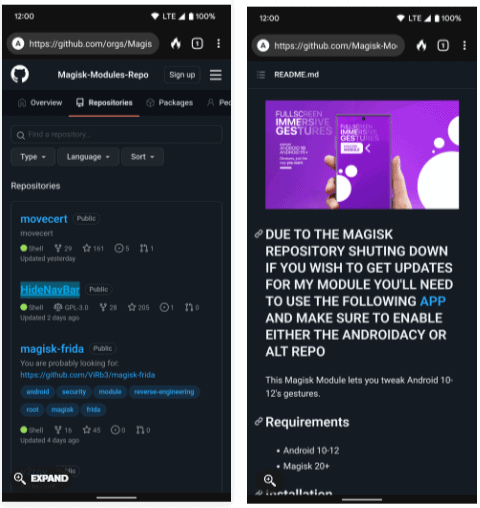
Now, you have to manually access the official repo, which you can find by doing the following:
- Visit the official Magisk repo on GitHub.
- Scroll through the list and tap on a module that interests you.
- Look over the description and features to get an idea of what it does, see picture below.
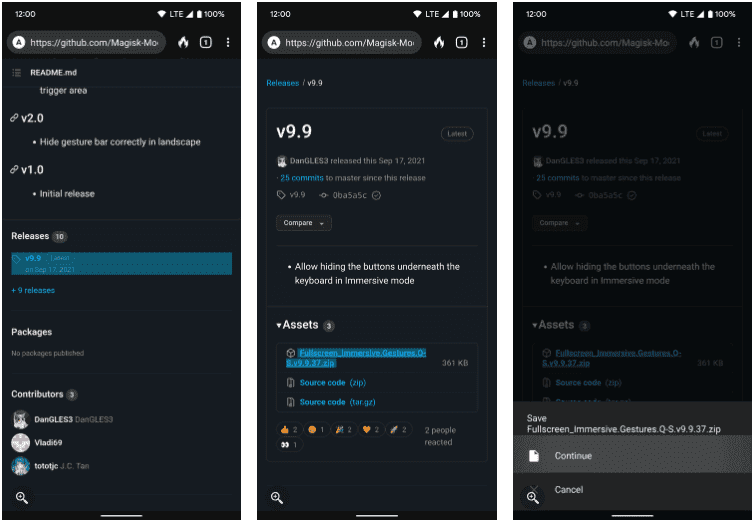
- Scroll down to the Releases section towards the bottom, then tap the latest version.
- Under Assets, tap the .zip file to download the Magisk module to your device.
The official Magisk repo may eventually shut down because it is no longer accepting new module contributions. The alternative Magisk repo, on the other hand, is available and will act as an unofficial substitute if that happens. This repository is continuously updated with new modules, thus it’s already a popular resource. It, too, uses GitHub, thus the download instructions are the same as for the official repo above.
Install Magisk modules
- Open the Magisk app to the main screen.
- Tap the Modules tab in the lower right corner.
- Hit the Install from Storage button at the top.
- Navigate to your Download folder or the location where you saved the module if needed.
- Tap the module .zip file to begin the installation process, then follow any on-screen instructions as necessary.
- Once finished, press the Reboot button at the bottom to restart and activate the module.
Although module compatibility is generally strong, not all combinations will operate well together. If you’re using a lot of different modules, be cautious about how many you install at once to avoid problems like a bootloop. Under typical situations, though, you should be able to stack many modules together without difficulty.
The BootloopSaver module is something that we recommend you check out when installing lots of modules. Knowing you won’t lose the data on your device because of a compatibility issue should help put your mind at ease. It’s also handy if you don’t have a custom recovery environment to fall back on.
The left screenshot shows the default gesture navbar at the bottom on a Pixel device running Android 12, while the right shows it was removed after installing the example module.
How to uninstall Magisk modules
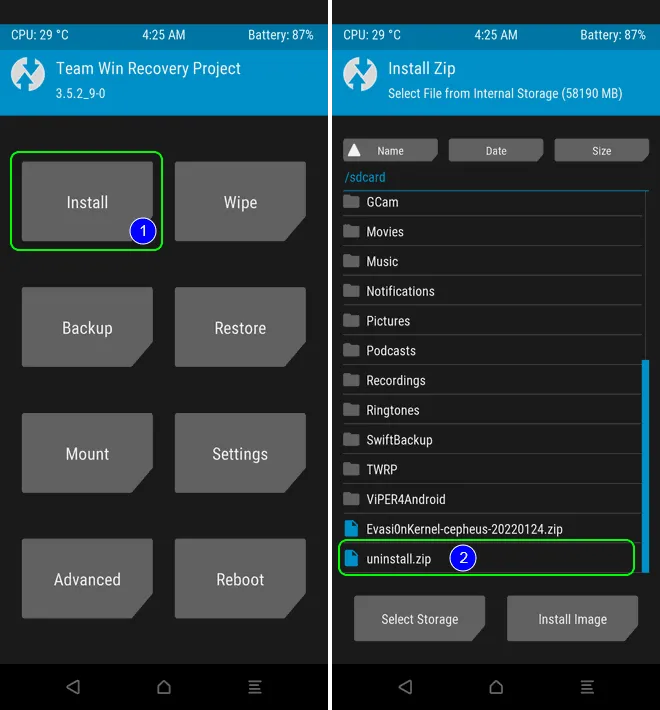
When you decide a module just isn’t working for you, removing it is a straightforward and easy process. To uninstall a Magisk module from your device, do the following:
- Open the Magisk app to the main screen.
- Tap the Modules tab at the bottom right.
- Locate the module you wish to uninstall, then hit the Remove button.
- The module’s section and text are grayed out to indicate it’ll be uninstalled the next time you reboot your device.
- To undo this action for any reason before that, hit the Restore button, and it’ll reverse the changes instantly.
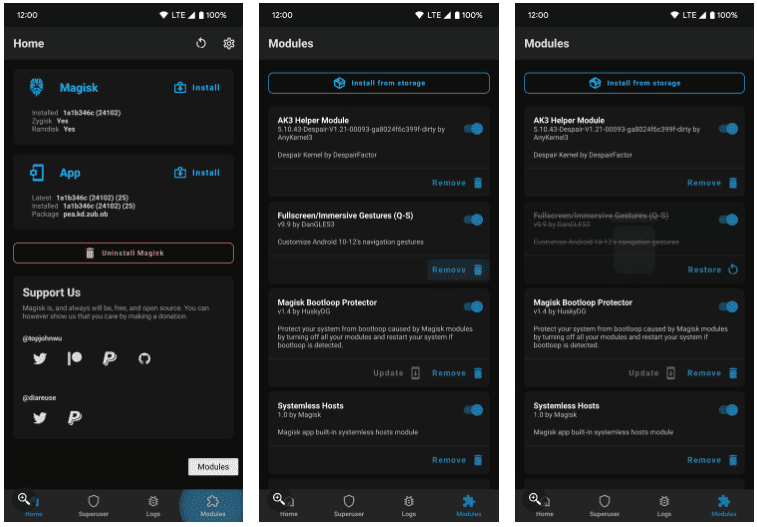
Tapping the button on the right will turn it off, but not actually uninstall it. This can help with testing module compatibility, since you can always turn it back on later. You’re still required to reboot your device if you plan on disabling and enabling modules in this manner.
Install Fox’s Magisk module manager and how to use it
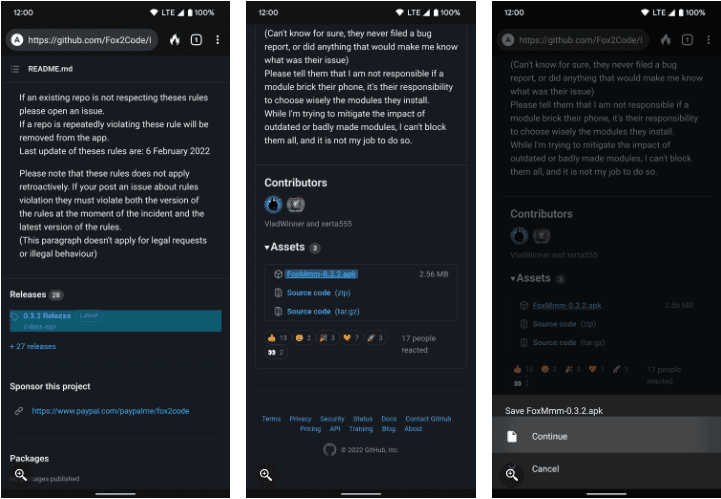
If you’d prefer to avoid scrolling through online repos looking for new modules, this is the method for you. Developer Fox2Code has created an app to manage your Magisk modules with relative ease. The app pulls from three different online repo sources, including the official one (for now), the unofficial alternative, and Androidacy’s. You can get started using Fox’s module manager by doing the following:
- Visit Fox’s module manager download page on your rooted device.
- Scroll down to the Releases section towards the bottom, then tap the latest version.
- Under the Assets section, hit the .apk file to begin the download.
- Once it’s finished downloading, tap the notification in the status bar to install it.
- If needed, enable the Install unknown apps permission to continue.
- Press Install to begin.
- You are greeted with a superuser permission request, so press Grant to confirm your choice.
Tapping the information icon on the right takes you to the README page for each module, and hitting the download button on the left will bring up the installation option. If you want to use a particular module, just tap Install Module, then follow the on-screen instructions as needed. Once you reboot your device, the module will be activated and ready to go.
Like the Magisk app, you can disable a specific module by switching its button to the off position. If you want to uninstall it entirely from your system, tap the trash bin icon to do that. Either way, you’ll have to do a reboot to finalize the changes you made here.
Tapping the Settings cogwheel in the upper right corner and going to Manage repos will let you pick where the modules come from. All sources are enabled by default, but you can disable any of them by pressing each switch to the off position.

Despite the fact that the official module repo has been deleted from the Magisk app, modules continue to exist. In fact, as more developers are joining on board with different methods to fund their work, your life with Magisk could get even better. Whether you use an internet source to manually download modules or Fox’s module management, the community has you covered.