Magisk is a popular name for Android users who are fond of rooting their smartphones. The app is not available in the Google Play store, either. However in the recent foun that there is a clone of his Magisk on the Google Play store, the app creator John Wu. The clone looks exactly the same as the original Magisk application, and it also has the same name. It was all cool, though, until the time the app was reported to contain malware. That simply means you are not supposed to download the Magisk application from Google Play store.
Google Play store policy explicitly notes that Google will never allow an app that helps to root. Thus the Magisk could not penetrate the environment of the Play store. However, the app that was mentioned was downloaded and updated about 50k times before people found out about it.
The app has been listed on the Google Play Store by the Loringo, Inc. , a company that uploads clones of KKGamer Pro, Pro ZArchiver, and android Dolphin Emulator software. The business has used Magisk ‘s branding to distribute malware to Android users who enjoy rooting their computers. The App developer, however, had asked the users to report the app to stop the business. Thus, the Android version is no longer available on the Google Play Store.
But we should always review an app before we hit the download button for our protection as Android users. However, Magisk will not make its way to the Play store anytime soon according to Google policies. So make sure on Google Play store you stop each and every clone of the application. If possible just go ahead and report it, this way the other android users won’t be targeted by scams and malware
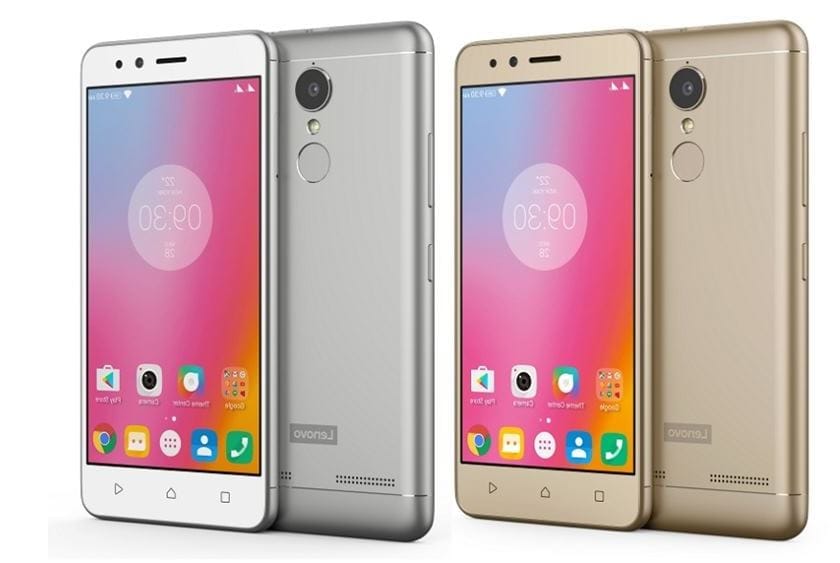
Lenovo K6/K6 Power features a 5” 1080P IPS LCD display, giving a pixel density of ~441 PPI. Under the hood sits a Qualcomm Snapdragon 430 SoC, which utilises a 1.4 GHz octa-core CPU, an Adreno 505 GPU and 2 or 3 GB of RAM.
The 16 GB internal storage version packs 2 GB of system RAM, the 32 GB, has 3 GB. The primary camera is capable of capturing images at 13 MP, the secondary at 8 MP. The whole 145g package is powered by a non-removable 4000mAh battery.
*Your Warranty will be void after unlocking bootloader*
GravityBox main concept is to make most of the preference changes to be done on the fly without need to reboot a device to achieve custom-ROM like experience. This means it is not possible to “completely deactivate” particular feature if it causes trouble on your device or if you installed GB because you want to use only one particular feature you can’t find elsewhere. This results in issues on ROMs/devices that have parts that are diverting from default Android implementation too much, or are running heavily modified custom ROMs.
GB is a complex module and is not suitable for 1 purpose scenario. This means, if you are running custom ROM built from source, and you are missing a certain feature, your best option is to go ask creators of those ROMs to implement those additional features. Supplementing missing features on well-known custom ROMs built from source by installing xposed modules (especially complex ones) is definitely not a good way to go and can cause more trouble than good. GB being a complex module, it shouldn’t be combined with other complex modules often racing for the same goal. They can conflict/fight on the same playground and there’s no way you can deterministically say which one’s going to win. They can even lose both.
If you experience weird issues after installing GB, even if you didn’t activate a particular feature, it is not because of GB is broken, it is because it is not compatible with your ROM. It is very similar to a situation when you installed ROM built from source for Nexus to some Xperia device – it won’t work.
GravityBox [Q] has been tested on – OnePlus 7 Pro running OxygenOS 10 – Nexus 5X running Pixel Experience 10
The app utilizes Riru and EdXposed Magisk module which uses original Xposed Framework API created by rovo89.
This module utilizes EdXposed Framework which is still in early development stage and may contain bugs or might not be fully compatible with system of your Android device. I take no responsibility for any issues arising from using GravityBox with EdXposed and strongly recommend creating a full backup of your device before activating the module.
This procedure assumes you have working Magisk installation. 1) Install Riru and EdXposed modules using Magisk Manager 2) Install EdXposed Manager app 3) Reboot and open EdXposed Manager app to check if EdXposed works and is active 4) Install GravityBox and enable it in EdXposed Manager 5) Reboot
If you’ve been around the world of Android for the past couple of years, you’ve probably heard the term “Magisk” thrown around. It is a relatively best method for Android devices to be customised. It was created in 2016 by topjohnwu of XDA Developer. Magisk is an alternative to the SuperSU of long standing, but it is much more than just a root process. Until you dive in there are some key things you should know about this famous method.
Required to flash Magisk
A device running Android 4.2+
Custom Recovery (how to install). We’ll be using TWRP in this guide
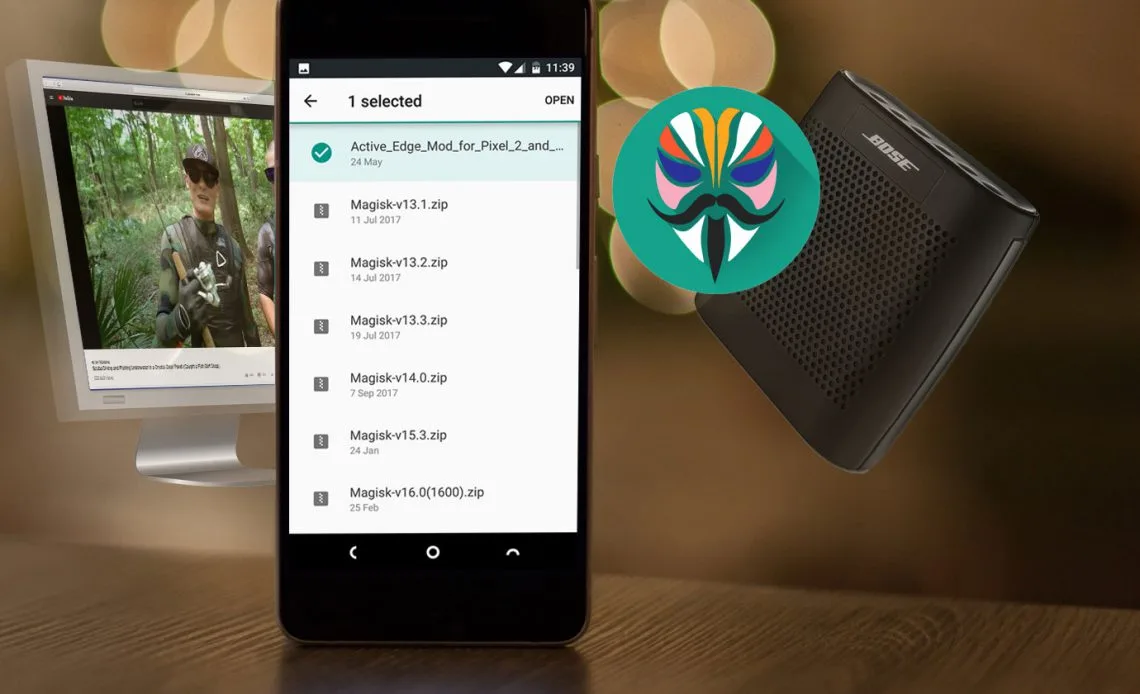
The first thing you’ll need is the Magisk zip file, assuming your phone got a custom recovery. This is the file that we are going to flash up in the next step. The most recent version of the zip can be found on the official XDA thread. Install and pass the new zip to your phone / tablet, or install it directly to your phone / tablet. An easy way to do this is to install the Magisk Manager app (found in Step 3) that will prompt you to download the latest zip available at the moment.
Go to recovery mode and flash the zip. Using this guide to find out how to boot to recovery mode on your computer. Typically this will be a combination of the power button and the volume key. Follow these steps once you boot up into your custom recovery:
Now you have the Magisk system installed on your computer. You’ll need the suitably appointed Magisk Director to handle it. That’s what lets you install modules. Download the latest Magisk Manager APK here and make sure that you have enabled “Unknown Sources” in the Settings. Download the document, and open it.
The Manager software allows you to adjust root settings and also to add modules which are plugins that can be installed. The software serves as a repository for a whole bunch of great plugins that can quickly expand your device’s functionality. An important part of getting the most out of this root system is using the Manager software.
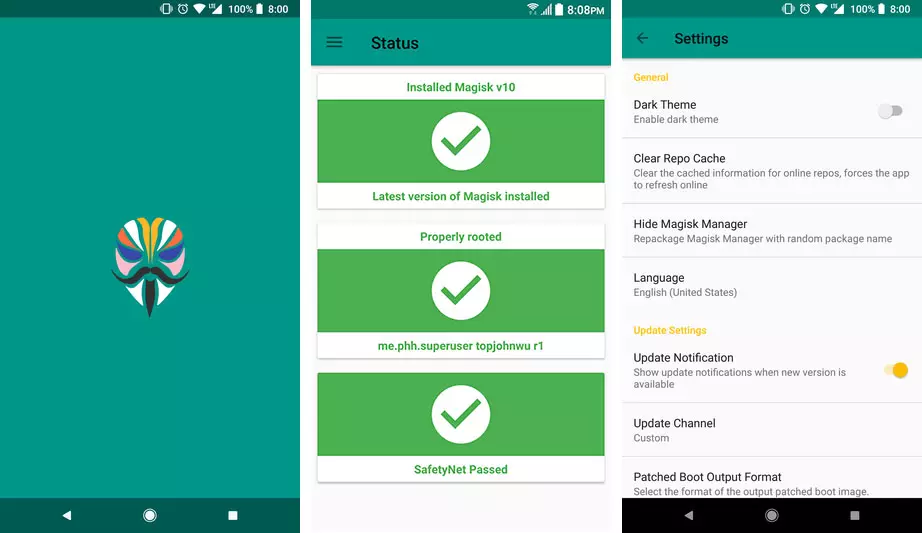
The final step is to verify that all is working properly. Open the Manager app that has just been installed. We want a bunch of green check marks to appear in the script. It means you got root successfully. Good job!
Installing Magisk will give you ROOT, a super powerful Systemless Interface, Magisk Modules support, and hide from tons of integrity tests like SafetyNet!