Gone are the days when a USB cable was the only way to move files between your Android phone and computer. Whether you’re transferring photos, documents, or videos, there are now several wireless methods that make the process faster and more convenient — no cables, no drivers, and no hassle.
In this article, you’ll discover how to transfer files from Android to your PC wirelessly utilizing free built-in utilities and reliable third-party apps. All ways are easy, secure, and don’t need rooting your smartphone.
Why Go Wireless?
Here’s why transferring files without a cable is the smarter choice:
- No need to carry cables or adapters
- Works on all modern Windows, macOS, and Linux PCs
- Faster for frequent transfers
- No risk of physical damage to USB ports
1. Use Google Drive (Cloud Sync)
If you have a Google account, you already have access to Google Drive — one of the easiest ways to transfer files wirelessly.
Steps:
- Open the Google Drive app on your Android device.
- Tap the “+” icon, then select Upload.
- Choose the file(s) you want to send.
- Wait for the upload to complete.
- On your PC, go to https://drive.google.com and log in.
- Download the files to your computer.
Pros:
- Seamless for documents and photos
- Files are stored in the cloud, so they’re safe even if your phone is lost
- Works across devices and operating systems
Cons:
- Requires an internet connection
- File size limits apply (15GB free storage per Google account)
2. Send via Nearby Share (Best for Windows)
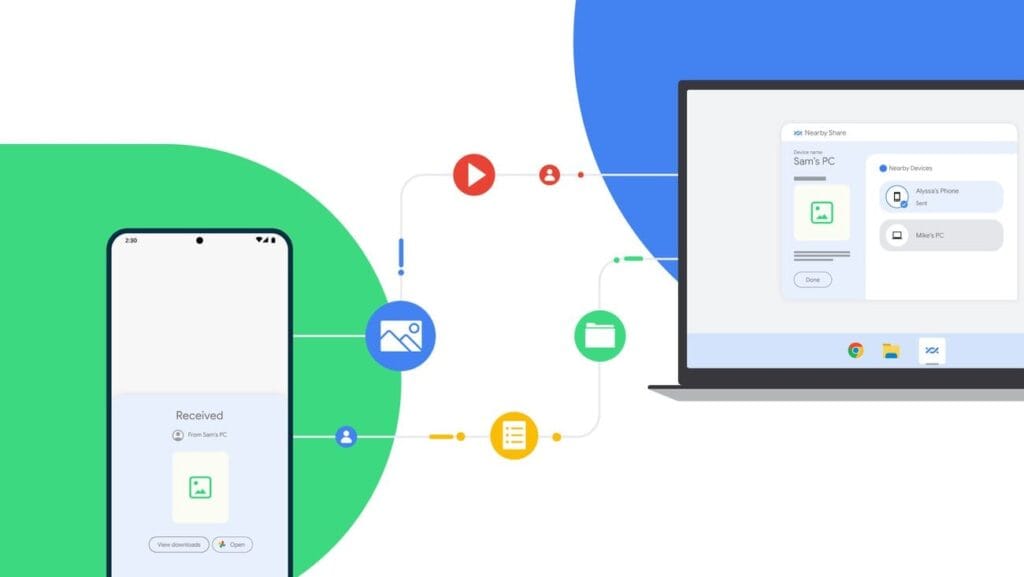
Currently fully supported on Windows 10/11, Nearby Share is Google’s AirDrop-style solution for sharing files instantly between Android and Windows devices.
Set It Up:
- On your Android, go to Settings > Google > Devices & sharing > Nearby Share and turn it on.
- On your PC, install the official Nearby Share for Windows app from Google’s website.
- Connect both devices to the same Wi-Fi network and ensure Bluetooth is on.
Send Files:
- Select a file on your Android device.
- Tap the Share icon and choose Nearby Share.
- Your PC should appear in the list — tap it to send the file.
- Accept the transfer on your computer.
Pros:
- Fast and secure
- Works offline (local Wi-Fi or Bluetooth)
- No cloud storage needed
Cons:
- Not available on older PCs or operating systems
- Some routers may block discovery if firewall settings are strict
Method 3: Transfer with File Sharing Apps (like Send Anywhere)
Direct wireless transfers between your computer and phone are possible through Wi-Fi thanks to apps like Xender, Feem, and Send Anywhere.
Using Send Anywhere:
- Install Send Anywhere on your Android from the Play Store.
- Visit https://send-anywhere.com on your PC.
- On your phone, select the files you want to send.
- You’ll get a 6-digit code — enter this on your PC to receive the files.
Pros:
- Works on any OS and browser
- No account required
- Fast local transfer via Wi-Fi Direct (not over the internet)
Cons:
- Ads in the free version
- Interface might be confusing for first-time users
Method 4: FTP File Transfer via File Manager Apps
If you prefer full control over file navigation, FTP (File Transfer Protocol) is a powerful option — no internet needed.
Using Solid Explorer or ES File Explorer:
- Install a file manager that supports FTP (e.g., Solid Explorer).
- Open the app and go to Network > FTP Server.
- Start the server — the app will display an IP address like
ftp://192.168.1.10:1234. - On your PC, open a browser or FTP client (like FileZilla) and enter the address.
- Browse your phone’s storage and download files directly.
Pros:
- Full control over folders and files
- High-speed transfers over local network
- No cloud or apps required on the PC
Cons:
- Not user-friendly for beginners
- Must stay on the same Wi-Fi network
Method 5: Microsoft Phone Link (Windows 10/11)
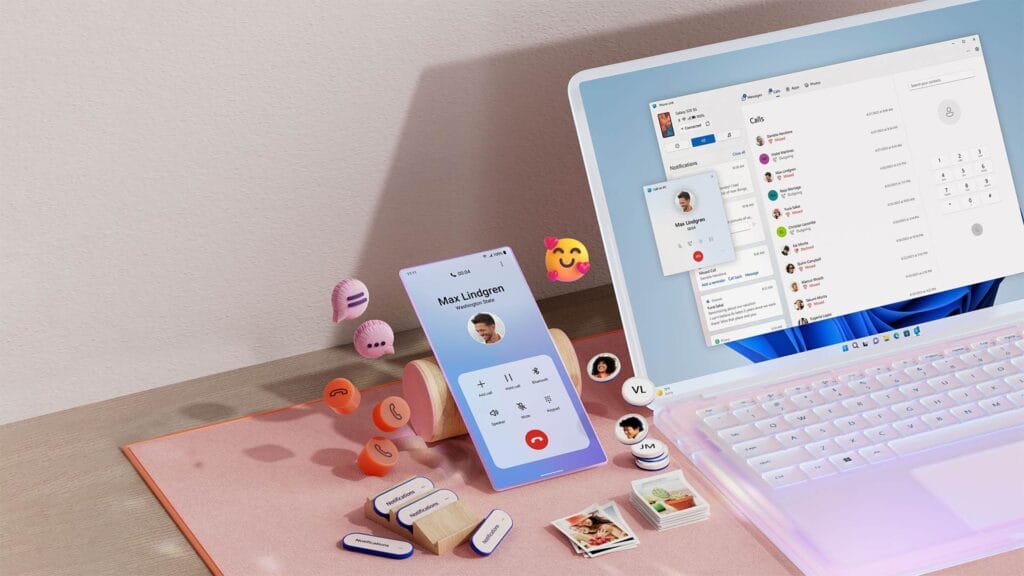
Microsoft’s Phone Link app (previously “Your Phone”) enables seamless connectivity between Android and Windows.
Setup:
- On your Android, install the Link to Windows app.
- On your PC, open the Phone Link app (pre-installed on Windows 10/11).
- Follow on-screen instructions to link the two devices.
Features:
- Access photos, messages, notifications, and files
- Drag-and-drop files directly between phone and PC
Pros:
- Seamless experience for Samsung and Surface users
- Files transfer instantly without cables
Cons:
- Requires Microsoft account
- Full feature set limited to specific models (Samsung, Honor)
Bonus: Email, Telegram, or WhatsApp (for Small Files)
For documents or images under 100MB, you can simply email them to yourself or use Telegram’s Saved Messages to transfer between devices.
- Email: Attach files and send them to your own address.
- Telegram: Send the file to yourself from your Android and download it on your PC.
- WhatsApp Web: Share with a trusted contact and download via WhatsApp Web on PC.
What’s the Best Option?
| Method | Speed | Internet Required | Setup Complexity | Best For |
|---|---|---|---|---|
| Google Drive | Medium | ✅ Yes | Low | Backups & multi-device use |
| Nearby Share | High | ❌ No | Medium | Windows 10/11 users |
| Send Anywhere | High | ✅/❌ Optional | Medium | Fast wireless transfers |
| FTP via File Manager | Very High | ❌ No | High | Tech-savvy users |
| Microsoft Phone Link | High | ✅ Yes | Medium | Windows users w/ Samsung |
You no longer require a USB cable to transfer data between your Android phone and computer. Whether you want to backup your gallery, transfer work documents, or send huge films, wireless solutions make the process simple and effective.
Nearby Share and Google Drive are the most user-friendly solutions. If you desire speed and complete control, FTP or Send Anywhere would suffice, as they do not require cloud storage.
Experiment with the way that best suits your workflow; once you go wireless, you will not want to plug in again.