Tag: lockscreen

  • Change how notifications are displayed on Android lockscreen

    Change how notifications are displayed on Android lockscreen

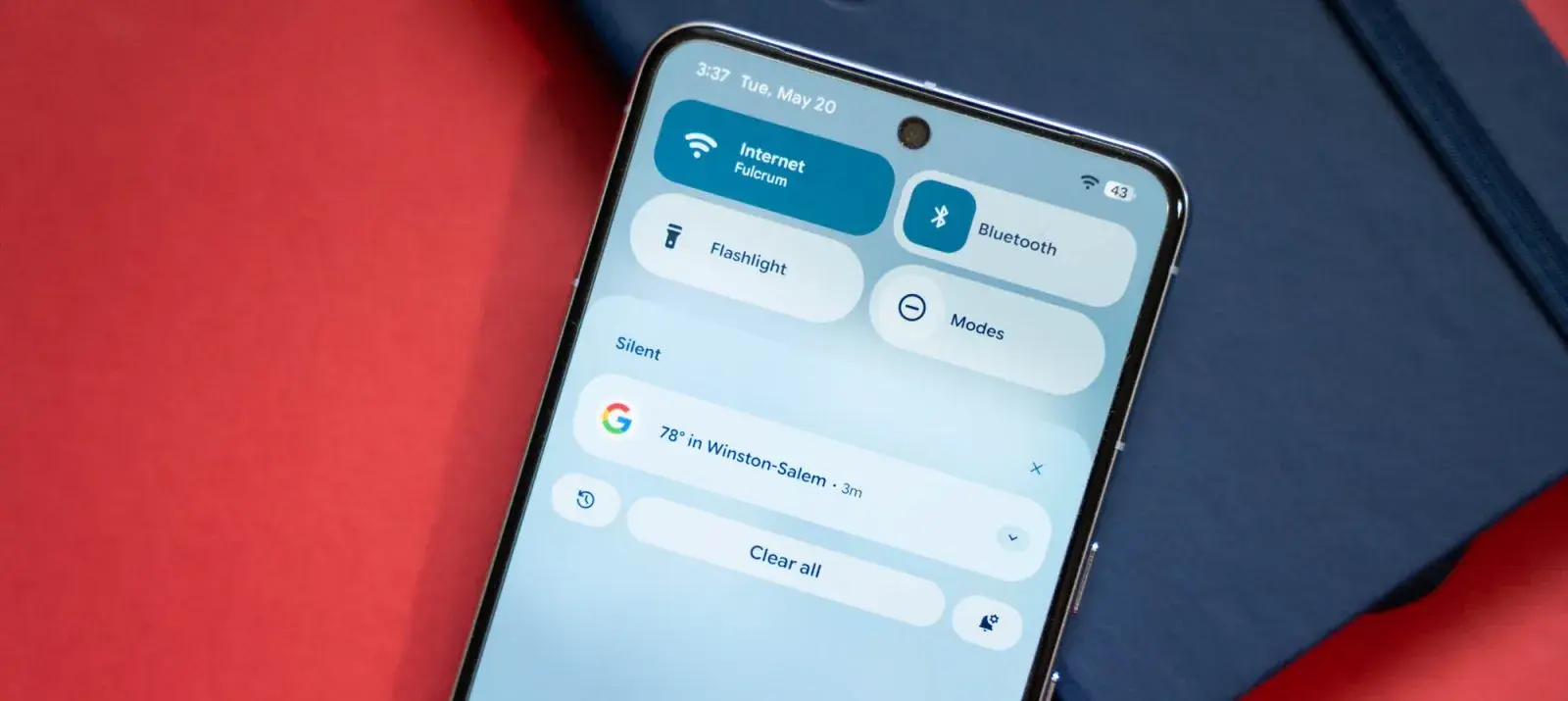
    With Android 16 QPR1, changes on how the how lock screen notifications are displayed came. The abrupt shift may be a little confusing if you’re not used to it. Now that the “compact” and “full” views are available, this guide will assist you in selecting the appropriate one.

    In its new condensed layout, Google’s latest Android release by default shows notifications on the lock screen. merely one notification is displayed in the presentation; all other notifications are merely represented by app icons in the overflow menu below. The secondary compact portion receives alerts that are viewed.

    The only alternative way for alerts to appear on the Pixel’s lock screen is “full list.” Notifications are displayed in cards and in the order they were received. Although they can be enlarged, they do occupy a considerable lot of room.

    There are further choices as well. Notifications that are viewed without any action performed, such as unlocking the phone, are buried until the phone is unlocked when the “display seen notifications” setting is disabled. In order to keep the shade clear, the option to “Show silent notifications” will show alerts from apps that have been manually or automatically switched to silent.

    Here’s how to set your preferred view:

    1. On your Pixel running Android 16 QPR1 or later, head to settings.
    2. Find and tap Notifications.
    3. Hit Notifications on lock screen.
    4. Choose between Compact View and Full list.
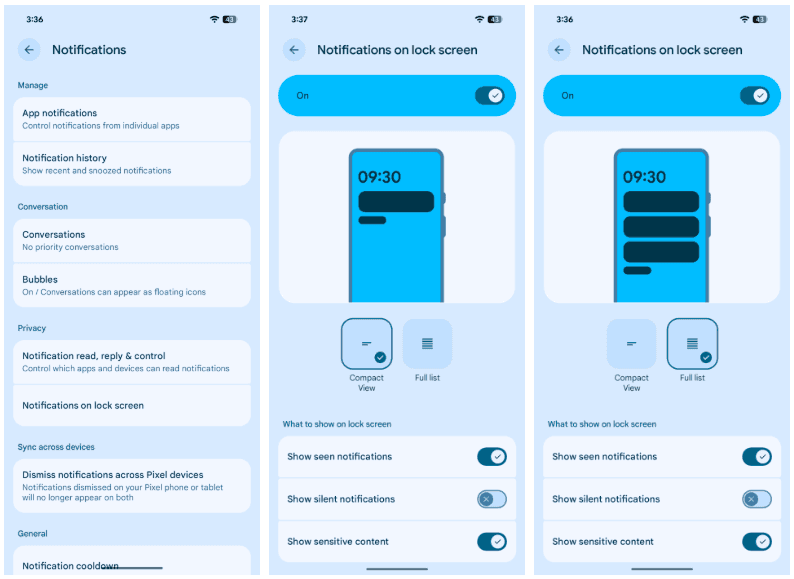
    notifications list on Android 16

    Although you can always go back, for some people, full view can be the greatest choice. In contrast to compact mode, which only shows one notification at the top, all Pixel lock screen notifications are always shown in that mode. All of this depends on personal taste, but that’s what makes Android what it is!
  • Active Navigation, Ongoing Phone Calls, and more comes on Android 16 lock screen

    Active Navigation, Ongoing Phone Calls, and more comes on Android 16 lock screen

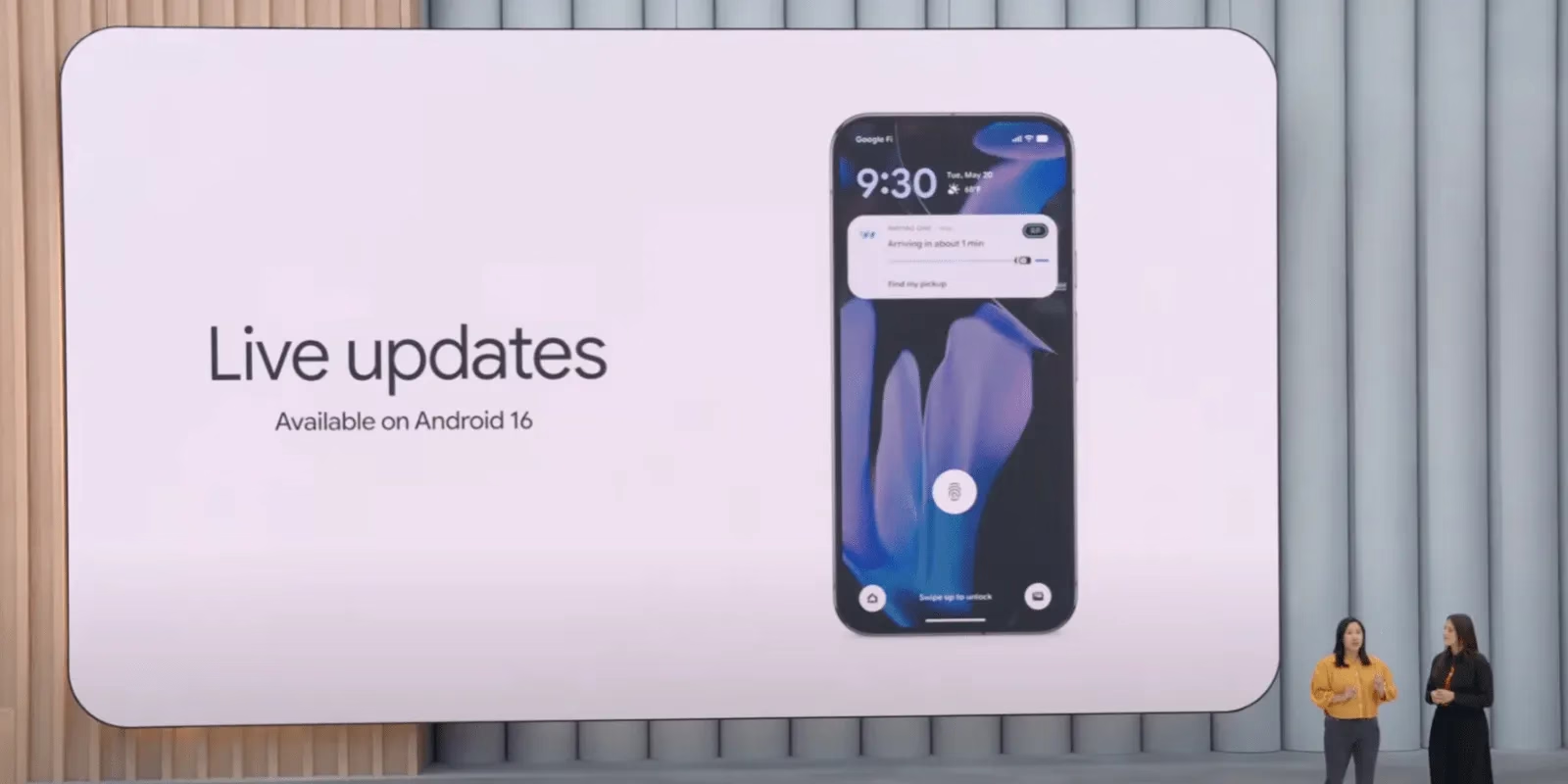
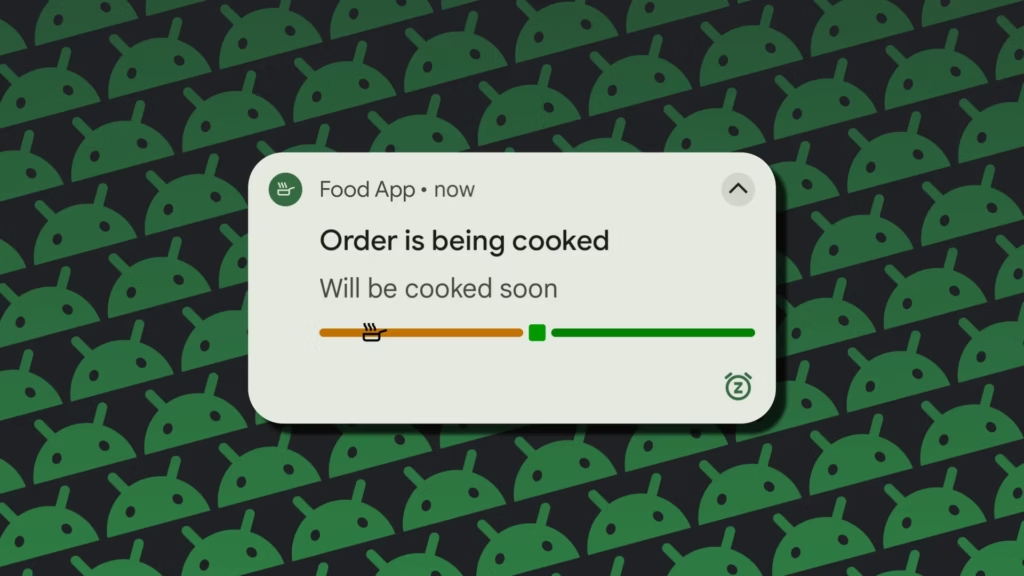
    Last month, Google unveiled the first stable version of Android 16, which included a number of new features. One of these is Live Updates, which shows real-time activity notifications on the lock screen of an Android phone. More details concerning this feature have now been released by the tech giant. In Android 16, live updates can be added to apps that provide services like food delivery, ride sharing, and phone calls, but not for marketing or promotions.

    android live update 1

    Live Updates in Android 16

    Live Updates is modeled after the iPhone’s Live Activities feature. It gives notifications for an activity that has a clear start and end time and is currently underway. Google clarified on its developer page that the feature’s primary goal is to provide time-sensitive notifications rather than historical events.

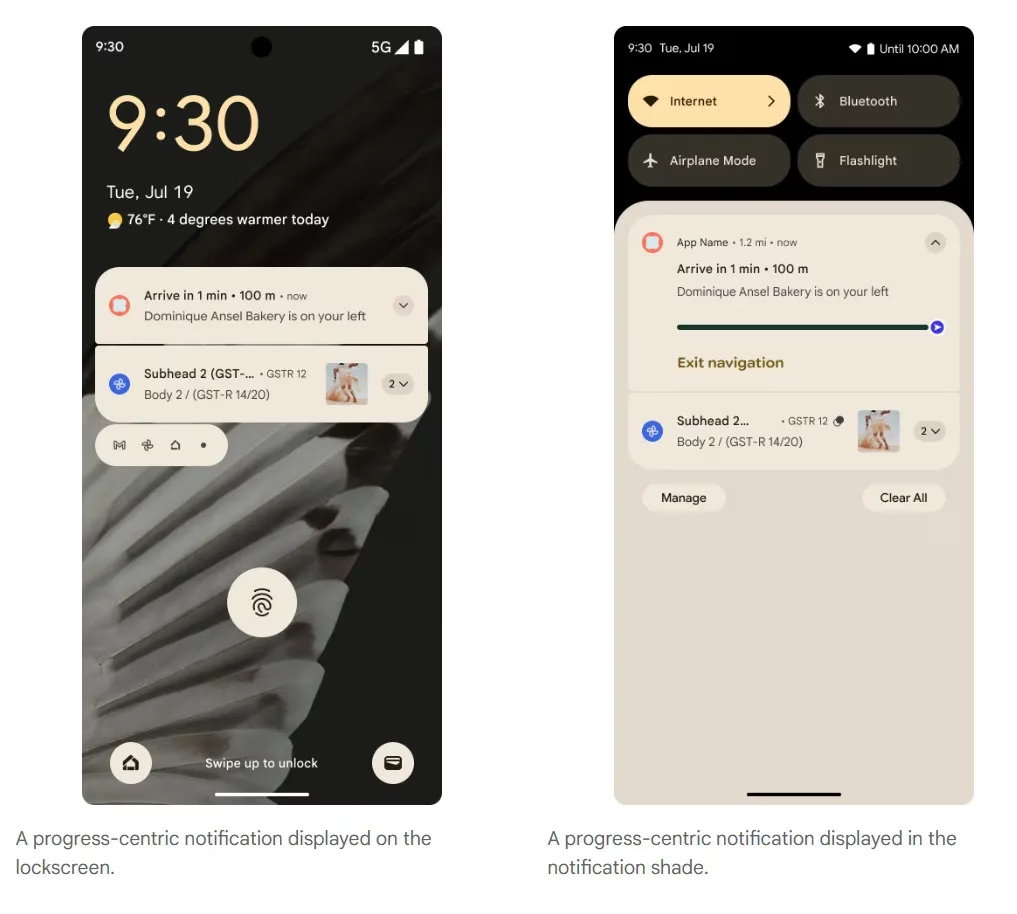
    Active navigation, continuous phone calls, tracking food deliveries, and tracking ride-sharing via their corresponding Android apps are a few of its use cases. These alerts, which provide information like tracking or ETA (estimated time of arrival), will appear on the lock screen of the Android handset.

    According to the tech giant, it does away with the necessity of unlocking the phone in order to check the status. For instance, Google Maps will display directions in the home screen’s status chip when navigation is active, while Live Update on the lock screen will provide the trip’s current status and additional directions.

    Progress centric notifications i

    However, developers need to make sure that Live Updates only show actions that the user has deliberately triggered and should only show up if the activity requires the user’s attention for the duration of the update.

    The company also described the Live Updates feature’s improper usage cases. Ads, promotions, chat messages, future calendar events, and alerts are all incompatible with it. Developers can leverage other OS components, like conventional notifications, for these. If they want to give users faster access to their app’s features, they can use the Quick Settings tile and app widgets.

    However, there are several exceptions. Live updates may be triggered if a user signs up for an activity that has a time limit or buys concert or airplane tickets in advance, but only when the scheduled event is about to happen.

    Stay connected with the latest from Droid Tools—follow us on X @droid_tools, like our page on Facebook, check out our updates on Instagram, and follow us on Google News for real-time news, device tips, and mobile tech insights.