
A large flatbed scanner is no longer necessary for document scanning. You already have everything you need in your pocket if you own an Android phone. Android makes it simple to scan and digitize your papers with just your camera, whether they are signed contracts, handwritten notes, or invoices.
We’ll walk you through the best ways to scan documents on Android with Google Drive, Google Photos, and other apps in this post. All you need is a decent camera and a few taps; no further gear is required.
Why scan documents with your phone?
There are many reasons to scan documents using your Android device:
- You don’t have access to a physical scanner.
- You want to save time by instantly digitizing documents.
- You need to share signed papers, IDs, or receipts on the go.
- You want to organize your paper clutter and go paperless.
Thanks to apps like Google Drive and Microsoft Lens, the scanning process is fast, accurate, and easy to use.
Scan documents using Google Drive
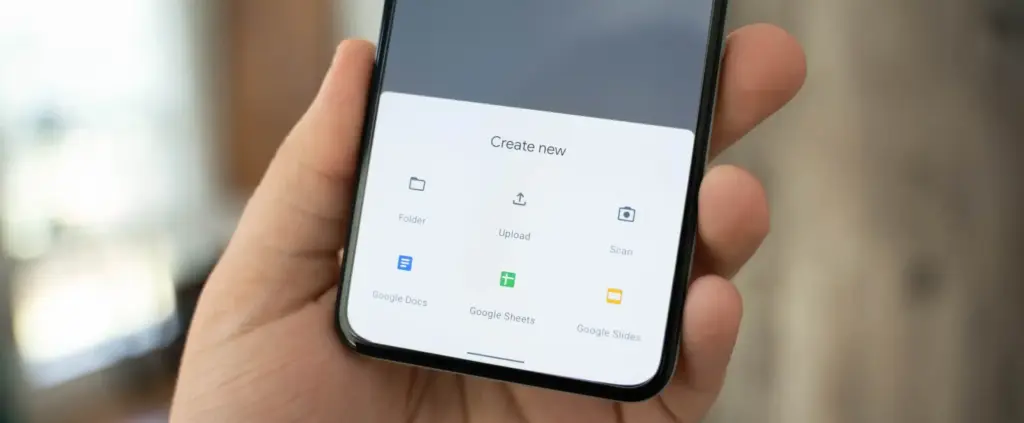
Google Drive comes pre-installed on most Android phones and includes a powerful built-in document scanner.
Step-by-step instructions:
- Open the Google Drive app
Launch Google Drive from your app drawer. - Tap the “+” (plus) button
It’s located at the bottom-right corner of the screen. - Select “Scan”
This opens your camera with a scanning interface. - Take a photo of the document
Frame the document clearly in good lighting. Tap the shutter button. - Adjust the crop area
You can move the corners to fit the document if the scan is uneven. - Tap “Done” or scan more pages
You can continue adding pages or finish the scan. - Save the file
Choose a name and folder to save the scan as a PDF in your Drive account.
Pros:
- No need to install anything
- Saves directly to cloud
- Easy to share scanned files
Cons:
- Limited editing tools
- Requires Google account
Scan documents using Google Photos (via Lens)
Google Photos includes Google Lens, which can recognize text and scan documents quickly.
How to do it:
- Open the Google Photos app
Find the photo of your document or take a new one. - Tap the “Lens” icon
It’s at the bottom of the screen and activates text recognition. - Select the document area
Google Lens will highlight the text areas. - Choose “Copy text” or “Search” or “Save as PDF”
You can extract text or save it, depending on your needs.
This method works best for typed text and single pages rather than full multi-page scans.
Scan documents using Microsoft Lens
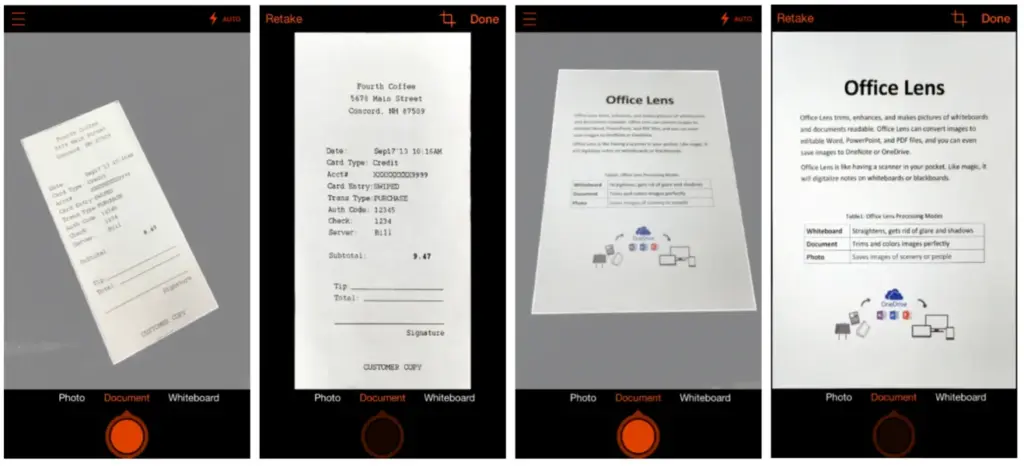
Microsoft Lens is a dedicated scanning app with powerful enhancement tools.
Steps:
- Install Microsoft Lens from the Play Store
- Open the app and choose “Document” mode
- Capture your document
It automatically detects edges and adjusts perspective. - Edit the scan
You can crop, rotate, or enhance the scan quality. - Save or share the file
Export to PDF, Word, OneNote, or save to your gallery.
This app is ideal for professional-quality scans and editing.
Tips for best scanning results
- Use natural lighting to avoid glare or shadows.
- Place the document on a flat, contrasting background.
- Keep the phone steady while capturing the image.
- Make sure the document fills the frame but doesn’t crop edges.
- Clean your camera lens for sharper results.
Organizing your scanned documents
After scanning, keep your files organized by:
- Creating folders in Google Drive (e.g., Receipts, IDs, Legal Docs)
- Using consistent file naming (e.g., “Invoice_June_2025.pdf”)
- Backing up to cloud storage or an external drive
Security and privacy concerns
If you’re scanning sensitive documents (like IDs, contracts, or financial info):
- Use apps that encrypt your files
- Avoid scanning on public Wi-Fi
- Use a secure cloud service (Google Drive, OneDrive, etc.)
- Consider locking folders or using file protection apps
Scanning is excellent for common documents, but dedicated hardware scanners may still provide superior results for specific applications, such as high-resolution archiving, submitting legal papers, or intricate artwork. However, your Android phone is more than capable of meeting 95% of your daily demands.
You can increase your freedom and convenience by learning how to scan documents with your Android phone. Whether you use a third-party tool, Google Drive, or Photos, digitizing documents and maintaining organization is simple. It only takes a few taps and eliminates the need for large scanners or additional procedures.
Stay connected with the latest from Droid Tools—follow us on X @droid_tools, like our page on Facebook, check out our updates on Instagram, and follow us on Google News for real-time news, device tips, and mobile tech insights.