Tag: increase

  • 7 settings to drasticaly improve battery life on any Samsung device

    7 settings to drasticaly improve battery life on any Samsung device

    Because of their full of features and efficient software, Samsung’s Galaxy smartphones are among the best Android phones on the market right now. However, the majority of Samsung phones, particularly premium models like the Galaxy S25 Ultra, Galaxy Z Fold 6, and Z Flip 6, include extravagant features that you might not utilize on a regular basis. There are ways to maximize what you have without degrading the user experience if your new Galaxy phone is not able to last a full day between charges.

    Here are seven ways to extend your Galaxy phone‘s battery life. Do not worry, I will not be Captain Obvious and suggest that you use your phone at a lower refresh rate or lower the screen resolution. The suggestions on this list ought to enhance your quality of life while optimizing the functionality of your phone.

    Use Dark Mode

    AMOLED screens, which can light individual pixels, are seen on the majority of Samsung phones. Therefore, the area of the screen that must remain black will not activate those pixels when you choose a dark theme or dark wallpaper. As a result, your screen uses less power and your battery lasts a little longer.
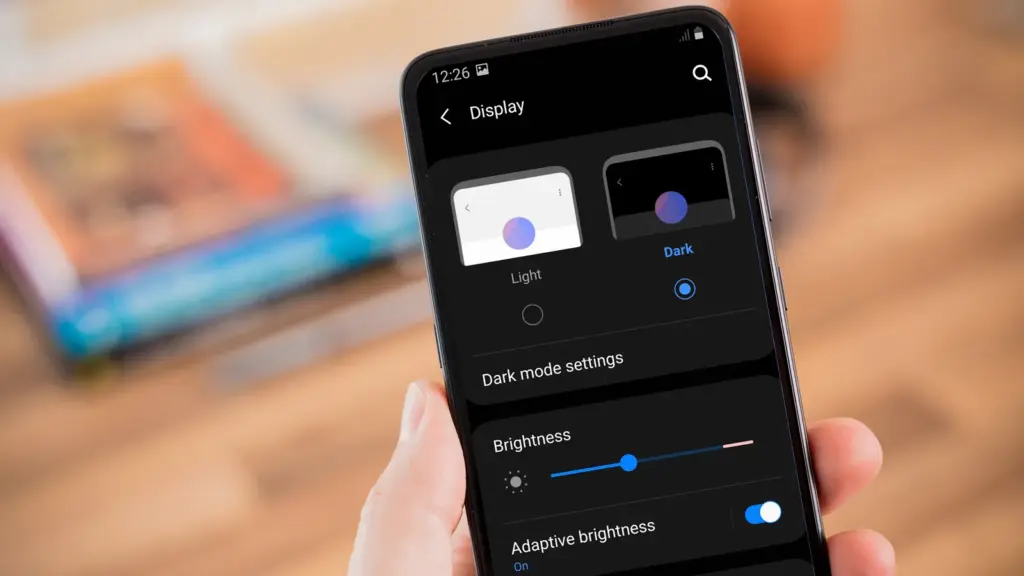
    dark mode enable 2

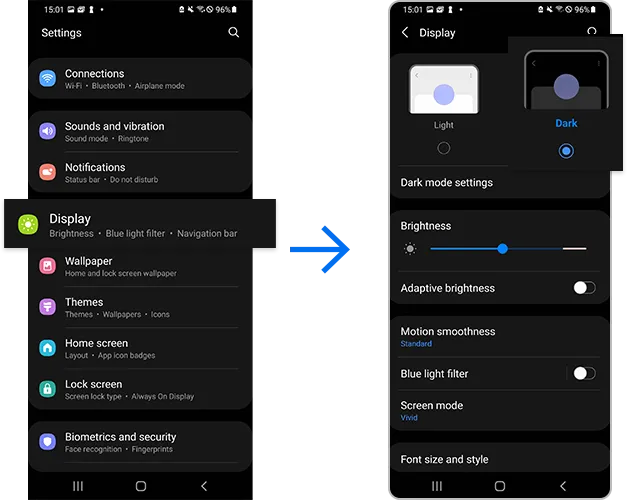
    How to do it: Go to Settings > Display. Two cards for Light and Dark will be dealt to you. Press the Dark option. Changing the system wallpaper and sticking with the light theme is an alternative, but it will not have the same impact on energy life as switching to dark mode.

    Use Adaptive Brightness

    Although this feature should ideally be turned on by default, some individuals disable it because it is not always reliable. Nonetheless, the quality of Samsung’s ambient light sensor has increased over time. Your Galaxy phone is capable of accurately detecting ambient illumination and adjusting the screen brightness on its own. By doing this, you can make sure your display is more effective and not overly bright.

    Toggle on Adaptive Brightness by going to Settings > Display. Although it should function in most settings, you can use the Quick Settings panel to slide down to change the brightness if necessary.

    Force stop or uninstall power-draining apps

    Many applications, including Facebook, Microsoft 365, OneDrive, and numerous Samsung and Google apps, are pre-installed on Samsung devices. To stop them from running in the background, find the ones you do not need and either remove them or force-disable them.

    For instance, not everyone requires OneDrive or the Samsung Smart TV app. I remove those two apps along with others like Facebook, Outlook, Microsoft 365, Tutor, and more when I set up a new Galaxy phone.

    How to: Tap and hold the app you want to uninstall. A pop-up menu will appear. Tap Uninstall. As a result, none of these non-required apps will use your battery.

    Identify power-draining apps

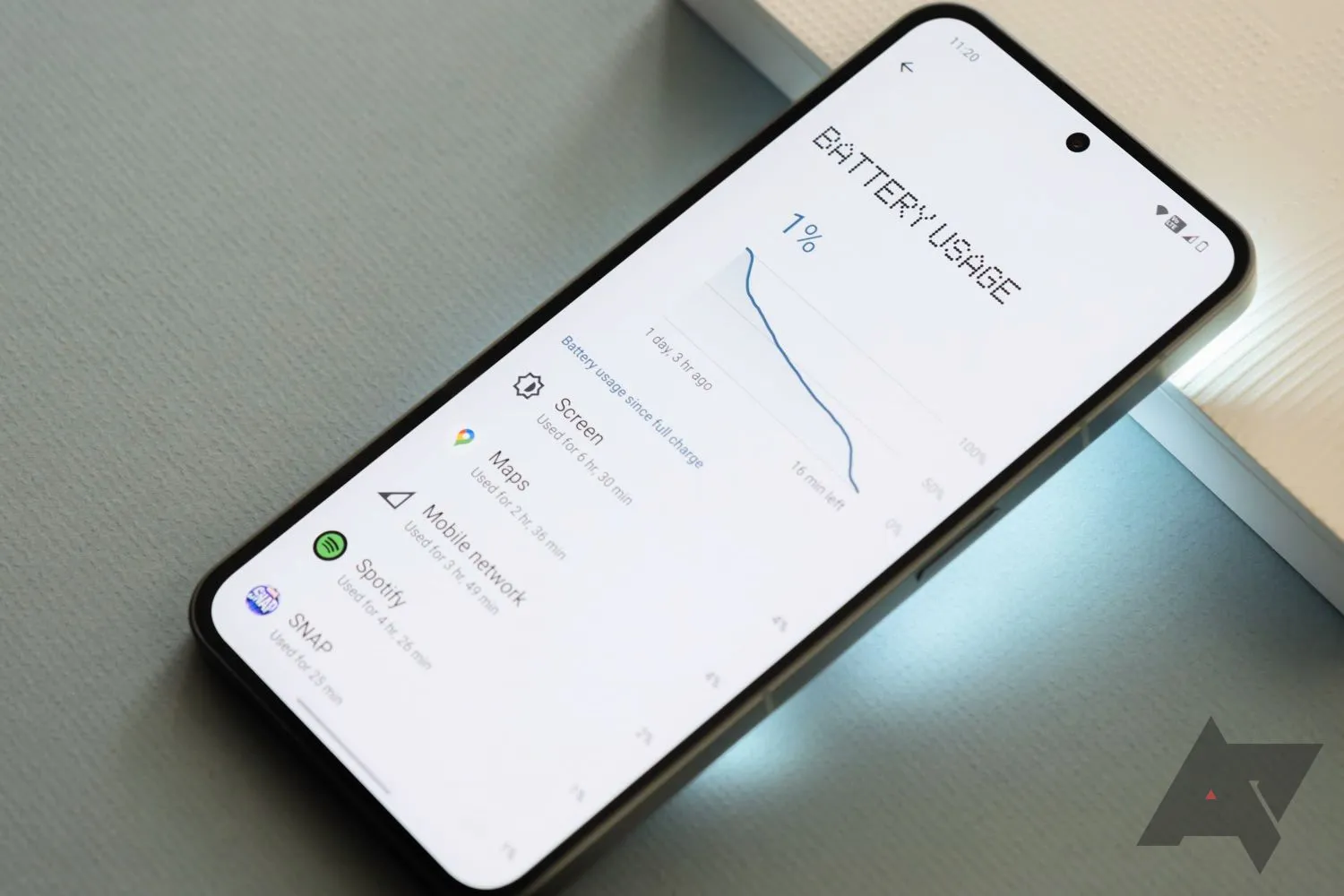
    Depending on your location, 5G connectivity, and background usage, some apps need more power. To assist you reduce unnecessary battery usage, Samsung allows you to recognize certain power-hungry programs.

    By selecting Settings > Battery and Device care > Battery > Background usage limits, you may find and disable power-draining apps on your device.
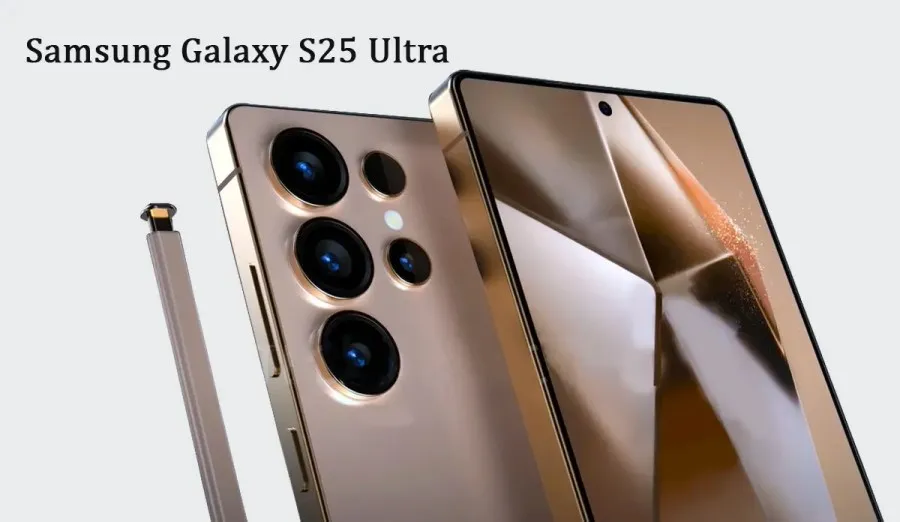
    samsung galaxy s25 ultra

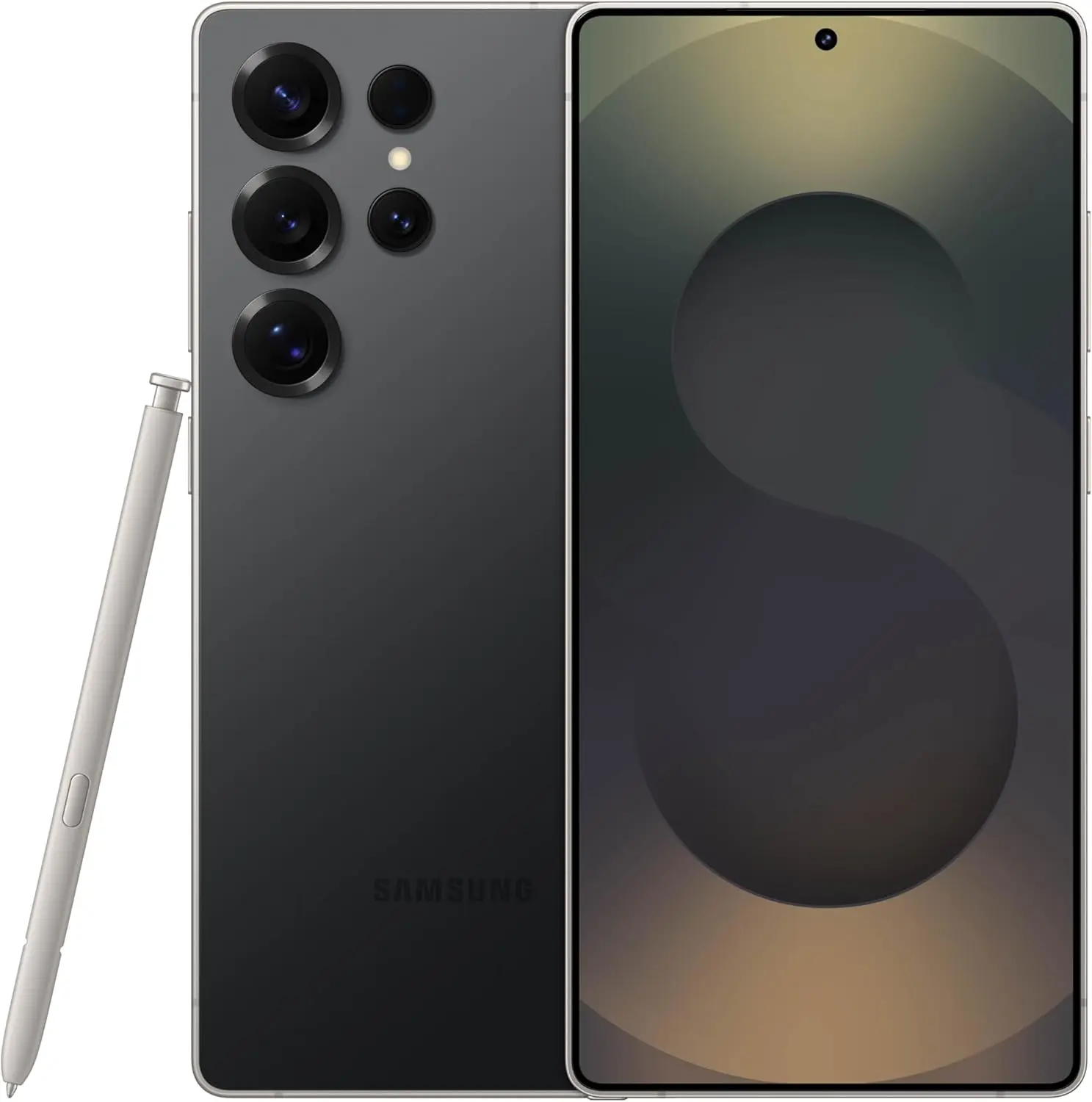
    Samsung Galaxy S25 Ultra

    Streamline your day with an assistant that gets you. Ask it to Google search for a pet-friendly vegan restaurant nearby and text it to your friend – your Galaxy S25 Ultra handles multiple tasks with a single ask.

    $1,299.99$1,067.99See It

    Scheduled Always-On Display

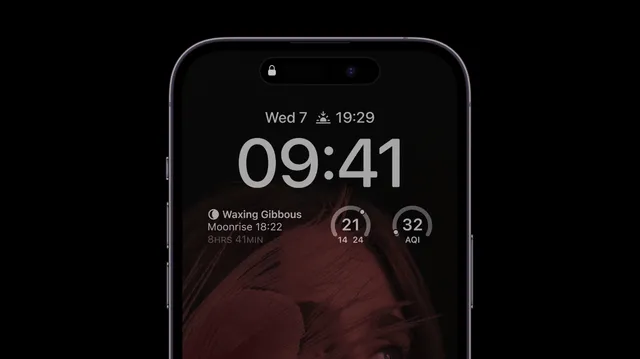
    I like my Galaxy S25 Ultra’s Always-On Display (AOD). For efficiency, its LTPO display lowers to 1Hz, which is useful for functions like AOD. Using AOD may not be as effective if your Galaxy phone is midrange and has a minimum refresh rate of 60 Hz. You can use it wisely, though, by planning AOD for when it is required.
    samsung aod battery life

    How to: Go to Settings > Lock Screen and AOD > Tap on Always On Display > When to show > As scheduled. While you’re at it, also turn off the Show lock screen wallpaper within AOD settings.

    Use Performance profile

    Samsung lets you select a performance profile according on how you use it. The Light Performance profile is a better option than the Standard if you do not play games and use your phone mostly for everyday activities like surfing and making calls. It will put cooling and battery life ahead of processing performance.
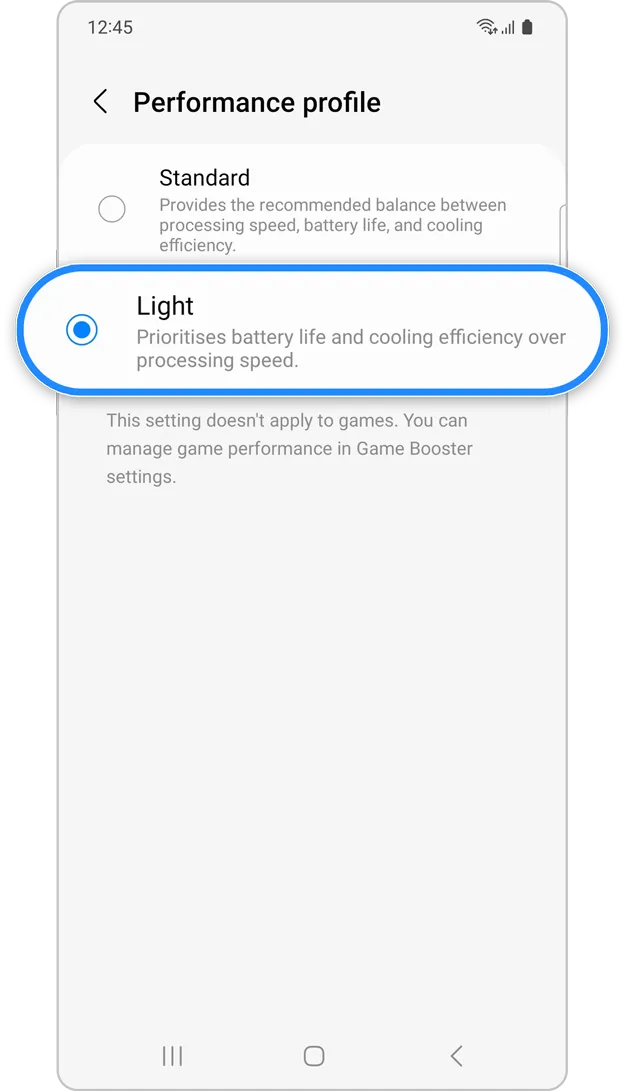
    samsung performance profile

    How to: Open the Settings app and go to Device care > Performance profile and select Light. This is ideal for average phone users.

    Download offline content before travel

    It is a good idea to download such stuff offline if you listen to the same podcasts and playlists or travel the same path every day. Google Maps and the majority of streaming apps use a lot of battery power over 5G and LTE. It may also cause your phone to feel warm to the touch when you are outside. With a little advance forethought, you can handle this: Before you leave the house, use Wi-Fi to download your favorite music or maps.

    How to: Go to the streaming apps you want to download content from and follow the in-app steps. For instance, YouTube has a download button on videos, and Spotify lets you download complete playlists.

    What should you do if the battery on Galaxy phone runs low?

    The seven settings above will not hinder your user experience and will retain the best Galaxy phone features. However, if you’re out and your phone is low on battery, you should:

    • Turn on Power Saving
    • Toggle off data roaming
    • Turn off location services
    • Switch off AOD altogether

    When your phone’s battery is less than 15% and you are still a few hours away from a charger, I advise activating these options. The Samsung settings listed above will also help you get the most out of your Galaxy phone’s battery.

    samsung galaxy s25 ultra

    Samsung Galaxy S25 Ultra

    Streamline your day with an assistant that gets you. Ask it to Google search for a pet-friendly vegan restaurant nearby and text it to your friend – your Galaxy S25 Ultra handles multiple tasks with a single ask.
    $1,299.99$1,067.99See It
  • How to speed up your Android device in just minutes

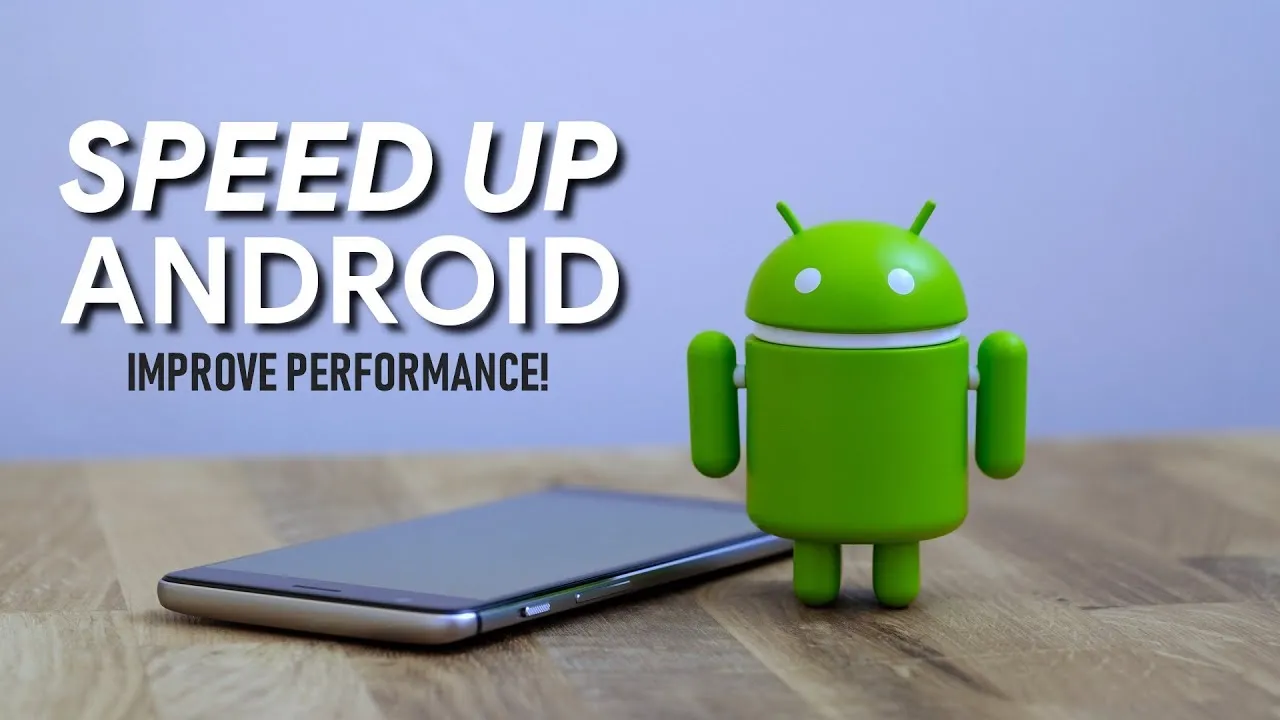
    How to speed up your Android device in just minutes

    You are not dreaming if your Android phone used to be blazing fast but suddenly feels slow. Android devices naturally slow down over time for a number of reasons, the majority of which are entirely resolvable without the need for third-party apps or technical know-how.

    Why Android is getting slower?

    📦 1. App Cache Buildup

    An application, such as Instagram, YouTube, or your web browser, saves small amounts of temporary data (called cache) each time you use it so that it loads more quickly the following time. Although useful when used sparingly, this cache accumulates over time, depleting storage and occasionally making the program (or even your phone) slow.

    Example: Chrome can build up hundreds of MBs in cache after a few weeks of browsing. Clearing it can noticeably improve speed.

    ⚙️ 2. Background Processes Piling Up

    Applications do not simply launch when you use them. Multiple apps keep running in the background, syncing data, giving notifications, and even tracking position. This depletes the battery and RAM (your phone’s memory), which can affect speed.

    Tip: Social media and messaging apps are the biggest offenders. If you’ve got 10+ apps running in the background, expect a performance dip.

    📲 3. Unused or Pre-installed Apps

    Bloatware is the term for the numerous apps that are pre-installed on your phone and frequently continue to run in the background even if you have never used them. You end up with a cluttered, overloaded system when you include the apps you downloaded, used once, and then forgot about.

    You don’t have to delete everything, but disabling or uninstalling apps you don’t use makes a big difference.

    🔁 4. Software Updates and Feature Overload

    Software updates can be bulky, yet they are necessary for security and new functionality. Updates for apps and newer Android versions are gradually tailored for more modern hardware. This implies that all of the new features and animations may be too much for your outdated device to handle.

    Ever noticed how a major Android update seems to slow your phone a bit? That’s usually why.

    🗄️ 5. Low Internal Storage

    For Android to function properly, it requires a buffer of free space. Your phone may begin to crawl if it is overloaded with pictures, movies, downloads, and residual program data for background processing.

    Rule of thumb: Keep at least 4 GB free at all times. If you’re below that, expect slowdowns.

    ✅ The Good News?

    You don’t need root access, expensive cleaner apps, or a trip to the repair shop. Most speed issues can be solved in just a few minutes using built-in settings.

    📍 In the next section, we’ll walk through the exact steps you can take right now to get your Android device running like new again.

    how to speed up android phone wi

    ✅ 1. Restart Your Phone

    Why it matters: Restarting your phone clears temporary files, ends frozen background processes, and resets system performance. It’s like giving your phone a fresh breath of air.

    What to do:

    • Hold the Power button until the menu appears
    • Select Restart (or Power Off, then turn it back on)

    📌 Do this at least once a week — it can fix lag, crashes, and battery issues instantly.


    🧹 2. Clear App Cache (Not Data!)

    Apps store cache to improve loading times, but too much of it can cause lag, glitches, or even crashes.

    Here’s how to clear cache:

    1. Go to Settings > Apps
    2. Tap on an app like Chrome, TikTok, or Instagram
    3. Tap Storage & Cache
    4. Tap Clear Cache

    ⚠️ Important: Don’t tap Clear Storage/Data unless you want to log out or reset the app.

    🧠 Pro Tip: Clear cache for your most-used apps once every 2–3 weeks.


    📦 3. Uninstall or Disable Unused Apps

    Apps you never use can:

    • Take up precious storage
    • Run silently in the background
    • Slow down boot times

    To remove them:

    • Long-press the app icon > tap Uninstall
    • OR go to Settings > Apps > [App Name] > Uninstall

    If an app can’t be uninstalled:

    • Tap Disable — it won’t run or consume resources anymore.

    🔇 Example: Carrier apps, pre-installed games, or assistant tools you never asked for.


    🛠️ 4. Reduce Animations (Developer Options)

    Android’s transitions and animations may look sleek — but they can delay actions on older or budget phones.

    Here’s how to disable or reduce animations:

    1. Go to Settings > About Phone
    2. Tap Build Number 7 times to unlock Developer Options
    3. Go back to Settings > System > Developer Options
    4. Scroll down to:
      • Window Animation Scale
      • Transition Animation Scale
      • Animator Duration Scale
    5. Change all three to 0.5x or Animation Off

    📈 Expect a noticeable speed boost — especially on devices with less RAM.


    🗃️ 5. Free Up Storage Space

    Storage nearing full = a major performance killer. Your phone needs free space to install updates, load files, and run background tasks.

    Quick ways to free up space:

    • Open Files by Google > Clean to remove junk, large files, and duplicates
    • Go to Gallery > Albums > Downloads and delete old files
    • Offload videos/photos to Google Photos or an SD card

    💾 Aim to keep 15–20% of your total storage free (e.g. at least 4–6 GB on a 32 GB phone).


    🔋 6. Disable Background Sync & Battery Hogs

    Many apps sync data constantly — even when you’re not using them.

    To limit background activity:

    • Go to Settings > Battery > App usage
    • Tap on heavy apps (Facebook, Gmail, etc.)
    • Restrict background use or set to “Battery Optimized”

    For syncing:

    • Go to Settings > Accounts > Auto-sync Data
    • Turn it off for accounts you rarely use

    💡 This saves RAM and battery life — a win-win.


    🔄 7. Update Android & Your Apps

    Updates contain bug fixes and performance improvements. If you’re behind, you could be missing important optimizations.

    Update system:

    • Settings > System > System Update > Check for updates

    Update apps:

    • Open Google Play Store
    • Tap your profile icon > Manage apps & device
    • Tap Update All

    🔄 Do this monthly, especially if you notice app crashes or slowness.


    🧩 8. Use Lite Versions of Apps

    Heavy apps = more RAM, more battery, more lag.

    Try these alternatives:

    • Facebook Lite instead of Facebook (saves over 500 MB!)
    • Messenger Lite instead of Messenger
    • YouTube Go (lighter on data and resources)
    • Twitter Web via browser instead of the app

    You’ll free up space and speed up daily use.


    🖼️ 9. Use Static Wallpapers

    Live wallpapers constantly run behind the scenes, draining battery and processing power.

    Change it:

    • Long press on the home screen > Wallpaper & Style
    • Choose a static image from your gallery or system wallpapers

    🌓 Tip: Dark wallpapers also save battery on AMOLED/OLED screens.


    🧠 10. Try a Lightweight Launcher

    Your phone’s default launcher (like Samsung’s One UI or Xiaomi’s MIUI) can be bloated and animation-heavy.

    Better options:

    • Nova Launcher (fast, customizable)
    • Niagara Launcher (minimalist & smooth)
    • Smart Launcher 6 (lightweight & sleek)

    Switching to one of these can reduce memory use and simplify your experience.

    speed up android
  • Increase battery life on Android: 9 settings you need to change now

    Increase battery life on Android: 9 settings you need to change now

    I have spent a significant chunk of my life looking for ways to extend the battery life of my Android phones. That may sound dramatic, but growing up with only inexpensive models meant I was constantly modifying device settings to get the most out of their batteries. Thanks to this micromanaging, I was able to drive the batteries on all of my previous devices to their utmost limits. I do not want to keep this knowledge for myself, so I chose to share it with everyone.

    There are numerous strategies for extending battery life. However, there are 12 important options that can be changed right now to see immediate results. The following list highlights the most effective, simple, and quick modifications to boost device longevity regardless of the Android phone you are using, whether it is the latest Samsung model, a luxury Google Pixel, or a cutting-edge OnePlus 13. Furthermore, you will not have to compromise the high-quality experience of using your phone.

    Although the power settings are nearly identical on every Android phone available, the procedure of changing them varies by device. Keep this in mind when following the procedures I have outlined, as the technique may alter slightly based on the model you are using.

    Turn off the always-on display

    Turn off the always-on display to increase battery life

    The always-on display is one of the largest battery drainers on any smartphone. Companies frequently claim that this display setting only consumes 1% to 2% per hour, but let us be honest: it is always far more. It may be convenient to check the time on your phone while it is sitting on a table, but it is unlikely to be worth the sacrifice of battery life.

    Open the Settings app and navigate to the Lock Screen section. This section will most likely be found in the main Settings list or under “Display.” From there, look for the option to “always show info” or a simple toggle to enable the Always On Display. In any case, disable the option and ensure that when you lock your device, it turns absolutely blank.

    Switch to dark mode

    Switch to dark mode on Android devices

    Over the last few years, many midrange and inexpensive Android phones have followed in the footsteps of their flagship counterparts, adopting OLED displays. When not in use, the technology allows individual pixels to fade or turn entirely off. This feature is considerably more efficient for battery life than typical LCD screens with a single large backlight. By switching to your phone’s dark theme, those pixels will get dimmer much more frequently, saving some battery life.

    Go to Settings > Display on your Android device. There are options to choose between a light and dark theme, as well as to have dark mode turn on automatically at specific times of day. To get the most out of your battery, I recommend having dark mode on constantly.

    Remove unused accounts

    We have all done it: you open a new account for a social networking app or email service (which you subsequently forget about) and then create another account to serve as your primary account for that service or platform. I have been through this process several times. If you create accounts on your phone, all previous accounts stay, constantly refreshing and depleting your battery life in the background. I strongly advocate uninstalling some outdated accounts from your smartphone as soon as possible.

    Go to the Settings app and find the accounts section (on Samsung phones, it’s called “Accounts and backup” while Pixel phones use “Passwords & accounts“). You’ll find a list of all the accounts synced to your phone. Tap on one of them and scroll down to the “Remove account” button. Tap it, and the account will disappear.

    Reduce the screen’s refresh rate.

    adjust refresh rate2

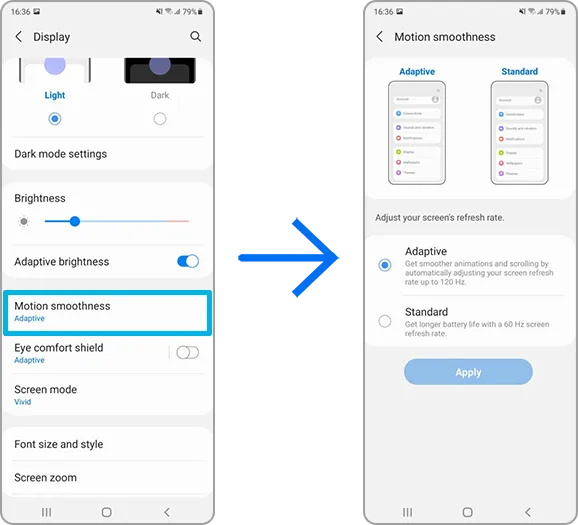
    Phone screens have improved dramatically in recent years, thanks in part to quicker refresh rates implemented by manufacturers. Increasing the frequency with which a screen refreshes, whether at 90Hz, 120Hz, or even faster, makes animations, scrolling social media, and everyday activities feel smoother and more responsive. Unfortunately, a fast refresh rate consumes more battery power; you may be better off removing the option in some cases.

    Open the Settings app and go to the Display section. Here you will find the options for configuring your refresh rate. Most smartphones refer to the function differently; for example, Google refers to it as “Smooth Display” whereas Samsung refers to it as “Motion Smoothness” Find the refresh rate setting and reset it to the regular rate. Your screen will most certainly appear choppier as a result, but this is totally normal. It simply means that it operates at 60Hz, which was the pace at which even the greatest phones ran a few years ago.

    Turn off “Hey Google”

    hey google header

    If your phone is always listening for you to say, “Hey, Google,” your battery is probably running low. Your microphone is engaged, waiting to hear you utter the two magic phrases that activate the digital assistant, and running that procedure all day consumes a significant amount of energy. Anyone who does not utilize the Assistant on a daily basis should disable the feature without hesitation. And let us be honest: how many of us use the assistance every day?

    Open the Google app on your phone and select your profile photo from the top-right corner. Then, go to Settings > Google Assistant > Hey Google & Voice Match, and turn off “Hey Google” Now, your phone will only activate the Assistant if you hold down the power button or use another method.

    Block apps to send notifications

    You may not realize it, but notifications can be one of the most significant drains on your phone’s battery life. Not only does your phone buzz and ding all day, but the applications themselves are continually refreshing in the background, looking for new notifications to transmit to you. Most apps provide options for reducing the number of alerts you receive, but the simplest way to turn them off is through your phone’s Settings app.

    Go to Settings > Notifications > App notifications to see a list of all the apps installed on your phone. Next to each entry are toggles that, when flipped, will disable all notifications for that particular app.

    Keyboard sounds and haptics

    Keyboard sounds and haptics android

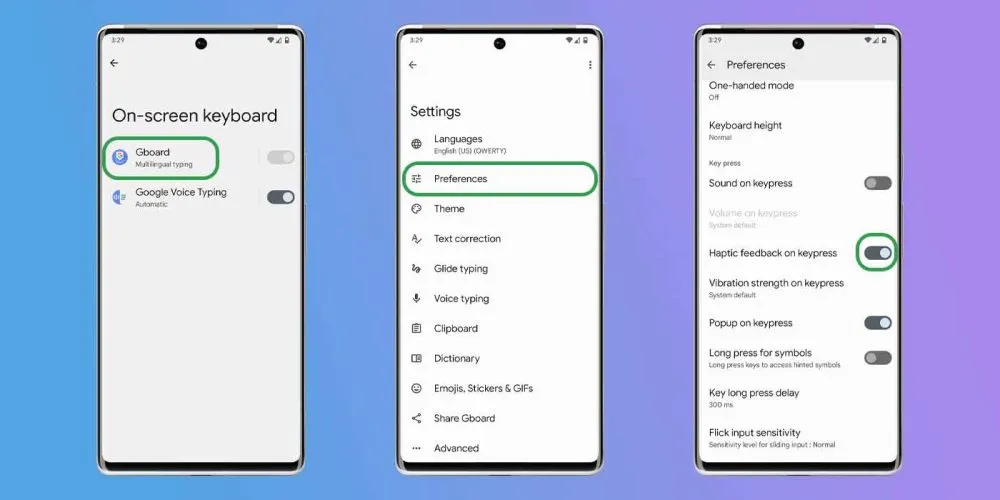
    If you are using your phone, you are probably typing on the keyboard a lot, whether it is to post on social media or answer to messages from friends. If you activate sound and haptic feedback, your phone’s battery life may suffer since it must produce a succession of vibrations and noises each time you tap a letter. Hearing and feeling the keyboard as you type is a pleasant experience, but it is not ideal for getting the most out of a fully charged battery.

    Open the Settings app and navigate to “Language and input” This section contains your keyboard settings. Find the place where you may select your default keyboard and hit the gear icon next to it to modify settings. If you use Gboard (like most people), go to Preferences > Keypress and turn off “Sound on Keypress” and “Haptic feedback on Keypress

    Enable Adaptive Battery

    android adaptive battery AM AH

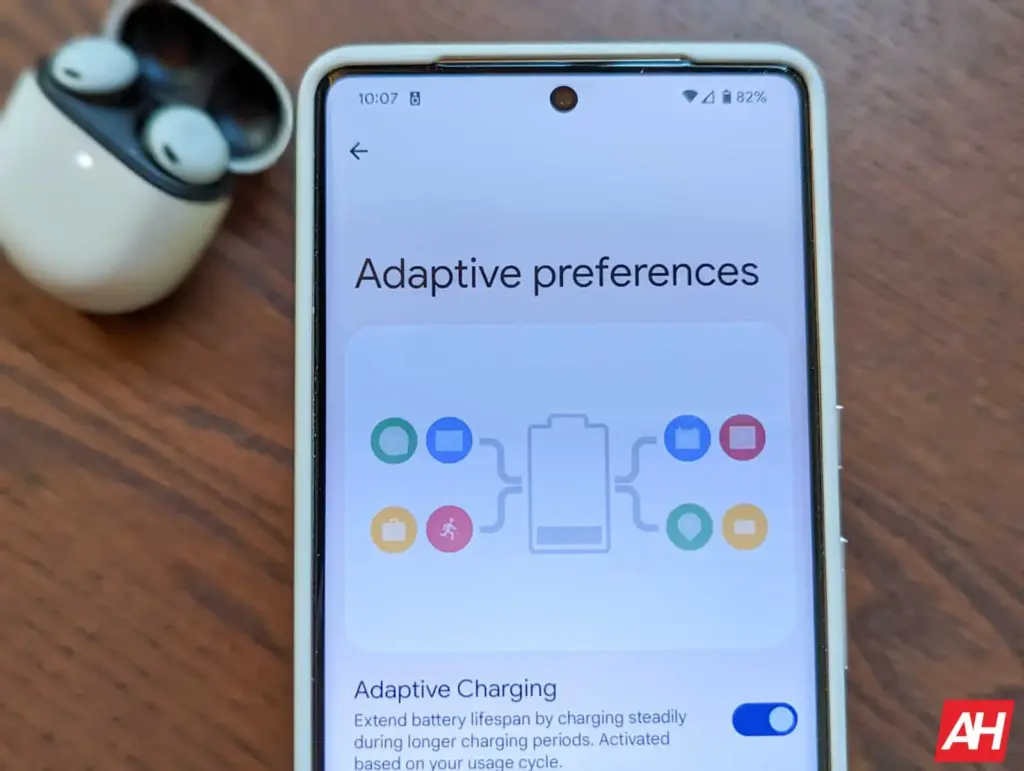
    Android include a useful function called Adaptive Battery, which is available on most handsets. Adaptive Battery may automatically control your phone’s performance and efficiency in the background, extending battery life through specific methods. For example, when you do not need maximum speed for something as basic as browsing through your inbox, the setting will slow things down and save you some battery life.

    Go to Settings > Battery > Adaptive preferences and check to ensure “Adaptive battery” is enabled. If it’s not, flick it on.

    Use battery saver to increase battery life

    Battery Saver mode, like Adaptive Battery, is a useful function that helps increase the life of your smartphone between charges. The function makes significant modifications to your device’s firmware, including as limiting visual effects, restricting background apps, and putting on dark mode if it is not already enabled.

    Most, if not all, Android phones have a Battery Saver feature, albeit it may have a different name. On Galaxy phones, for example, it is known as Power Saving Mode. Some may refer to it as low-power mode. For assistance with your specific model, check your phone manufacturer’s support website.

    On Pixel phones, go to Settings > Battery > Battery Saver. You can also choose a schedule for when the feature will activate or turn off automatically. On Galaxy phones, go to Settings > Battery and Device Care > Battery. Flip the toggle switch next to Power Saving to activate the feature.

    Our recommendations

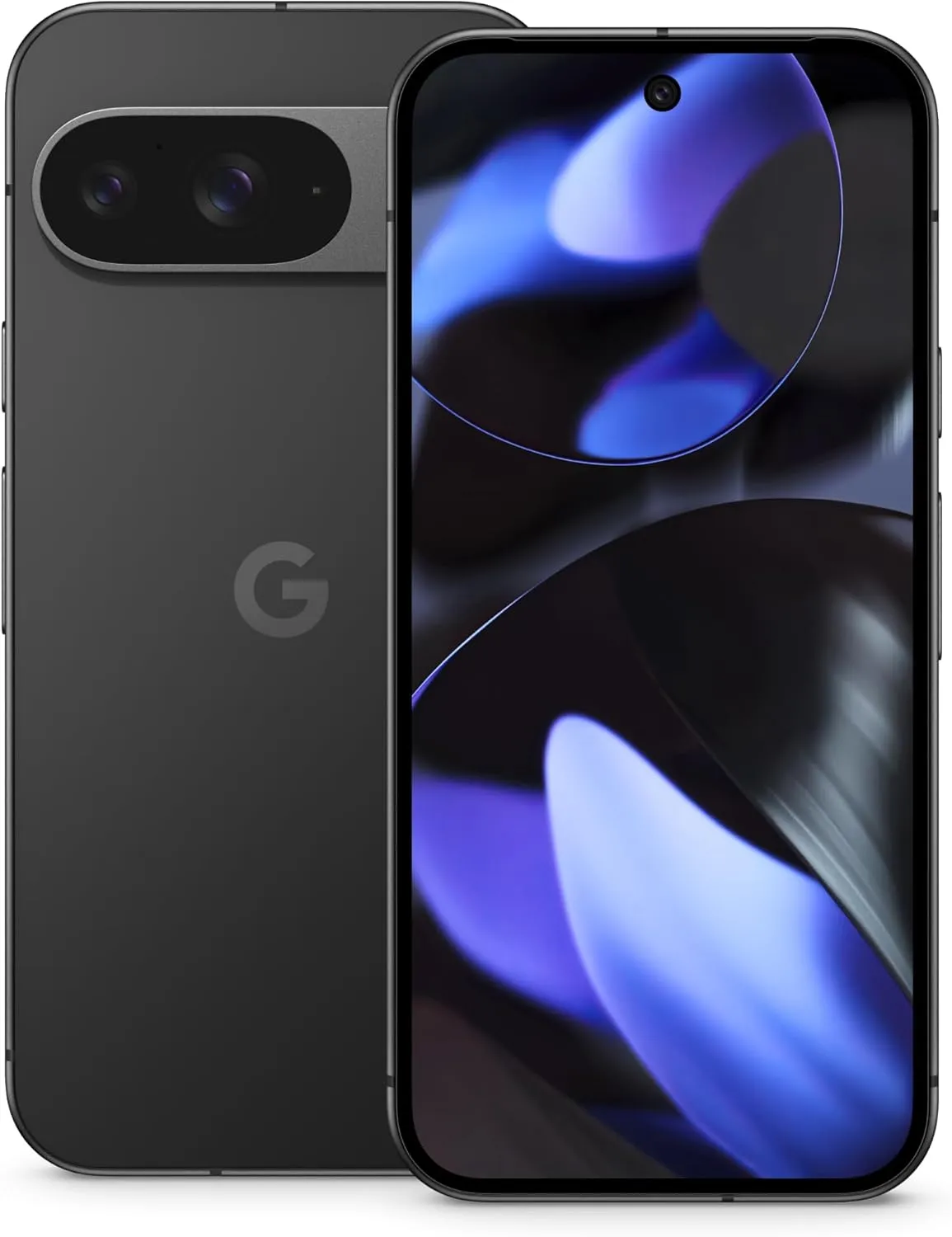
    Google Pixel 9
    $99 $629.99Buy on Amazon
    Google Pixel 9 Pro
    SAMSUNG Galaxy S25 Ultra
    $1,419.99$1,188.50Buy on Amazon
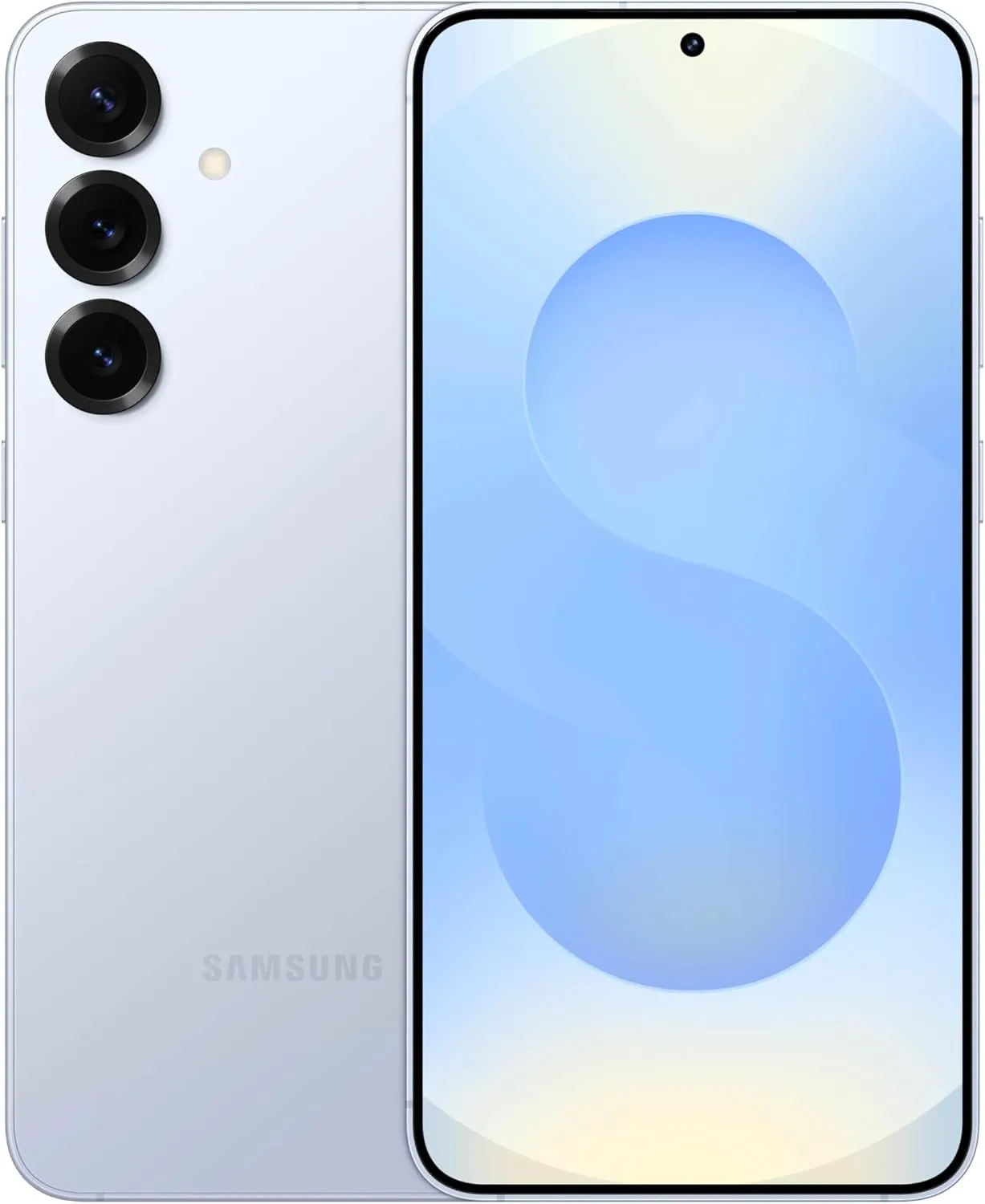
    SAMSUNG Galaxy S25+
    $1,119.99 $1,019.99Buy on Amazon