The Find X series from Oppo is the company’s most premium smartphone brand, with previous models including the groundbreaking Oppo Find X with pop-up cameras, followed by the more basic but still impressive Find X2 and Find X3. Every year around March, Oppo refreshes the Find X series. That’s still a ways off, but we already have our first reliable leak (via GSMArena) about a potential Find X4 function. The next Oppo Find X4 could have the fastest charging of any smartphone, according to Digital Chat Station, a well-known Weibo tipster.
While a few companies have demonstrated 125W rapid charging, we have yet to see it in a consumer device. Unless another manufacturer releases a phone with a 125W fast charging capability sooner, Oppo will be the first to provide this incredible charging speed. With 120W wired charging support, the Xiaomi 11T Pro is now the market leader.
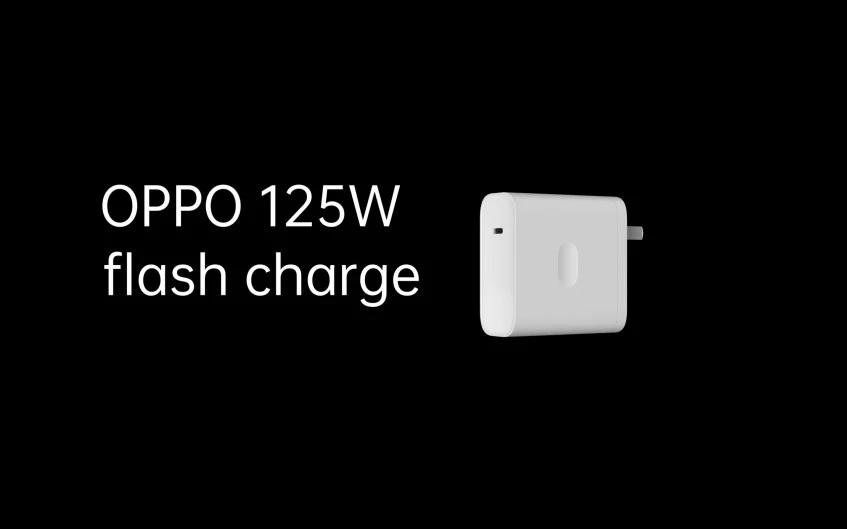
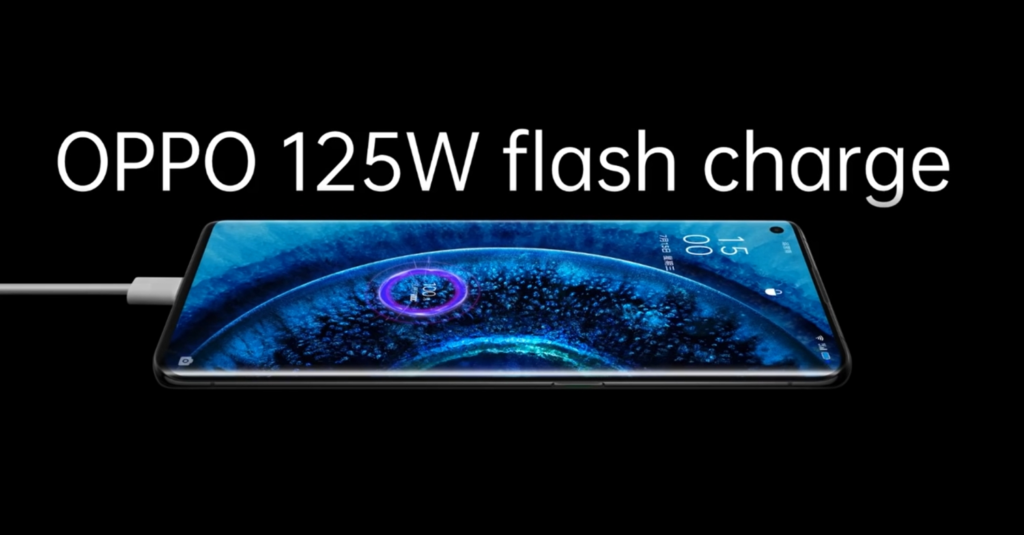
Oppo announced the 125W charger a few months ago, along with a 50W wall charger, a 65W AirVOOC wireless pad, and a 110W compact flash charger. To deliver the 125W, the 125W full-size flash charger that Oppo showed us earlier this year supplies 20V and 6.25A to the phone. The phone will be able to charge from 0% to 100% in just 20 minutes using this charger (for a 4,000mAh battery).
Oppo’s Find X3 series supports 65W fast charging, so the company is clearly seeking to up the ante with its next-generation handset. Apart from the rumored charging speed of the Oppo Find X4, there is currently no other information, but we can expect the device to feature the latest Qualcomm chipset. Oppo seemingly has a plan to follow in the footsteps of Samsung, Huawei, Google, and Apple by designing its own processors, though production isn’t tipped until 2023 at the earliest.
TWRP is an open source, community project. TWRP development is done by roughly 4 people at this point. We also have a large support community with many people who are willing to answer questions and help people with their devices either through our IRC channel or on forums like xda-developers.
There will be a lot of guides on Droid Tools about how to access certain features of the Android platform that simply are not visible to the user.
Theese will be done generally with the help of some command line Android Debug Bridge (ADB) commands, a tool that Google offers for developers to debug various parts of their applications or the system, but which we can use for all kinds of neat and hidden tricks. Using the command line isn’t something that everyone is comfortable with, though, so in an attempt to teach everyone how to do these tweaks (no matter what skill level you’re at), we have been including some basic steps about how to install ADB in each of our tutorials where necessary.
Setup the Android Debug Bridge (ADB)
Phone Setup
Launch the Settings application on your phone.
Tap the About Phone option generally near the bottom of the list (this is hidden behind the “System” option in Google’s latest Android Oreo version).
Then tap the Build Number option 7 times to enable Developer Mode. You will see a toast message when it is done.
Now go back to the main Settings screen and you should see a new Developer Options menu you can access.
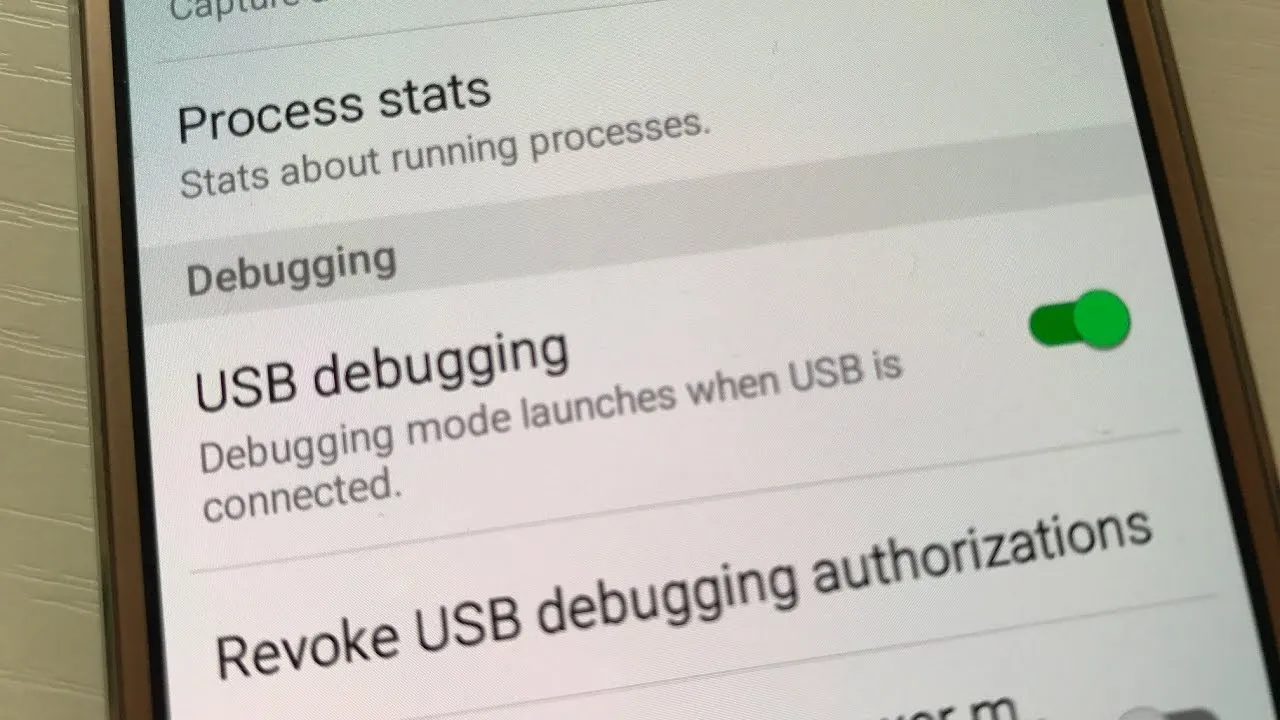
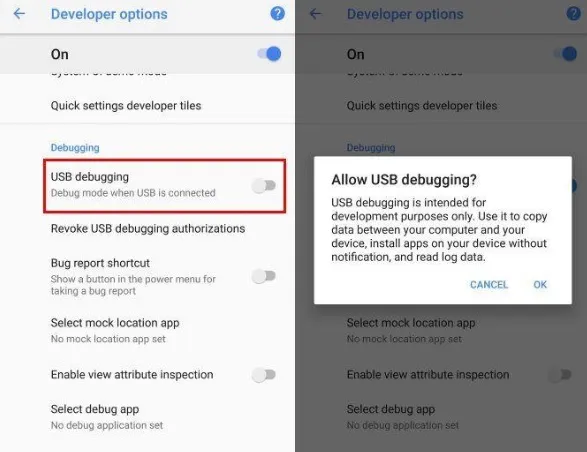
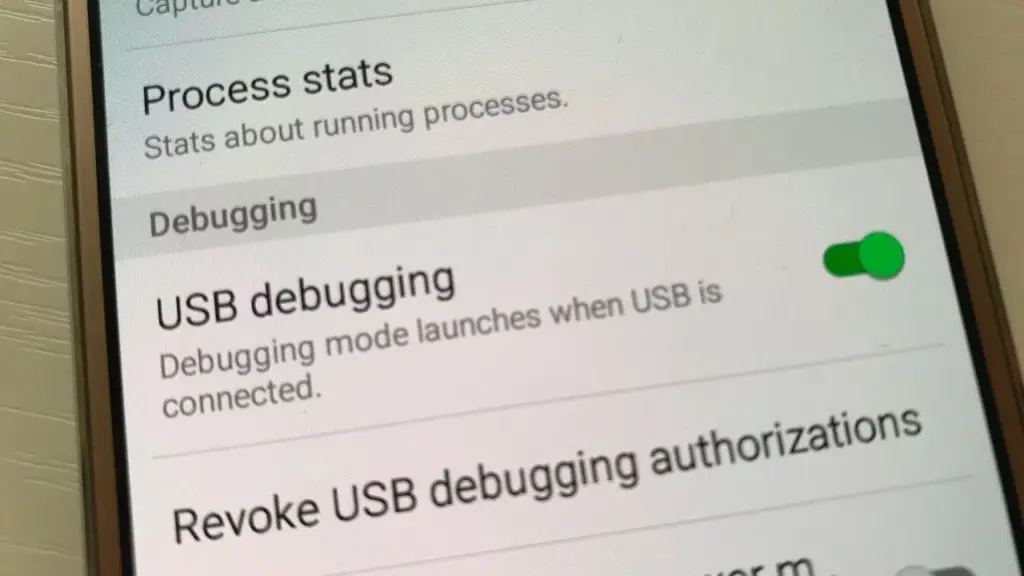
Go in there and enable the USB Debugging mode option.
Next up, you will need to scroll below and follow the rest of the instructions for your operating system.
Extract the contents of this ZIP file into an easily accessible folder (such as C:\adb)
Open Windows explorer and browse to where you extracted the contents of this ZIP file
Then open up a Command Prompt from the same directory as this ADB binary. This can be done by holding Shift and Right-clicking within the folder then click the “open command prompt here” option. (Some Windows 10 users may see “PowerShell” instead of “command prompt”.)
Windows ADB folder
Connect your smartphone or tablet to your computer with a USB cable. Change the USB mode to “file transfer (MTP)” mode. Some OEMs may or may not require this, but it’s best to just leave it in this mode for general compatibility.
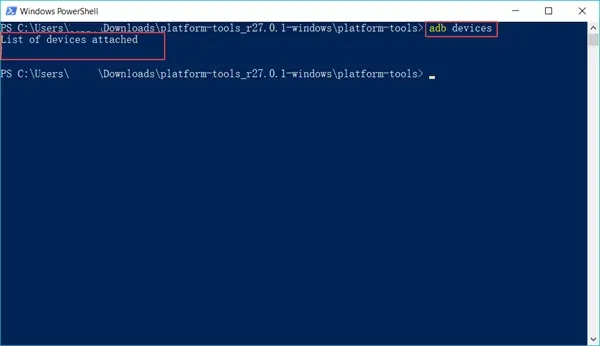
In the Command Prompt window, enter the following command to launch the ADB daemon: adb devices
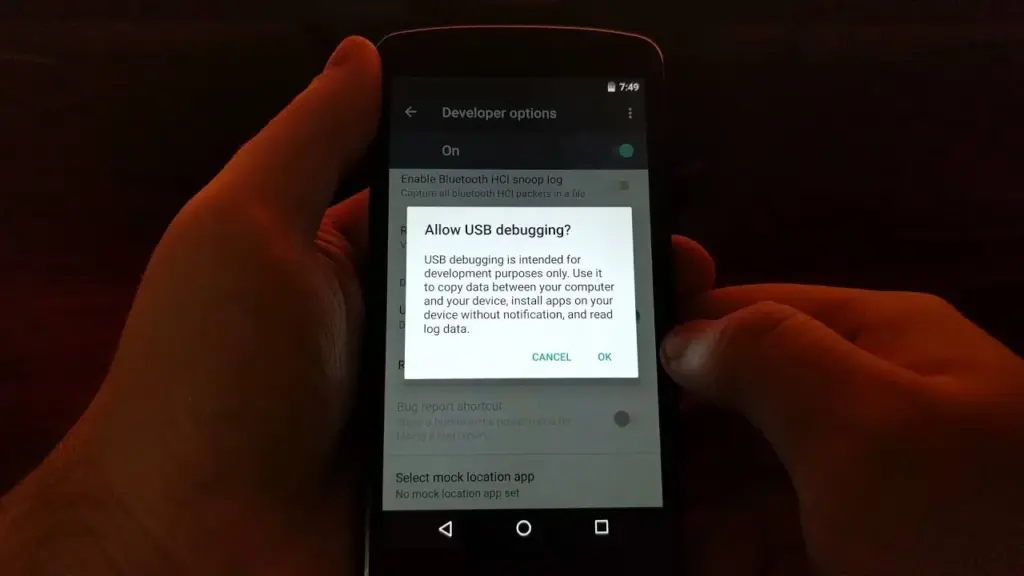
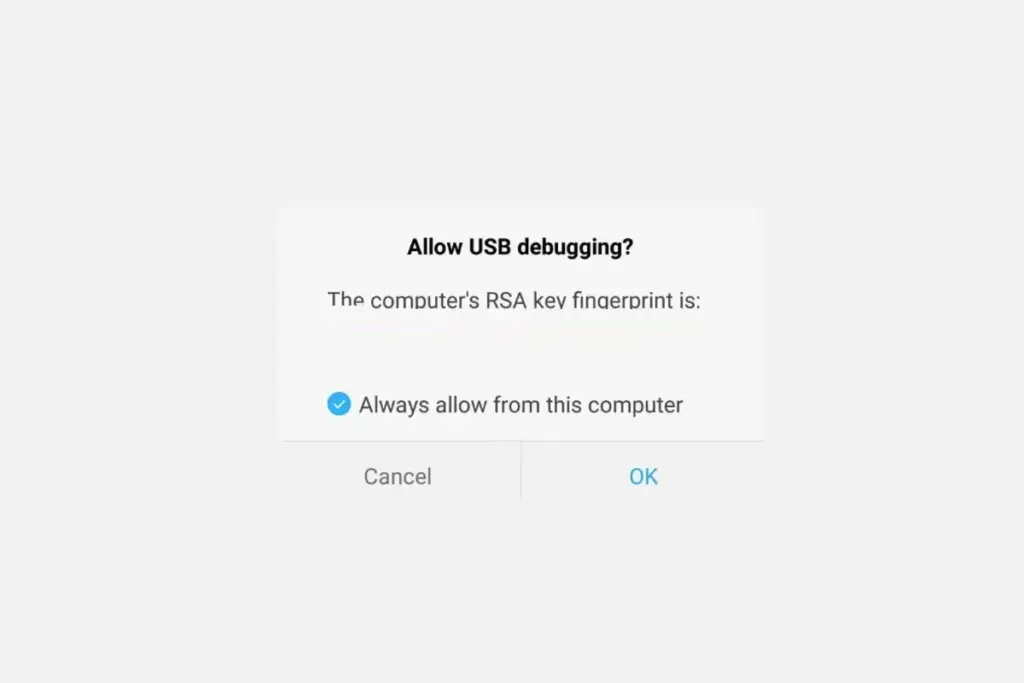
On your phone’s screen, you should see a prompt to allow or deny USB Debugging access. Naturally, you will want to grant USB Debugging access when prompted (and tap the always allow check box if you never want to see that prompt again).
Finally, re-enter the command adb devices. If everything was successful, you should now see your device’s serial number in the command prompt.
Extract the ZIP to an easily-accessible location (like the Desktop for example).
Open Terminal.
To browse to the folder you extracted ADB into, enter the following command: cd /path/to/extracted/folder/
For example, on my Mac it was this:cd /Users/Doug/Desktop/platform-tools/
Connect your device to your Mac with a compatible USB cable. Change the USB connection mode to “file transfer (MTP)” mode. This is not always required for every device, but it’s best to just leave it in this mode so you don’t run into any issues.
Once the Terminal is in the same folder your ADB tools are in, you can execute the following command to launch the ADB daemon: adb devices
On your device, you’ll see an “Allow USB debugging” prompt. Allow the connection.
Finally, re-enter the command adb devices. If everything was successful, you should now see your device’s serial number in macOS’s Terminal window. Congratulations! You can now run any ADB command on your device! Now go forth and start modding your phone by following our extensive list of tutorials!
Extract the ZIP to an easily-accessible location (like the Desktop for example).
Open a Terminal window.
Enter the following command: cd /path/to/extracted/folder/
This will change the directory to where you extracted the ADB files.
So for example:cd /Users/USER/Desktop/platform-tools/
Connect your device to your Linux machine with your USB cable. Change the connection mode to “file transfer (MTP)” mode. This is not always necessary for every device, but it’s recommended so you don’t run into any issues.
Once the Terminal is in the same folder your ADB tools are in, you can execute the following command to launch the ADB daemon: adb devices
Back on your smartphone or tablet device, you’ll see a prompt asking you to allow USB debugging. Go ahead and grant it.
Finally, re-enter the command adb devices. If everything was successful, you should now see your device’s serial number in the Terminal window output. Congrats! You can now run any ADB command on your device! Now go forth and start modding your phone by following our extensive list of tutorials!
Some Linux users should be aware that there can be an easier way to install ADB on their computer. The guide above will certainly work for you, but those own a Debian or Fedora/SUSE-based distro of Linux can skip steps 1 and 2 of the guide above and use one of the following commands. . .
Debian-based Linux users can type the following command to install ADB: sudo apt-get install adb
Fedora/SUSE-based Linux users can type the following command to install ADB: sudo yum install android-tools
The majority of users of smartphones use Android devices that have different chipsets. You have smartphone users amongst them only, who also use MediaTek chipset devices. Despite the fact that MediaTek chipset devices are a bit different from others.
MTK Droid tool is only designed to work with MediaTek models. It is compatible with just the same. Remember, though, that other chipset devices may not work well. MTK Droid Tool includes a Files > pwn malware that is present. This file isn’t harming your computer or phone, however.
If you own a MediaTek smartphone and want to use the latest version of MTK Droid Tool to root or flash it, then I have to assume that you fell to the exact location you should be. In this post, I listed the download links of different versions of MTK Droid Tool as well as a full guide on how to root your MediaTek computer using MTK Droid Tool. There are some of the basics and functions with that, too. Continue reading on for more.
Flashing or rooting through this tool or anyhow can void the warranty of your device. There exists a chance of getting your device bricked as well. But that is not the case every time. So whatever you choose, choose it wisely.
Your warranty will be void. Droid Tools is not responsible for bricked devices, dead SD cards etc…
MTK Droid Root & Tools Features
1) Supports All MediaTek Devices: If you are using
an Android device with MediaTek device then you can use this tool for
creating scatter files, creating stock firmware backup’s, etc. This
tools supports all devices with MediaTek chipset.
2) Create Scatter File:
Using this tool, you can easily create a scatter file of your firmware.
You can use this scatter file to flash stock firmware on your corrupted
and bricked device.
3) Backup Stock Firmware:
MTK Droid Root & Tools lets you to take backup of your device’s
stock ROM firmware. This is the best Windows tool for creating backup of
MediaTek device’s stock firmware.
4) Backup Stock Recovery:
Apart from backing up stock firmware, you can use this tool for taking
backup of you device’s stock recovery. You can also restore the same
using this tool.
5) Backup & Restore IMEI:
Using MTK droid tools, you can take a backup of your IMEI number. After
flashing stock firmware or custom ROM firmware, you can restore the IMEI
using this tool.
What you need to use this tool
MediaTek Device.
Good, compatible and working USB Cable for the device.
Step 1. To begin with, the process of rooting, Go to Settings> Developer> Click on USB Debugging option.
Step 2. Now connect your MediaTek device with your PC through an appropriate USB Cable.
Step 3. You will now receive a message saying- “Drivers Successfully installed” at the time of completion of the installation process.
Step 4. Now you will need to run the Tool as Administrator. For which you will have to right click first and then select ‘Run as Administrator’.
Step 5. At the left side of the tool detects and displays device information.
Step 6.
Then at the bottom of the screen, click on the Root option and if any
window pops up asking permission or on mobile you receive any
notification, click OK on it.
Step 7. Soon a progress bar will appear on the screen that will gradually turn yellow to green.
Step 8. Before rooting, click on the Backup Option and create a backup.
Step 9. Once the back up is finished, click on- To prepare blocks for flash tool.
Step 10. Now follow the instructions that show on the display and MDK Droid Tool will soon start rooting your MediaTek device.
And your job is done here! All you got to do now is wait. Soon the rooting process will be finished.
Your warranty will be void.
Droid Tools is not responsible for bricked devices, dead SD cards etc...
Evolution X is a Custom ROM to bring a true Pixel feel to Android Devices at first glance, with many additional options at your disposal. Evolution X aim to provide frequent builds with monthly security patches from the latest AOSP sources.
1. Reboot to Recovery 2. Download the proper flashable ZIP for your device 3. Wipe Data/Cache/System when coming from non-AOSP ROMs 4 Flash MIUI 11 vendor/firmware for your device variant 5. Flash the ROM 6. Reboot to System 7. Reboot to Recovery 8. Flash Magisk (Optional) 9. Reboot to System and #KeepEvolving
Update / Dirty Flash
1. Reboot to Recovery 2. Download the proper ZIP for your device 3. Flash the ROM 4. Reboot to System and #KeepEvolving