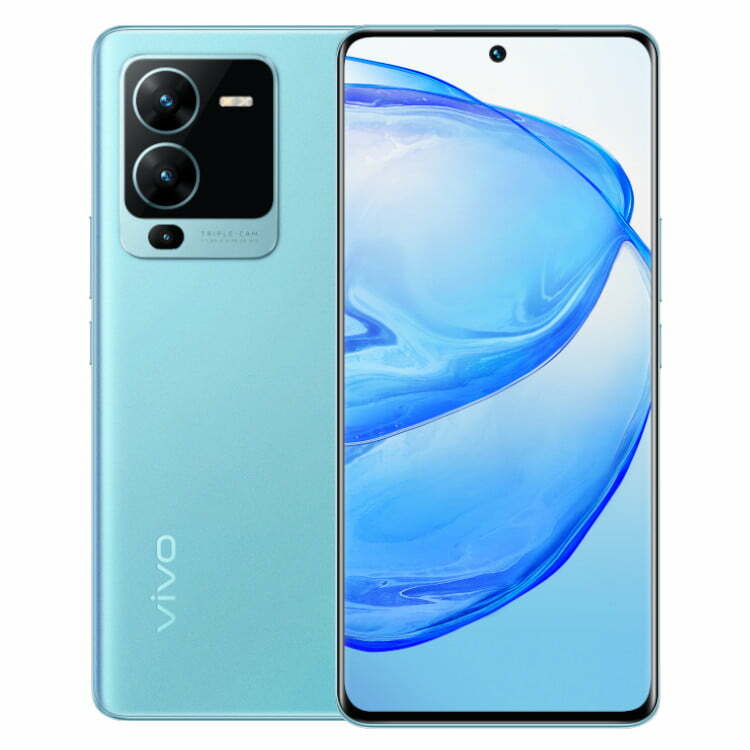
Today is the scheduled release date for the vivo V25 series. The company will broadcast the ceremony live on YouTube at 12 PM Indian time (6:30 UTC) on the scheduled launch day. The live stream footage is embedded below.
The color-changing function that the vivo V23’s predecessor established will be maintained in the new series, but we do anticipate seeing some new colorways. Teasers also allude to a triple-cam configuration with a 64 MP primary camera.
A large battery with 66W rapid charging, a Dimensity 1300 chip in at least one of the vivo V25 phones, and 8 GB Extended RAM, most likely for the most powerful memory option, are among the other specifications that are known.
Stay tuned because as soon as all the information is revealed, we’ll have the announcement news ready.
Russia has been invading Ukraine for over a month, and concerns about cybersecurity are growing. Even before the invasion, US officials blamed Russia for cyberattacks on Ukraine’s Ministry of Defense and two banks.
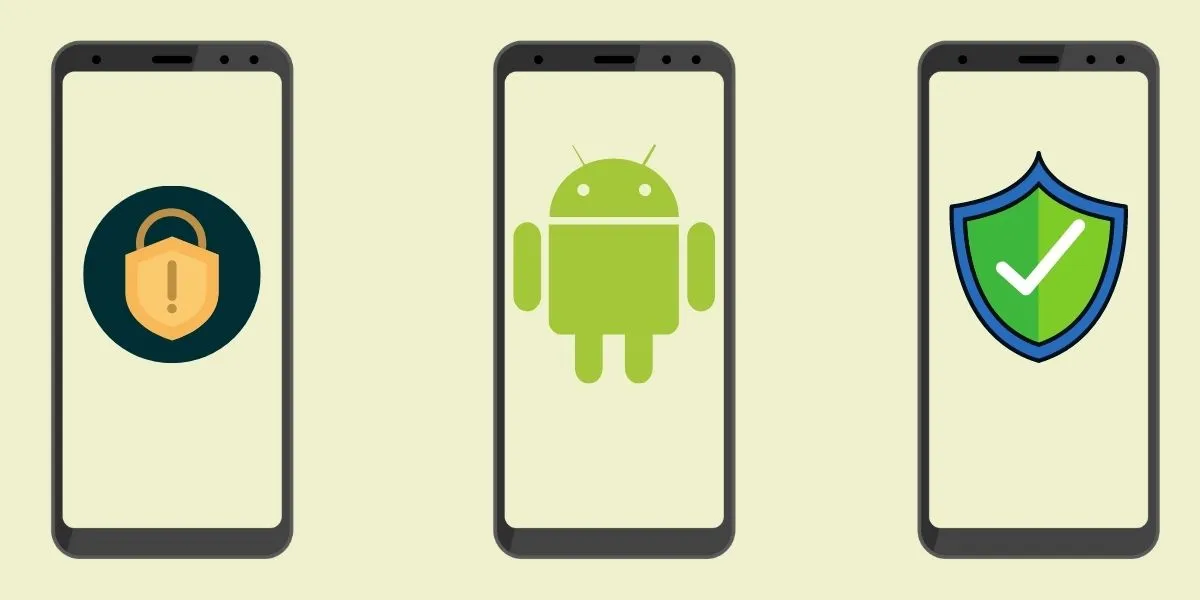
While the US Cybersecurity and Infrastructure Security Agency has stated that there are no particular or credible cyberthreats aimed at the US, it has also stated that hypothetical cyberattacks are more likely to target infrastructure. CISA advises that everyone be ready in case something goes wrong. When it comes to cyberdefense, safeguarding your mobile device is a smart place to start. Here are six things Android users may do to keep their data safe.
Always update you OS
Updating your operating system can resolve issues and repair known security risks. If you don’t update to the current version, you and your device are vulnerable to security weaknesses that could expose sensitive information to unscrupulous actors. Some individuals put off updating their operating system to avoid dealing with early glitches, but waiting too long can destroy your PC. Here’s all you need to know about Android 12.
Use two-factor authentication
In the event that your password is compromised, two-factor authentication, or 2FA, adds a second layer of security to your Android account. When you use 2FA, a second message is sent to another device after you enter your password, requesting you to confirm that you are trying to log in. It takes a little longer to log in, but the added degree of protection is well worth it. Here’s how to enable two-factor authentication.
Password manager
A password manager can assist you if you’re having problems remembering several passwords and creating unique passwords for each account. These tools can be used in conjunction with 2FA to securely store passwords and fill login pages automatically. They can also protect you from phishing schemes, which ask you to input your password on a phony website. Check out CNET’s reviews of password managers Bitwarden, LastPass, and 1Password for additional information.
Encrypt your device
Beginning in 2015, Google mandated that all Android smartphones be encrypted out of the box. After your device has been encrypted, every data saved on it is protected by a PIN number, fingerprint, pattern, or password that only the owner knows. Even Google won’t be able to unlock your device without the key. You may learn how to encrypt your phone here.
Remove data from Google
Because Android is a Google product, unencrypted device data may end up on a Google server. You can check with Google to see what data it has about you and request that it be deleted. It’ll take some time, but it’ll be worth it because your information can’t be stolen if it’s not in the system to begin with. Here’s how you ask Google to remove your data, but keep in mind that Google does not guarantee that it will comply with your request.
Last option – reset/delete your phone
You can remotely wipe your phone if you lose it or it is stolen. If you need to do this, our Android settings guide includes a walkthrough. Because this deletes all data from your phone, you should make a habit of backing it up on a second device if you have anything important on it.
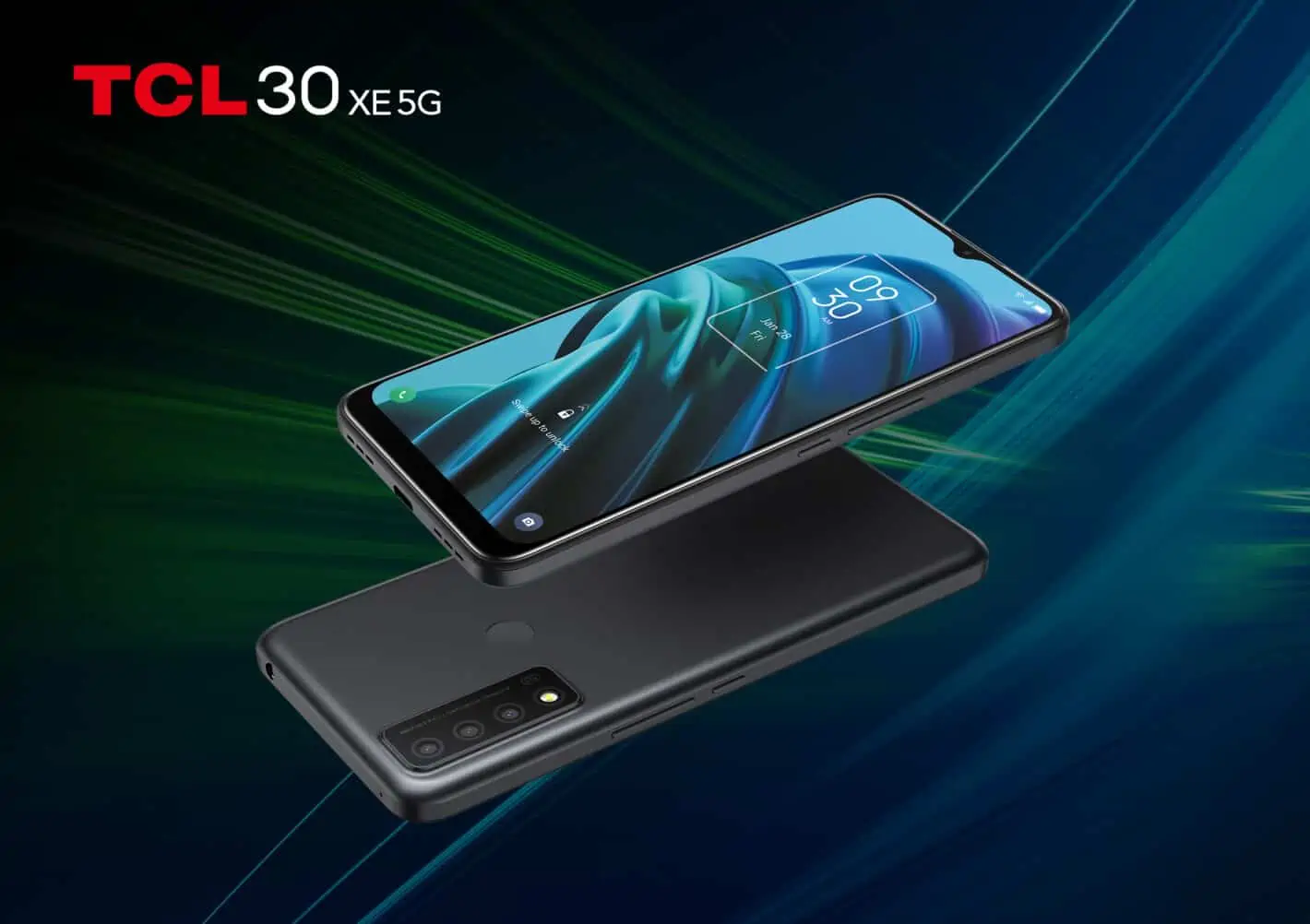
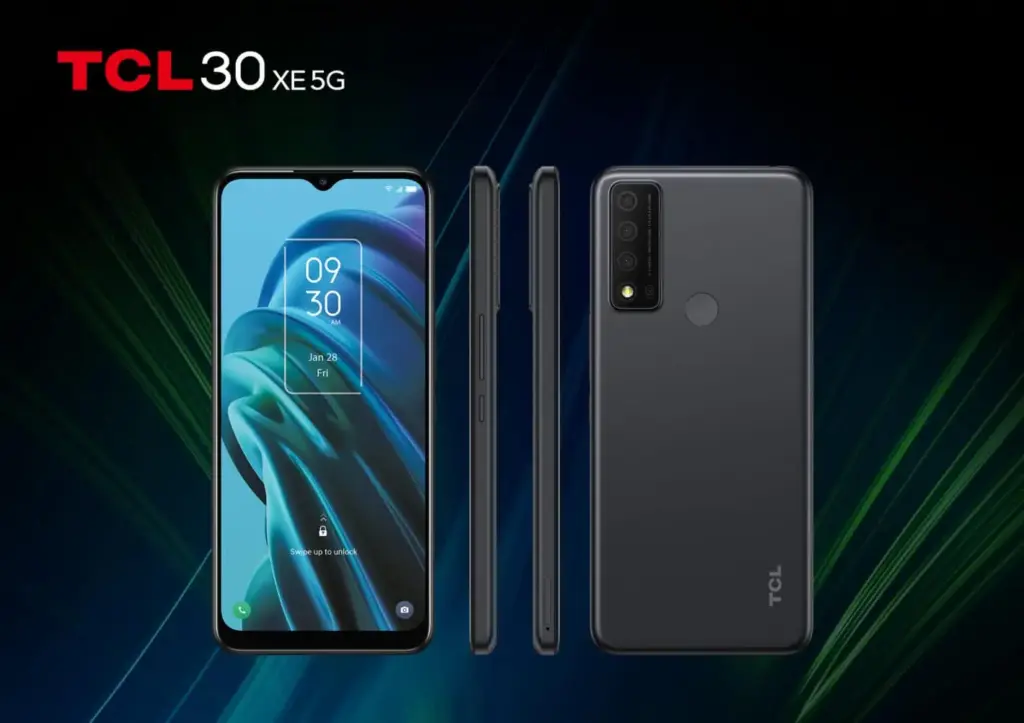
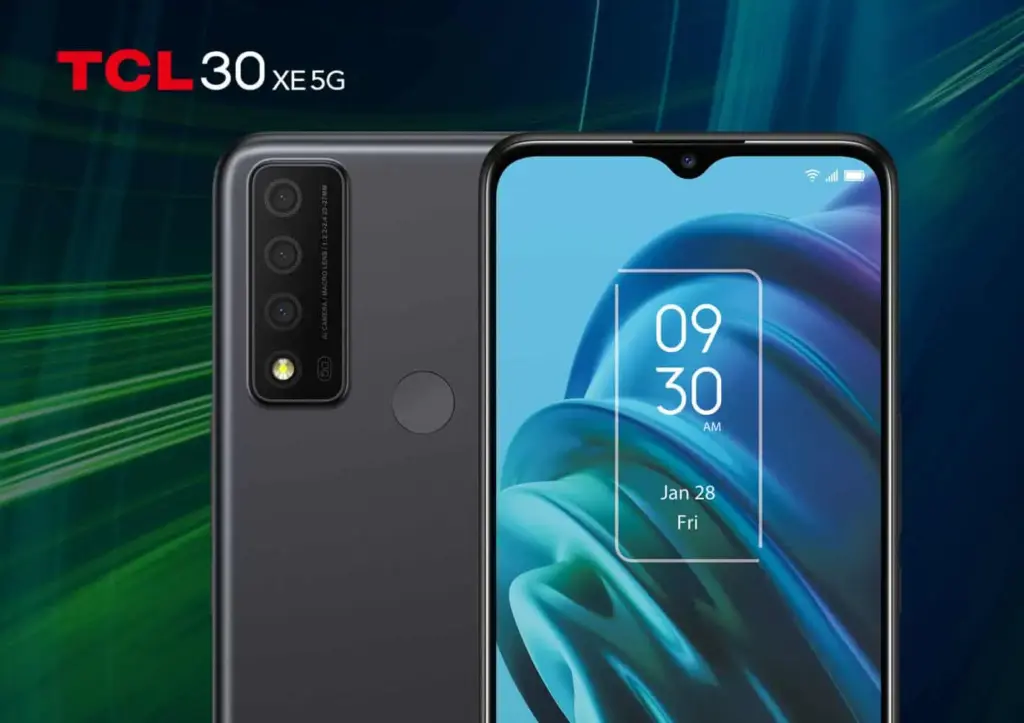
TCL has just released the TCL 30 XE 5G, a low-cost phone with some impressive specs.
TCL has produced a number of fascinating phones since establishing its own brand. This company is focusing on manufacturing affordable phones as well as challenging the luxury market and working on a foldable phone.
The TCL 30 XE 5G has a 1080p display at 90Hz
We’re not dealing with any high-end or ground-breaking specifications right away. This is a simple phone with some interesting features. It features a 6.52-inch 1080p+ LCD display with a 90Hz refresh rate. While that may seem insignificant, it is enhanced by TCL’s NXTVISION technology. The display also features a touch sample rate of 180Hz.
The octa-core MediaTek Dimensity 700 SoC clocked at 2.2GHz powers the TCL 30 XE 5G. There are 4GB of RAM and 64GB of storage, which should suffice for most casual users. If it isn’t, this phone can be expanded with a microSD card up to 512GB.
A triple camera package is available in the camera package. The main camera on this phone is 13 megapixels, with a 2 megapixel macro camera and a 2 megapixel depth sensor. The main camera can record 1080p video at 30 frames per second. There’s an 8MP selfie camera on the front. It appears to be a camera combo that will simply do the job.
TCL included a 3.5mm headphone jack, a 4,500mAh battery, mobile hotspot, a rear-mounted fingerprint reader, face unlock, Android 11 out of the box, and an 18W charger in the box to round out the features. So, this is a really basic start into the TCL 30 phone series.
We don’t know much about the TCL 30 XE 5G at the moment. We don’t know when or where this phone will be released, or how much it will cost when it does. We can expect a similar price to the TCL 30 V 5G, which is roughly midrange and costs $299. It could be a little lower due to some of the specifications being less reliable.
While this phone does not compete in the premium smartphone market, it is still a good option for individuals who do not require much from their phones. For those who aren’t used to more expensive screens, the 90Hz refresh rate should be a nice touch. While we don’t know when this phone will be released, it shouldn’t be long.
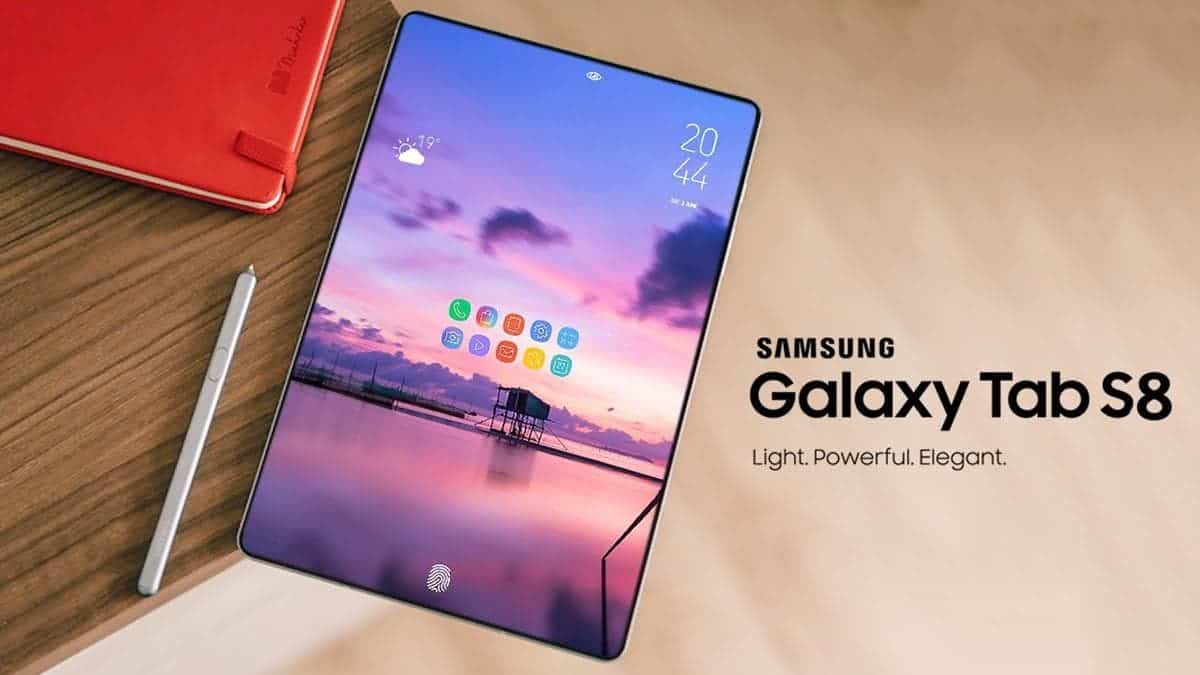
Samsung, with its Galaxy Tab S series, is one of the few manufacturers interested in selling high-end Android tablets. The forthcoming Tab S8 series has been leaked a few times in recent months, due to regulatory filings and numerous renders, but thanks to a fresh revelation from WinFuture, we may finally know everything there is to know about the tablets.
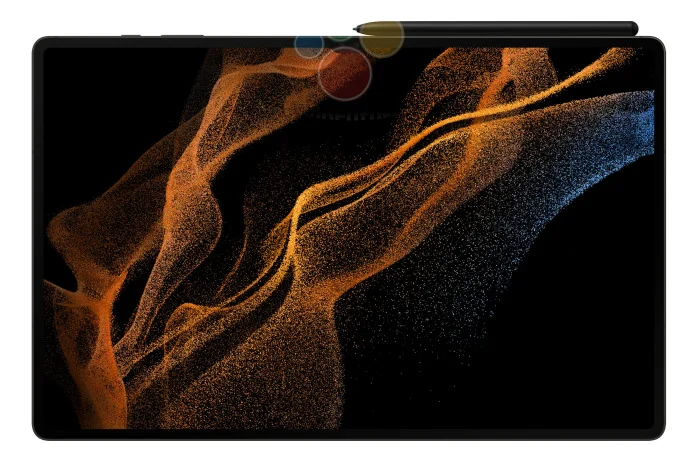
The Galaxy Tab S8 series includes precise specifications and a few press renders, according to WinFuture. Samsung appears to be sticking with three variants this year, as previously reported via leaks: the Tab S8, Tab S8 Plus, and Tab S8 Ultra (there was no Ultra for the Tab S7). According to reports, all three tablets will come with a Snapdragon 8 Gen 1 processor, dual rear cameras (12MP primary and 6MP ultra-wide), Wi-Fi 6, a microSD card slot, Bluetooth 5.2, optional 5G, USB Type-C 3.2 Gen 1, fingerprint readers, Android 12 with One UI 4.1, and a S Pen.
The screen size is the most significant distinction between each tablet. The Tab S8 will reportedly have an 11-inch LCD screen with a resolution of 2800 x 1752, while the Tab S8 Plus will have a 12.7-inch AMOLED screen with a resolution of 2800 x 1752. The Tab S8 Ultra will boast a gigantic 14.6-inch AMOLED display with a resolution of 2960 x 1848 pixels, whereas Apple’s iPad Pro series only goes up to 12.9 inches. The Tab S8 Ultra, on the other hand, will have a notch at the top (in landscape mode) that houses two 12MP cameras, which seems ridiculous.
Pricing information is not yet known for any of the tablets, but the base Galaxy Tab S7 was $649.99 at release in the United States, and the Tab S7 Plus with a 12.4-inch screen was $849.99 at launch. If the prices are similar this year, it might be best to wait for a sale — even with Samsung’s custom DeX interface, there just aren’t as many tablet-optimized apps available on Android compared to. iPadOS.
Most people just consider cleaning up their phone when something goes wrong. While Android devices are intelligent enough that routine maintenance isn’t needed, it’s still a good idea to perform a digital tune-up every now and then. Don’t underestimate the power of keeping digitally organized—-it might just keep your phone running longer.
The trick is to find phone cleaner applications that deliver on their promises. A bad cleaner app, at best, wastes storage space; at worst, it can infect you with malware and flood you with ads. However, not all Android cleaner apps are worthless, so we’ll help you find the ones that are.
1. Files by Google
Google’s official Android file manager includes simple tools, making it the first Android junk cleaner someone can try. To access these options, launch the app and navigate to the Clean tab at the bottom.
Here you’ll see several areas that the app identifies as wasting space. These include Junk files, Duplicates, Backed up photos, and Unused apps. Select an option to look at what’s taking up the most space, check what you want to remove, and confirm to have the app take care of the rest.
While you can also use the Browse tab to explore your phone’s storage manually, letting the app weed out the biggest space hogs is more efficient.
As we’ll see, many of the apps on this list have useful cleaning features but also have RAM optimizers and other nonsense you don’t need. Files is a nice solution to these problems; it’s one of the easiest ways to clean up Android with an easy, free app that isn’t bloated with unnecessary extras.
Droid Optimizer is one of the best-known Android cleaner tools, with over a million downloads on the Google Play Store. It’s simple to use, especially for newbies, with an introduction screen that walks you through permissions and features.
It includes a “rating scale” to encourage you to keep your device in good working order. Droid Optimizer is the perfect Android cleaner for you if you don’t mind making your own smartphone shame you into better habits.
One tap is all you need to begin a phone cleanup. You’ll see your stats at the top of the screen; free space and RAM show next to your “rank” score, where you receive points for your cleanup actions.
If you’d rather set it and forget it, Droid Optimizer lets you schedule routine, automatic cleaning. This auto-cleanup will clear your cache, disable background apps, and remove any unused files. It also includes a “good night scheduler” to save energy by automatically disabling features like Wi-Fi while not in use.
Droid Optimizer can also mass-delete apps—useful if you’re looking to quickly make some space.
It’s not the most attractive app, but it works. If you’re looking for the best Android phone cleaner app and don’t want to do much of the work yourself, Droid Optimizer should be on your shortlist.
The same well-known desktop app for reclaiming disk space is also available on Android. We’ve discussed why CCleaner isn’t an essential app for Windows anymore, as it’s gone downhill somewhat since Avast acquired the service. And while the Android app isn’t perfect either, it’s better than a lot of the other spammy cleaner apps for Android.
Indeed, CCleaner on Android is a multifunctional app that does its best to analyze and clean up stray files taking up your precious space. The main function is the cleaner feature that can wipe cache data from apps, purge empty folders, and delete various histories.
It also has an App Manager, which offers a simple interface that lets you pick multiple apps for uninstallation. Lastly, the System Info page monitors your phone’s resources (CPU, RAM, device details) so you can see what’s going on at a quick glance.
There is no need for root, and it is completely free, but you can upgrade to the Pro subscription for a few extras. It may be lacking in functionality, but it does the job if all you need is a fast way to reclaim storage space on your devices.
Cleaning your phone of unwanted files is just one step in the process. What about keeping track of your battery, CPU temperature, or those annoying mobile ads? The All-In-One Toolbox, as the name suggests, will do it all.
It will clean your Android device’s temporary files, wipe your cache, and delete empty folders and orphaned files. It only takes one tap to examine your system, followed by another to uninstall, and you’re done. It’s the same mechanism in other parts of the app.
The Boost function cleans your system cache and closes background apps, again with two taps. You can set this automatically with the Boost+ function if you’d prefer, but doing so requires an in-app purchase. If you’re running out of juice, the Battery Saver section is another background task killer (see below for a warning on this), but it also provides your current battery statistics.
If that wasn’t enough, there’s also a mass app deleter, advanced file cleaning tools, and Wi-Fi analysis. As its name promises, All-In-One Toolbox tries to do it all. Like Droid Optimizer, there’s also a ranking system to encourage regular use.
SD Maid claims to be “at your service” as the digital cleaner for your Android phone. It keeps the experience simple—opening up the app gives you four quick action features you can use to “tidy up” your device.
The first, CorpseFinder, searches for and erases any orphaned files or folders left over from deleting an app. SystemCleaner is another search-and-delete tool, this time looking for common files and folders that SD Maid believes it can safely delete.
If this sounds appealing, AppCleaner does the same thing with your games. To use this feature, you must first upgrade SD Maid Pro. There’s even a Databases section to further simplify any app databases in use—-in our test, this cleared 40MB from Spotify.
There are also tools for storage analysis (to help you find and delete big files) and mass app removal if you’re looking at a bigger phone tune-up.
Aside from CCleaner (owned by Avast), none of these cleaner apps come from top-tier security firms. The search for the best cleaning app for Android can’t conclude without mentioning Norton Clean, the Android little brother of the famous Norton Antivirus from Symantec.
Norton says that it will “clear the clutter” from your Android computer. It will scan for and wipe your cache, delete any junk files, and assist you in quickly removing any unused applications you have installed, just like the other entries. The Manage Apps section lists all of your apps and allows you to group them by last use, installation date, or storage use.
The software takes a straightforward approach. Norton Clean has one of the cleanest, strongest, and most modern-looking user interfaces as compared to the other entries. Anything you need is just a few taps away, so you don’t need to be an Android expert to find it out.
It’s lacking in functionality, consisting only of a file cleaner and app remover, with popular advertisements for other Norton applications. If you’re concerned about space, Norton Clean is simple enough to use to help you reclaim it. There are no in-app purchases or subscriptions to think about.
Regular maintenance isn’t vital for most Android users, but it can help to keep your device running smoothly. Yes, it’s true—your device should keep running even if you don’t spend time clearing out junk. Most modern Android devices have plenty of RAM and device storage to cope with anything you have installed or saved. You shouldn’t need to spend your days clearing app cache, either.
That said, if you notice there’s a problem with your Android device, an Android cleaner could perk it up a little. If that doesn’t work, you might need to try manual cleaning next.
Duo and Google Messages are among the best communications apps Google has ever released, so it’s no surprise that they’re incredibly popular even among people whose phones ship without Google apps.
Unfortunately, it looks like those uncertified phones may soon no longer be able to run Duo and Messages. XDA Developers and 9to5Google have uncovered strings that show that apps will soon stop working on unsupported devices.
<string name="ip_compliance_warning_message">On March 31, Messages will stop working on uncertified devices, including this one.</string>
The Messages string is as clear as it can be. If Google passes through the certification requirement for Messages, users with uncertified phones may soon see the following message in the app: “On March 31, Messages will stop working on uncertified devices, including this one.” This should only affect a small fraction of Android phones that do not ship with Google apps, such as recent Huawei phones, Chinese ROM phones, and, of course, custom ROMs. XDA Developers suspects that the move will follow the RCS end-to-end encryption roll-out, as the company cannot guarantee that the uncertified device will not be compromised.
<string name="grace_period_notification_body">"Because you're using an unsupported device, Duo will unregister your account on this device soon. Download your Clips and call history to avoid losing them."</string>
<string name="grace_period_notification_title">Duo is going away soon</string>
Google Duo users with uncertified phones will see a similar message saying: “Because you’re using an unsupported device, Duo will unregister your account on this device soon. Download your Clips and call history to avoid losing them.” Even though these strings don’t explicitly mention “uncertified” devices, 9to5Google says that a look at the code reveals that the change is related to “GmsCompilance.” GMS is short for Google Mobile Services, the package responsible for bringing Google’s core apps and important APIs including the Play Services to certified phones. In contrast to Messages, there’s no firm deadline yet.
If Google pulls through with the change, people with uncertified phones will soon have to look for other solutions. Perhaps Signal could be a good replacement for both — it supports sending and receiving SMS in addition to its text and video chat service.
If you’ve ever tried looking for firmware to install on your Samsung Galaxy smartphone or tablet, it might be pretty annoying. While companies like Google, OnePlus, and Xiaomi provide download links on their websites, Samsung has yet to provide an official firmware download portal. That’s one of the reasons why there are so many Samsung firmware download sites out there. These sites scrap Samsung’s FUS (Firmware Update Server) for the latest firmware releases and categorize them by model number, carrier/region, and OS version. However, many of these services use a “freemium” model that throttles the base-tier download speed.
Fortunately, there is no shortage of community-developed tools to directly download a new software update for a compatible Galaxy device. We’ve talked about two such tools — SamFirm and Frija — many times in the past. Samloader is another open-source, cross-platform alternative. While I personally think that downloading Samsung firmware using one of these utilities is simple enough, some may still find them inadequate to meet their needs. If you do, then here are a few more solutions that make it even easier to grab official Samsung firmware packages for your device.
1. SamFirm_Reborn
Created by XDA Recognized Developer Ivan_Meler, SamFirm_Reborn is a reincarnation of the original SamFirm tool. The developer decompiled the legacy application and patched the codebase to make it compatible with Samsung’s server-side changes. SamFirm_Reborn is open source and it does offer a handy command-line interface besides the familiar GUI.
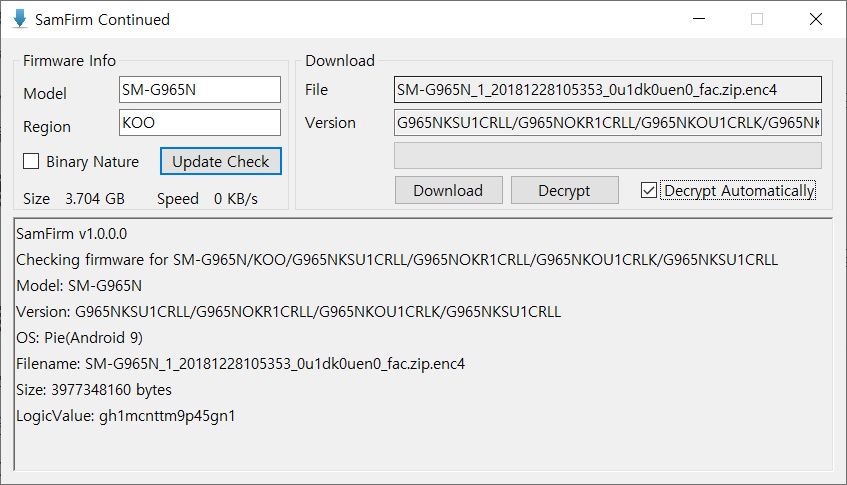
SamFirm-continued started its journey as yet another open-source fork of the legacy SamFirm, but the maintainer abandoned the project a few months ago. Later on, XDA Member Tungtata picked up the baton and created SamFwTool. One of the highlights of SamFwTool is the auto-detection feature. Just connect your phone in MTP mode and press “Auto detect” to identify your device model and region code.
The whole Samsung firmware downloading saga is now on a different level, as XDA Recognized Developer jesec has presented SamFirm.js, a streaming downloader, decryptor, and extractor coded in JavaScript. With SamFirm.js as the backend, you should be able to construct a web app to fetch stock Samsung firmware packages. The project is a collaboration between developers jesec and LuK1337.
In case you’re looking for a web API variant of the Samloader project, you should try out SamFetch. XDA Member YusufCihan reimplemented the functions from Samloader’s code as web routes in order to expose a simplified REST API to download Samsung firmware.
What are the most commonly asked questions from Android users? Like, how is Android getting faster? How can I make my Android phone faster? Well, it is the hope of every Android user that their phone defies all the boundaries of fluidity and rapidity.
But do you believe this is true? Can you make your Android phone faster than it can? At most, what we want is to make the Android system function as if it’s new, because our smartphone is slowed down by downloading apps and using them everyday. These apps run in real-time and consume the device’s memory, energy , and other resources.
So, what could be the many ways to use our Android devices efficiently, in such a way that we could reduce the lags and freezes as much as possible if not completely?
Keep the apps you use
Nearly every guide to Android tips and tricks you could read will suggest that you keep only those apps you use on a daily basis. Doesn’t that sound apparent? Will you store your house with unnecessary items only because they are free? Yeah, our homes are always loaded with items like that, but do we have to do the same with our smartphones?
In order to keep running, numerous apps that live inside our smartphones run all the time and need to connect to the Internet. Even if we don’t benefit from these applications, they will just place a burden on the hardware even raise our data bills. It would be a smart step in the direction of speeding up Android to get rid of such software.
Clear the cache
On a daily basis, there are some applications that you don’t need, but they are relevant enough to have a place on your computer. Like, you book flights, hotels, and order food with the apps you use. Try to delete the cached data for such apps in the Settings to make Android quicker, to ensure that they do not take much space when they are not in use. Often learning the cached data helps to make the app faster as it eliminates old data that might make it slow and cause freezes and crashes. The application will maintain newer versions of the same stuff when the data is removed.
Clear the memory several times during the day
Android has exceptional abilities for task management. It can, whenever needed, close unwanted processes on its own. But I can tell you this old-school thing would be of great help if your system had a RAM shortage.
Nearly every launcher nowadays provides the option of freeing up system memory. If there is no memory cleaning application, you should consider downloading any. And I am not talking about the apps here that claim to make your Android phone faster by running cleaning operations in real-time. And all they do is make it even slower on the computer.
Check if there are lighter versions of apps
Many of the popular apps like Facebook, Twitter, Messenger, and Opera also have versions of their ‘lite’. These lightweight applications are also designed for smartphones at the entry-level and for consumers needing to keep things simple.
The efficiency of your Android phone can be enhanced by using Lite versions for applications. And they also decrease your data bills, and it’s one of the reasons that there are such games.
Update your device
Each newer version of Android comes with different performance enhancements. So, updating your computer will do wonders and accelerate Android if your vendor is good enough to release one.
Alternatively, you can head over towards custom ROMs for your Android device if you think the device maker built the phone and just forgot the fact that it exists anymore. That is the case of the Mi Pad my friend brought more than a year ago. Even though the device has capable hardware, it still runs Android KitKat. Please note that using customs ROMs usually comes in the category of Android performance tips for experienced users.
Before you install an app
It’s almost a decade since Android came into existence and the number of apps for the platform has now grown into millions. But out of these uncountable number of apps and games, not all of them are designed by developers with good intentions.
Many Android apps are fake and want to take control of your device, steal valuable data and send it to their masters. For instance, the System Update malware lived in the Play Store for three years, undetected.
Google has recently rolled out Play Protect tool for scanning such apps. Indirectly, you can make your Android device faster by this option. However, you should check the authenticity of an unknown app before you install it, even if you’re downloading it from the Play Store.
Format your SD Card to improve Android performance
If you experience frequent crashes on your Android phones, one of the explanations might be a corrupt SD. Formatting the SD card would not only delete the unnecessary junk of files generated by the Android framework and various apps, but could ultimately lead to a boost in performance.
Update only over WiFi
In order to keep the information fresh all the time or do other things such as uploading files, images , videos, several apps need to update themselves in the background. Disabling background data can thus render an Android computer, to an extent, faster.
That’s because it bars apps from linking to the internet and from using device tools. Turning off background data for mobile networks will also be helpful in saving your internet bills.
Alternatively, you can turn off auto-sync on your Android device if you want to keep your device from being synced by Google.
And turn-off auto update in Google Play by visiting Settings > Auto-update apps > Select Auto-update apps over WiFi only.
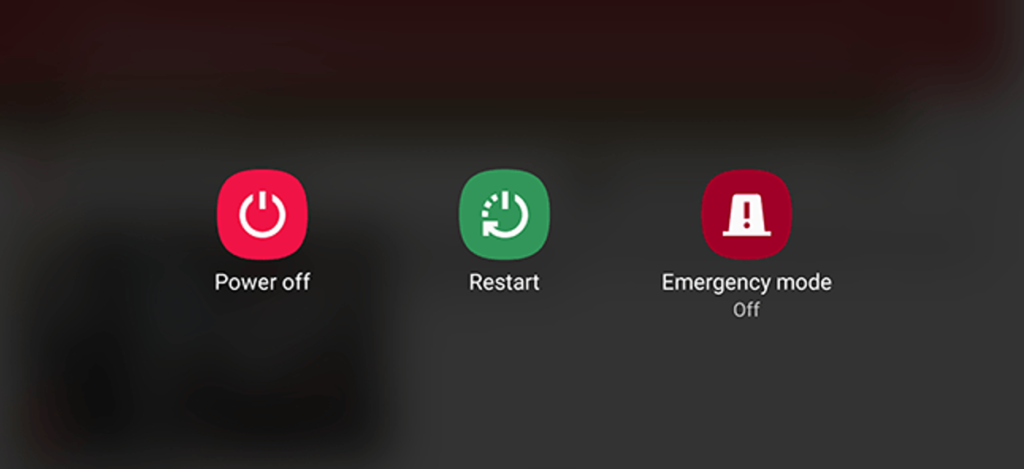
Restart is what your Android phone needs sometimes
For our computers, this applies; restarting the machines will help them find their way through tough times. Similarly, Android devices may be the case too. It deletes temporary files to speed up Android when you reboot your computer and also cleans up the memory of the device.
Use the cloud, free your storage
Files are being transferred to the cloud in the latest 2017 storage fashion. Not only does this make our data available across devices, it also frees up precious internal storage on the Android phone that applications installed on the device can use. Keep in mind that internal storage plays a significant role in your Android phone’s output.
Keep your home screen clean
It sounds good to fill your Android home screen with live wallpapers and loads of widgets. However, all these things put additional load on the hardware under the hood and affect the output of the system.
Often, when you use a heavy app or play games, you may see your Android device struggling to load the contents of the home screen.
One of the many ways you can make your Android phone quicker is to keep your home screen as clean as possible. Every time you return to the home screen or wake the computer from sleep, it doesn’t have to load all the content.
Try other launchers made for Android
android launchers
Custom launcher is a perfect way to turn your Android computer into a whole new version of itself. It might not be feasible for a custom launcher to have a major performance boost related to hardware, but some of them suck much less memory and Processor than others. Installing a lightweight custom launcher will thus make your Android phone functionally faster.
In addition, the variety of shortcuts, customizations, and other options will help to make your Android device run faster, if not faster. These applications will reduce the time that people would possibly spend in searching different apps and settings on their devices.
What to do when your Android phone freezes?
It’s hard to digest, but some evil apps and processes make our device experience the temperatures of hell. But repeatedly tapping the screen or pressing buttons would only make things worse when your Android freezes due to an app crash or when all RAM gets consumed.
Under such cases, strive to show some calmness and maturity. Most of the time, it’s just the app, and pressing the home button will take you to home screen. After that you can destroy the affected app from the Recent apps section to make Android faster.
When you press the home button, if nothing happens, press the power button gently and try to ‘reboot’ or ‘turn off’ the system. If the system is stubborn enough to resist a restart you may remove the battery. If your mobile has a non-removable battery, you can have all the time, but you may have to wait until the battery is discharged.
Developer options
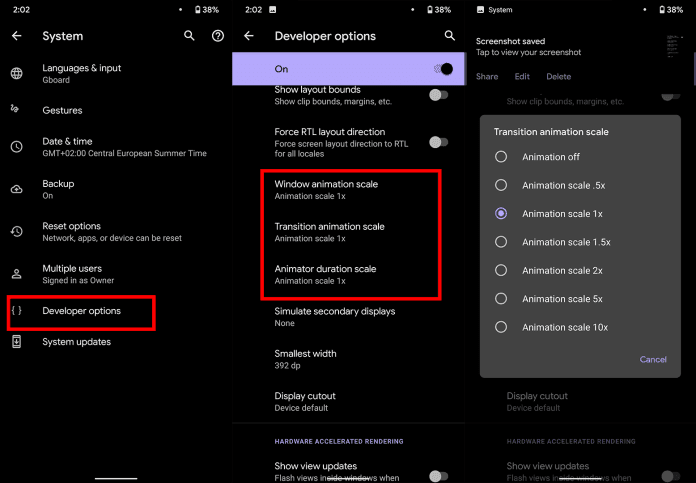
There is a much popular way to make an Android device faster by tweaking some settings in the Developer Options. However, I personally don’t like this suggestion as it leaves the device without any special effects.
You can enable Developer Options on Android by going to the About section and tapping the build number five times consecutively. Then, you’ll be able to see Developer Options in the Settings. You can disable animations on the device. Set Window animation scale, Transition animation scale, and Animator duration scale to off.
This change reduces the time wasted on rendering various visual effects on the screen when you operate, making it work quicker in some sense. Go ahead if you’re fine that your device appears to be running a decade old software when it’s not.
Reset your device
Last and but not least, the ultimate option to make your Android phone faster is to perform a factory reset. You can consider it if your device has slowed down to the level that can’t do basic things.
There are two ways to reset on your Android device. First is to visit Settings and use the factory reset option present there. This would perform a soft reset of your device which involves resetting device settings and wiping all the data like your photos, videos, apps, cache, etc.
For deeper cleaning, you’ll have to boot into recovery mode and hard reset the device. After you turn off the phone, on most Android devices, recovery mode can be accessed by pressing Power and Volume Down button for around 5 to 10 seconds.
You will need to boot into recovery mode for deeper cleaning, and hard reset the computer. On most Android devices, after you turn off the handset, you can access the recovery mode by pressing the Power and Volume Down buttons for around 5 to 10 seconds.
In most situations, though, you should stick with the first process, as it will fix problems for you. And, try to back up the data before you do something.
So, these were some of the Android tips and tricks for your phone with a hope that you’d be able to give it some adrenaline rush.