Tag: debug

  • Here are 3 reasons why you should enable ADB on your Android device

    Here are 3 reasons why you should enable ADB on your Android device

    You have heard about ADB and that you ought to turn it on for your Android phone. But why?

    Here are three reasons to enable ADB on your smartphone right now.

    Wirelessly mirroring phone to PC

    The most recent versions of macOS and iOS allow you to mirror the screen of your iPhone to your Mac. In certain situations, this can be really helpful. However, what about Android? Unfortunately, there is not a built-in method for mirroring the screen of your Android handset to a Windows computer—or any computer, really.

    But that is where scrcpy is useful. “Screen copy” is represented by the unusual name, and the application’s name is bolded. I was able to utilize scrcpy with ADB over my home network on my OnePlus 13R, and it was great, despite the strange name.

    The mirrored display functions just as it would if you were physically touching it, and there was hardly any lag when using Scrcpy. Everything worked as I had anticipated, and I could utilize gestures just like I could with the OnePlus 13R.
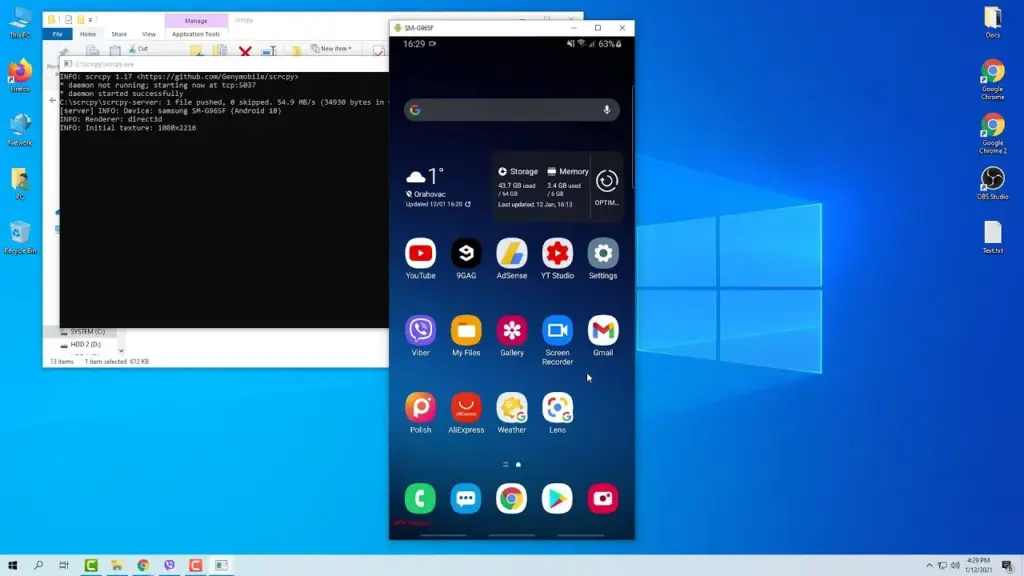
    scrcpy mirror android via adb

    You can use the command scrcpy in the terminal to remotely connect to your phone and display (and interact with) its screen on your computer after it has been installed on macOS, Windows, or Linux.

    I have two devices linked to my PC: a Wi-Fi device and a USB device. To force the connection over Wi-Fi, I used the command scrcpy -e, and it worked perfectly. Using scrcpy -d would force the connection over USB, but unless you do not have a reliable Wi-Fi network, I do not see why you should do this.

    In any case, utilize scrcpy to keep your phone’s screen shown on your computer. Just be aware that the program will only function if your phone is unlocked and the screen is turned on. You will also need to input any passcodes on your phone’s screen, not your computer’s.

    Sync files between your computer and phone

    Even though ADB comes with the adb push and adb pull commands built in, I much like use the program better-adb-sync than the built-in options. It is more akin to an rsync tool that allows you to synchronize files between your phone and computer.

    The –show-progress parameter is one feature that sets it apart from the built-in commands, even if the core operation is fairly similar to that of adb push and adb pull. This will display the status of the file transmission between your computer and phone. After installation, the better-adb-sync command is simply adbsync. If you want to transfer a video file from your phone’s storage to your computer while displaying the progress, you would use a command like adbsync –show-progress pull /sdcard/video.mp4.
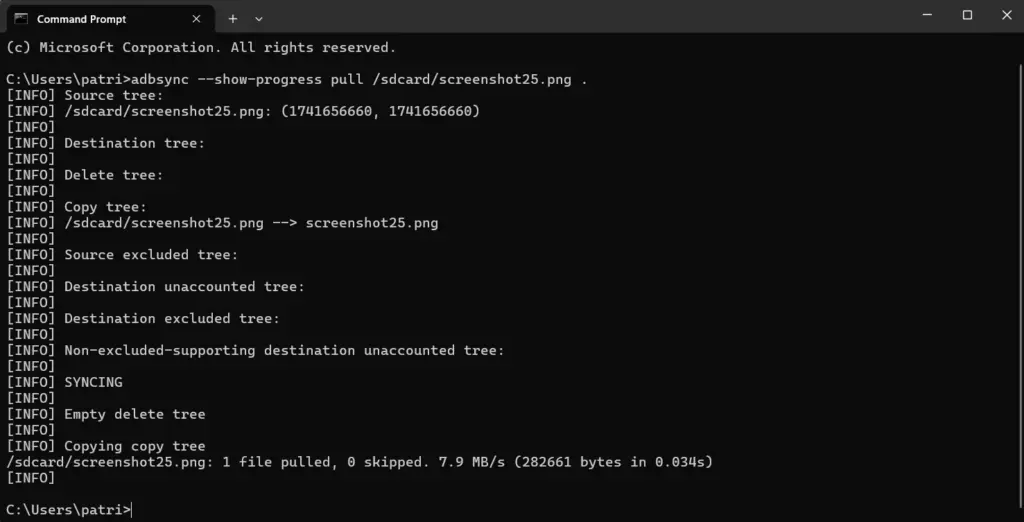
    screenshot 2025 03 10 203417

    Personally, I think it is essential to know the status of a transfer. Sending a command and then waiting for a blank response till it fails or succeeds is something I detest. Does it still function? Does the transfer continue? Was it stalling? Is it moving slowly? Is it taking so long because of that? I frequently ask all of these questions when transferring files in the terminal.

    I think it is essential to be able to use the –show-progress flag with better-adb-sync, and I am sure you will find it useful as well.

    Move files to your computer wirelessly

    ADB is the answer if you have ever wished to quickly take a screenshot of your phone and transfer the image to your computer.

    To take a screenshot of your phone’s screen, just type the command adb shell screencap /sdcard/screen.png. After that, the file will be pulled to your computer using a program like adbsync pull /sdcard/screen.png. If you are also wirelessly connected to your phone, you may accomplish all of this over Wi-Fi without the need for wires.

    When you require the information from your phone but are attempting to send anything from your computer, this can be helpful. If you have multiple phones and are unable to recall which button shortcut to use to capture a screenshot, you could also just utilize it.

    There are several justifications for using this command, and I believe each one is sound. Additionally, it works well with better-adb-sync, which makes it simple to transfer the file to your computer after taking a screenshot.

    Do you want to know additional ADB commands for your Android phone? Every Android user should be familiar with these nine of the greatest ADB commands.
  • How to configure and use Android’s ADB wirelessly

    How to configure and use Android’s ADB wirelessly

    ADB is a command-line tool that makes it easier for your Android smartphone and a PC to communicate. The tool has many more applications besides only rooting and updating Android ROMs (more on this later).

    The traditional method for using ADB entails connecting your Android device to the Desktop through USB. But there is an alternative. Let’s examine at some wireless ADB usage options.

    Set up ADB

    You can skip this step if ADB has previously been configured on your Android and PC. If you haven’t, remember that everything is new to you!

    You must first download and unzip the Android SDK Platform Tools from the Android developer website before you can use ADB on your machine.

    By executing the command: brew install homebrew/cask/android-platform-tools, Mac users can use Homebrew to install ADB.

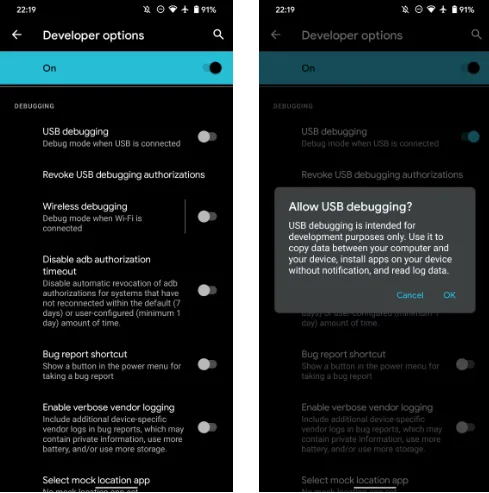
    Before you may connect your Android smartphone using ADB, you must first enable USB debugging in the developer settings.

    wireless adb setup

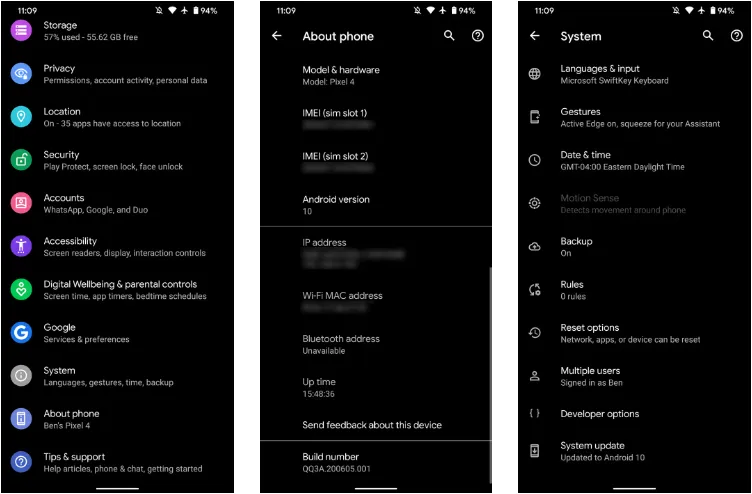
    Go to Settings > About phone then tap on the Build number several times. Once again, go to Settings > Developer options, then toggle on USB debugging.

    Once that is finished, use a USB cord to connect the Android device to your Desktop. You must utilize a cable initially even though we’re going to set up a wireless connection. The USB debugging prompt that will display on your Android device should always be accepted.

    enable usb debugging for ADB

    Open the command line or Terminal and navigate to the Platform Tools folder.

    If you’re on Windows, you can head to the downloaded Platform Tools folder and open the PowerShell window by pressing Shift and right-clicking anywhere in the folder, and selecting Open PowerShell Window here. On a Mac, open the Platform Tools folder and go to Finder > Services > New Terminal at Folder.

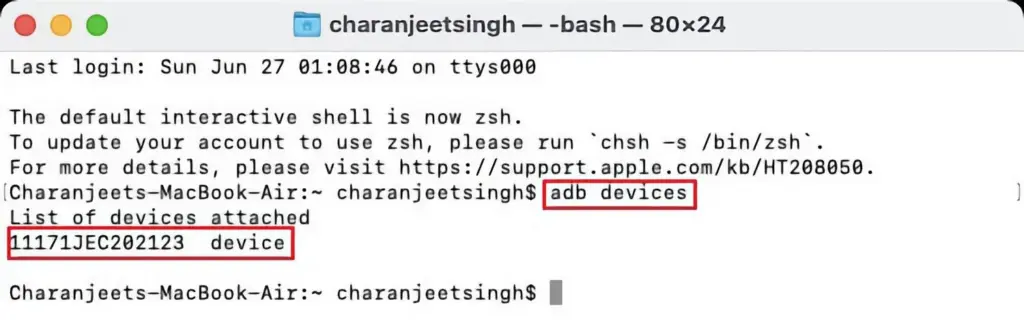
    If you’re using Windows, use the command adb devices into the command prompt. All instructions should be prefixed by a dot-slash on Linux and Mac, so it would be./adb devices.

    You should be able to find your device’s serial number in the list of attached devices if everything functions as it should.

    adb devices

    How to use Android wireless ADB

    The main topic at hand right now is how to connect your Android smartphone wirelessly to an ADB server. To use ADB wirelessly after configuring it and connecting your Android device to your PC, follow the instructions below.

    1. Type adb tcpip 5555 in the command line or Terminal and press Enter.
    2. Find your phone’s IP address in Settings > About Phone > Status > IP Address.
    3. Back in the command line or Terminal, type adb connect [your Android device’s IP address].
    4. Finally, press Enter again.

    The Android device should now be connected to ADB over a wireless connection. You can safely remove the USB cable.

    Is wireless ADB not working?

    Try installing Minimal ADB and Fastboot from the XDA Forums if your Android device won’t connect to Windows using ADB (you are getting errors in the command line). The required Android drivers are installed by this package, which may also assist you in fixing any command line issues.

    You can also utilize WebADB, which transfers all of ADB’s capabilities to your web browser. You can use the online tool to use ADB via Wi-Fi. In other words, you can completely forego installing ADB.

    What is ADB used for?

    The idea that Android ADB is solely helpful when rooting Android is a common one. It, however, is merely one of the several uses for the Android Debug Bridge.

    For example, you can use an ADB command to delete pre-installed apps from your Android device that is not rooted. Unwanted apps may be tough to remove from some Android cellphones, but ADB can assist.

    Without needing to root your device, you may also mirror your Android screen to a Desktop using the command line utility. This can be done using the free program Scrcpy. The tool’s wireless ADB connection results in extremely fantastic performance.

    Is safe to use?

    Using the utility won’t be a problem if you are familiar with ADB commands. There are risks involved with using ADB, especially if you are new to this field. If you are trying to root your device, using the incorrect commands could result in problems or, at worse, brick your phone.

    Although your Android smartphone won’t have any problems once you set up wireless ADB, you should always keep a backup of your data in the cloud or on an external storage device as a safety measure.

    No cables anymore

    Although though you first require a USB cord to set up ADB, the ability to utilize it wirelessly is incredibly useful. It allows you to walk around more freely while you work, allows you to simultaneously charge your phone at full speed, and is just much more practical in general. It’s definitely worth a go if you use ADB.