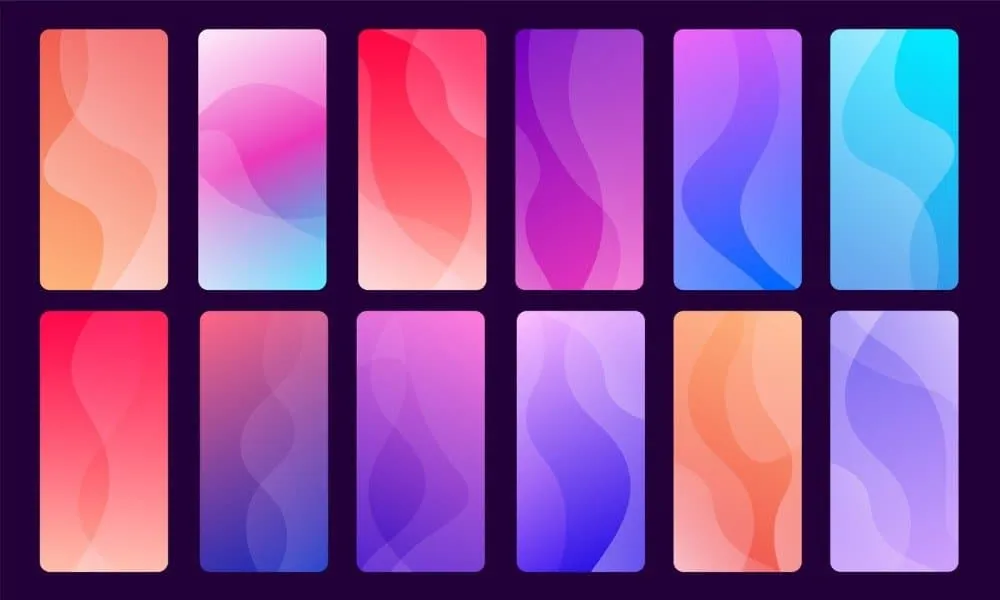
The home screen of your smartphone serves as the entryway to your digital life, and you may personalize it to improve its usability, functionality, and aesthetic appeal. This article explains how to customize your home screen for a genuinely one-of-a-kind experience, from altering the background to adding widgets and arranging apps.
Change wallpaper
The aesthetic tone of your smartphone is established by your wallpaper. Changing your wallpaper is easy, regardless of your preference for abstract art, beautiful landscapes, or intimate portraits.
On Android:
- Long-press an empty space on the home screen.
- Select Wallpaper or Wallpaper & style from the pop-up menu.
- Choose a pre-installed wallpaper or select an image from your gallery.
- Adjust the image as needed and tap Set wallpaper.
- Decide whether to apply it to the Home screen, Lock screen, or both

On iOS:
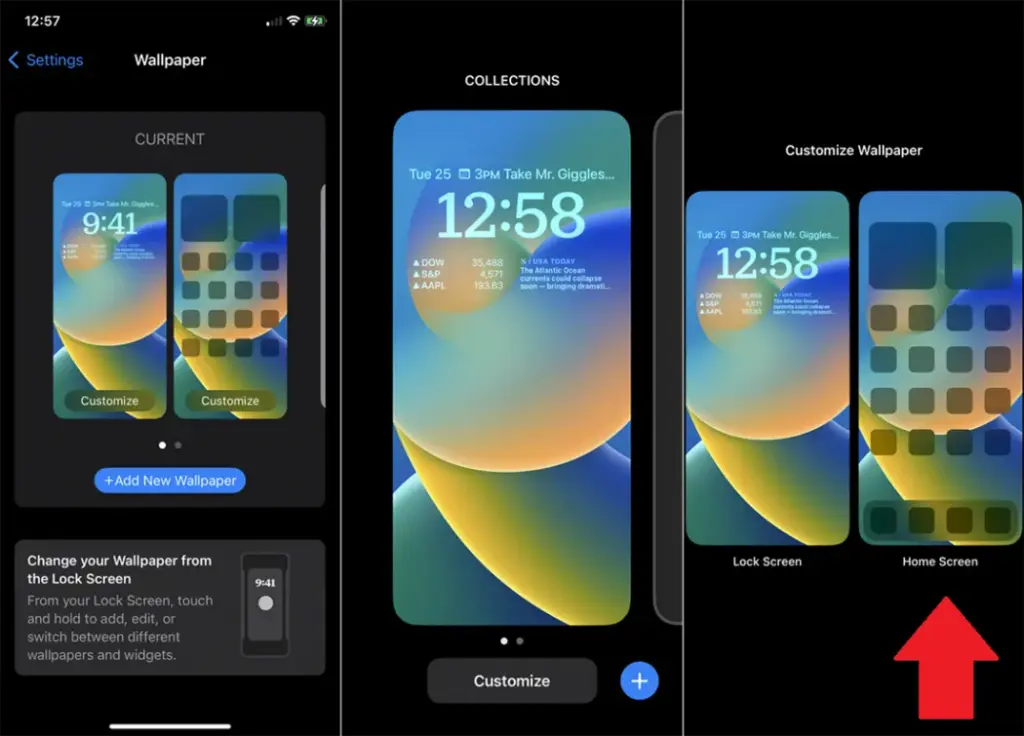
- Open Settings > Wallpaper > Choose a New Wallpaper.
- Select an image from Apple’s preloaded options or your photo library.
- Adjust and tap Set to apply it to the Home screen, Lock screen, or both9
Add widgets for quick access
Without opening apps, widgets offer functionality and information at a glance.
On Android:
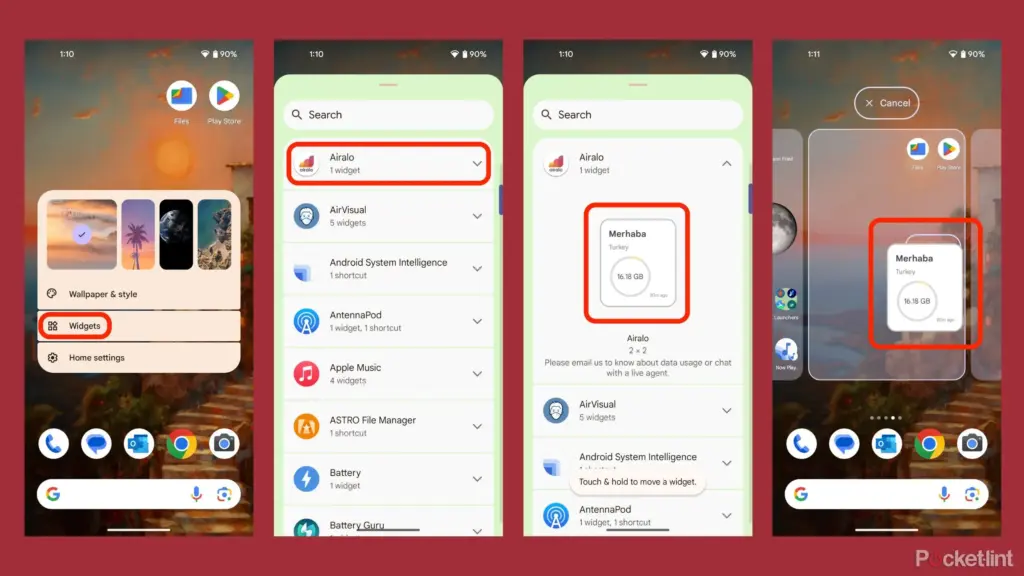
- Long-press an empty area on the home screen and tap Widgets.
- Browse through available widgets (e.g., clock, weather, calendar).
- Select a widget and drag it to your desired location on the screen.
On iOS:
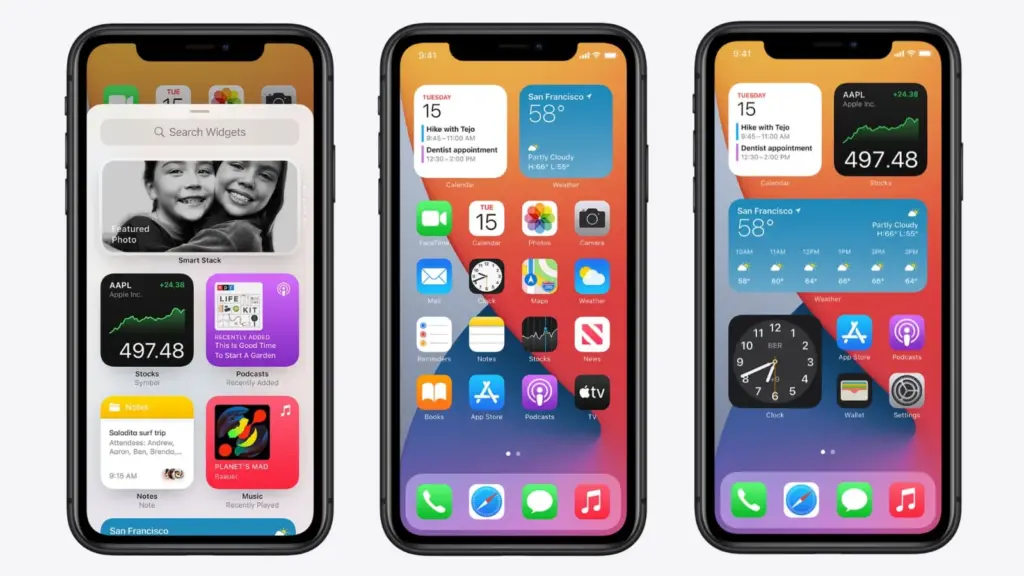
- Touch and hold the Home Screen background until apps jiggle.
- Tap the “+” icon in the upper-left corner.
- Choose a widget from the list and select its size (small, medium, large).
- Tap Add Widget, then drag it into place
Organize apps
A clutter-free home screen improves usability and makes navigation faster.
Create Folders:
- Drag one app icon onto another to create a folder.
- Add more apps by dragging them into the folder.
- Rename folders by tapping on them and selecting the name field.
Arrange Apps:
- Move frequently used apps to the first page of your home screen for quick access.
- Drag icons to different pages or positions by holding and moving them.
Advanced Organization Tips:
- Use themed rows (e.g., “Work,” “Social,” “Entertainment”).
- Sort apps by frequency of use or color coding for visual appeal.
Use customization apps
Download specialized home screen customization programs like WidgetClub or Nova Launcher for more sophisticated customization choices including unique icons, fonts, and themes.
Benefits:
- Access all-in-one themes that include wallpapers, widgets, and icons.
- Customize grid layouts for app placement flexibility