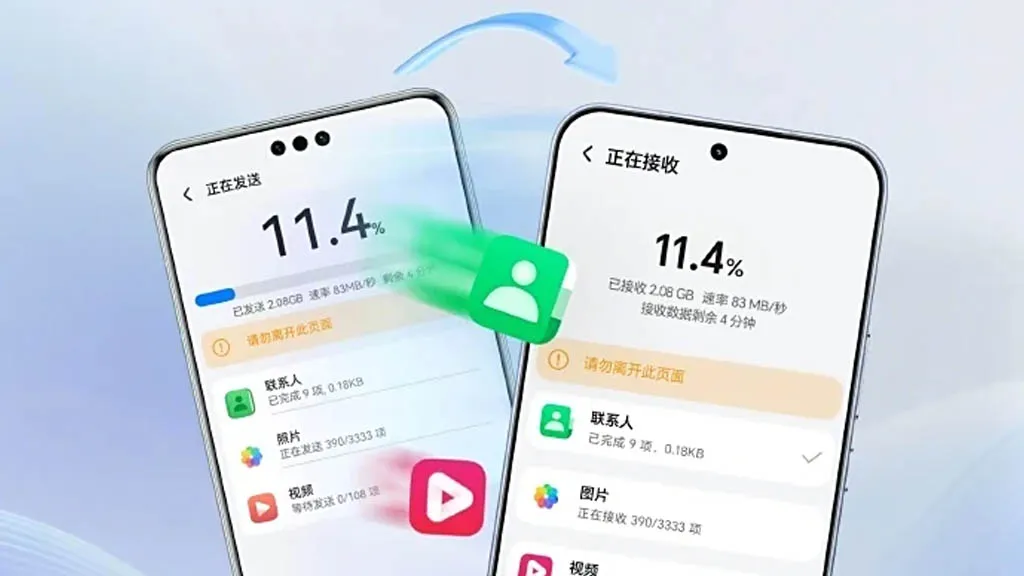
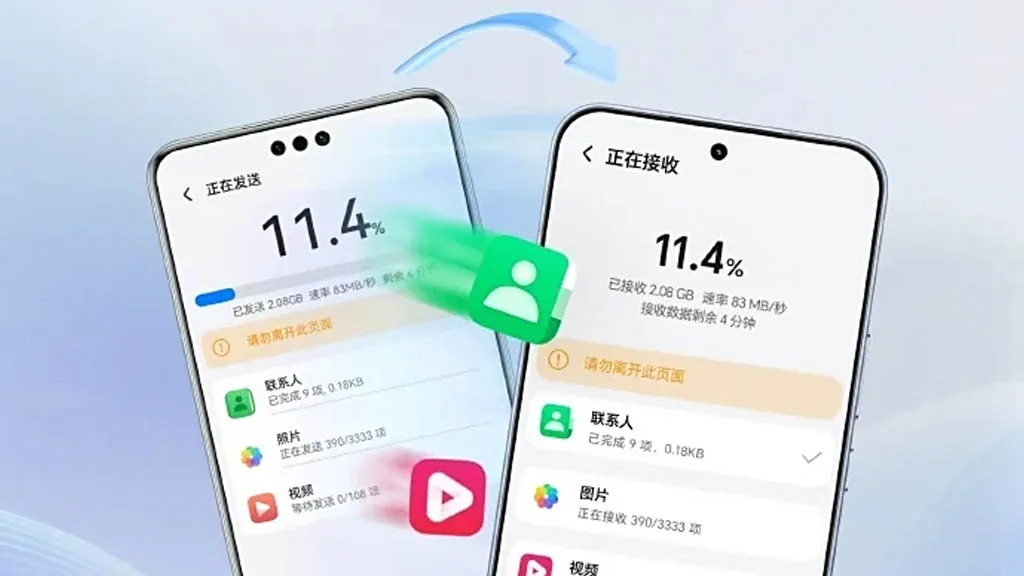
A few months ago, Honor unveiled AI Connect, a technology that allows wireless file sharing between Honor and iOS devices from Apple. The company has now developed a new device cloning capability that is compatible with Huawei’s HarmonyOS Next, iOS, and Android.
To enable device cloning with devices running the three smartphone operating systems listed above, Honor has updated its Device Clone software. Through cloning, users will be able to effortlessly move data between devices without the need for extra gear or attachments.
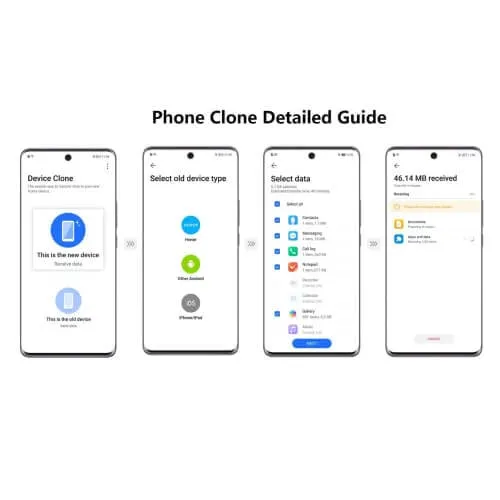
Honor is the first brand to offer HarmonyOS Next data transmission as a result of this advancement. Users of Honor smartphones can download and install the “Device Clone” app from the official app store on both new and old devices in order to clone an old device.
Next, open the Settings menu on the new smartphone and select Device Clone. Select Updates & System > Select Device Clone. Select the “This is a new device” option. Choose the “HarmonyOS” device type.
On the old device, repeat the previous steps, but choose “This is an old device” rather than “This is a new device.” Next, link the two devices by scanning the QR code on the new device with the old one. Next, choose the data that needs to be moved to the new device and click “Next.”
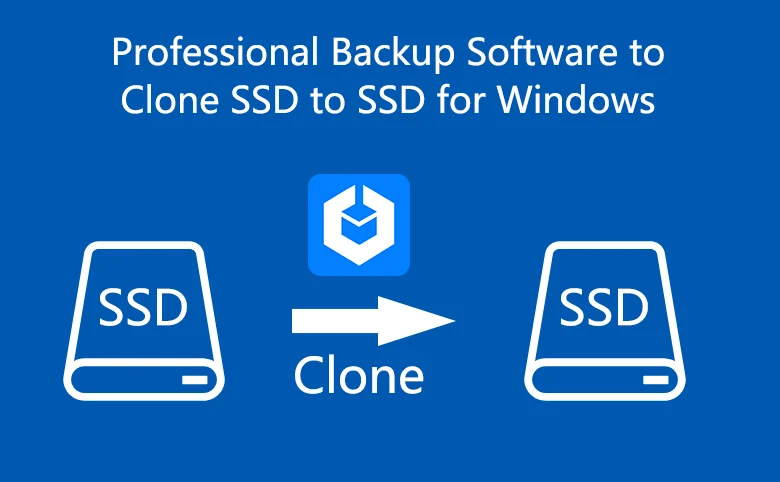
Copying an SSD (solid-state drive) has become pretty common among folks who want to move all their data, operating system, and preferences to a new drive quickly. This post dives into why people clone SSDs and offers one best disk clone software for Windows users.
Why Clone an SSD?
Cloning an SSD brings several benefits compared to manual data transfer or OS reinstallation. It’s a time and effort saver, copying all data and settings from the source SSD to the target one. Whether you’re upgrading, replacing a faulty drive, or seeking more storage space, cloning streamlines the process while safeguarding data integrity. Specifically:
Helpful for booting your computer in case of accidents or from a secondary hard drive.
Upgrade to a new SSD for improved performance or increased storage capacity.
What’s the best SSD cloning software?
Since there’s no built-in cloning software offered by Windows, you need to select a well-functioning cloning tool. AOMEI Backupper, a software designed for Windows systems backup and clone, support OS like Windows 11/10/8.1/8/7/Vista/XP, stands out as a top choice for SSD cloning software. Some great features are presented as below:
Disk Clone: Easily clone entire hard drives, including all volumes. Whether you’re migrating from an HDD to a smaller SSD or upgrading to a larger SSD, this feature has you covered.
Partition Clone: Copy selected partitions, such as NTFS drives, with ease.
Intelligent Clone: By default, it only copies used sectors, making it efficient for cloning larger drives to smaller ones.
SSD Alignment: Improves performance and extends the lifespan of your destination SSD.
VSS Technology: Runs the cloning process in the background, allowing you to continue using your computer without interruption.
Sector by Sector Clone: This function enables you to clone all sectors, whether used or not, making an exact copy of the source disk. You can activate this feature if you need an identical replica of the source disk.
Compatibility: AOMEI Backupper Standard works seamlessly with all Crucial SSD models, such as Crucial MX100, Crucial MX200, Crucial MX500, Crucial BX500, M500 Series, and also supports other popular brands like WD SSD, Samsung SSD, and SanDisk SSD.
Apart from extraordinary cloning functions, this pretty tool offers full backup and recovery solutions, and enables users share data with its wonderful syncing options.
Stepwise guide on cloning SSD to another drive
Now I will show you how to create a step-by-step guide on cloning SSD to another drive like HDD or another SSD. Before you start, please make some preparations:
Ensure your old SSD and new drive are properly connected to your computer. If you have only one drive bay, use a USB-to-SATA adapter.
Make sure there’s enough space in the destination disk to store the data or the cloning process will fail.
Remember that the target disk will be overwritten during cloning, so back up any important files if needed.
Download and install the free SSD migration software.
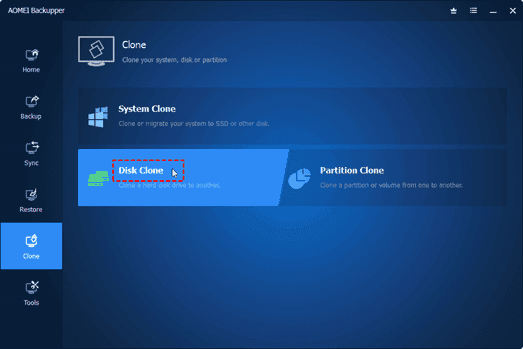
Step 1. Now launch AOMEI Backupper on your computer. Click on the Clone button and select Disk Clone in the next window.
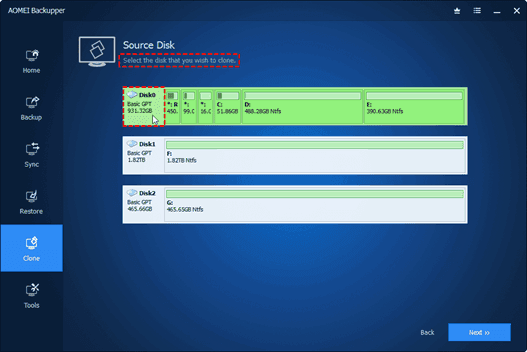
Step 2. Choose the original SSD as the source disk and then select the new drive as the destination disk.
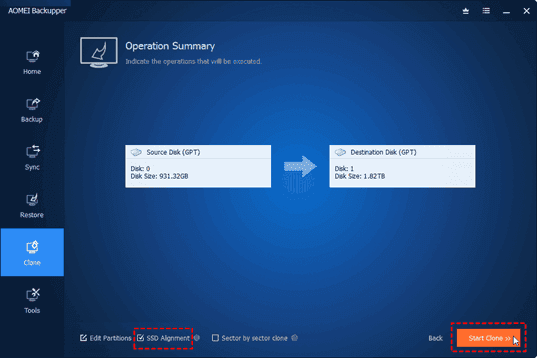
Step 3. Optimize the performance of the destination SSD by checking the SSD Alignment option if needed.
Step 4. Click on Start Clone to initiate the SSD cloning process.
Step 5. When the cloning process ended, click on the Finish icon to end the whole cloning process.
Note: If you want to clone every sector, including unused sectors, tick the Sector By Sector Clone option. Additionally, if you’re upgrading to a larger SSD, you can use the Edit Partitions option to avoid unallocated space after cloning.
Conclusion
In conclusion, cloning an SSD provides a convenient way to transfer data, operating systems, and settings to a new drive, saving time and effort compared to manual reinstallation. Before starting the cloning process, ensure both the source and target SSDs are connected, verify sufficient disk space, and choose reliable cloning software.
Among the available options, AOMEI Backupper stands out as the best cloning software due to its user-friendly interface, advanced cloning options, data integrity and security measures, and additional backup features.Now you can try this sofwtare yourself!