Do you want to use your Samsung smartphone to record calls? All Galaxy devices come with the call recording feature out of the box, which streamlines the process. This implies that you can record calls on your Galaxy smartphone without using a third-party program.
Are You Allowed to Record Phone Calls?
Before you begin recording calls on your Samsung Galaxy phone, you should be aware that certain local laws and regulations may prevent you from using the feature in your nation or neighborhood.
- In some countries, it is illegal to record calls without the other party’s consent. So don’t be surprised if the call recording feature is missing from your Samsung Galaxy device. In such cases, you are out of luck as there’s nothing that can be done to enable this functionality.
- In a few locations, even when recording is legal, Samsung may still not have implemented it. This could help explain why the call recording option is not showing up on your Samsung phone.
- It is not possible to record VoWiFi calls, i.e., voice calls that happen over Wi-Fi.
- Also, note that you cannot record calls on Android using a third-party app. Due to privacy reasons, these apps don’t work on Android 9 or a newer version of the OS. Any app that claims to work will require you to root your Android device, which could void its warranty.
Therefore, you cannot just download an app from the Play Store to add call recording capabilities to your device if it lacks it. You can follow our instructions for recording calls using the Google Phone app if it is the default dialer on your Android smartphone.
The pre-recorded message warning the parties that the call is being recorded is not played by Samsung’s call recorder. It has a significant advantage over devices that use the Google Phone app as the default dialer as a result of this. It is impossible to record a call on such devices without the other side being aware of it. All callers will hear a “This call is being recorded” announcement whenever you begin or end a call recording.
Automatically record calls on a Samsung Device
You may set your Samsung Galaxy device to automatically record all calls.
You can choose to record calls from all contacts in your phone book, solely from selected contacts, or only from unknown numbers, depending on your preferences.
- Open the Phone app on your Samsung Galaxy device.
- Tap the 3-dot overflow menu button in the top-right corner, followed by Settings > Record calls.
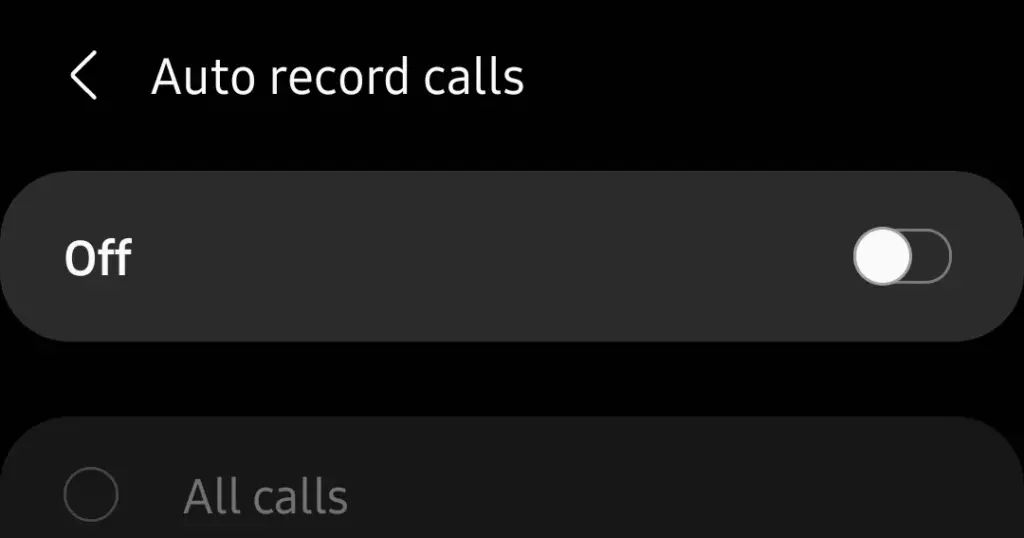
- Jump into the Auto record calls menu and enable the feature.
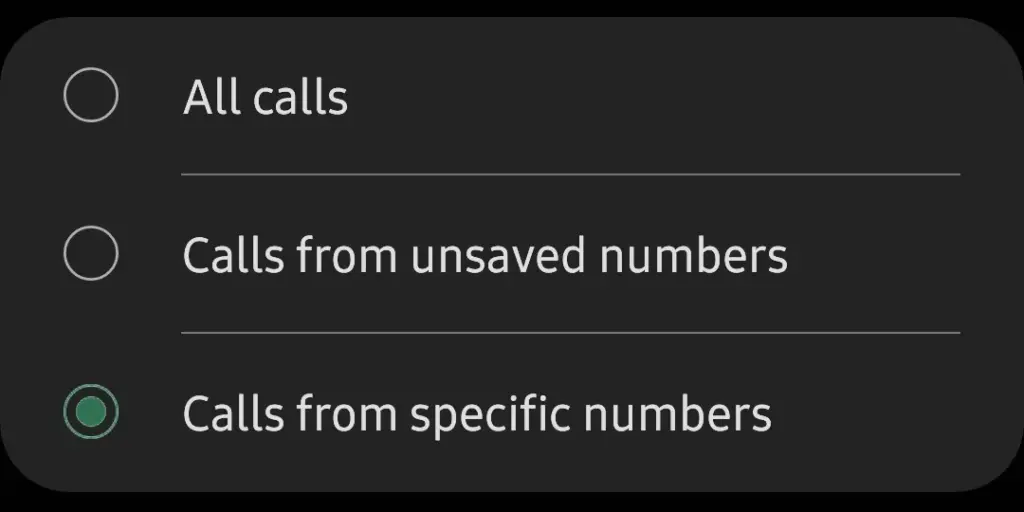
- Proceed to select whether you want to record All calls, Calls from unsaved numbers, or Calls from specific numbers.
How to Manually Record Calls on a Galaxy Phone
You can also manually record single calls on phones like the Samsung Galaxy S22, Note, or Galaxy Fold series. Here’s how:
- Open the Phone app on your Samsung device and call the contact whose call you’d like to record. Alternatively, accept the incoming call that you want to record.
- On the call screen, tap the Record call button to start recording. If the option does not show up on the call screen, tap the 3-dot menu button on the top-right and then select the Record call option.
- The first time you use the call recording feature, you’ll be prompted to accept the terms and conditions.
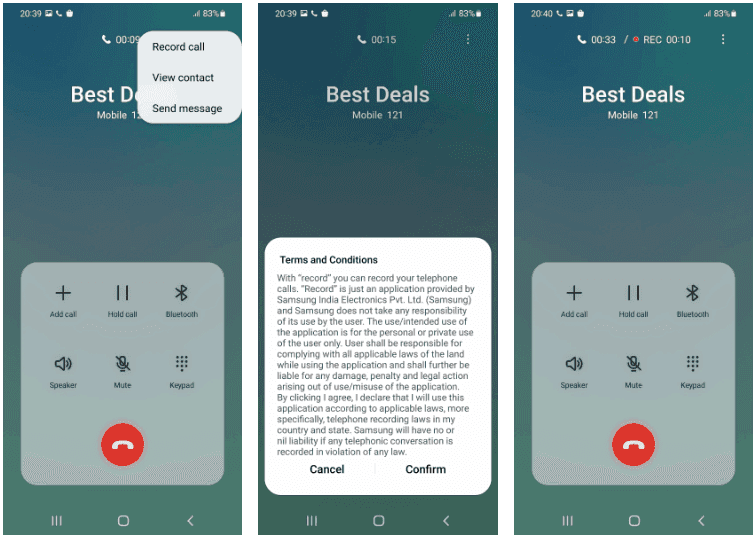
Contrary to several other phones, you can record calls without alerting the other party. Only Android phones that have the Google Phone app set as their default dialer app experience this.
On One UI 4 and One UI 5, the method to record a phone call is the same.
How to View Recorded Calls
You can view recorded calls on your Samsung Galaxy device from the Phone app.
- Open the Phone app on your Samsung Galaxy device.
- Tap the 3-dot overflow menu button in the top-right corner.
- Navigate to Settings > Record calls > Recorded calls. All the recorded calls will show up here. The file name will show the contact name or the phone number to easily identify the recorded calls.
You can select any recorded audio file and then tap the Share option to share the recorded call on WhatsApp, Gmail, Drive, etc.
Call Recording on Samsung Galaxy Devices
As we’ve seen, it’s rather simple to record calls on a Samsung Galaxy smartphone, assuming local regulations don’t restrict the firm from providing the feature there.
And always keep in mind that when you have power, you also have duty, thus you should never record a call without first telling the other person on the line.
One of the many features you’ll only find on Samsung smartphones and not on other Android phones is call recording. It’s highly recommended to check out some of the additional features offered by the Galaxy One UI software.