You are not alone if you have ever found yourself tethered to a charger, watching the battery bar slowly but surely creep towards a usable level. But fear not, fellow Android users – this guide is your road map to victory, filled with useful tips and tricks to turn your phone into a charging champion!
Gone are the days of excruciatingly slow refills and battery anxiety—we are about to unlock the secrets to lightning-fast boosts that get you back online, streaming, and snapping in no time at all! Say hello to a world of stress-free power-ups!
Wire will charge you faster.
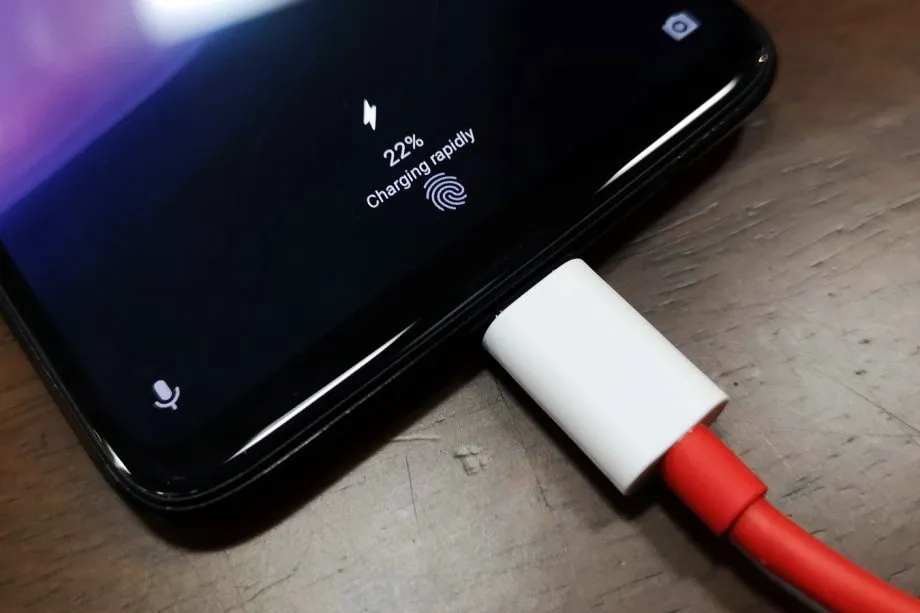
The Realme GT 3 boosts an impressive 240W charging speed, theoretically allowing a 0 to 100% charge in less than 10 minutes. Some Samsung phones can reach 45W with USB charging. Wired charging is normally faster than wireless charging. Android phones typically reach their highest charging speeds through USB-C, often reaching speeds of over 20W. In contrast, wireless charging is usually limited to 10 to 15W.
Additionally, USB-C is generally regarded as more dependable than wireless charging. While technologies like Qi2 with magnetic locking aim to address these issues, USB-C remains the more robust and dependable option. Wireless chargers rely on precise coil alignment for efficiency, and there is always a chance that a slight bump will displace your phone or knock it off the charger completely.
If at all possible, turn off your smartphone to expedite the charging process.
The best way to reduce battery life is to completely shut down your phone. Even in this case, it should continue to charge as fast as possible, so when it is connected to a compatible charger (which we cover in the next section), this provides the fastest possible charging scenario. The disadvantage is that you can not keep track of how fast your phone is charging, and you can not use apps or check notifications, so some people may decide not to use this option. If you are worried about receiving important messages from family or work, we strongly advise against using this method.
Use a direct power brick instead of a power bank or computer.
1. Only dedicated chargers guarantee fast wired charging:
- While newer USB 3.x and 4.x ports can support super-fast charging (up to 240W) using a technology called USB-PD, they rarely reach that speed.
- Most computer USB ports and portable power banks, even fancy ones, usually offer much slower charging than your phone’s dedicated charger. This is because they often lack the necessary power output capabilities.
2. Dedicated chargers are the safest and most reliable option:
- While exceptions like the Anker Prime exist, relying on non-dedicated chargers for fast charging introduces risk and uncertainty.
- Your phone’s original charger or a high-quality replacement designed for your specific model are the safest and most reliable way to ensure optimal charging speed without damaging your phone’s battery.
So, for the best, fastest, and most reliable wired charging experience, stick with your phone’s dedicated charger whenever possible.
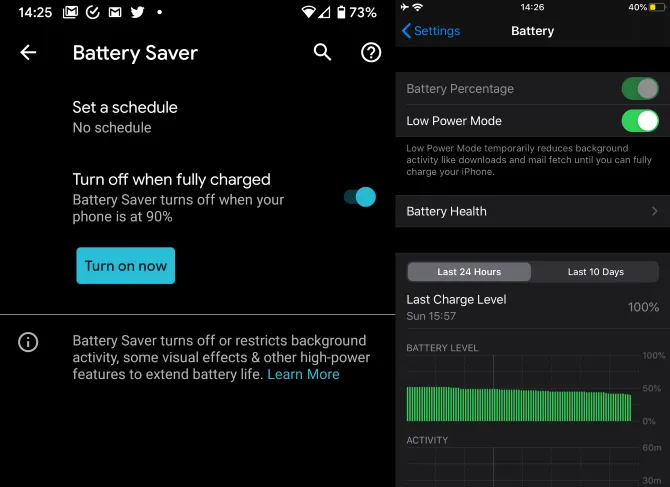
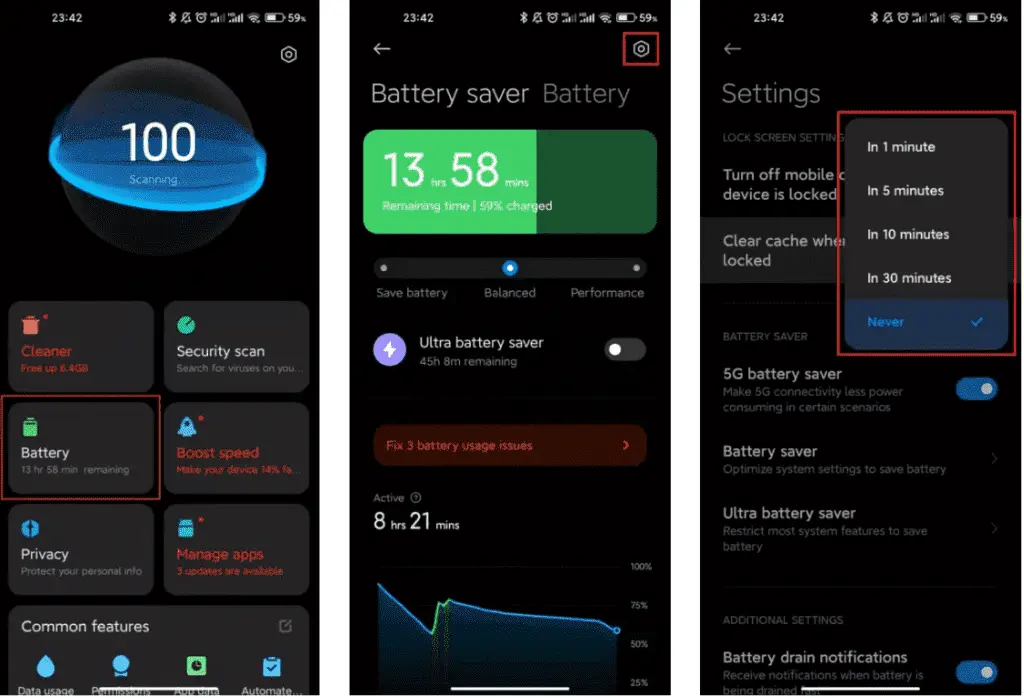
Low power mode (also known as Battery Saver on most Android devices, though the name may differ on your phone) is the best option if you do not want to or are unable to turn off your phone. It helps save battery life by turning off certain functions and background activities, extending the time between charges.
The low power mode on your phone can do a number of things, like accelerating the screen’s shut-off time, decreasing background sync activity, downgrading from 5G to 4G, and restricting the use of power-hungry apps. Pixel phones also have an Extreme Battery Saver mode that goes one step further, decreasing CPU speed and disabling notifications for apps that are paused. You may not use it constantly, but it is a way to concentrate on charging while maintaining access to critical features.
Disable unused features
While a phone’s screen and processor use up a lot of energy, wireless technology can also consume a significant amount, especially if your phone is frequently downloading files or searching for available networks.
Using Airplane Mode is the easiest way to turn off wireless radios, but it is not always the best option because it usually disables Bluetooth and Wi-Fi in addition to cellular data, which can be problematic if you need to use wireless earbuds or have an internet connection. You may need to adjust the Airplane Mode settings or use Quick Settings to turn off individual radios that are not in use. For example, if you are going to be away from home, you can probably disable Wi-Fi unless you need it for hotspots or Android Auto.
To increase the charging speed, do not use your smartphone while it is charging.
Playing 3D games like Fortnite or PUBG Mobile can severely deplete your phone’s battery. It is important to emphasize that the more tasks your phone completes, the more power it will use. If at all possible, find something else to do with your time until you need to respond to important calls and messages.
Keep your phone cool while charging
The ideal temperature range for charging a phone is between 50 and 86°F (10 and 30°C). To make sure your phone stays in this range, try moving it out of direct sunlight, putting it near a fan, or taking it out of its case—especially if the case is insulating, like a leather wallet case. Keep in mind that your phone naturally warms up during charging, so if it is already close to the upper limit, charging could push it out of the ideal zone.
In other cases, you might need to warm up your phone; for instance, a case that might be problematic in a Texas summer could be ideal for a cold winter in Ontario.