Online ads can be annoying, whether you are watching YouTube, perusing a news website, or using a free software. Aside from being unpleasant, they can slow down your device, use bandwidth, and compromise your privacy. Fortunately, you can disable most advertising on Android without rooting your device or installing costly apps. This comprehensive guide describes the best ways to block advertisements on websites, applications, and games using free and secure techniques.
Why should you block ads on your device?
Blocking ads on your Android phone does more than merely improve the user experience. There are practical advantages that improve device performance, privacy, and security. Here’s why many users prefer to block advertisements:
1. Improved Performance
Ads frequently load media-rich material such as photos, animations, and videos, which eat memory and CPU cycles. On smartphones with limited resources, this might result in slower loading times, slowness, and even app crashes. Blocking advertisements frees up system resources and improves program responsiveness.
2. Better Battery Life
Since many ads are dynamic and constantly update, they continue running in the background, which drains the battery. Blocking these elements can significantly extend battery life, especially on older devices.
3. Reduced Data Usage
When an ad loads, it consumes bandwidth. For individuals with limited data plans, this may result in higher mobile bills or throttling. Blocking advertising helps you save your monthly data allowance.
4. Enhanced Privacy and Security
Ads sometimes include tracking scripts that track your activity across apps and websites. Malicious advertising (malvertising) can occasionally lead consumers to phishing or malware-infected websites. Blocking advertisements reduces the likelihood of tracking and exposure to hazardous content.
Block ads in browsers with Brave or Firefox + uBlock Origin
Use Brave browser with built-In ad blocking
The Brave browser prioritizes privacy and includes built-in ad and tracker blocking. Unlike Chrome, which does not enable ad-blocking, Brave automatically removes the majority of advertisements and tracking scripts from websites.
How to use Brave:
- Go to the Google Play Store and install Brave Browser.
- Open the app and begin browsing — ad blocking is enabled by default.
- To customize settings, go to Brave’s menu > Settings > Shields. You can adjust how strictly ads and trackers are blocked.
Brave also provides other settings such as script blocking, cookie control, and HTTPS upgrades to improve your surfing privacy even further.
Best Use Case: Blocking ads on most websites instantly, without needing any extensions or additional configuration.
Use Firefox with the uBlock Origin Add-On
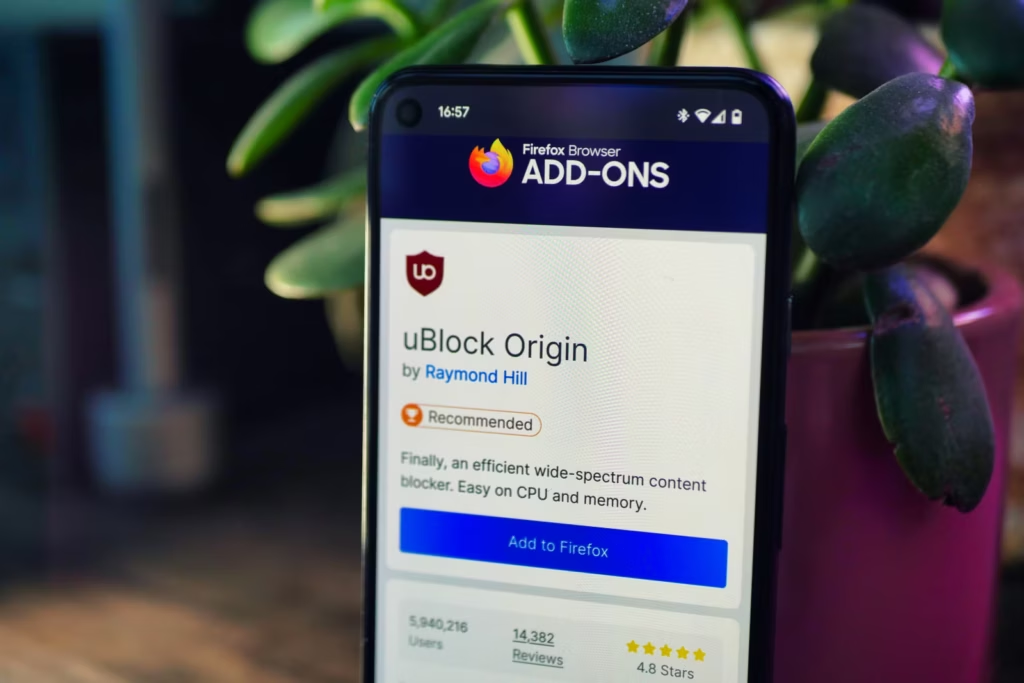
If you prefer Firefox, it provides a more personalized experience by supporting third-party add-ons such as uBlock Origin, one of the most powerful ad blocks accessible.
Steps to set up uBlock Origin on Firefox:
- Install the latest version of Firefox for Android.
- Visit addons.mozilla.org from within the browser.
- Search for “uBlock Origin” and add it to Firefox.
- Once installed, uBlock Origin will immediately begin filtering ads on websites.
You may set up custom filters, activate regional ad lists, and block certain aspects on a webpage. This level of control makes Firefox with uBlock Origin excellent for users seeking extensive filtering options.
Best Use Case: Users who want granular control over what gets blocked and which filters are applied.
Use private DNS to block ads system-wide (Android 9+)
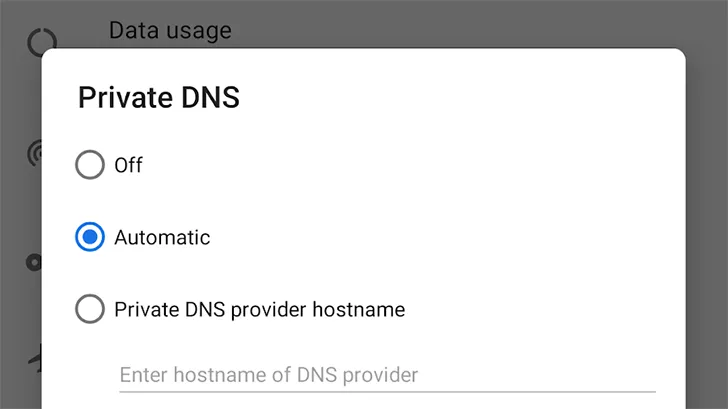
Since Android 9 (Pie), users can use a feature known as Private DNS. It connects you to a DNS provider, which filters out known ad-serving domains before they load, essentially blocking advertisements in all browsers and many apps.
Steps to enable Private DNS:
- Open Settings on your phone.
- Navigate to Network & Internet > Private DNS.
- Select “Private DNS provider hostname”
- Enter the hostname of a DNS provider that supports ad blocking.
- Save the changes.
Popular Ad-Blocking DNS Providers:
| Provider | Hostname | Description |
|---|---|---|
| AdGuard DNS | dns.adguard.com | Blocks most ads and trackers |
| NextDNS | dns.nextdns.io/your-config-id | Highly customizable with user-defined filters |
| Control D Free | freedns.controld.com | Offers ad/tracker filtering without an account |
Advantages:
- Blocks ads across apps, not just in browsers
- Doesn’t require any apps or root access
- Improves loading speeds and reduces unwanted traffic
Limitations:
- May not block all in-app ads or YouTube ads
- Some mobile networks may not support encrypted DNS
Best Use Case: Non-root system-wide ad blocking with minimal setup effort.
Use AdGuard content blocker for supported browsers
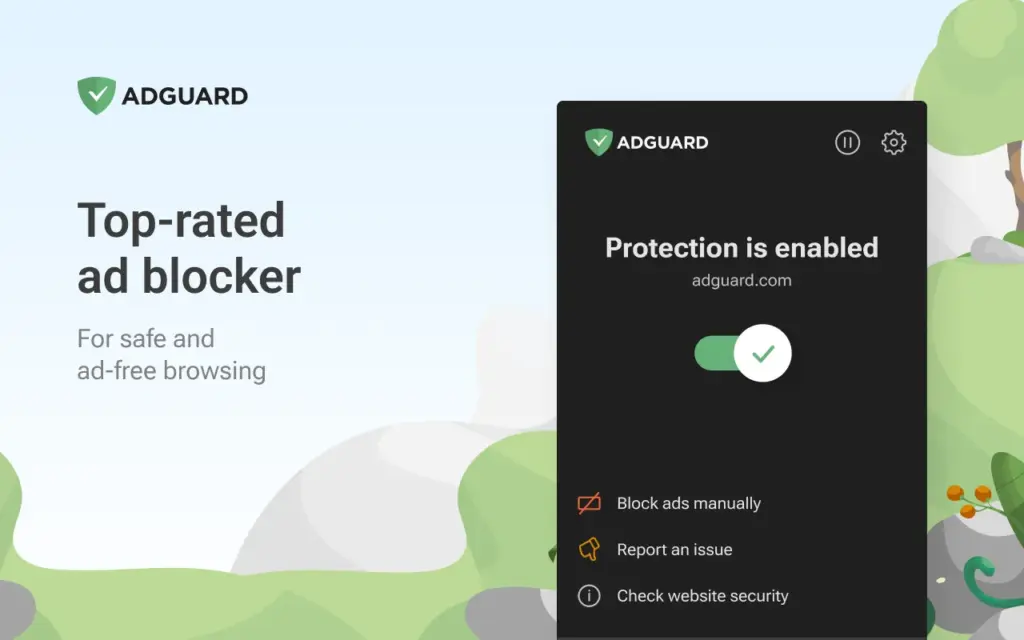
The AdGuard Content Blocker is a free application that disables advertisements in browsers such as Samsung Internet and Yandex Browser without having root access.
How to install and use AdGuard Content Blocker:
- Download the app from the official AdGuard website or from F-Droid.
- Open the app and select the browser you use (Samsung Internet or Yandex).
- Enable content filters like EasyList or AdGuard Base Filter.
- Ads will be blocked while browsing within the supported browser.
Advantages:
- Offers control over what filters are applied
- Requires no permissions or rooting
- Supports multiple languages and filter lists
Limitations:
- Does not block ads inside other apps
- Only works with supported browsers (not Chrome)
Best Use Case: Samsung or Yandex browser users seeking browser-specific ad blocking without full system-wide solutions.
Use a custom hosts file or DNS66 (No Root Required)
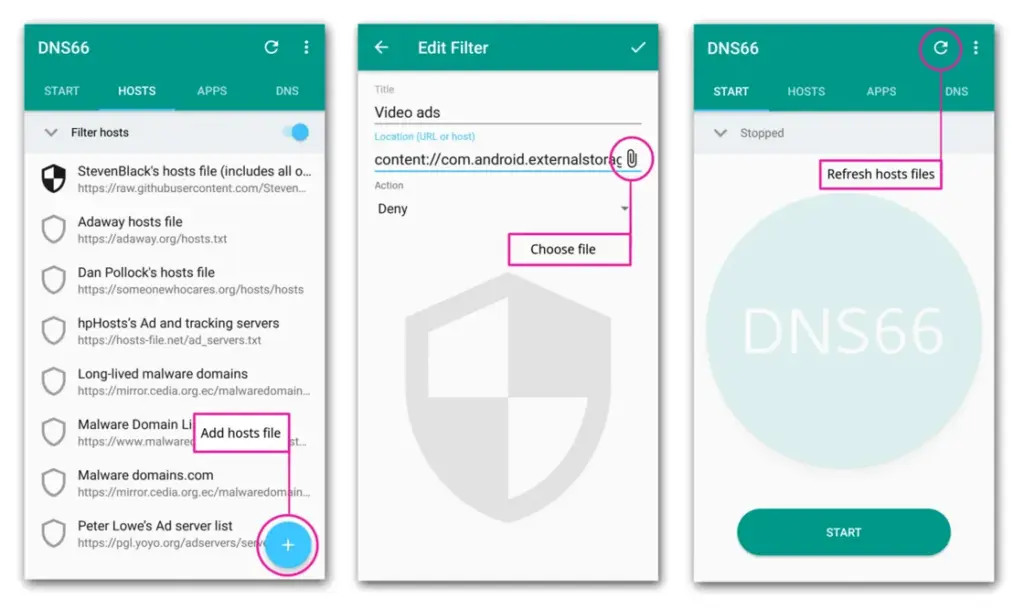
Tech-savvy users may prefer to utilize a custom hosts file that redirects known ad-serving domains to a blank IP address. DNS66, for example, provides this capabilities without the need for root access.
How it works:
- DNS66 creates a local VPN tunnel and uses a custom hosts file.
- Any requests to known ad servers are blocked at the DNS level.
- It filters traffic system-wide, including ads in apps and games.
Steps to use DNS66:
- Download DNS66 from F-Droid (it’s not available on the Play Store).
- Launch the app and configure which hosts files to use (e.g., AdAway or Energized).
- Start the VPN service and allow the app to block domains across the system.
Best Use Case: Advanced users who want fine-tuned control over DNS-level ad blocking without root.
Note: Since DNS66 uses a local VPN, you cannot run other VPNs at the same time.
What about YouTube ads?
YouTube uses server-side ad distribution, which makes it difficult to prevent adverts in the official YouTube app. However, there are various workarounds available:
Option 1: watch YouTube in Brave or Firefox with Ad Blocking
- Open YouTube.com in Brave or Firefox with uBlock Origin enabled.
- Ads will be stripped from videos on the web interface.
- You can even use picture-in-picture mode on supported devices.
Option 2: Use YouTube Vanced or ReVanced
YouTube Vanced (now discontinued) and its successor, ReVanced, offer modified YouTube apps with built-in ad-blocking and background playback.
Important Notes:
- These apps must be sideloaded and are not available on the Play Store.
- Use trusted sources such as GitHub or community forums to avoid malware.
- YouTube may update its API to block these apps in the future.
Best Use Case: Users who regularly watch YouTube and want a consistent ad-free experience without paying for YouTube Premium.
Additional tips to reduce ads and trackers on Android devices
If you want even more control over your privacy and device experience, consider these extra steps:
- Use a privacy-focused VPN with built-in ad and malware blocking (e.g., Proton VPN, NordVPN, Surfshark).
- Enable Data Saver or Lite Mode in Chrome to minimize ad-heavy content.
- Regularly clear app cache and browsing data to remove trackers.
- Turn off personalized ads by visiting Google Ad Settings and disabling ad personalization.
Final Thoughts
Blocking ads on Android no longer necessitates technical knowledge or rooting the device. The majority of advertisements may be removed from your browsing and app experience using browser-based blockers, DNS-based filtering, and content-blocking applications.
These methods are safe, effective, and frequently free. Whether you are concerned about performance, data use, or privacy, using these ad-blocking tactics will significantly enhance your Android experience.