After setting up a new Samsung Galaxy, you should think about the apps you use and don’t use.
There are many unnecessary preinstalled apps on your phone that don’t always enhance the user experience. Therefore, it is safe to remove any bloatware and superfluous apps.
These apps clog your home screen, suck up storage space, and slow down your phone.
All of Samsung’s devices, from the most recent high-end Galaxy phones to the most affordable variants, come with these apps.
When setting your Samsung Galaxy device, stay away from adding bloatware.
You are prompted to install extra apps when you set up a new Samsung device.
Take your time and uncheck the apps you don’t need because it automatically chooses the ones on that list. This is a simple method of avoiding additional bloatware.
If not, you’ll have to take them out by hand when you decide they’re useless.
Which apps on your Samsung Galaxy phone are safe to remove or deactivate?
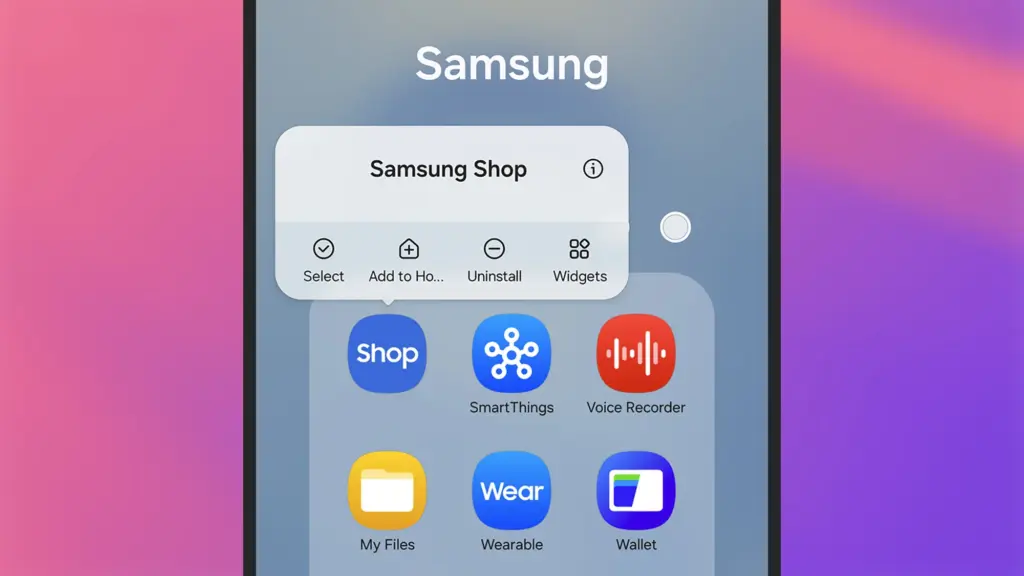
On a Samsung phone, deleting and uninstalling apps is simple. The Settings menu allows you to remove or deactivate the majority of apps; for others, you can use ADB commands.
Many preloaded system-related apps can be securely removed, although we don’t advise the typical user to do so.
Although these apps don’t take up much space, you may need to factory reset your phone in order to restore it if you remove the incorrect one.
Additionally, you are unable to remove or disable apps that are essential to the phone’s operation. Put them in a different folder if you want them hidden.
The popular apps that you can remove or disable from your Samsung Galaxy phone are listed below. You might see different apps than those on this list depending on your area or carrier.
Many of them are Samsung’s substitutes for Google apps like Drive or Chrome. Since they don’t interfere with how your device functions, you can safely uninstall them—especially if you like Google’s app suite.
These are some great alternatives that you can download from the Play Store if you don’t want to utilize Google or Samsung apps.
Get the best possible performance out of your new Samsung Galaxy mobile.
One of the first things you should do when configuring your Samsung Galaxy phone is to remove any unneeded software. Performance can be enhanced, particularly on low-cost Samsung phones.
Additionally, removing bloatware frees up space on your Samsung phone. Installing Good Lock modules will help you take advantage of this.
Bloatware is an awful phenomenon that millions of consumers encounter in the broad world of Android smartphones. The term “Android bloatware” describes the pre-installed applications that come with a new device and take up important storage space and system resources.
This article discusses the idea of “bloatware,” considers its ramifications, and investigates solutions to lessen its negative effects on the Android experience.
What is bloatware?
Bloatware is a term used to describe a variety of unwanted apps that customers may find redundant or superfluous and is frequently installed by device manufacturers or carriers. These apps could include demo versions of purchased software, carrier brand apps, and utilities tailored to particular manufacturers.
While some of the pre-installed apps may be beneficial, a large number are rarely used, clutter the device, and suck up resources. Bloatware installation is frequently motivated primarily by financial gain because app developers may pay device makers and carriers to include their programs.
Implications and Challenges
Bloatware’s presence can affect Android users in a variety of ways. First of all, it limits the amount of storage space that is available on a device, making it harder for users to install and save their favourite media and programs. Second, these undesirable programs might operate in the background, using up system resources, drained battery life, and possibly impairing device performance. Bloatware can also compromise user security and privacy since some pre-installed apps may gather private information or have security flaws that could be used by hackers. Last but not least, bloatware frequently can’t be removed, which frustrates consumers and prevents them from taking back control of their devices.
Bloatware impact
While completely eradicating bloatware without rooting the device is difficult (doing so can violate warranties and present security issues), there are a few tactics that can be used to lessen its negative effects. The first option is for users to disable or conceal unneeded apps in their device settings. This operation saves system resources by preventing the programs from running in the background and clogging up the app drawer. Second, using third-party app managers or cleaners can help with bloatware identification and removal, but caution must be used to prevent mistakenly uninstalling crucial system components.
Consider buying unlocked gadgets straight from manufacturers as an alternative strategy. These gadgets frequently have a cleaner Android experience and are devoid of carrier-specific software. Additionally, bloatware-free experiences can be had with custom ROMs and alternative firmware, like LineageOS, but these options call for technical know-how and may not be acceptable for all users.
Android debloater
he main goal is to improve battery performance and privacy by removing unnecessary and obscure system apps. This can also contribute to improve security by reducing the attack surface.
Packages are as well documented as possible in order to provide a better understanding of what you can delete or not. The worst thing which could happen is removing an essential system package needed during boot causing then an unfortunate bootloop. After about 5 failed system boots, the phone will automatically reboot in recovery mode and you’ll have to perform a FACTORY RESET. So make a backup first!
In any case, you can NOT brick your device with this script ! That’s the main thing, right ?
Features
Uninstall/Disable and Restore/Enable system packages
Multi-user support (e.g apps in work profiles)
Export/Import your selection in uad_exported_selection.txt
Multi-device support: you can connect multiple phones at the same time
All your actions are logged so you never forget what you’ve done
NB : System apps cannot really be uninstalled without root (see the FAQ)
Universal debloat lists
GFAM (Google/Facebook/Amazon/Microsoft)
AOSP
Manufacturers (OEM)
Mobile carriers
Qualcomm / Mediatek / Miscellaneous
Manufacturers debloat lists
Asus
LG
Google
Fairphone
Huawei
Motorola
Nokia
OnePlus
Oppo
Samsung
Sony
Xiaomi
Mobile carriers debloat lists
French carriers: SFR / Orange / Free / Bouygues
US carriers: T-mobile / Verizon / AT&T / Sprint
German carriers: Telekom
UK: EE
How to use
Enable Developer Options on your smartphone.
Turn on USB Debugging from the developer panel.
From the settings, disconnect from any OEM accounts (when you delete an OEM account package it could lock you on the lockscreen because the phone can’t associate your identity anymore)
Download the latest release of UAD GUI for your Operating System here. Take the opengl version only if the default version (with a Vulkan backend) doesn’t launch.
NOTE: Chinese phones users may need to use the AOSP list for removing some stock apps because those Chinese manufacturers (especially Xiaomi and Huawei) have been using the name of AOSP packages for their own (modified & closed-source) apps.
IMPORTANT NOTE: You will have to run this software whenever your OEM pushes an update to your phone as some uninstalled system apps could be reinstalled.
Bloatware consumes storage on your smartphone. The worst part is that you can’t immediately uninstall them from your Huawei smartphone; they go by the name of tools. This bloatware typically comes preinstalled on your device. However, occasionally they do originate from different places, such as downloading dangerous links or third-party apps. Here is a simple tutorial on how to use ADB commands to debloat or remove bloatware from Huawei.
You must be sick and tired of the bloatware that comes pre-installed on your Huawei smartphones. And as you would have guessed, the majority of them serve no purpose other than to promote Huawei and occasionally steal your data.
Why You Should Remove Bloatware Apps
Bloatware is generally in your device to consume a lot of valuable resources, including battery juice. While it is running in the background of your device, it affects your device’s performance. It could fill your lock screen with Ads, or even your internet browser.
How To Debloat Or Remove Bloatware From Huawei Using ADB
Below mentioned steps are there to help you in removing the bloatware from the device. You need to follow these steps very thoroughly and successfully remove the bloatware from the device.
Step 1: Download and install Android SDK
The baby step toward this guide is to download the Android SDK tool from this link. This is the official tool provided by Google. The Android SDK tool is a software development kit used to develop Android applications.
Here is how you can install the Android SDK platform Packages and tool
Start the Android Studio
Select Configure>SDK Manager
In the default setting dialog box, click these tabs to install Android SDK platform packages.
Click apply and then click OK.
Or you can just download it directly from this link.
Step 2: Enable USB debugging
The next step is making your device readable by the ADB software to make changes in the ADB mode. Head on to the settings>about and enable developer mode by tapping on the build number seven times.
Your smartphone’s developer option will be turned on.
Now go to Settings > System > Advanced > Developer Option, scroll down and look for the USB debugging and turn it on.
Step 3: Make sure to establish the ADB shell Connection
The ADB command does a variety of device actions, such as installing and debugging an App and when you are about to debloat your smartphone from all the bloatware preset, Establishing an ADB shell connection is a must; here is how you can do it.
Advertisements
Connect your smartphone with the PC using the USB cable.
Now look for the platform tool folder in the Android Studio SDK manager, in the path android_sdk/platform-tools
In the platform tool folder, launch the Command Prompt, by typing the CMD in the address bar
Now type “adb devices” in the command window to verify the ADB connection.
You will get the device ID (If not, try again with correct spellings). Now type “adb shell” to establish the shell environment.
Your device codename will be listed, which means the shell connection is established.
Step 4: Type in the ADB commands to remove bloatware from Huawei phone
Now you can start removing bloatware apps from your device follow the below commands.
Type “pm list packages” in the command line. This will give the list of all the available packages and apps on your Huawei device.
Type “pm uninstall – –user 0 PackagenName” command for removing the bloatware from the Huawei device, the command is generic.
Advertisement
You can replace the PackageName with the actual package name. If you want to uninstall the Huawei stock app market, just type in “pm uninstall – –user 0 com.Huawei.appmarket” to uninstall the app market application.
List of Huawei Bloatware Packages
Below is the list of all the packages in your Huawei phone in the form of bloatware. You can remove all these applications and packages by just typing the package name.
Huawei Built in Application Package
com.huawei.android.tips | Huawei Tips/Tricks com.huawei.android.totemweather | Huawei Weather com.huawei.arengine.service | Augmented reality service com.huawei.browser | Huawei Browser com.huawei.contactscamcard | Business card reader com.huawei.compass | Huawei Compass com.huawei.desktop.explorer | Desktop Service com.huawei.fido.uafclient | Fast ID Online function com.huawei.gameassistant | Huawei Game Suite (HiGame) com.huawei.geofence | Geofence service com.baidu.input_huawei | Built in keyboard com.huawei.appmarket | Huawei Market com.huawei.android.chr | HwChrService com.huawei.android.FloatTasks | Floating dock com.huawei.android.hsf | Huawei own Services Framework com.huawei.android.hwpay | Huawei Payement app com.huawei.android.karaoke | karaoke entertainment app com.huawei.android.mirrorshare | MirrorShare from Huawei com.huawei.android.remotecontroller | Huawei Smart Controller com.huawei.search | HiSearch app com.huawei.stylus.floatmenu | Floating menu com.huawei.hdiw | Huawei ID app com.huawei.hifolder | Huawei Online Cloud folder service com.huawei.himovie.overseas | Huawei Videos App com.huawei.hitouch | Floating dock by Huawei com.huawei.hwdetectrepair | Huawei Smart diagnosis app com.huawei.iaware | Huawei info app com.huawei.livewallpaper.paradise | Live wallpaper service com.huawei.parentcontrol | Parental controls functions com.huawei.pcassistant | HiSuite service com.huawei.phoneservice | HiCare app com.huawei.mirror | Huawei Mirror app com.huawei.screenrecorder | Huawei Screen recorder feature com.huawei.vassistant | Huawei Voice Assistant com.huawei.videoeditor | Video editor function com.huawei.wallet | Huawei Wallet com.huawei.watch.sync | Huawei Watch sync function com.iflytek.speechsuite | Default voice input method
Bloatware Package List
com.android.bips | Print Service com.android.calculator2 | Calculator app com.android.calendar | Calendar app com.android.carrierconfig | Carrier-specific configuration com.android.cellbroadcastreceiver | Cell Broadcast com.android.dreams.basic | Screensaver mode com.android.dreams.phototable | Photo screensaver com.android.egg |Android build’s easter egg feature com.android.email | Stock email app com.android.emergency | Emergency Contacts com.android.exchange | Non-Gmail email support com.android.gallery3d | Gallery com.android.htmlviewer | In-built HTML viewer com.android.hotwordenrollment.okgoogle | OK Google detection service com.android.magicsmoke | Live wallpaper com.android.managedprovisioning | Managing App com.android.mediacenter | Huawei Music app com.android.mms | SMS app com.android.mms.service | MMS app com.android.noisefield | Live wallpaper com.android.phasebeam | Wallpaper com.android.printservice.reccomendation | Mobile Printing service com.android.pacprocessor | Proxy auto-configuration com.android.phone.recorder | Call recorder com.android.providers.blockednumber | Storage of blocked numbers com.android.providers.calendar | Calendar sync com.android.providers.partnerbookmarks | bookmarking service com.android.providers.userdictionary | Dictionary com.android.quicksearchbox | Quick Search box com.android.soundrecorder | Sound recorder com.android.stk | SIM Toolkit com.android.vending | Google Play Store com.android.voicedialer | Voice search com.android.vpndialogs | VPN system com.android.wallpaper.holospiral | Live wallpaper com.android.wallpaper.livepicker | Wallpaper picker com.android.wallpapercropper | Wallpaper cropper com.example.android.notepad | Notepad
Apps from Google in Huawei smartphone
com.google.android.apps.books | Google Books com.google.android.apps.cloudprint | Cloud print com.google.android.apps.currents | Currents com.google.android.apps.docs | Google Drive com.google.android.apps.fitness | Google Fit com.google.android.apps.mapps | Google Maps com.google.android.apps.photos | Google Photos com.google.android.apps.tachyon | Google Duo com.google.android.apps.wallpaper | Google Wallpapers com.google.android.apps.wellbeing | Digital Wellbeing com.google.android.feedback | Google Feedback com.google.android.googlequicksearchbox | Google Search com.google.android.gm | Gmail com.google.ar.core | Google ARCore com.google.marvin.talkback | Talkback com.google.android.play.games | Google Play Games com.google.android.street | Google Street View com.google.android.videos | Google Play Movies com.google.android.youtube | YouTube com.google.tango.measure | Google Measure
These days, bloatware is a common feature on Huawei devices, thus you should debloat or uninstall bloatware apps from your cellphone to free up space or simply to safeguard your privacy. You may quickly remove the bloatware from your Huawei smartphone if you complete all of these procedures and type all of the commands.
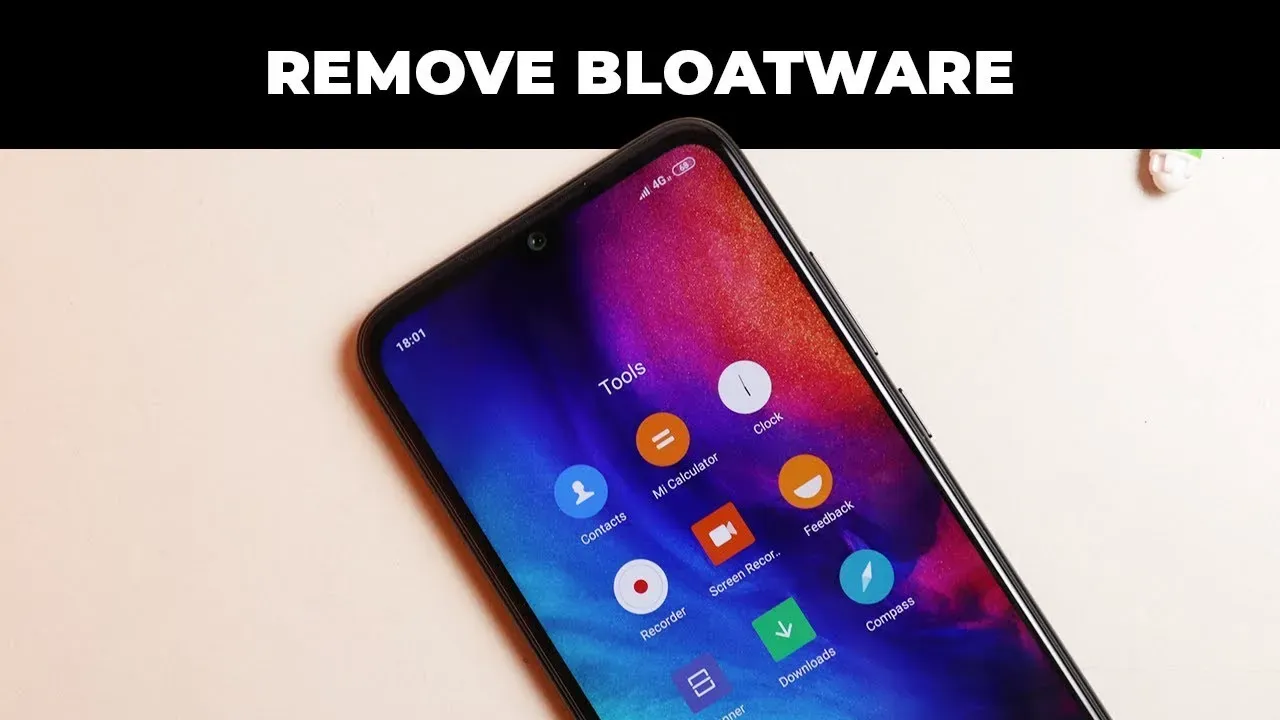
MI User Interface, abbreviated MIUI is an Android-based operating system for smartphones and tablet computers developed by Chinese electronics manufacturer Xiaomi. It is powered by the Android Operating System. MIUI includes various features such as theme support.
Xiaomi’s budget devices are good at taking over the smartphone world.
The company, dominating on the Indian and Chinese markets, manages to deliver low priced smartphones coupled with some high end device specs.
Bloatware on Xiaomi Devices?
The word Bloatware is used for smartphone apps which the vendor locks. Some known vendors include Samsung, Xiaomi, HTC and so on. Developers are using this irksome tactic of locking apps on the phone to make the device’s user interface exclusive.
Uninstall/Disable MIUI Apps in Xiaomi/Redmi Devices Without Rooting
1. MIUI Hidden Settings
The MIUI app Hidden Settings make it easy for developers to perform previously complex tasks in just a few taps. You can, for example, view the Notification log, which has been difficult to get into before.
With the help of MIUI hidden features, you can get rid of some (not all) pre-installed app(You can also uninstall the Google apps).
You need to enable USB debugging by going to Settings > About Phone > Tap 7-10 times on MIUI Version. A popout will appear telling you that you have activated Developer Settings.
Then go to Additional Settings and pap on Developer Options, scroll down and activate USB debugging and press OK.
On your PC go to ADB installation folder and type cmd in the adress bar. A command prompt windows will appear.
Now once you have device connected via USB, run adb devices command in terminal to see if your device is connected via ADB.
Now copy and run the commands from below list for the app which you want to remove.
The command is adb shell pm uninstall -k --user 0 package.name
adb shell pm uninstall -k --user 0 com.google.android.apps.docs # Google Drive
adb shell pm uninstall -k --user 0 com.google.android.apps.maps # Google Maps
adb shell pm uninstall -k --user 0 com.google.android.apps.photos # Google Photos
adb shell pm uninstall -k --user 0 com.google.android.apps.tachyon # Google Duo
adb shell pm uninstall -k --user 0 com.google.android.googlequicksearchbox # Google App
adb shell pm uninstall -k --user 0 com.google.android.music # Google Music
adb shell pm uninstall -k --user 0 com.google.android.videos # Play Movies
adb shell pm uninstall -k --user 0 com.android.browser # Mi Browser
adb shell pm uninstall -k --user 0 com.miui.bugreport # Mi Feedback
adb shell pm uninstall -k --user 0 com.miui.compass # Mi Compass
adb shell pm uninstall -k --user 0 com.miui.notes # Mi Notes
adb shell pm uninstall -k --user 0 com.miui.screenrecorder # Mi Screen Recorder
adb shell pm uninstall -k --user 0 com.miui.videoplayer # Mi Video
adb shell pm uninstall -k --user 0 com.miui.player # Mi Music
adb shell pm uninstall -k --user 0 com.xiaomi.midrop # Mi Drop
adb shell pm uninstall -k --user 0 com.xiaomi.mipicks # Mi Apps
adb shell pm uninstall -k --user 0 com.xiaomi.scanner # Mi Scanner
So if you mess something up, do factory reset to get out of trouble.