Tag: backup

  • How to back up your Android phone

    How to back up your Android phone

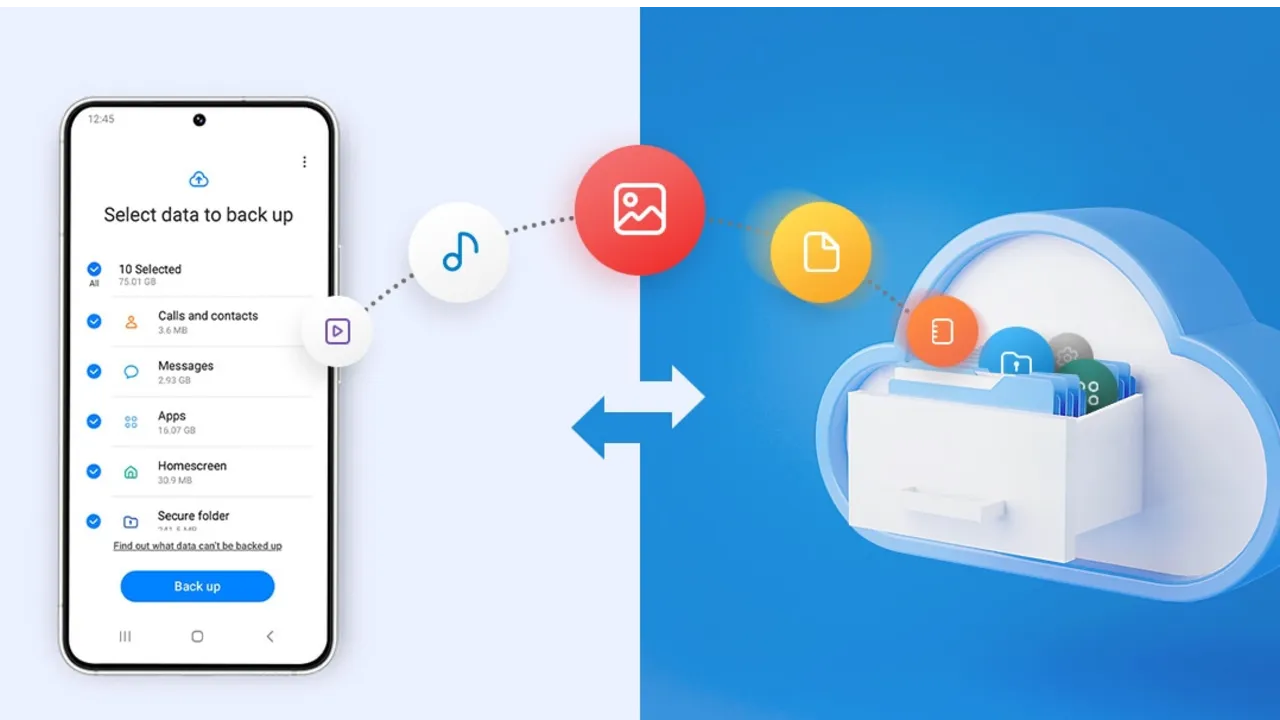
    Backing up your Android phone ensures that your data is safe in case of loss, damage, or switching to a new Android device. Thankfully, Android has a number of built-in security features that secure your contacts, media, apps, and settings without the need for third-party programs.

    Establishing a suitable backup plan is crucial, regardless of whether you’re upgrading your device or getting ready for a factory reset.

    Why it’s important to back up your Android phone

    It’s not just techies who should back up. You run the danger of losing private images, critical messages, app data, and even saved Wi-Fi passwords if your phone is misplaced or broken. Regular backup creation allows you to:

    Use Google backup (cloud-based method)

    google backup data

    Google offers a dependable, integrated backup system that connects to your Google account and stores your important data in the cloud. For the majority of Android users, it is the most practical approach.

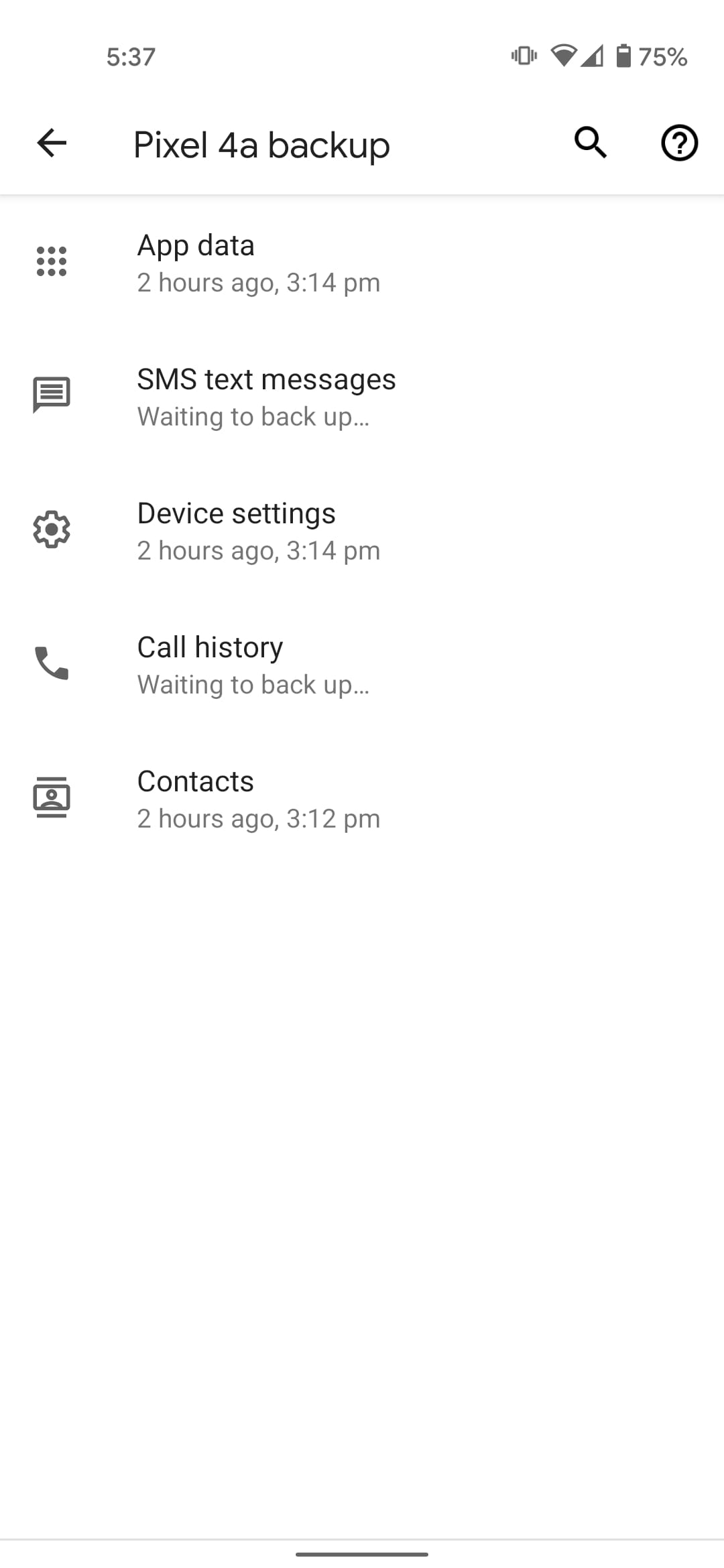
    What Google backup saves:

    • App data and preferences
    • Call history
    • Contacts
    • SMS text messages
    • Device settings (Wi-Fi, wallpapers, display preferences)
    • Photos and videos (via Google Photos if enabled)

    How to enable Google backup:

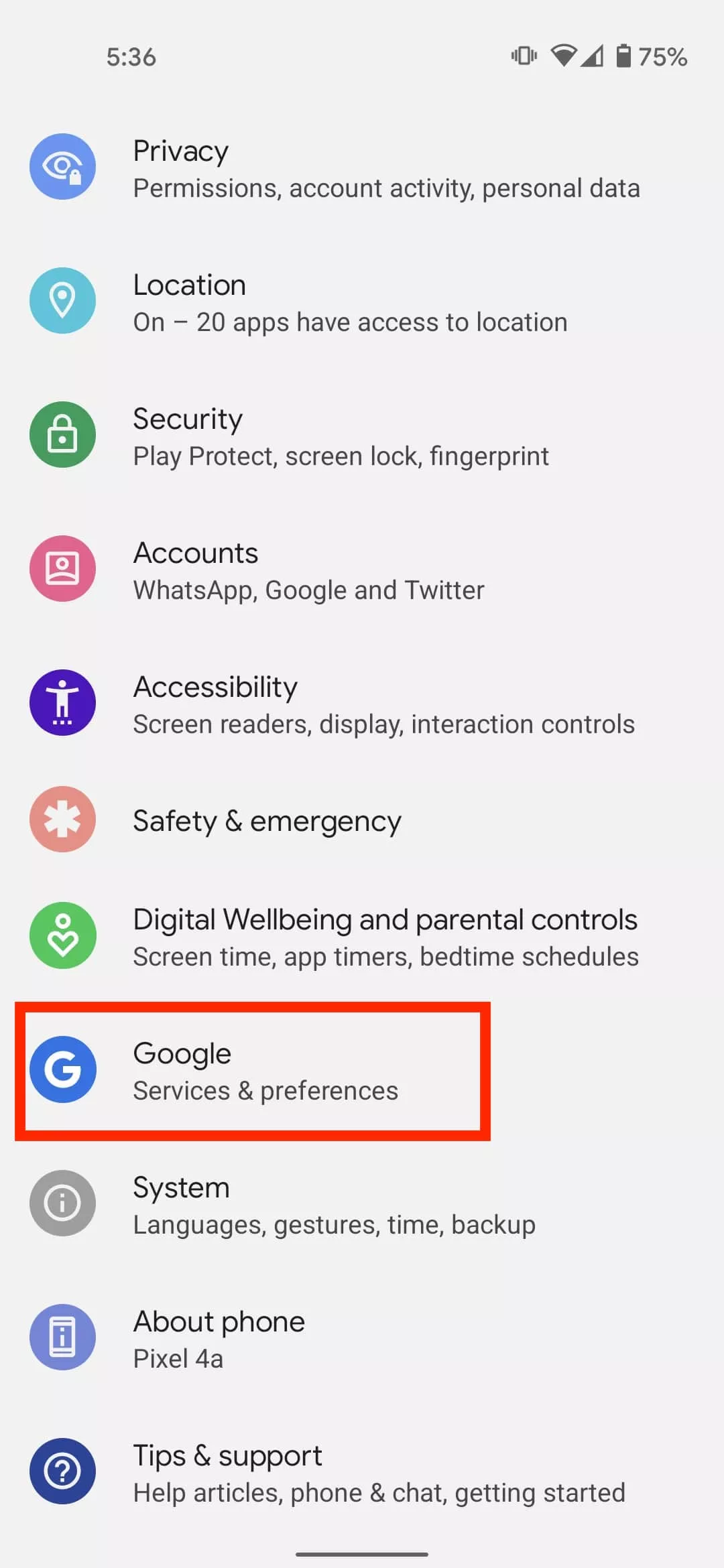
    1. Open Settings on your Android device
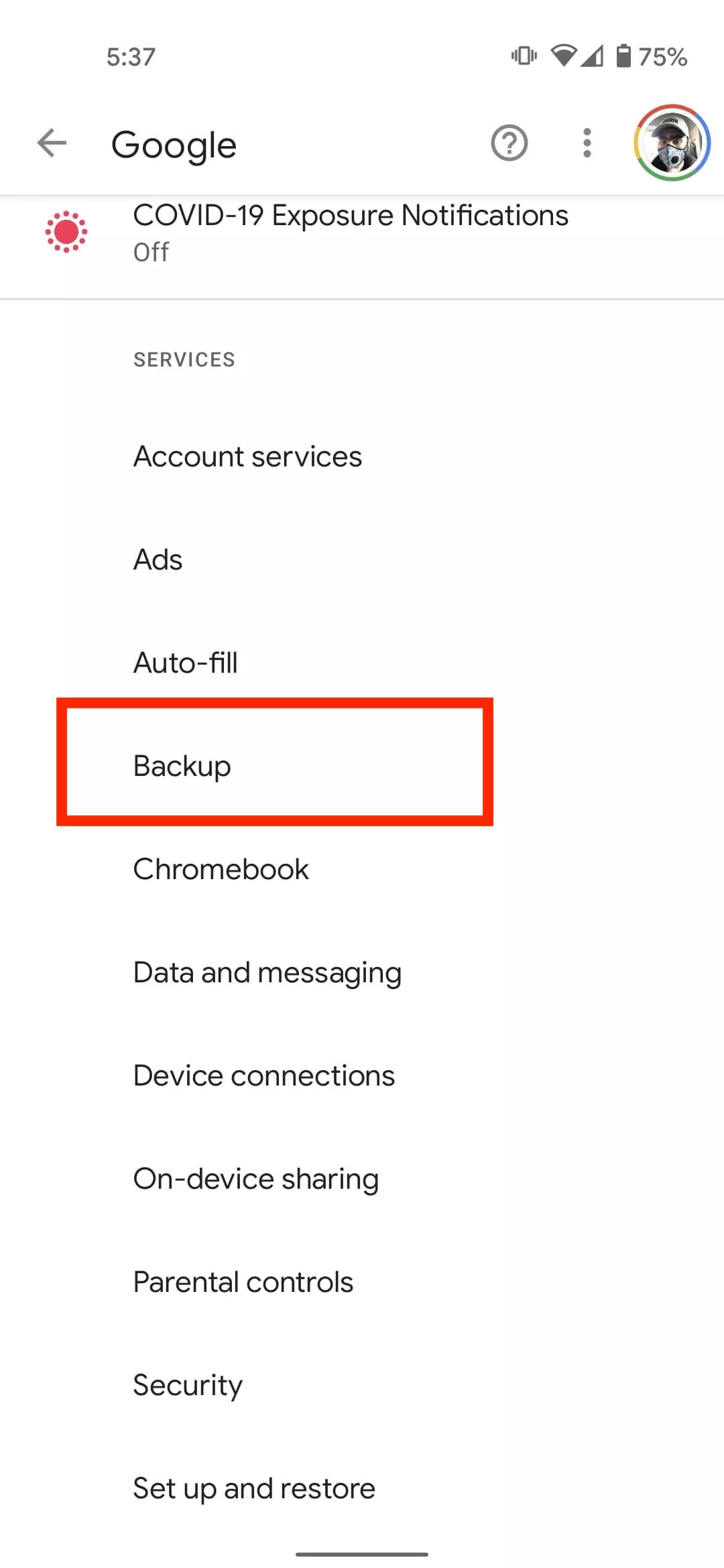
    2. Scroll down and tap Google
    3. Tap Backup
    4. Ensure Backup by Google One or Back up to Google Drive is turned on
    5. You’ll see a summary of what’s being backed up. Tap Back up now to trigger an immediate backup

    Once enabled, your phone will automatically back up daily when connected to Wi-Fi and charging.

    Back up photos and videos using Google Photos

    Your videos and pictures frequently include priceless memories. To make sure your media files are securely backed up and available on multiple devices, Google Photos offers a quick and safe solution. It’s among the most dependable ways to preserve your graphic information without requiring complicated instruments or extra hardware.

    Google Photos is a robust cloud-based platform that automatically stores and arranges your images and videos, making it more than simply a gallery app. Once activated, it will sync your media to your Google Account continually, so your memories will be preserved even if your device is lost or damaged.

    Steps to back up media:

    1. Open the Google Photos app
    2. Tap your profile icon in the top right
    3. Choose Photos settings > Backup
    4. Toggle Backup to on
    5. Choose your preferred upload size (Storage saver or Original quality)
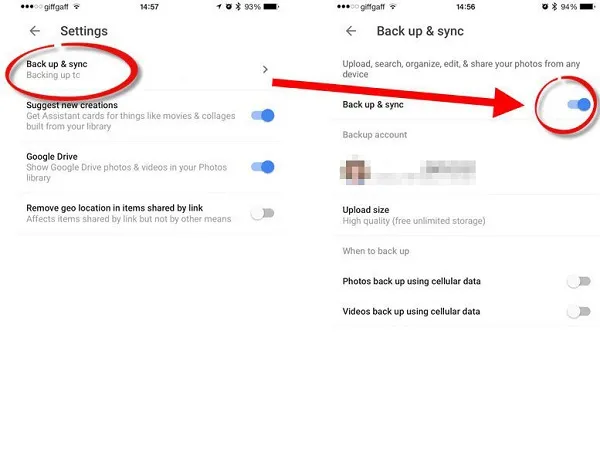
    google photos enable back upyour Android devices photos and videos

    All your photos and videos will sync to the cloud, and you can access them on any device logged into your Google account.

    Back up files manually to a PC

    Although cloud storage services like Google Drive and Google Photos are convenient, backing up your Android files to a PC by hand offers you more control, privacy, and independence from internet connectivity. It’s a simple process that guarantees you have a hard copy of all of your vital information, including documents, films, images, and more, safely saved on your computer.

    Here’s how:

    1. Connect your Android phone to your PC using a USB cable
    2. On your phone, choose File Transfer / MTP mode when prompted
    3. Open File Explorer on your computer
    4. Locate your device, open it, and navigate to folders like DCIM, Downloads, Pictures, or Documents
    5. Copy and paste the desired files to a safe folder on your PC

    This method is ideal for archiving large files or performing a one-time back up your Android without an internet connection.

    Use Samsung Cloud or manufacturer tools (for Samsung, Xiaomi, etc.)

    Some manufacturers offer their own back up your Android device solutions in addition to Google’s.

    For Samsung users:

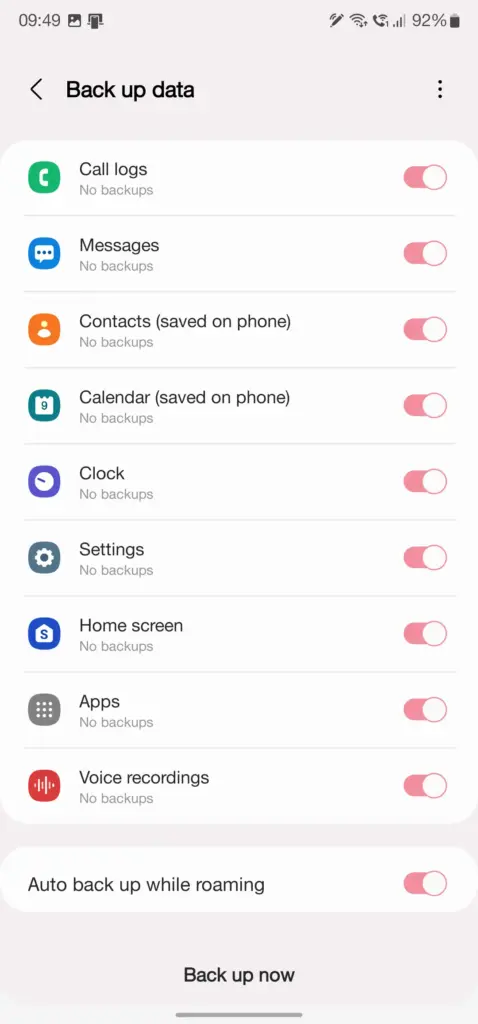
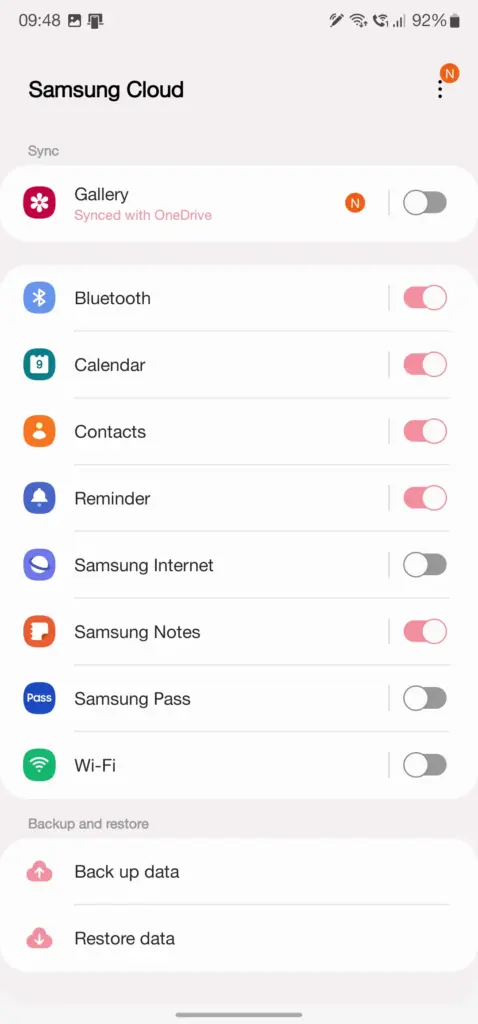
    1. Go to Settings > Accounts and backup
    2. Tap Samsung Cloud
    3. Choose what to back up (contacts, calendar, settings, etc.)
    4. Tap Back up now

    You can restore this data to any Samsung device later using the same Samsung account.

    Xiaomi users:

    Use Mi Cloud by going to Settings > Mi Account > Mi Cloud and enabling the backup options available for your account.

    Always ensure you’re connected to Wi-Fi and have enough cloud storage before initiating the process.

    Backup apps like SMS and call logs (optional)

    Most devices now have SMS and call history included in Google’s backup system, but if you have an older phone or want more redundancy, apps like SMS Backup & Restore can give you more flexibility.
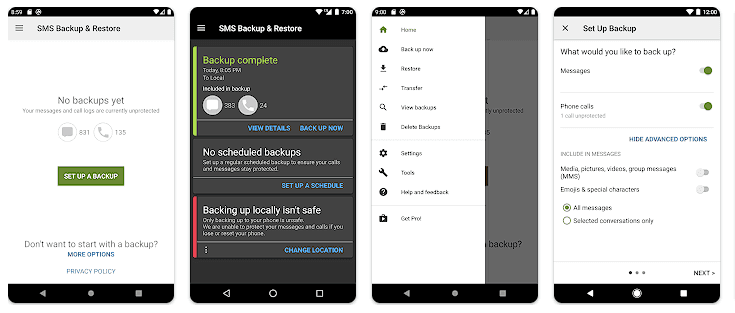
    back up your Android

    How to restore your data

    When setting up a new Android phone:

    1. Log in with the same Google account used for backup
    2. During the setup process, Android will detect the backup
    3. Choose what you want to restore—apps, settings, contacts, etc.
    4. Wait for the process to complete; some data may take time to sync

    For manufacturer backups, you’ll need to use the brand-specific restore method (Samsung Cloud, Mi Cloud, etc.).

    Tips for reliable Android backups

    • Always use a stable Wi-Fi connection before backing up
    • Keep automatic backups turned on for peace of mind
    • Occasionally perform a manual backup if you’re making major changes
    • Regularly check if Google Photos is syncing properly
    • For local backups, organize files by folders and label your backups by date

    Back up your Android device is easy and doesn’t require technical expertise. The majority of your crucial data is handled by Google’s reliable, automated solution, but you also have more flexibility with local and manufacturer-specific solutions. Having a backup guarantees that your data is never completely lost, whether you’re changing phones or simply staying secure.
  • How to transfer files from Android to PC (no cable needed)

    How to transfer files from Android to PC (no cable needed)

    Gone are the days when a USB cable was the only way to move files between your Android phone and computer. Whether you’re transferring photos, documents, or videos, there are now several wireless methods that make the process faster and more convenient — no cables, no drivers, and no hassle.

    In this article, you’ll discover how to transfer files from Android to your PC wirelessly utilizing free built-in utilities and reliable third-party apps. All ways are easy, secure, and don’t need rooting your smartphone.

    Why Go Wireless?

    Here’s why transferring files without a cable is the smarter choice:

    • No need to carry cables or adapters
    • Works on all modern Windows, macOS, and Linux PCs
    • Faster for frequent transfers
    • No risk of physical damage to USB ports

    1. Use Google Drive (Cloud Sync)

    If you have a Google account, you already have access to Google Drive — one of the easiest ways to transfer files wirelessly.

    Steps:

    1. Open the Google Drive app on your Android device.
    2. Tap the “+” icon, then select Upload.
    3. Choose the file(s) you want to send.
    4. Wait for the upload to complete.
    5. On your PC, go to https://drive.google.com and log in.
    6. Download the files to your computer.

    Pros:

    • Seamless for documents and photos
    • Files are stored in the cloud, so they’re safe even if your phone is lost
    • Works across devices and operating systems

    Cons:

    • Requires an internet connection
    • File size limits apply (15GB free storage per Google account)

    2. Send via Nearby Share (Best for Windows)

    Nearby Share for transfer files

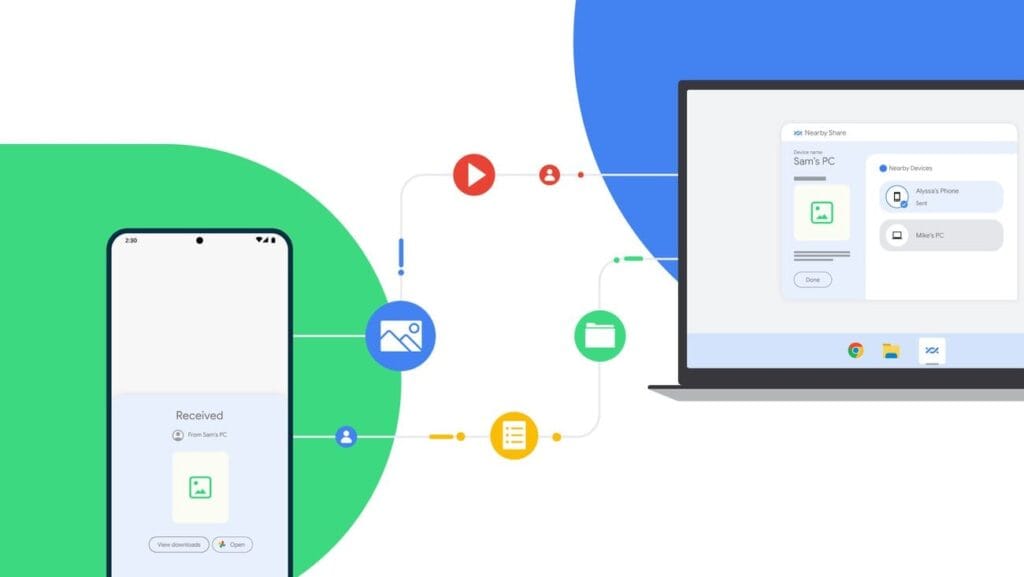
    Currently fully supported on Windows 10/11, Nearby Share is Google’s AirDrop-style solution for sharing files instantly between Android and Windows devices.

    Set It Up:

    1. On your Android, go to Settings > Google > Devices & sharing > Nearby Share and turn it on.
    2. On your PC, install the official Nearby Share for Windows app from Google’s website.
    3. Connect both devices to the same Wi-Fi network and ensure Bluetooth is on.

    Send Files:

    1. Select a file on your Android device.
    2. Tap the Share icon and choose Nearby Share.
    3. Your PC should appear in the list — tap it to send the file.
    4. Accept the transfer on your computer.

    Pros:

    • Fast and secure
    • Works offline (local Wi-Fi or Bluetooth)
    • No cloud storage needed

    Cons:

    • Not available on older PCs or operating systems
    • Some routers may block discovery if firewall settings are strict

    Method 3: Transfer with File Sharing Apps (like Send Anywhere)

    Direct wireless transfers between your computer and phone are possible through Wi-Fi thanks to apps like Xender, Feem, and Send Anywhere.

    Using Send Anywhere:

    1. Install Send Anywhere on your Android from the Play Store.
    2. Visit https://send-anywhere.com on your PC.
    3. On your phone, select the files you want to send.
    4. You’ll get a 6-digit code — enter this on your PC to receive the files.

    Pros:

    • Works on any OS and browser
    • No account required
    • Fast local transfer via Wi-Fi Direct (not over the internet)

    Cons:

    • Ads in the free version
    • Interface might be confusing for first-time users

    Method 4: FTP File Transfer via File Manager Apps

    If you prefer full control over file navigation, FTP (File Transfer Protocol) is a powerful option — no internet needed.

    Using Solid Explorer or ES File Explorer:

    1. Install a file manager that supports FTP (e.g., Solid Explorer).
    2. Open the app and go to Network > FTP Server.
    3. Start the server — the app will display an IP address like ftp://192.168.1.10:1234.
    4. On your PC, open a browser or FTP client (like FileZilla) and enter the address.
    5. Browse your phone’s storage and download files directly.

    Pros:

    • Full control over folders and files
    • High-speed transfers over local network
    • No cloud or apps required on the PC

    Cons:

    • Not user-friendly for beginners
    • Must stay on the same Wi-Fi network

    Method 5: Microsoft Phone Link (Windows 10/11)

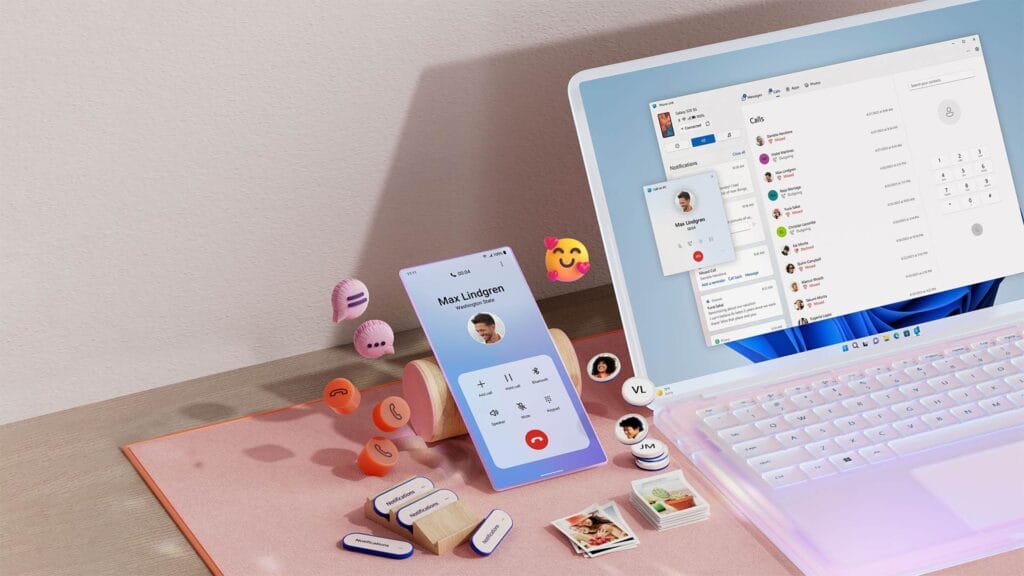
    msft open laptop with mobile phone floating emojis RW10WBx

    Microsoft’s Phone Link app (previously “Your Phone”) enables seamless connectivity between Android and Windows.

    Setup:

    1. On your Android, install the Link to Windows app.
    2. On your PC, open the Phone Link app (pre-installed on Windows 10/11).
    3. Follow on-screen instructions to link the two devices.

    Features:

    • Access photos, messages, notifications, and files
    • Drag-and-drop files directly between phone and PC

    Pros:

    • Seamless experience for Samsung and Surface users
    • Files transfer instantly without cables

    Cons:

    • Requires Microsoft account
    • Full feature set limited to specific models (Samsung, Honor)

    Bonus: Email, Telegram, or WhatsApp (for Small Files)

    For documents or images under 100MB, you can simply email them to yourself or use Telegram’s Saved Messages to transfer between devices.

    • Email: Attach files and send them to your own address.
    • Telegram: Send the file to yourself from your Android and download it on your PC.
    • WhatsApp Web: Share with a trusted contact and download via WhatsApp Web on PC.

    What’s the Best Option?

    MethodSpeedInternet RequiredSetup ComplexityBest For
    Google DriveMedium✅ YesLowBackups & multi-device use
    Nearby ShareHigh❌ NoMediumWindows 10/11 users
    Send AnywhereHigh✅/❌ OptionalMediumFast wireless transfers
    FTP via File ManagerVery High❌ NoHighTech-savvy users
    Microsoft Phone LinkHigh✅ YesMediumWindows users w/ Samsung

    You no longer require a USB cable to transfer data between your Android phone and computer. Whether you want to backup your gallery, transfer work documents, or send huge films, wireless solutions make the process simple and effective.

    Nearby Share and Google Drive are the most user-friendly solutions. If you desire speed and complete control, FTP or Send Anywhere would suffice, as they do not require cloud storage.

    Experiment with the way that best suits your workflow; once you go wireless, you will not want to plug in again.

  • Best Cloning Software for SSD | Stepwise Guide

    Best Cloning Software for SSD | Stepwise Guide

    Introduction

    Copying an SSD (solid-state drive) has become pretty common among folks who want to move all their data, operating system, and preferences to a new drive quickly. This post dives into why people clone SSDs and offers one best disk clone software for Windows users.

    Why Clone an SSD?

    Cloning an SSD brings several benefits compared to manual data transfer or OS reinstallation. It’s a time and effort saver, copying all data and settings from the source SSD to the target one. Whether you’re upgrading, replacing a faulty drive, or seeking more storage space, cloning streamlines the process while safeguarding data integrity. Specifically:

    • Efficiently manage your original hard drive.
    • Create a backup of important files.
    • Helpful for booting your computer in case of accidents or from a secondary hard drive.
    • Upgrade to a new SSD for improved performance or increased storage capacity.

    What’s the best SSD cloning software?

    Since there’s no built-in cloning software offered by Windows, you need to select a well-functioning cloning tool. AOMEI Backupper, a software designed for Windows systems backup and clone, support OS like Windows 11/10/8.1/8/7/Vista/XP, stands out as a top choice for SSD cloning software.  Some great features are presented as below:

    • Disk Clone: Easily clone entire hard drives, including all volumes. Whether you’re migrating from an HDD to a smaller SSD or upgrading to a larger SSD, this feature has you covered.
    • Partition Clone: Copy selected partitions, such as NTFS drives, with ease.
    • Intelligent Clone: By default, it only copies used sectors, making it efficient for cloning larger drives to smaller ones.
    • SSD Alignment: Improves performance and extends the lifespan of your destination SSD.
    • VSS Technology: Runs the cloning process in the background, allowing you to continue using your computer without interruption.
    • Sector by Sector Clone: This function enables you to clone all sectors, whether used or not, making an exact copy of the source disk. You can activate this feature if you need an identical replica of the source disk.
    • Compatibility: AOMEI Backupper Standard works seamlessly with all Crucial SSD models, such as Crucial MX100, Crucial MX200, Crucial MX500, Crucial BX500, M500 Series, and also supports other popular brands like WD SSD, Samsung SSD, and SanDisk SSD.

    Apart from extraordinary cloning functions, this pretty tool offers full backup and recovery solutions, and enables users share data with its wonderful syncing options.

    Stepwise guide on cloning SSD to another drive

    Now I will show you how to create a step-by-step guide on cloning SSD to another drive like HDD or another SSD. Before you start, please make some preparations:

    • Ensure your old SSD and new drive are properly connected to your computer. If you have only one drive bay, use a USB-to-SATA adapter.
    • Make sure there’s enough space in the destination disk to store the data or the cloning process will fail.
    • Remember that the target disk will be overwritten during cloning, so back up any important files if needed.
    • Download and install the free SSD migration software.

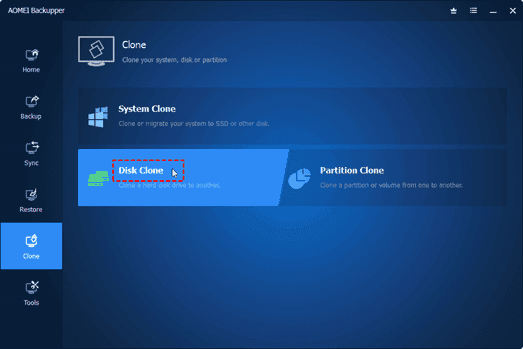
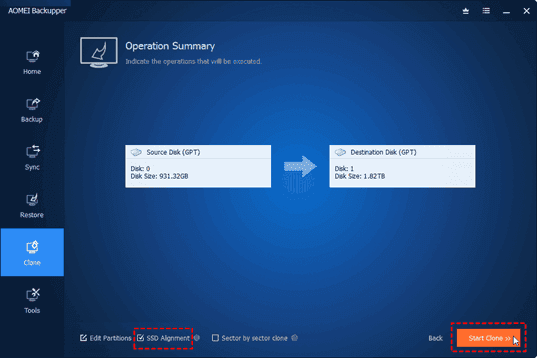
    Step 1. Now launch AOMEI Backupper on your computer. Click on the Clone button and select Disk Clone in the next window.

    Picture1

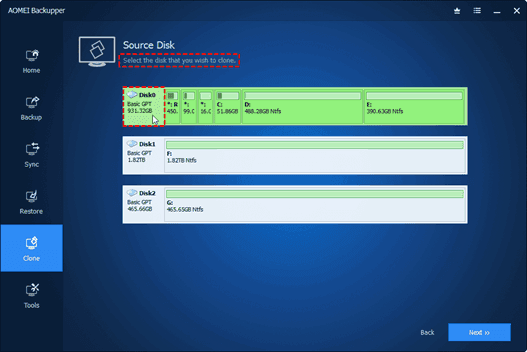
    Step 2. Choose the original SSD  as the source disk and then select the new drive as the destination disk.

    Picture2 1

    Step 3. Optimize the performance of the destination SSD by checking the SSD Alignment option if needed.

    Picture3 1

    Step 4. Click on Start Clone to initiate the SSD  cloning process.

    Step 5. When the cloning process ended, click on the Finish icon to end the whole cloning process.

    Note: If you want to clone every sector, including unused sectors, tick the Sector By Sector Clone option. Additionally, if you’re upgrading to a larger SSD, you can use the Edit Partitions option to avoid unallocated space after cloning.

    Conclusion

    In conclusion, cloning an SSD provides a convenient way to transfer data, operating systems, and settings to a new drive, saving time and effort compared to manual reinstallation. Before starting the cloning process, ensure both the source and target SSDs are connected, verify sufficient disk space, and choose reliable cloning software.

    Among the available options, AOMEI Backupper stands out as the best cloning software due to its user-friendly interface, advanced cloning options, data integrity and security measures, and additional backup features.Now you can try this sofwtare yourself!

  • Full Introduction: Best Online Computer Backup Service

    Full Introduction: Best Online Computer Backup Service

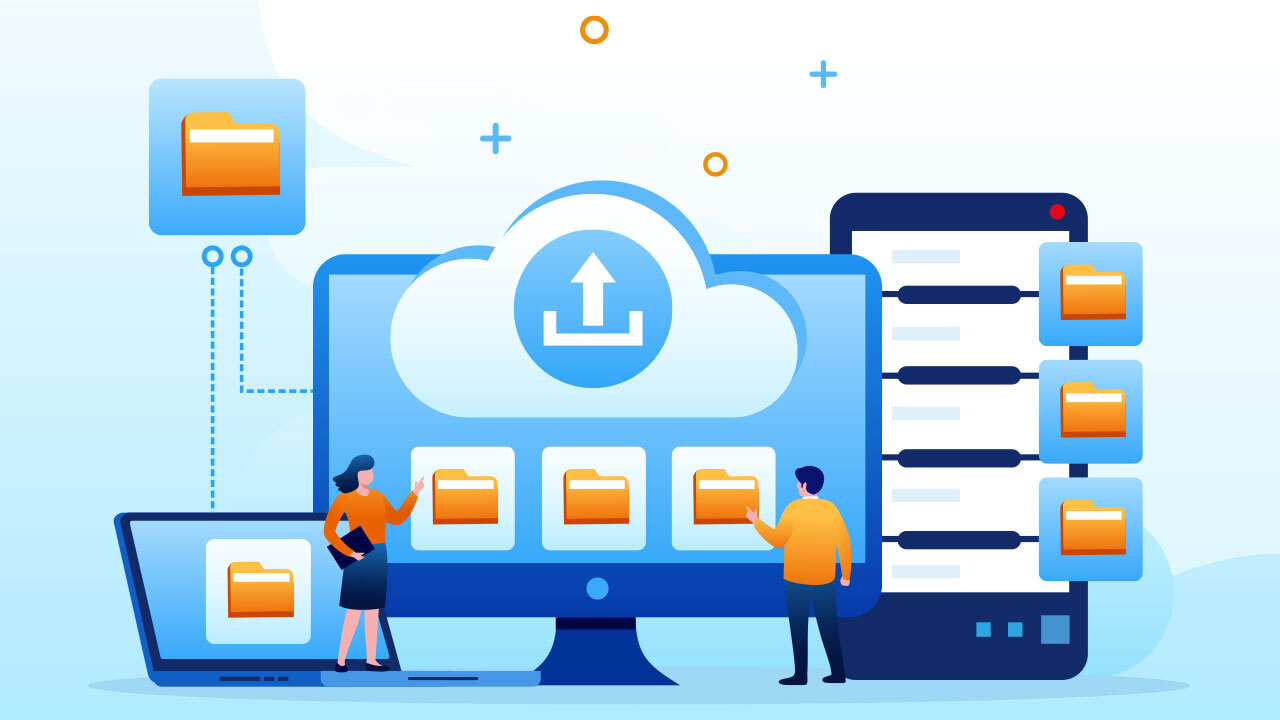
    Are you interested in protecting your computer data by creating an online computer backup? Opting for an online backup solution ensures that your backed-up data is securely stored in the provider’s data center, offering protection against local accidents and disasters. Additionally, once you’ve made online backup for your computer data, you’ll have the freedom to access, download, and modify your data from any device.

    What Makes Online Computer Backup the Preferred Choice?

    Many users, like yourself, are increasingly opting for PC online backup. Let’s delve into the advantages of this backup solution:

    • Local data loss prevention: Local accidents such as system crashes, virus attacks, natural disasters, and equipment failures can result in data loss. However, creating an online computer backup ensures the safety of your data on the cloud.
    • Cost-effectiveness: Unlike traditional backup methods, online computer backup services often offer free cloud storage. If you require additional backup space, you can easily upgrade your cloud storage service according to your needs.
    • Enhanced data accessibility: Rather than carrying around a physical storage device, an online computer backup allows you to access your computer data from any device with a stable internet connection.
    • Simple data recovery: Online computer backup services maintain multiple versions of your backed-up data, enabling you to restore it to any previous version effortlessly.
    • Streamlined backup tasks: Online computer backup typically offers advanced features and settings to simplify and optimize your backup process.

    Discover the Best Online Computer Backup Service: CBackup

    Are you faced with the dilemma of selecting a reliable online computer backup service for your computer data? With numerous options available in the market, comparing different aspects can be time-consuming. Do not worry, as we introduce you to the ultimate online backup service: CBackup.

    CBackup is from a professional company specializing in global data security for many years. CBackup employs OAuth to effectively protect your account and login information. Furthermore, the utilization of 256-bit AES Encryption guarantees the safety of your important computer data during upload and transfer tasks.

    Regardless of the operating system you use, you can access CBackup from its official web page. If you’re using a Windows operating system like Windows 11, 10, 8.1, 8, 7, or XP, you can download and install the CBackup desktop client directly on your computer, facilitating the creation of an online computer backup.

    With CBackup, you can create backup tasks for your entire computer, or select certain files and folders from computer to back up.

    Picture2

    CBackup offers a wide array of free backup and sync features. Here’s a brief overview of some of them that can help safeguard your computer data:

    • Backup PC to public cloud: The backup feature lies at the core of CBackup. You can easily back up your computer data to many common cloud drives such as Google Drive, OneDrive, and Dropbox.
    • Backup PC to CBackup Cloud: In addition to public cloud drives, CBackup also provides the option to use CBackup Cloud. Upon signing up for a new account, you receive 10GB of free cloud storage in CBackup Cloud.
    • Combine cloud storage: A standout feature of CBackup, it allows you to merge multiple cloud drive accounts into a single combined cloud, granting you unlimited cloud backup space. You can select accounts from the same platform or different cloud drives.
    • Sync PC to public cloud: CBackup enables you to sync your PC data with public cloud drives, offering this feature for free.
    • Cloud to cloud backup or sync: Aside from transferring data from local storage to the cloud, CBackup facilitates seamless data transfer between different cloud drive accounts using the cloud to cloud backup or cloud to cloud transfer feature.

    Step-by-Step Tutorial: Creating an Online Computer Backup

    If you’re eager to utilize the CBackup desktop application for creating an online computer backup, refer to the simple tutorial provided below:

    Start by downloading and installing the CBackup desktop app from the official website. Sign up for a new account and open the CBackup desktop application to log in.

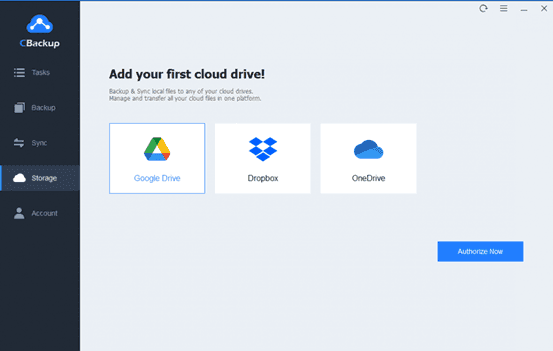
    1. On the left-hand side, click on the Storage tab, choose a public cloud, and click “Authorize Now” to add it.

    Picture3

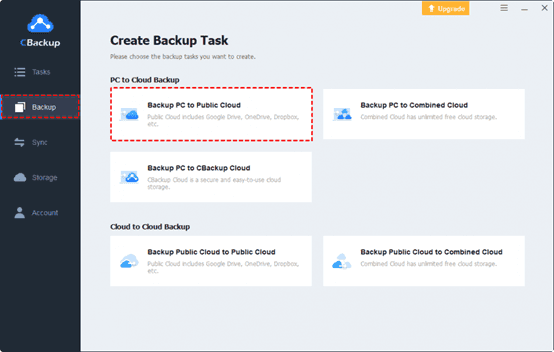
    2. Press Backup and select “Backup PC to Public Cloud” in turn.

    Picture4

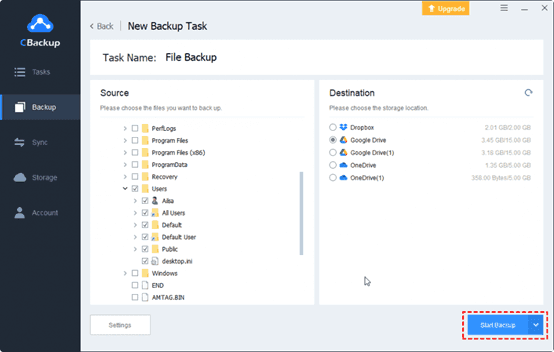
    3. Choose any data from your computer or the entire computer as the backup source. Then, select the cloud drive account you have added to CBackup as the backup destination.

    Finally, click the “Start Backup” button to swiftly back up your PC data to the online cloud.

    Picture5

    In Conclusion

    That concludes our discussion on the best backup software for computers, along with a step-by-step guideline. With CBackup, you can explore a range of additional free features to enhance the convenience of your online computer backup.

  • RAW photos are now backed to Google Photos and displayed in the main grid.

    RAW photos are now backed to Google Photos and displayed in the main grid.

    Google Photos is making a significant change to how it manages RAW photos and backup on Android, as we noticed at the beginning of this year. The format has been substantially improved as of late, although there may be some drawbacks.

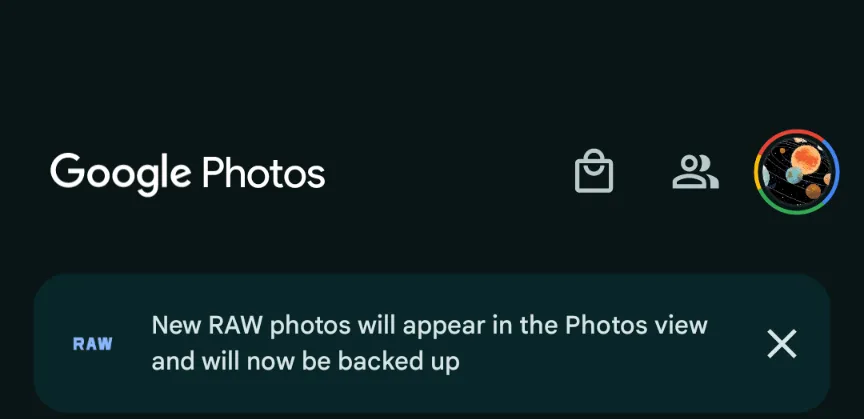
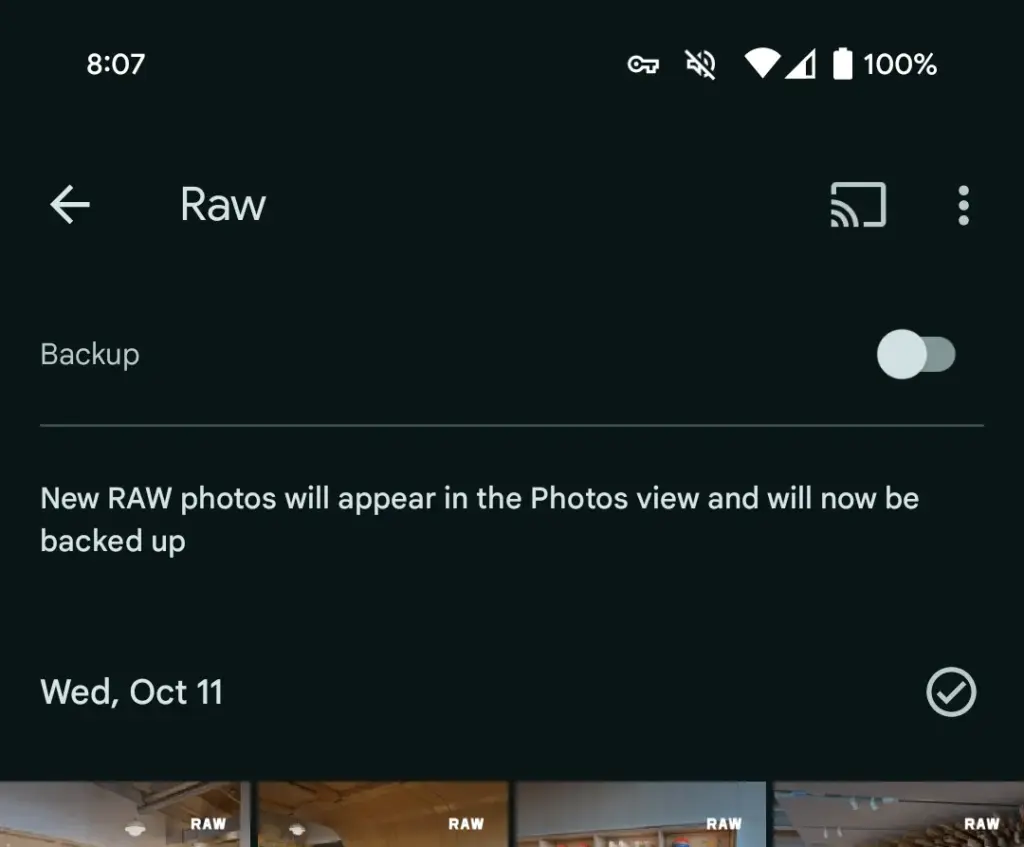
    This morning, Google Photos presented the following banner on a Pixel 8 that had previously taken RAW photos in the Camera app: “New RAW shots will appear in the Photos view and will now be backed up.”

    google photos raw backup

    Taking a RAW photograph now automatically uploads it to Google Photos backup and displays it in the main “Photos” tab/grid. It’s labeled “RAW” in the top-right corner, and opening it shows a switcher at the bottom that allows you to view the JPEG as well. When viewed as a “Burst,” JPEG allows you to “Export this photo” or “Keep this photo only,” whereas RAW allows you to “Set as main photo” and “Keep this photo only.”

    RAW files are quite huge, and Google automatically uploading to the cloud might rapidly exceed mobile data restrictions. (However, Google is no longer uploading earlier on-device RAWs.) There is no obvious way to prevent RAW uploads using existing backup settings.

    It may potentially have an influence on Google One storage restrictions. Personally, I’ve always transferred RAW photographs I’ve taken via USB because I don’t have a backup for that folder.

    Meanwhile, that “Raw” folder (on Pixel) found in the Library tab > Photos on device carousel is no longer in use. New RAW images are not shown there. At a glance, there’s no obvious way to view just RAW captures in Google Photos.

    google photos raw

    Meanwhile, this comes as Google Photos recently added the ability to set a default RAW editor. Photos settings > Apps & devices > Raw editor shows apps like Photos (which will convert to JPEG before editing), (Pixel) Markup, Gallery (Go), and Snapseed.

    We’ve reached out to Google to explain this RAW backup change in Photos on Android on behalf of wedding photographers.

  • Rooting – custom ROMs –  Android language

    Rooting – custom ROMs – Android language

    Every profession or pastime creates its own own particular jargon for explaining complex concepts in an understandable manner, and the Android world is no exception.

    This article is for you if you’ve googled a problem with your Android smartphone or tablet and came across terms like “rooting,” “flashing a custom ROM,” “unlocking the SIM,” or anything similar that you didn’t understand.

    This article is a reference for the novice who wants to learn about all the terminology behind our Android nerdiness because Android experts presumably already know what these phrases represent.

    custom rom

    What Is Rooting?

    Getting access to the system files on your Android device is what it means to root your phone. No Android device comes pre-rooted by default. Therefore, it is probably not rooted if you recently purchased an Android device and did nothing to it. 

    Manufacturers take this action because allowing everyone root access would cause several issues. You can access files on your device that, if deleted or altered improperly, could damage it if you have root access. 

    But many people still decide to root their devices because it enables them to make a lot of pretty fascinating adjustments if they know what they’re doing. It should be noted that rooting an Android device would void the warranty. 

    Youtube video

    How you root your device is different for every single model. For some devices, this can prove to be a difficult process involving circumventing the manufacturer’s safety precautions. For others, it can be as simple as plugging your phone into your computer and pressing a button. You can always check out the XDA forums for instructions for your specific device. 

    You won’t instantly notice any significant changes after your device has been rooted. The excitement is in what you can do with a rooted device. Then, you may utilize root-required apps, flash custom ROMs, modify specific features of your phone, and more—which we’ll go over in more detail later. 

    For instance, when unrooted, you can remove some bloatware, but rooting your device and using Titanium Backup or a root uninstaller are required to completely remove it. 

    What Is Unlocking?

    Unlocking is a confusing term because there are different things you could unlock. 

    Unlocking the Network/SIM

    A device that has been network/SIM locked was typically purchased through a carrier or for a certain carrier at a discounted price. That phone is then locked by the carrier so that you can only use it with them. 

    However, if you pay off the phone and decide to switch carriers, the carrier is obligated by law to provide you with the unlock code (at least in the US and the EU). To obtain the code, simply get in touch with your current carrier. 

    Sometimes, unlocking your device gets more complicated than that, so we have a guide to SIM unlocking. Other times, you buy your phone unsubsidized and unlocked, meaning you can already use it with any carrier. 

    Unlocking the Bootloader

    The bootloader is a piece of software that runs every time you switch on your Android phone, and it is usually locked by the manufacturers. With a locked bootloader, you can’t root your device. Instructions for unlocking your bootloader are found within the instructions for rooting your device.

    What Are Custom ROMs?

    Read-Only Memory is referred to as ROM, however the term is somewhat misleading today because it has nothing to do with it. A ROM is essentially the software that runs on your device, at least in the Android universe. 

    Therefore, a Xiaomi smartphone looks and operates differently than a Samsung smartphone when you pick it up. This is so that Xiaomi and Samsung could each create their own ROMs by altering the original Android code. Even though they both run Android, Xiaomi’s ROM and Samsung’s ROM are distinct from one another. 

    A custom ROM, then, is a ROM that was built not by the manufacturer but by someone else. Sometimes it’s just a lone programmer with some time on their hands and a passion for making ROMs—other times, it’s a bigger group like LineageOS that has a team and intentionally makes a certain type of ROM. 

    Once you’re rooted, you can flash a custom ROM. Flash, in this case, basically means to load or install. Flashing a custom ROM means you are installing a new ROM on your device and completely wiping the old ROM. 

    When looking for custom ROMs for your device, there are some names you’re likely to run into:

    • Pixel Experience: As the name suggests, features a ROM similar to that of Google’s Pixel phones. This ROM is currently one of the most commonly used custom ROMs out there, and for good reasons. 
    • LineageOS: LineageOS, formerly known as CyanogenMod, is one of the most popular custom ROMs you’ll come across. It offers a great feature set and has even featured as the stock ROM for some manufacturers in the past. 
    • AOSP: Android Open Source Project is the version of Android that Google gives to the world, often called stock or stock Android. You might see people say that their ROMs are “AOSP-based” or “based on stock Android,” which just means they took the AOSP code and altered it to their liking. 
    • AOSIP: Android Open Source Illusion Project integrates features from various popular custom ROMs into AOSP ROMs. 

    However, don’t be hesitant to try ROMs with different names from less well-known people. There are other reliable ones besides these. They’re simply the most well-known in general.

    Other Android Terms

    Custom recovery

    If you enjoy playing around with your Android device, the recovery process could take a while. It’s where you can perform the necessary heavy lifting, create backups, and flash ROMs. 

    You need a custom recovery because the stock recovery on your device is unable to perform any of those tasks. For installing custom ROMs, TWRP is the preferred custom recovery. Team Win Recovery Project is referred to as TWRP. 

    Nandroid backup

    There are, of course, ways to backup your Android device without rooting it, but a Nandroid backup is a complete backup. It essentially makes a full copy of everything on your device and saves it. That way, if you screw up anything (since you have root access and that is possible), you can always just flash your Nandroid backup and return to where you were. 

    The name is just NAND (a type of flash memory) and Android mashed together. 

    Kernel

    The kernel is like the engine of your operating system—you don’t really see it, but it’s in the background doing all the hard work. 

    If you want, you can flash a custom kernel. Sometimes these kernels are optimized for performance or battery life—sometimes, they’re just necessary to get some feature to work right. Either way, you can be okay just sticking with your stock kernel unless you really want to change it. 

    Brick

    Bricking your phone is essentially breaking it. If your phone isn’t working anymore, you’ve bricked it. This is generally not a phrase you’re going to be happy to run into. 

    • A soft brick usually means it’s fixable. Maybe you’re stuck in a bootloop (your phone just continually reboots), or you boot it up, but it only displays half the screen properly. That’s generally something you can get out of quite easily. 
    • A hard brick is when the device is toast. You messed with something at a system level that can’t be fixed, and your device is out of commission. Sorry. This is a rare thing to happen, but it can happen—and you’ll see warnings everywhere that no one but yourself is responsible for your device being bricked. 

    If you end up bricking your Android phone, try these steps to try and unbrick it

  • How to make a backup for you Android device

    How to make a backup for you Android device

    There is no universal way for backing up and restoring Android phones that works for everyone. To keep things simple but effective, many users may choose a cloud-based system with automatic backups. Others, on the other hand, may want to store them offline and manually create backups for safekeeping. There is no right or wrong way to approach things here; depending on what you’re searching for, both options may have trade-offs. In this post, we’ll go over some of the most common techniques for backing up and restoring your Android phone.

    Google One Backup

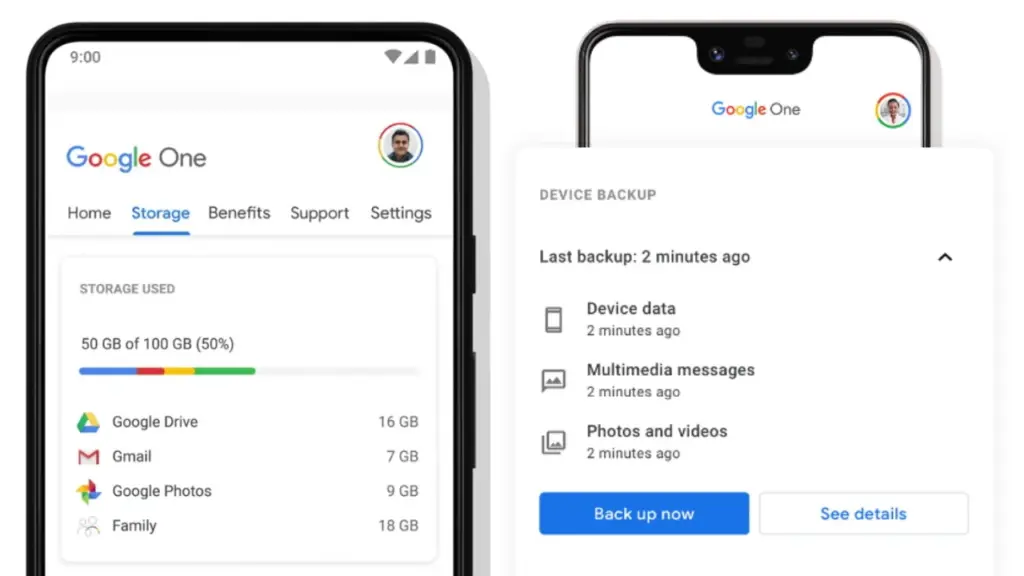
    Google One is here to help you keep your life easy if you’re seeking for a fantastic, all-around backup solution for Android. Because Google is the official Android maintainer, it makes reasonable to utilize a first-party mechanism that can be accessed by almost any Android phone. To say the least, backing up your device with Google One allows you to save your images, messages, and a list of loaded apps. After your smartphone has been charging and idle for 2 hours over Wi-Fi, you’ll get automatic cloud backups.

    google one backup

    Access Google One using the app

    If you have a Pixel phone, Google One comes pre-installed as part of the operating system for quick access. Go to System Backup in the Settings app after opening it. All Google accounts come with 15 GB of free cloud storage for things like photographs, movies, and device backups. Increased storage capacity is available for a few bucks per month if needed. You may install Google One on your Pixel or any other Android phone by following these steps:

    1. Download the Google One app if needed, then open it to continue.
    2. Press the Set up device backup button to begin the process.
    3. Tap Turn on to enable Google One backups for your device.
    4. Hit Continue to grant the proper Google Photos permission as needed for your photos and videos.
      • You can always press Cancel if you don’t plan on using Google Photos to save your photos and videos.
    5. Tap the Back up now button to begin backing up your device data to Google One.
    6. Once the backup has been completed, you can view more info under the Backup details section.

    Google Photos

    Although Google One includes this feature during the setup process, it does not imply that you intend to use it. If you just want to back up your photographs and videos, you could always utilize Google Photos as a stand-alone alternative. You can use the Google Photos cloud storage capability by following these steps:

    1. Download the Google Photos app if needed, then open it to continue.
    2. Press the Turn on Backup button to enable the cloud storage feature.
    3. Pick Original quality or Storage saver depending on your needs, then press Confirm.
    4. Swipe through the intro page as needed, then press Done to get to the main screen.
      • You can also tap Skip to quickly move past the intro and onto the main app.
    5. If you have any photos or videos waiting to be backed up, they should have started uploading now.
    6. Tap your profile icon in the upper right to view the status of your uploads.
      • You’ll be good to go once it shows the Backup complete message.
    7. After that, all the content that just backed up should appear on the main screen for you to view.

    Cloud Backup from Samsung

    Users who have invested in the Samsung ecosystem can use Samsung Cloud, a dedicated service for their phone. This allows you to back up and restore your Samsung device in the event that it is lost, broken, or reset. System settings, Wi-Fi networks, and the layout of your home screen are just a few of the things you may back up and store in the cloud. The Samsung Cloud Backup app for Android is quick and simple to use, and it works across all of your devices.

    Swift Backup

    When it comes to backing up your Android device, this is one of the most useful third-party apps available right now. With only a few short touches, Swift Backup allows you to perform batch activities. You may choose which apps you wish to store, hit a button, and it will handle the rest. It has a slight learning curve because it works with the Shizuku service, which grants you higher-level system rights. The good news is that many of its better features can be accessed without root access.

    Swift Backup

    You’ll also be able to back up your messages, phone call logs, and device wallpapers in one go. And once the app is set up to your liking, you can create an automatic schedule to keep everything constantly backed up. We’ve personally tested Swift Backup and highly recommend it for offline and cloud-based solutions. If you want to learn more about Swift Backup, we have a guide here that gives you an in-depth view of how to use it.

    NANDroid backup with custom recovery

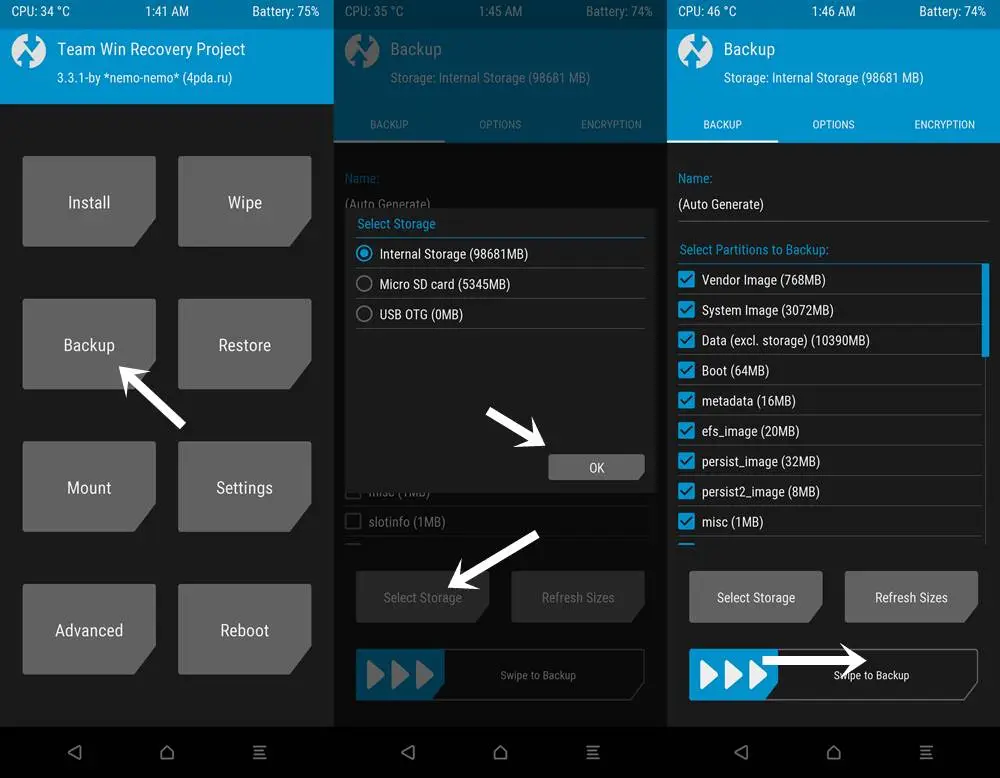
    When it comes to backing up and restoring Android devices, sophisticated users have a handy trick under their sleeves. You can take full system image backups of your smartphone using a custom recovery environment like TWRP. A NANDroid backup in this situation allows you to practically clone your system and restore it exactly as you left it, including all app data. It doesn’t require root access, but it does require an unlocked bootloader, a device that supports TWRP, and some knowledge.

    NANDroid backup

    If you can get beyond the learning curve and qualifications, NANDroid backups can make your life easier. Once you’ve done that, all you have to do now is manually save your downloaded media files, images, and videos. Many Pixel, OnePlus, and Exynos variant Samsung phones should be on the list of Android devices that gain TWRP support. Because of the committed developer community, the Pixel 5, OnePlus 9 Pro, and Galaxy S22 Exynos edition all have access to TWRP.

    Backing everything up

    There are a slew of different proprietary backup alternatives available from Android device manufacturers, as well as a slew of third-party apps on the Play Store. In the above list, we’ve merely highlighted a handful of the more common and effective approaches. Which one you choose is entirely dependent on your personal preferences and requirements for your individual device. And now that you’ve had a good starting point, you should be able to identify the one that works best for you.

  • Top 5 best Android Apps to Backup Mobile Data

    Top 5 best Android Apps to Backup Mobile Data

    One of our worst fears is losing all of our precious files and irreplaceable data from our Android devices. Hence always make a backup of your files. It’s one of the most crucial things a person can do with their gadgets. You never know when things will go wrong, and you certainly don’t want to lose any of your belongings if this happens. Fortunately, there are numerous options for backing up your files and apps on Android.

    The following is a compilation of apps that we believe will get the job done efficiently and securely.

    Titanium Backup

    titanium backup

    For root users, Titanium Backup is a must-have tool. It’s been around for a long time, gets regular upgrades, and has a ton of features. Titanium Backup, unlike many other backup programs, is almost entirely for root users, with few capabilities for non-rooted devices. Bloatware may be frozen and uninstalled; apps (along with app data) can be backed up to cloud storage, and much more.

    The Pro edition which is for $5.99 includes significantly more capabilities, such as 1-click batch restoration, cloud storage syncing, and much more. This is the king of backup programs for root users in the past and present, and everyone knows it.

    Buggy Backup Pro

    buggy backup

    Buggy Backup Pro is truly a good application backup app. It can copy APK files to your local storage or the cloud as needed. Those are the real APKs, and they work properly. At the very least, they installed without a hitch throughout our testing. You may also share APKs and look up information like the package name, software version, and date installed.

    Aside from that, there’s an uninstall option, Material Design, and an auto-backup tool if you want to be lazy. This isn’t nearly as strong as backup apps that require root access, such as Titanium Backup. Non-root users, on the other hand, will find this to be about as excellent as it gets. Please make sure to follow the app’s instructions, as some people have lost all of their data as a result of not doing so.

    G Cloud Backup

    google cloud backup

    G Cloud is a cloud storage service that specializes in device backups. It can backup your SMS messages, contacts, photographs, movies, music, documents, call logs, and other items automatically or manually. In some circumstances, it can even back up your settings. You may set up automatic backups for convenient times, such as when your device is charging and connected to WiFi.

    The program provides you with 1GB of free storage, and you can earn more by playing various games on the app. It also has a $3.99 unlimited storage option. This isn’t Google Drive, OneDrive, or any other similar service. It’s a cloud storage service designed exclusively for phone backups, which is quite cool. G Cloud is not affiliated with Google in any way.

    Google Photos

    google cloud backup

    Google Photos can be considered cloud storage in several ways. It backs up and restores your photos to Google Drive automatically. It does require actual Google Drive space (beginning June 2021), but it’s a quick, hands-free, and automated way to do so.

    The software also offers a few extra capabilities, such as seeing images on your device, removing images from your device if they’ve previously been backed up, and automatically sorting things into albums.

    Backup Your Mobile

    Backup Your Mobile is a simple backup option for folks who don’t want a lot of functionality. Apps, system settings, SMS, MMS, call logs, and more can all be backed up with it. The user interface is straightforward, and backing up your files should just take a few minutes of exploration. Although it appears to be outdated, you are unlikely to use this app more than a few times. Easily restore your data without any worries.

    Bottom Line

    Any one of the apps mentioned above will do a fair job and back up your data in no time. Check these apps and let us know which one works best for you.

  • Backup and restore your SMS On Android devices?

    Backup and restore your SMS On Android devices?

    Assume you got an essential text message and mistakenly deleted it while attempting to archive it. How do you restore deleted messages now? To prevent the hassle in the first place, you can use phone data recovery tools or backup all of your text messages on Android. You can either use the default Google backup or a third-party SMS backup and restore app to accomplish this.

    1. Backing Up SMS Using Google Backup

    Google provides an SMS backup and restore service. However, it has many limitations, including the fact that it is not available on all Android devices, that you cannot monitor when Google can perform the automatic SMS backup, and that the backup expires after 57 days.

    On the plus side, since it does not require the use of a third-party tool to backup and restore SMS, this is the best solution if you are worried about your privacy.

    How to backup text messages to Google Drive?

    1. Go to Android settings.

      How to backup SMS on Android
    2. Select Google > Select Backup.

      Select backup SMS Google
    3. Tap on your device name and see if the backup includes “SMS Text Messages.”

      backup text message AndroidSMS text message Google Backup
    4. Go back and Tap on Backup Now.

    Once the backup is complete, you will find it under the Backups tab of your Google Drive.

    2. Backing Up SMS Using A Third-Party Tool

    Another way to backup text messages on Android is through a third-party tool. SMS Backup and Restore is a great option and is often recommended. But I always prefer SMS Organizer from Microsoft.

    That’s because it’s not just a tool for backing up SMS on Android; it’s primarily an SMS app known for intuitively organizing text messages. I have been using SMS Organizer for a long time now and have never felt the need for another SMS app.

    Of course, if you are satisfied with the default Google messages app or any other SMS app, you can always use SMS Backup and Restore Android app to save text messages. But here, I will show you how you can backup text messages using SMS Organizer:

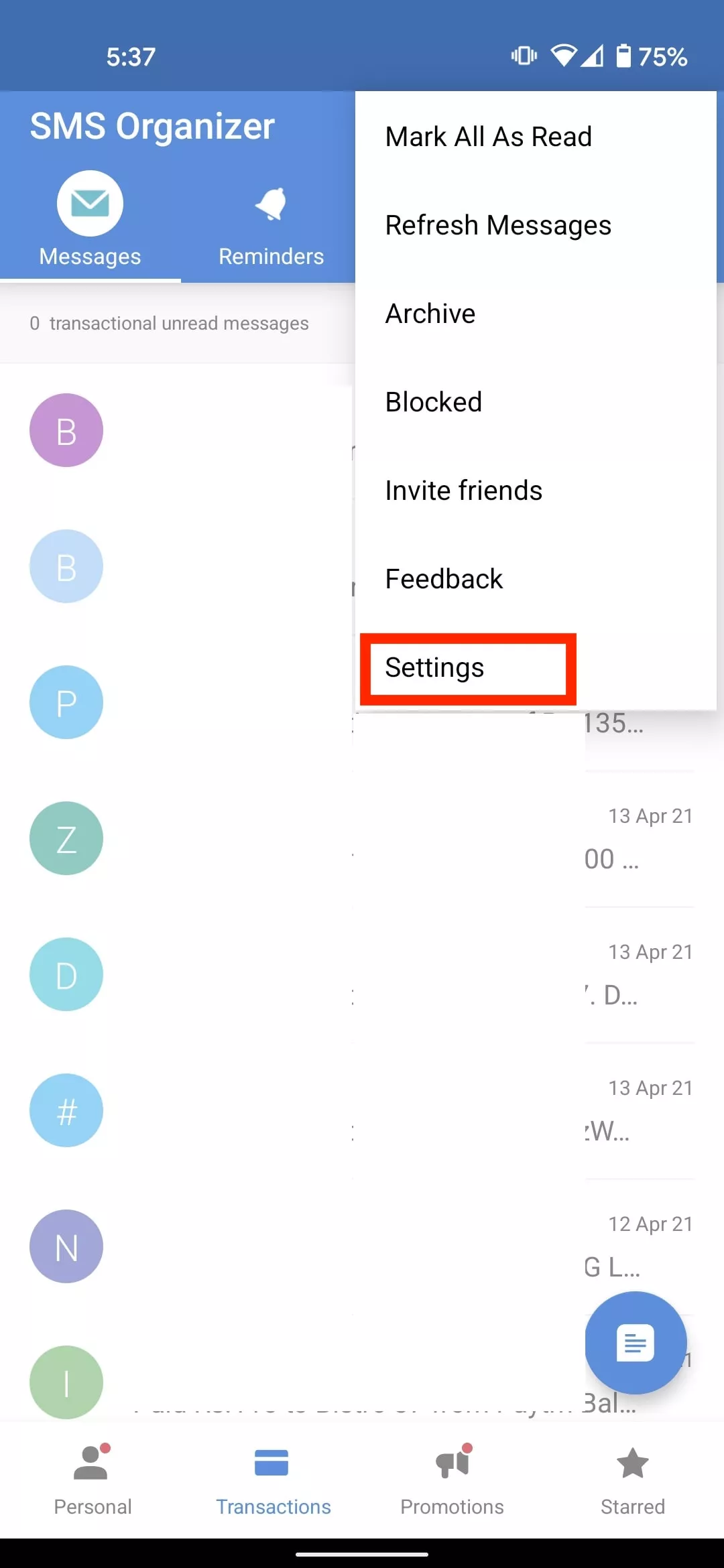
    How to backup text messages using SMS Organizer:

    1. Go to the SMS organizer app
    2. Tap on the menu icon in the top right corner

      SMS Organizer go to Settings
    3. Select Settings
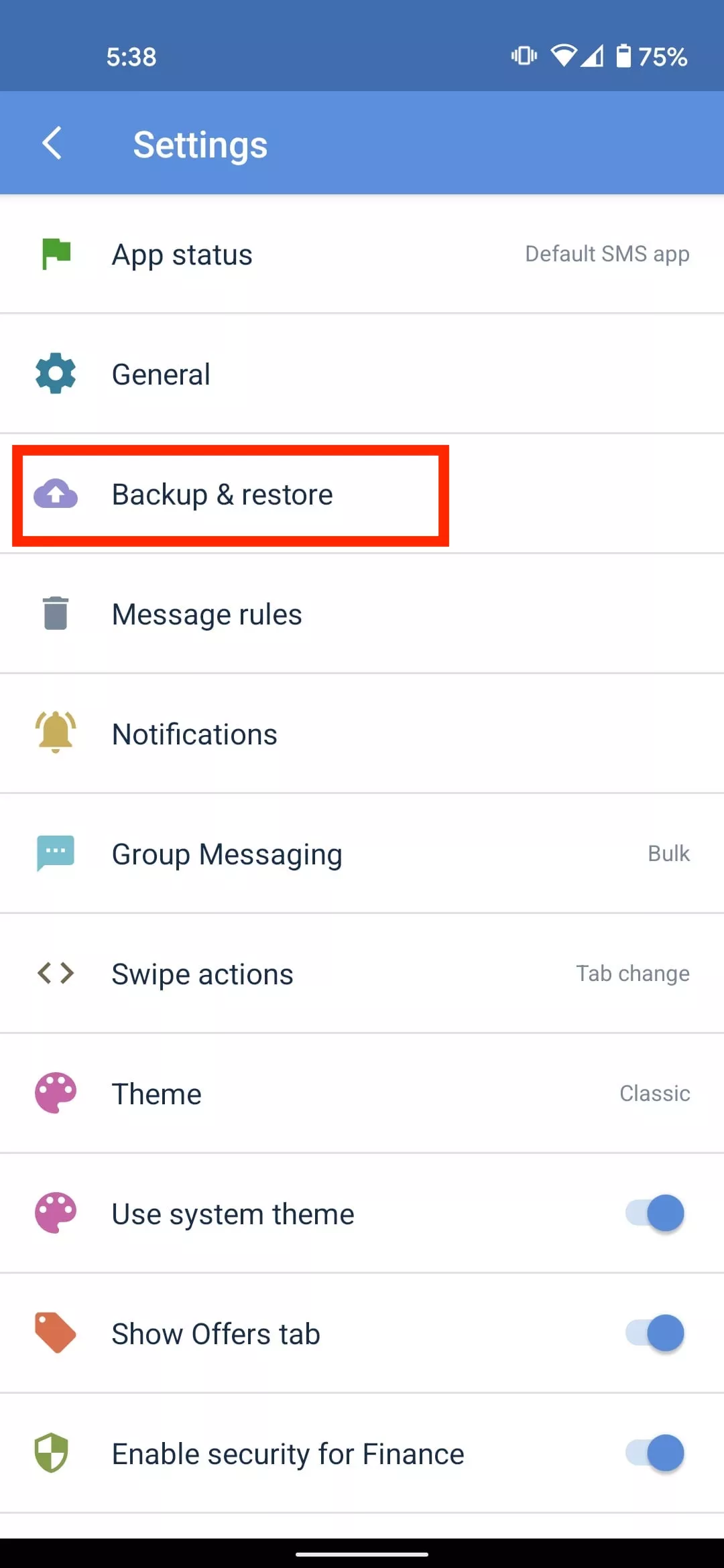
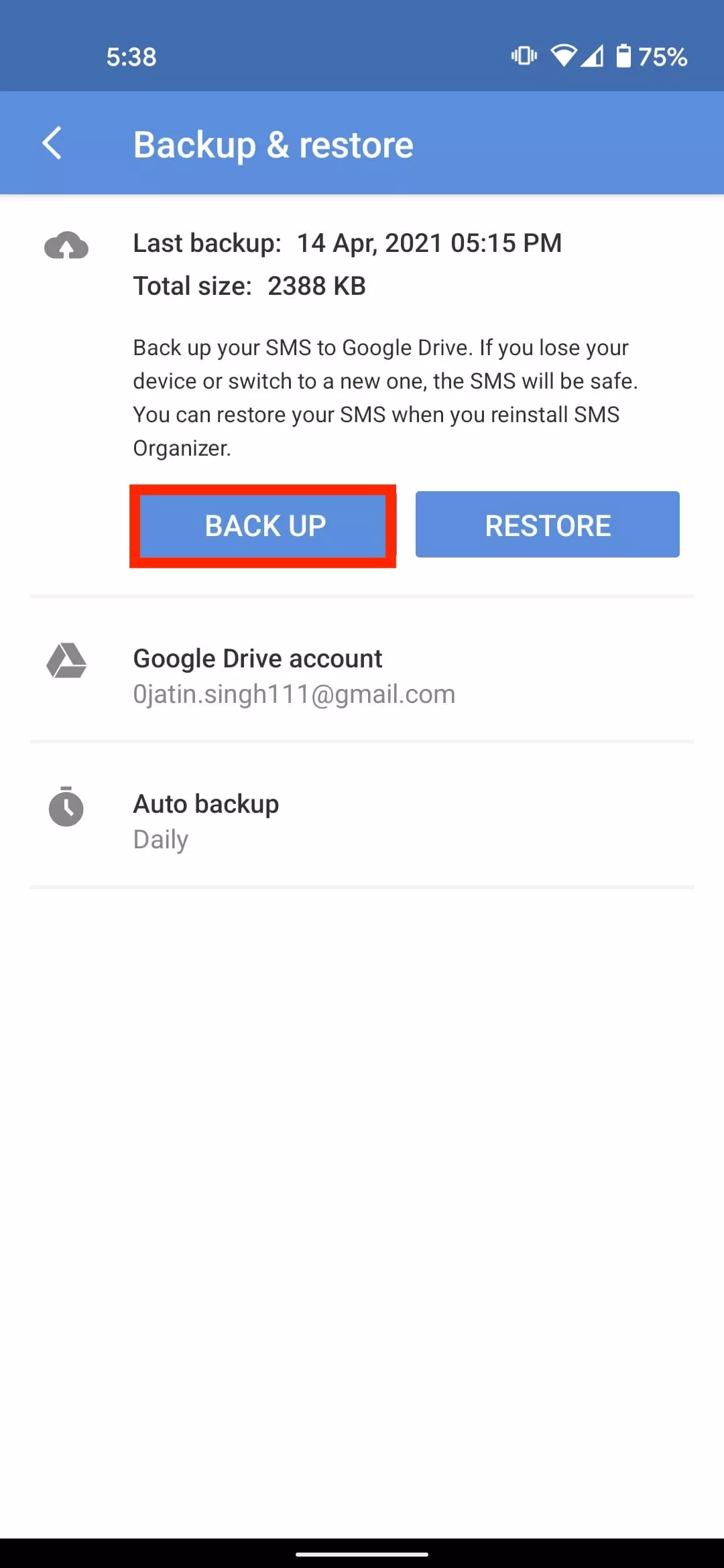
    4. Tap on Backup & Restore

      SMS Organizer backup & Restore
    5. Select Backup

      SMS organizer backup
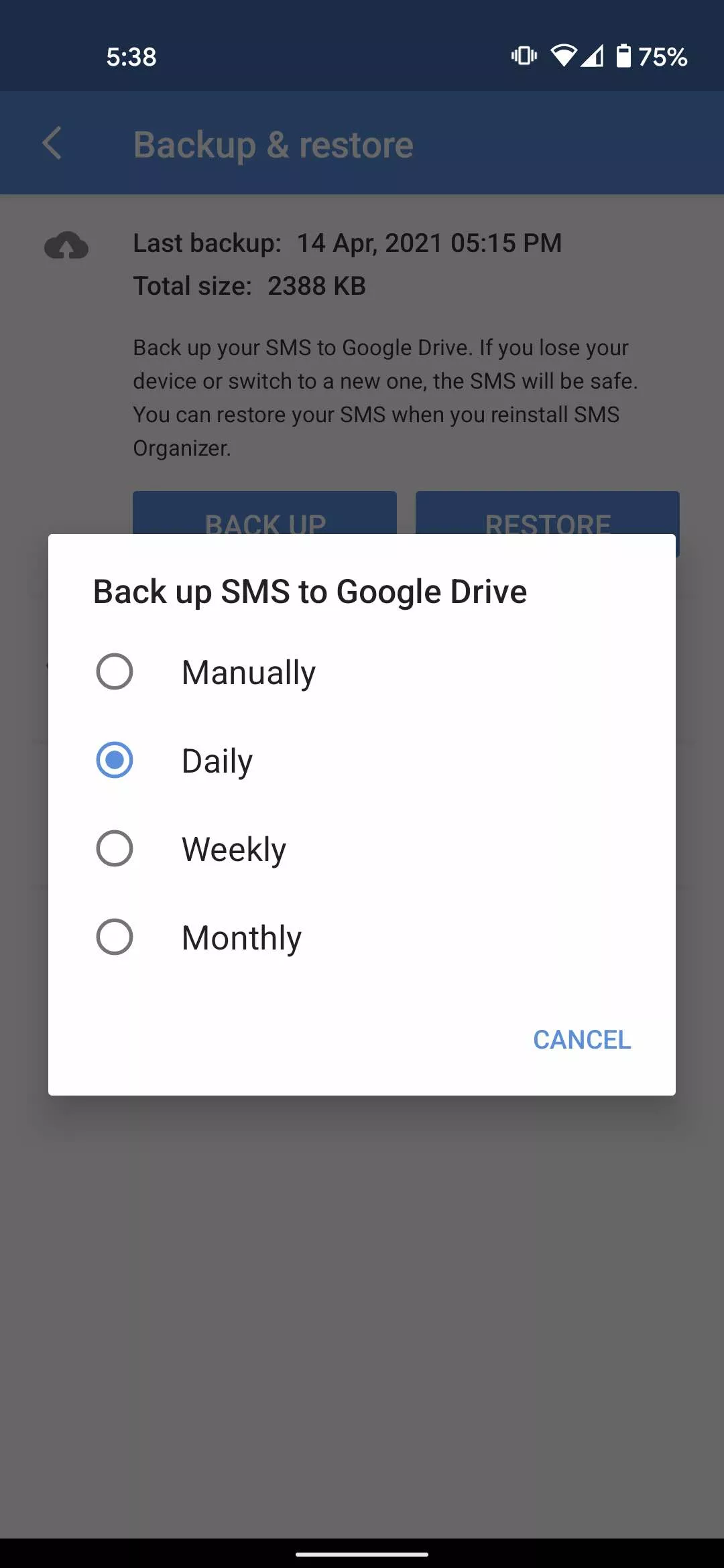
    6. Tap on Auto Backup and set the SMS backup to daily, weekly or monthly.

      SMS organizer daily backup

    If you want to restore text messages on a new Android device, simply install the app > Log in to your account and Select Restore.

    Unlike SMS Backup and Restore, the SMS organizer does not have the option to backup SMS hourly or set a recurring scheduled time for automatic backup. That being said, both apps are efficient for backing up your SMS on Android. 

  • Recover your deleted photos on Android – how to

    Recover your deleted photos on Android – how to

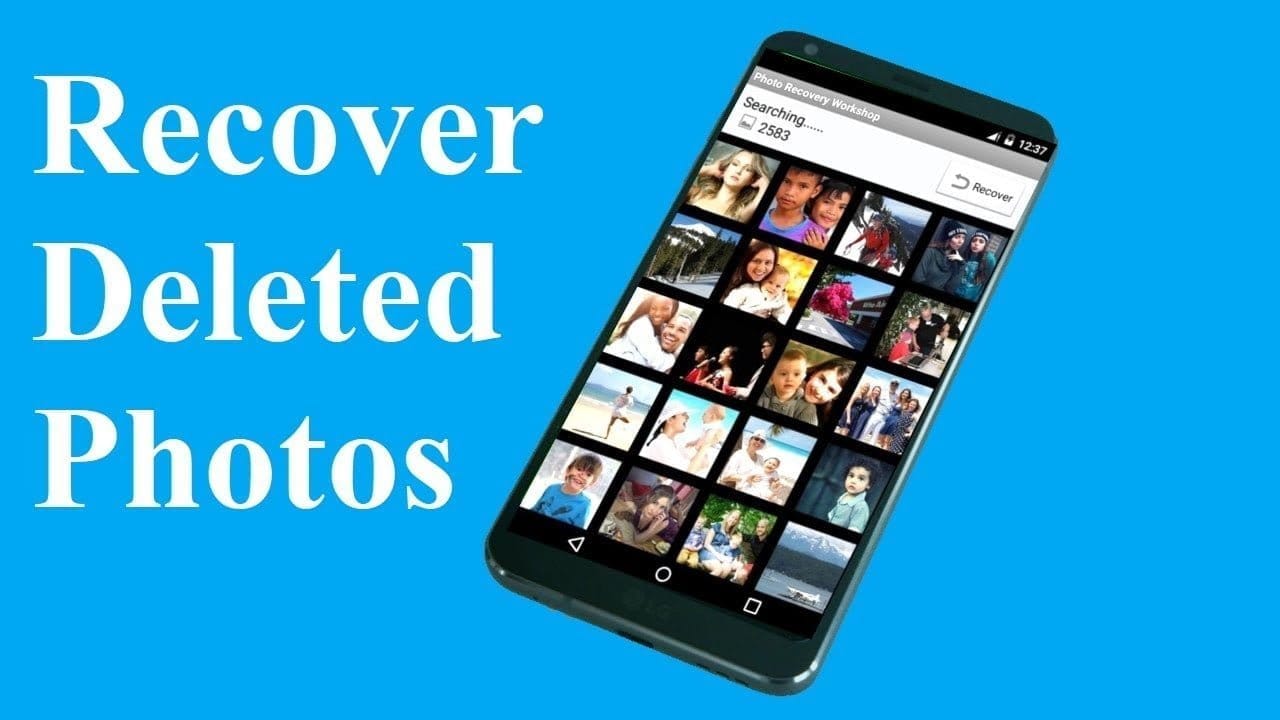
    recover photos from android

    We’ve all deleted pictures on our phones by mistake before, but what if you delete anything absolutely irreplaceable? You don’t have to panic, but to retrieve your files, you do need to act quickly. Just follow our instructions below and you should be able to jiffy your pictures back.

    Do not be concerned, it is not too late! If you’re just morbidly curious about what could happen to your pictures, then we can also advise you how to back them up so you never have to feel the panic again.

    (adsbygoogle = window.adsbygoogle || []).push({});

    Recover deleted photos with an app

    First, head to the Play Store and grab DiskDigger photo recovery and then run the app. There are a few apps on the Play Store that claim to recover deleted photos, but after our investigation, DiskDigger was not only more reliable, but was less intrusive when it came to serving up ads, too.

    When you have the app, it’s helpful to turn off your phone’s Wi-Fi and data connections. The explanation for doing this is that when data is removed, whether images, music or documents, it is not completely removed until something in the device’s memory has been written over it. In addition, it ‘s important that you quickly uninstall all of your phone cleaning applications, since they will permanently erase the files you inadvertently deleted, making them impossible to restore.

    NOTE: DiskDigger is limited to retrieving images from your thumbnail caches on a non-rooted computer, meaning the images are likely to be of poorer quality than the original photos or videos. It is only possible to restore the original full-resolution versions of the images or videos by rooting your computer and getting the app’s Pro version. If you don’t know how to root your phone, then refer to our full guide on how to get started with rooting Android.

    If you’ve recently deleted your photos, DiskDigger should be able to find those photos, and you’ll be given the option of whether to restore them to a folder on your device, or back them up to a cloud service.

    recover deleted photos
    (adsbygoogle = window.adsbygoogle || []).push({});

    At first, it didn’t look like DiskDigger could locate our images, but our deleted pictures were discovered by a fast dip into its settings and unchecking the minimum file size factor. Like we said above, if you want to recover your images, you’ll need the App’s Pro edition, which can be found at the link below. Less than $4 to get your memories back is a small price to pay.

    Be careful if you use the cleanup feature in the app, as some users have deleted all their photos because they didn’t understand that it would delete everything, not just the images they deleted on purpose to save space.

    Once you’ve recovered your photos, you’ll want to make sure this never happens again. And we all know prevention is better than the cure.

    Back up your photos on Google Photos

    Google Photos

    Now that we’ve explained how to recover deleted photos on Android, the next step is to prevent this situation from happening again. To do this, we recommend using an app such as Google Photos. It offers unlimited photo storage (so long as the files aren’t too large) and the backup function is easy to set up.
    (adsbygoogle = window.adsbygoogle || []).push({});

    If the app has been enabled, just go to its Settings, then Backup & Sync, and you can choose how much – and by what process – you want your images backed up to. Of course we suggest that you back up as soon as possible.