Tag: background

  • Do the background apps on your phone use up your battery more quickly?

    Do the background apps on your phone use up your battery more quickly?

    In terms of convenience, smartphones have advanced significantly. You can communicate with your loved ones online using a variety of instant messaging apps, such as Facebook Messenger and WhatsApp. Additionally, with almost every phone release in recent years, there has been an increase in AI-assisted features. These include smart object removal, precise transcriptions, and even the ability to screen and handle incoming calls for you.

    The our phones manage and communicate information to us continuously through notifications. Have you received a text on iMessage? On your iPhone, a notice appears instantly. Since leaving an app open all the time would have been the alternative, this is really convenient and, to be honest, taken for granted.

    The ability to upload huge files to Google Drive and switch between apps without stopping or terminating the upload is also made possible via background app activity. It’s reasonable to believe that most of the apps on your phone have access to background data given the volume of notifications it receives, but how? When not in use, do all apps burn up the same amount of battery life? Viewing and controlling background apps is really simple in recent iterations of iOS and Android. Here’s how to optimize your phone to extend its battery life.

    Android background app management
    managing background apps on android 1754413851

    Android largely divides battery consumption based on three states of an app — foreground app when in use, foreground service that isn’t visible, and background parts of an app. Phones running Android 13 and newer are equipped with a power consumption tracker that monitors and alerts users if any foreground or background service has been consuming more battery than usual.

    Pulling down to reach the quick controls for phones running a vanilla Android experience, such as Pixel or Motorola smartphones, will display a list of apps that are now active. Here, you can see how long each background program has been running and use a simple press to end it. By going to Settings > Battery > Battery Usage, you can also see how much battery your apps have been using. Keep in mind that the manufacturer and model of your phone will have a minor impact on the precise menu titles.

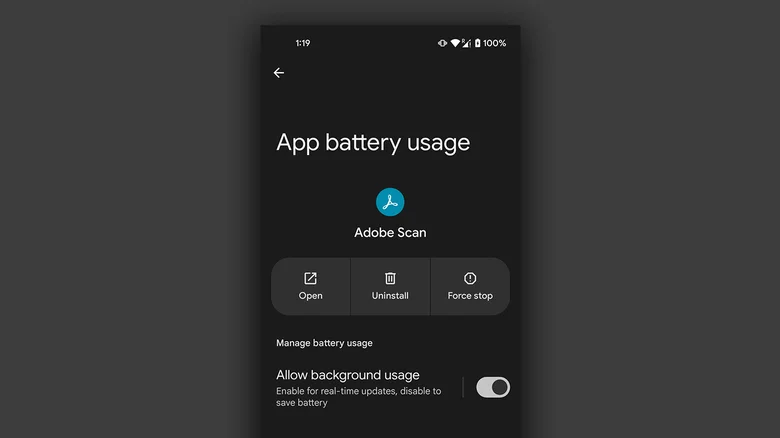
    On Android, you can manually disable an app’s background usage if you discover that it has been using excessive amounts of battery power even when it is not in use.

    • On your Android phone, launch the Settings app.
    • Navigate to Apps > See all apps, and select the one that has been draining your phone’s battery.
    • Tap on “App battery usage” and uncheck the “Allow background usage” toggle.

    Note that certain services like messaging apps require background activity to function properly and send you notifications in real time.

    Managing background apps on iOS
    managing background apps on ios 1754413851

    When it comes to power management and app speed, iPhones have generally improved over time, but malicious actors may still consume excessive resources in the background. Although iOS does not alert users when an app is using more battery than is necessary, it does include safeguards against this. This is in contrast to Android.

    The “open app to finish upload” prompt may occasionally appear on iOS due to the substantially stricter operation of background services. To see how much battery life your iPhone or iPad has used, go to Settings > Battery and scroll down to see a list of the apps that have used up the most in the last 24 hours. Additionally, you can see how long an app has been running in the background and how well your iPhone’s battery is doing.

    If you find a culprit that has been draining way more juice than it needs to, chances are that it has been consuming a lot of resources in the background.

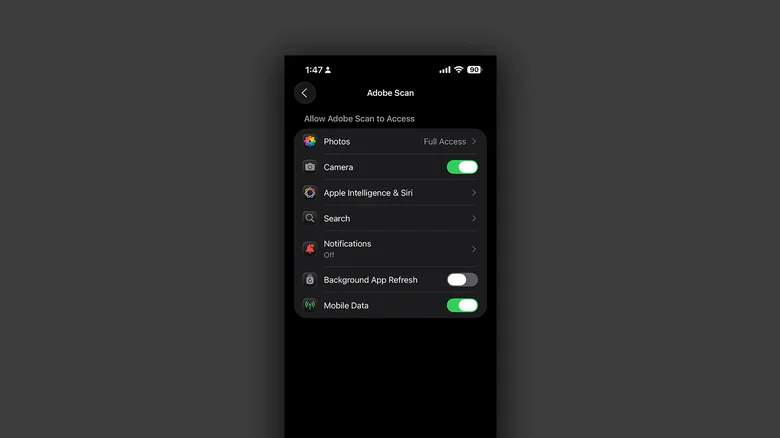
    • On your iPhone, launch the Settings app.
    • Navigate to Apps and select the one that has been causing you battery issues.
    • Tap the “Background App Refresh” toggle to turn it off.

    Once more, this will prevent the app from updating data in the background, which is undesirable if you rely significantly on real-time updates from a service, such as location sharing or navigation.
  • How to save battery life on Android Smartphones in 2020

    How to save battery life on Android Smartphones in 2020

    save battery life

    Are you struggling to save battery life on Android devices?

    Both of us hate being fined regularly. When we intend to purchase our latest smartphone, battery backup still matters now.

    There are plenty of Android smartphones on the market with decent battery backup, but they don’t have an unlimited battery life, unfortunately. So here are some easy hacks on your Android devices to save battery life.

    Over the past few years, a variety of factors have conspired to decrease gadget stamina. Thinner designs have less battery space, larger and brighter displays, faster quad-core processors, more background applications, and all share responsibility for power-hungry GPS radios. The move from 3G to 4G networks a few years ago—particularly of the LTE variety—has also taken its toll.

    Save battery life on Android devices :

    Black wallpaper save battery Life

    Yes, its strange but true, black wallpaper can save battery life of your Android smartphone.

    Why black wallpaper? — Because most smartphones in the market AMOLED screen which only illuminate the colored pixels. And black pixels are unlit, so the more black pixels you have, or the darker pixels, the less power is needed to light them up.

    black amoled wallpaper

    Who drains your battery

    It is necessary to find this strategy, just find the culprit who is responsible for draining your battery.

    You can do it by going to “Settings > Battery“.

    This choice breaks down what your phone’s battery absorbs. Applications and features will be seen in a chart of battery hogs below. You’ll want to uninstall the software or turn off the feature if you find an application that you rarely use or a feature you never use.

    Widgets and live wallpaper

    It is necessary to find this strategy, just find the culprit who is responsible for draining your battery.

    This choice breaks down what your phone’s battery absorbs. Applications and features will be seen in a chart of battery hogs below. You’ll want to uninstall the software or turn off the feature if you find an application that you rarely use or a feature you never use.

    Turn off automatic brightness

    automatic brigtness

    Automatic Brightness — sounds useful feature, but don’t go for it.

    Automatic brightness is actually typically much brighter than you really need. It’s easier to set the brightness to a low yet comfortable level manually, and bump it up when appropriate. This is one of the easiest ways to conserve battery life, since one of the main battery suckers is the screens.

    Apps refresh frequency

    The next method is controlling refresh frequency of some apps. Apps checking for new emails and other data in the background updates frequently to fetch new information. This frequent background fetching of data will drain your battery fast.

    So to disable this just go to “Settings > Accounts” and uncheck Auto-sync data to prevent your Android device from automatically syncing with your Google accounts (and other accounts) in the background. Uncheck Auto-sync data to prevent your Android device from automatically syncing with your Google accounts (and other accounts) in the background. And also force off apps that work on background.

    Shorter sacreen timeout setting saves battery life

    Set the screen timeout of your monitor to as short a time as is feasible for you.

    Just imagine, if your screen timeout is set to a minute, four times more power will be used than if your screen timeout was set to 15 seconds. The average smartphone user turns their smartphone on 150 times a day, studies say, so the difference between a long screen timeout and a brief one easily adds up. This reduction would help keep the battery going for longer.

    Switch Off Vibrate

    turn off vibrate

    Turn Vibrate off. Switch off vibration warnings for incoming calls unless you really need the added sensitivity. To vibrate your phone, it actually takes more power than it does to ring it.

    Use lock screen notifications or widgets

    Battery life can also be protected by locking screen alerts or locking screen widgets. This is because without having to turn the entire computer on, you can display the updates at a glance. This is particularly useful if you get loads of updates that are not immediately worth following up on.

    Stay offline

    You don’t have to be wired 24/7 to the internet, which enhances the use of data and drains the battery as well. So use the internet when you need to, including shutting it off during your hours of sleep and office hours.

    Original batteries

    Use only original batteries directly from the manufacturer. This one is significant. It is indeed a poor option to save a few bucks on a battery that could harm your beloved smartphone, which may also offer sub-standard battery efficiency.

    Apps lite version

     facebook lite

    Opting lite versions of Android apps over the main edition there would certainly help you reduce the battery usage. Since lightweight Android apps are slipped versions of the main app, but to save your Android device battery life, you can have to sacrifice certain features for the greater good.

    Turn off animations

    Another ideal way to maximize battery usage on Android devices is to adjust animation settings. But you have to access “Developer Choices” to change the animation settings, a choice that is concealed within your Android settings.

    To enter into Developer mode, go to “Settings>>About phone” and tap on “Build number” a few times and then go back to the main settings page to find the activated “Developer Options”. Now go to enabled Developer Options, and scroll down to find three options namely “Window animation scale“, “Transition animation scale” and “Animator duration scale” and turn them off.

    animation

    Turn off unwanted services

    After their use, we often forget to disable such services such as WiFi, GPS, NFC, Bluetooth without understanding their negative effect on the battery life of your Android device. Most of these services are constantly surveying routers for your knowledge, to find nearby Bluetooth devices or WiFi connections or GPS satellites, even if they are not accessible at that time.

    So swipe down your notification bar and disable all these services after their use to save your device battery life.

    Greenify

    greenify

    Unlike any other third-party apps which claim to save battery life on Android — Greenify is the trusted one. Greenify saves your battery life by pushing apps into a kinda hibernation mode and stop them from running background until you reopen them again. Since some of the advanced features of Greenify work only on the rooted device — though still works well on non-rooted devices too.