With our very own, always-on virtual assistants in our pockets, a futuristic utopia where Google Assistant was created was meant to be a reality for everyone. But even the best technology occasionally fails to function in the real world. In this post, we’ve outlined a number of actions you can do if your phone’s “OK Google” or “Hey Google” voice command isn’t functioning. To learn more, scroll down!
Identify the problem
Sometimes a bothersome problem can be resolved without the need for extensive, laborious, complicated debugging efforts. Something extremely simple might be the answer. And that’s precisely what we’re aiming for here. Let’s start with a few simple ways to fix your “OK Google not working” problem before moving on to some of the more challenging ones.
Is Google Assistant is turned on?
You might be astonished to learn just how many individuals may have just disabled the Google Assistant feature and then wondered why it wasn’t working, despite how simple it may seem. If you frequently give your phone to your children, they may occasionally tinker with the settings and mistakenly disable Google Assistant (including the “OK Google” command). Make sure Google Assistant is turned on before even reading about basic troubleshooting procedures.
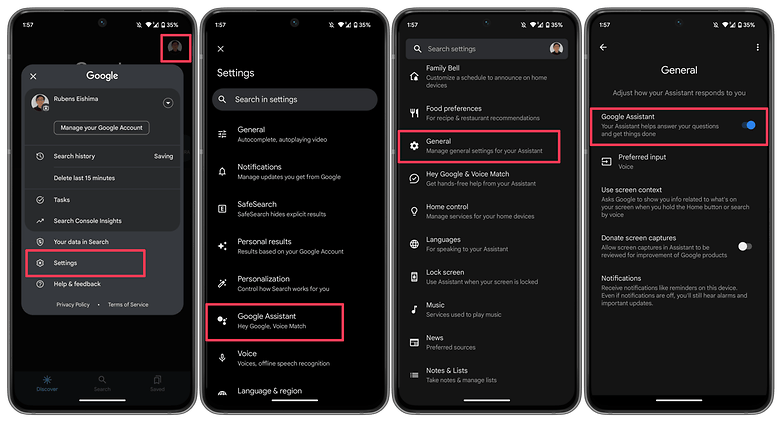
How to:
- Launch the Google app on your phone.
- Tap on your profile picture.
- Select Settings.
- Choose Google Assistant.
- Tap on the General option.
- Make sure that Google Assistant is enabled.
As an additional step, you may also want to check the following:
- Follow steps 1 to 4 as mentioned above.
- Select Hey Google & Voice Match.
- Make sure the Hey Google option is enabled.
Make sure you’re connected to the Internet
Even though it may seem obvious, Google Assistant often requires a Wi-Fi or mobile data connection to work, so be sure your phone is connected before starting a search. Additionally, and this is arguably the oldest piece of wisdom in the book, it never hurts to run a quick reboot because magic can happen there from time to time!
Check if you’re not alone
It’s always good to know if the problem you’re facing is affecting just you and nobody else. There have been occasions when people noticed that the problem is on Google’s side rather than theirs. Check Twitter, Reddit, and Google’s support forums to see if other users are complaining about ‘OK Google’ not working or that ‘Google Voice’ is not working as it should. You can also try searching for a solution using the term ‘Google assistant not working.’
Check your language settings
Checking your phone’s language settings has proven to be a reliable solution for many people who experience the dreaded “Ok Google not working” problem. What if it transpires that the only reason Google Assistant isn’t responding to you is that you’re using the incorrect language when you speak to it?
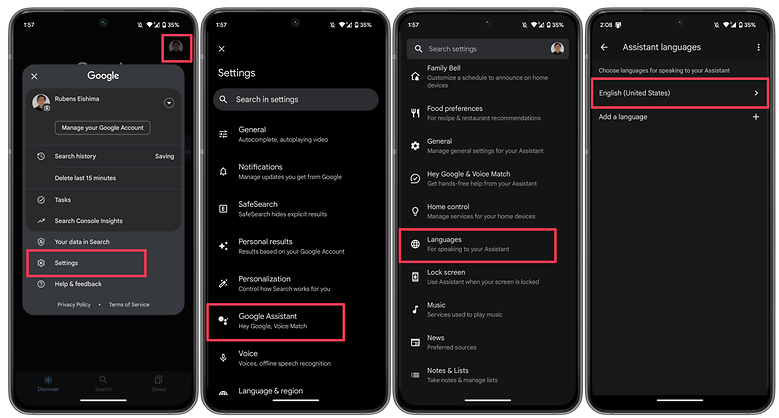
Note that US English will be the default language for many users, but it’s still worth checking in the Settings menu and making the necessary changes as required. To do this, perform the following steps:
- Launch the Google app on your phone.
- Tap on your profile picture.
- Select Settings.
- Choose Google Assistant.
- Tap on Languages.
- Select the first option to change the main language, or add a new language.
This same menu can show you dozens of language options, each one with a checkbox, allowing you to set primary and secondary languages if desired. Google will automatically detect which language you’re speaking and automatically switch between them. If you’re multilingual, be warned that voice recognition for languages other than English can sometimes be subpar.
Check microphone
Google Assistant depends on constant access to your smartphone’s microphone because it is a voice-based technology. The microphone symbol on the right side of the search bar should be bold and have well-defined lines when you first open the Google app. If there is a dotted line, your microphone might be malfunctioning.
If you carefully dig about with a safety pin or something similar to clear the debris in the tiny microphone hole, which is frequently located near to the charging port, you should be able to resolve the issue. Check the Google app’s microphone settings if that doesn’t work.
Occasionally, apps running in the background generate audio that may interfere with the microphone’s ability to pick up your voice, so check these too, and kill any apps that you think can be generating audio.
Turn off battery saver mode
To ensure you get the most life out of the battery, Android smartphones have a specific power-saving mode that shuts off background processes. Your Google Assistant (and the OK Google command) ceasing to function as a result is an unforeseen effect of this. Before you point the finger at anything else for OK Google not working, it is a good idea to make sure that the battery-saving mode on your phone is turned on.
On stock Android, you can check if the Battery saver option is enabled by taking these steps.
- Launch the Settings app.
- Scroll down and select Battery.
- Choose the Battery Saver option.
- Disable the Use Battery Saver option.
On other Android skins, the same option may appear under a different name, i.e. Adaptive Battery.
Update the Google app to the latest version
One possible fix to your OK Google problem is to ensure that your smartphone is running the latest version of the Google App. Here’s how you can make sure you’re on the newest version of the app.
- On your smartphone, launch the Google Play Store.
- Search for the Google app.
- On the Google app page, check whether there is an option to Update instead of Uninstall.
- Update the app by selecting Update to see whether the issue is resolved.
6. Retrain the “Ok Google” voice model
Sometimes, for reasons unknown, Google Assistant doesn’t retain the commands you have given it. If all else fails, it might be time to retrain your digital companion. Here’s how you can do so.
- Launch the Google app.
- Tap on your profile picture.
- Select Settings.
- Choose Hey Google & Voice Match.
- Select Voice Model.
- Tap on Retrain voice model and follow the on-screen instructions.
Now that you have reached the end of this article, do let us know if these steps helped you resolve the issue. Additionally, do let us know if we have missed any useful fixes.