Tag: app

  • Smart Downloads feature teased on Youtube for Android

    Smart Downloads feature teased on Youtube for Android

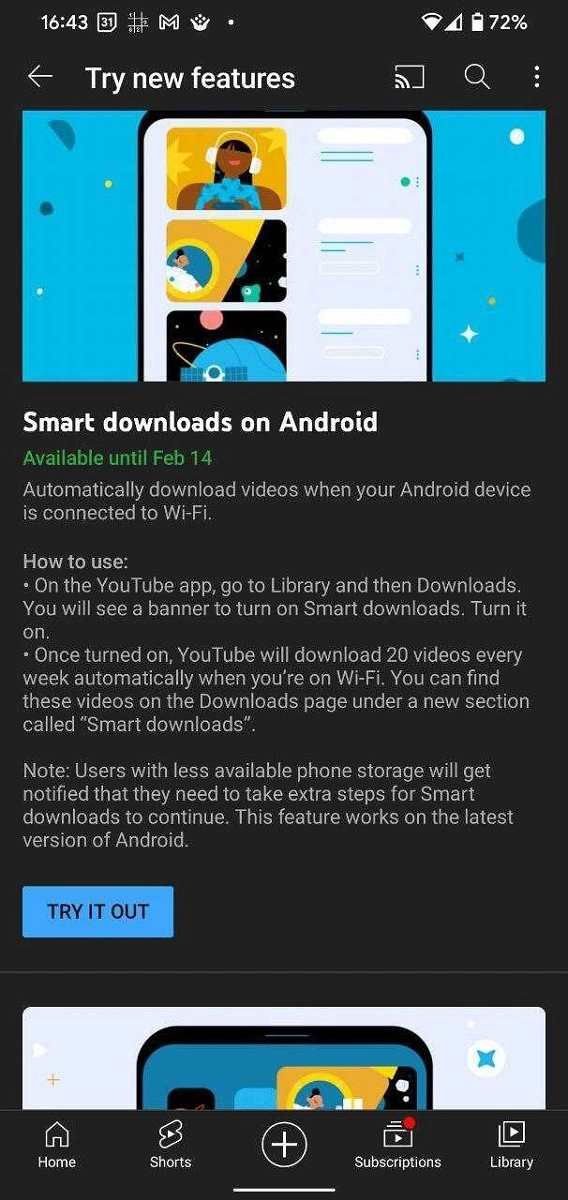
    If you use YouTube Music, you’re probably aware of the app’s Smart Downloads feature. It’s essentially a feature that saves mobile data by downloading some tunes offline anytime you’re connected to Wi-Fi. On the video side of things, the YouTube app for Android is experimenting with something similar. The YouTube app’s Smart Downloads feature will download a handful of videos for you every week based on an algorithm for recommended videos.

    Some Android users in Europe have gotten a reminder on their devices to try out the new Smart Downloads function, according to 9to5Google. When you sign up to try it, the YouTube app will automatically download a collection of 20 videos per week while connected to a Wi-Fi network. The videos will be tailored for you based on an algorithm that analyzes your viewing history as well as the types of material you consume on the platform. The downloaded videos, along with any other videos you’ve manually downloaded in the app, will be added to your offline playlist.

    While many individuals may find the feature unneeded, it can be useful for those who have limited mobile data and wish to view material while commuting or who do not have frequent access to an internet connection. Users with limited storage on their devices will be warned before any downloads take place, allowing them to take appropriate action to free up space. Only the most recent version of Android, Android 12, currently supports this functionality.

    Smart Downloads is currently available only for a few people to try out and only in specific regions. It’s also available only for YouTube Premium subscribers and users who receive the prompt can enroll to try the feature till 14 February. If you are one of the chosen ones, you should see a banner when you open the YouTube app or you can try heading to Settings > Try new features to see if you can find the option there.

  • The fastest way to open your camera

    The fastest way to open your camera

    A smartphone makes it easy to snap photos in your daily life. However, some of those moments are fleeting. We’ll show you the fastest way to launch the camera on your Android phone. Never miss a shot again.

    Most people put the camera app shortcut in an easy spot for quick launching from the home screen. This is a good practice, but your Android phone probably has two methods for launching the camera even faster.

    Launch from the Lock Screen

    We’ll start with the slightly faster method. A lot of Android devices have a shortcut to the camera directly on the lock screen. You can launch straight to the camera without fully unlocking the device.

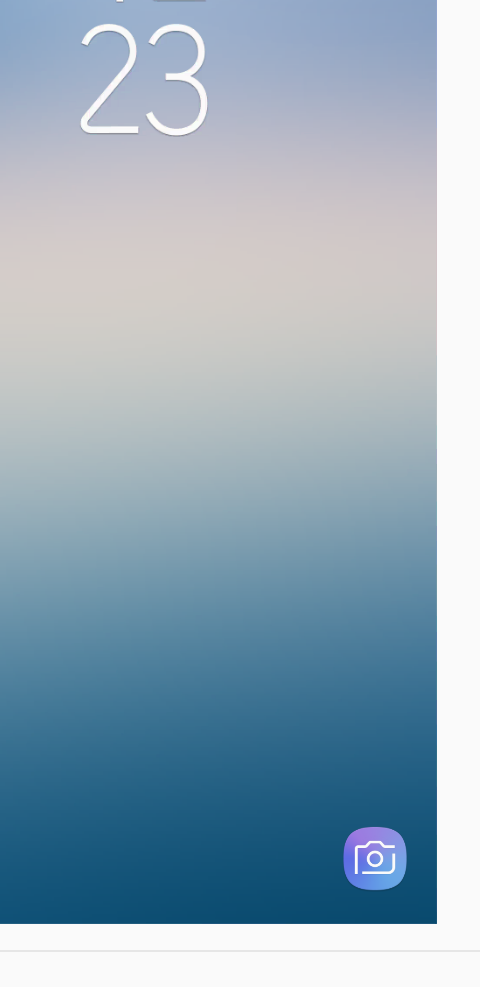
    For example, here’s what it looks like on a Samsung Galaxy smartphone. The camera shortcut is in the bottom-right corner.

    lock screen android camera

    Simply slide the camera icon to the left, and the camera app will fly in from the right side.

    That’s it! You can skip the step of unlocking and get to the camera a little faster.

    Launch with the Power Button

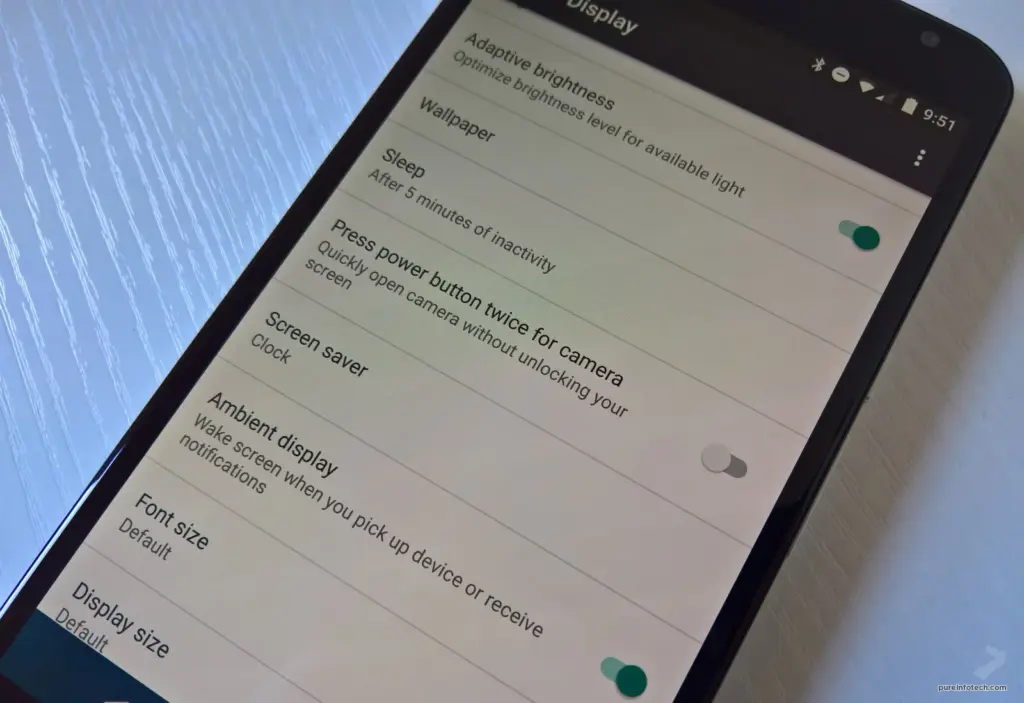
    This works from anywhere. You can be using a different app, or it can be locked in your pocket. Just double-press the power button and the camera will launch. Simple as that.

    camera-button

    There’s nothing worse than missing a moment because you couldn’t get your camera out fast enough. Hopefully, these tips can help you be faster and never miss capturing a special shot again.

    Thanks for the tip Affiliate Marketing tools and products

  • Google in-app review API – android rate app snippet

    Google in-app review API – android rate app snippet

    App ratings and reviews are critical factors in driving more downloads after your app is live on the Play Store. To do this, we typically ask users to rate the app by displaying a popup with a few buttons and referring them to the Google Play Store. With this user experience, there’s a potential the user won’t return to our app after being redirected to the Play Store. It’s also tough for a new user to rank the app on Google Play.

    Luckly google provided an API called In-App Review to show the rating widget in the app itself without user leaving the app.

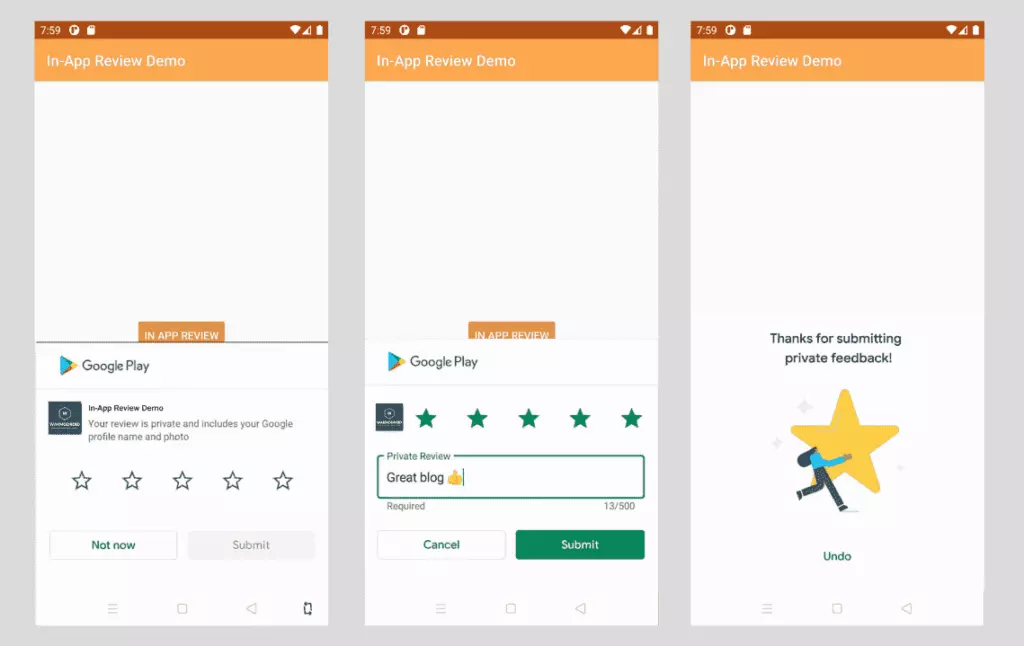
    The In-App Review is part of play core library. Once the widget is integrated, we can see the rating widget displayed in the same app in a bottom sheet.

    in app review snippet

    Good to know

    • In-app review works only on android devices running Android 5.0 (API level 21) or higher that have the Google Play Store installed.
    • The in-app review API is subject to quotas. The API decides how often the review widget should be shown to user. We shouldn’t call this API frequently as once user quota is reached, the widget won’t be shown to user which can break the user experience. You can read more about Quotas here.
    • The review flow will be controlled by API itself. We shouldn’t try to alter the design or place approrpiate content on top of the widget. You can read more about Design Guidelines here
    • The review flow doesn’t indicate whether user has reviewed the app or not, even it won’t tell us whether the widget has shown to user or not.

    Integrate in-app review API

    Integrating In-App review is very simple. It can be achived with very minimal code. Let’s see how to integrate it.

    The In-App review API is part of Play Core API, so you have to include the library in your app’s build.gradle. Here I am adding material library as well as I want to show fallback rating dialog if there is any error in in-app review API.

    app/build.gradle
    // Play core library
    implementation "com.google.android.play:core:1.8.0"
     
    // optional material library to show the fallback rate us dialog
    implementation "com.google.android.material:material:1.3.0-alpha02"

    The next step is creating the instance of ReviewManager interface. This class provides necessary methods to start the review flow.

    • Once the new instance is created, we need to call requestReviewFlow() task which returns the ReviewInfo object upon on successful completion.
    • Using the ReviewInfo object, we need to call launchReviewFlow() method to start the review flow.
    • For some reason, if the requestReviewFlow fails, we can launch the usual Rate App dialog that redirects user to playstore app.
    • Below, showRateApp() method starts the in-app review flow. The showRateAppFallbackDialog() method acts as fallback method if requestReviewFlow throws an error. This fallback method shows usual material dialog with three buttons to redirect user to playstore app.

    Here is the complete code required for in-app review flow.

    MainActivity.java
    import android.os.Bundle;
    import androidx.appcompat.app.AppCompatActivity;
    import com.google.android.material.dialog.MaterialAlertDialogBuilder;
    import com.google.android.play.core.review.ReviewInfo;
    import com.google.android.play.core.review.ReviewManager;
    import com.google.android.play.core.review.ReviewManagerFactory;
    import com.google.android.play.core.tasks.Task;
     
    public class MainActivity extends AppCompatActivity {
     
        private ReviewManager reviewManager;
     
        @Override
        protected void onCreate(Bundle savedInstanceState) {
            super.onCreate(savedInstanceState);
            setContentView(R.layout.activity_main);
     
            init();
        }
     
        private void init() {
            reviewManager = ReviewManagerFactory.create(this);
     
            findViewById(R.id.btn_rate_app).setOnClickListener(view -> showRateApp());
        }
     
        /**
         * Shows rate app bottom sheet using In-App review API
         * The bottom sheet might or might not shown depending on the Quotas and limitations
         * https://developer.android.com/guide/playcore/in-app-review#quotas
         * We show fallback dialog if there is any error
         */
        public void showRateApp() {
            Task<ReviewInfo> request = reviewManager.requestReviewFlow();
            request.addOnCompleteListener(task -> {
                if (task.isSuccessful()) {
                    // We can get the ReviewInfo object
                    ReviewInfo reviewInfo = task.getResult();
     
                    Task<Void> flow = reviewManager.launchReviewFlow(this, reviewInfo);
                    flow.addOnCompleteListener(task1 -> {
                        // The flow has finished. The API does not indicate whether the user
                        // reviewed or not, or even whether the review dialog was shown. Thus, no
                        // matter the result, we continue our app flow.
                    });
                } else {
                    // There was some problem, continue regardless of the result.
                    // show native rate app dialog on error
                    showRateAppFallbackDialog();
                }
            });
        }
     
        /**
         * Showing native dialog with three buttons to review the app
         * Redirect user to playstore to review the app
         */
        private void showRateAppFallbackDialog() {
            new MaterialAlertDialogBuilder(this)
                    .setTitle(R.string.rate_app_title)
                    .setMessage(R.string.rate_app_message)
                    .setPositiveButton(R.string.rate_btn_pos, (dialog, which) -> {
     
                    })
                    .setNegativeButton(R.string.rate_btn_neg,
                            (dialog, which) -> {
                            })
                    .setNeutralButton(R.string.rate_btn_nut,
                            (dialog, which) -> {
                            })
                    .setOnDismissListener(dialog -> {
                    })
                    .show();
        }
    }

    Testing

    To test the in-app review flow, you should have the app approved already on PlayStore. This doesn’t mean the app should be available to public. At least you should have the account ready for Internal Testing or Internal App Sharing.

    • You can use Internal Test Track to release the app and test the in-app review flow.
    • You can use Internal App Sharing to test the in-app review flow.
  • Fix Android 12 app crashing issue

    Fix Android 12 app crashing issue

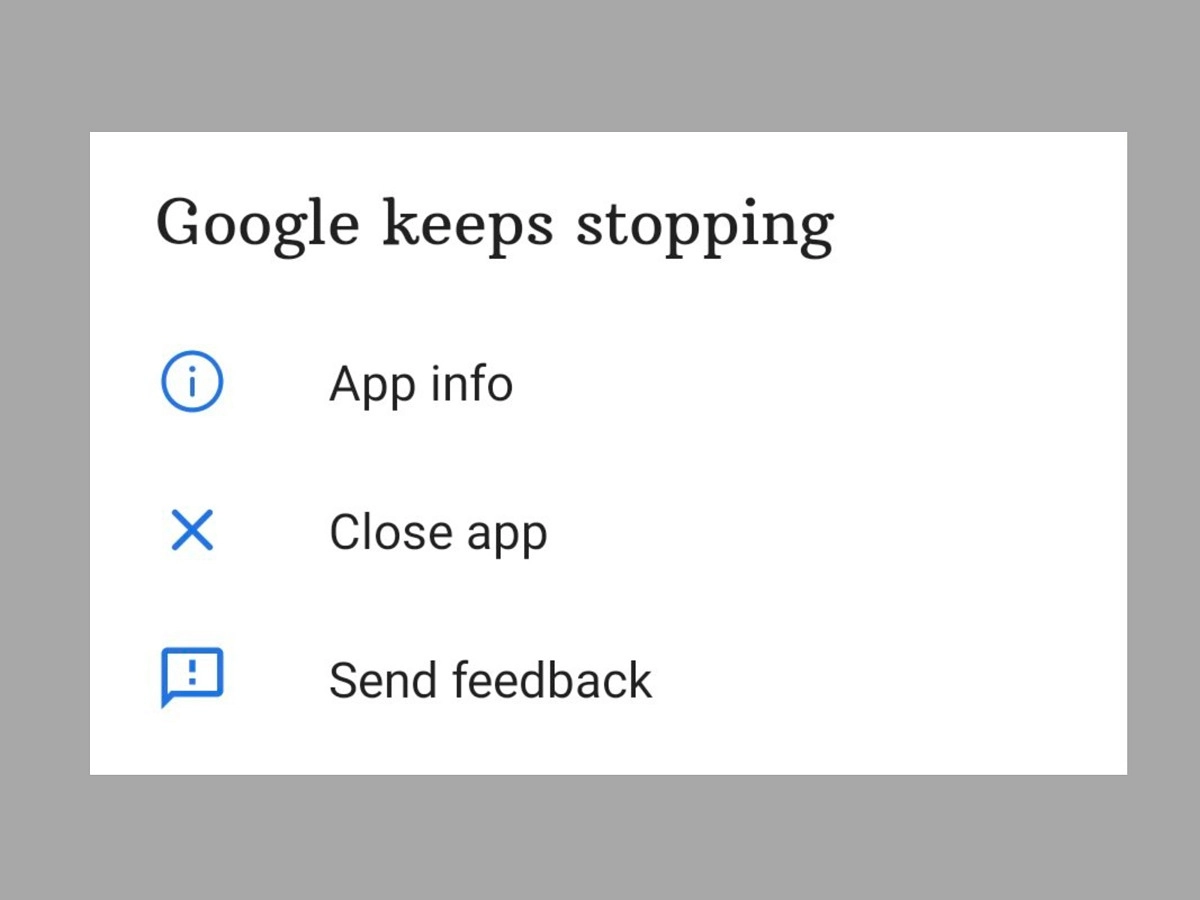
    We’ll teach you how to fix the Android 12 app crashing issue in this post. Android 12 is currently accessible in the market, albeit it is not available to all users. Pixel users have had the opportunity to test Android 12 in both developer preview and public beta versions.

    However, even after the stable build for the new Android iteration was released, there were several reports of glitches, freezing, lagging, and crashing.

    The new features and improvements may be significant, but the Android 12 app crashing issue is now more prominent and has become an issue that many users are facing.

    This tutorial is for individuals who are experiencing the same problem on their Android 12 phone and want to know how to repair the Android 12 app crashing issue. In this article, we’ll go through some troubleshooting options for this problem.

    A Pixel device has the advantage of allowing users to try out development builds and public betas for the latest Android releases. However, because these builds are fresh, they are not without flaws and have a number of issues. This is the reason why users have so many problems and bugs. This includes regular app crashes as well.


    Another issue that arose was that the Android WebView application was not working properly. For those who do not know, Android WebView is a tool that allows applications such as Gmail to display content from web pages through Chrome without having to leave the app’s own interface. But fortunately, the solution to this problem is now available on Google Issue Tracker.

    android 12 app crashing

    If you also face frequent app crashes on Android 12 and want to know how to fix Android 12 App crashing issue, then try one of the two methods given below:

    Tip1: Re-Enable Android System WebView

    1. First of all, head over to the Settings app on your device and then go to the Apps section.
    2. Then go to All Apps and then tap on Android System WebView
    3. Now tap on Disable, confirm when the pop-up asks you to.
    4. Now reset it by tapping on Enable.

    This was the first method to fix Android 12 App crashing issue. If the issue is still not resolved, then you should try the above steps a few more times. If you still keep facing the issue, then try the second method below.

    Tip 2: Uninstall Android System WebView

    1. First up, open up the Settings app on your device.
    2. After that, head over to the Apps section and then tap on All apps.
    3. Find Android System WebView and tap on it.
    4. Find the link to the App store page there.
    5. Now tap on uninstall and after that, tap on Enable.

    After that, your issue should be resolved. If you’re still having problems, your only choice is to wait until the developers address the problem with a new update.

    So that was our take on how to resolve the Android 12 app crashing issue. We hope you find this information to be useful. Leave your thoughts in the comments section below.

  • Pro version Apps for free – get them now!

    Pro version Apps for free – get them now!

    Google Play Store app promotions are pretty easy to predict, but it’s more complicated with those on the Apple Apps Store, since Apple doesn’t specify just how long the discount will remain valid.

    Here’s a tip: If you find an interesting app but can’t really use it right now? Install the app anyway, then delete it from your device. That way, the app will become part of your app library, and you can install it again for free when you need it. This is a good way not to miss out on a short-lived promo.

    Free Apps in the Google Play Store

    • Sketch Me! Pro ($1.49): Get a photo app that lets you turn your own pictures into crayon and pencil drawings with Sketch Me!
    • BlackCam Pro ($1.49): Valid through Sunday only – BlackCam Pro comes from the same developer as Sketch Me! and is a comprehensive camera for black-and-white photography.
    • Resize Me! Pro ($1.49): The third photo app from developer XNView is suitable for resizing or cropping images.
    • Gif Me! Pro ($1.49): And XnView’s GIF maker is also currently free in the Pro version. All in all, you’re getting a veritable arsenal of photo apps for free this weekend.
    • SUI File Explorer PRO ($1.99): A four-star rated file explorer. It lets you search files on your hard drive or conveniently install APKs, for example.
    • Multiscreen Calculator with Voice Input Pro ($3.99): You’re obviously getting a fantastic calculator here. From the screenshots, I wouldn’t have guessed that the app was rated 4.5 stars by nearly 4,000 users.
    • CP Meeting Notes ($2.99): A cross between a notes app and a voice recorder. Only rated by 35 voices so far, but you might find it quite interesting!
    • One Swipe Notes ($0.99): Another note app that lets you swipe away completed tasks. In my opinion a good feeling when you have finished a task!
    • My UI 9 – Icon Pack ($0.99): An icon pack that lets you add a little MIUI feel to your phone. Either something for Xiaomi fans or if you liked pulling the custom ROM onto your phone back in the day like I did!
    • Nougat Square – Icon Pack ($0.99): Another icon pack that puts Android Nougat’s icon design into boxes.
    apps

    Free games for Android

    • True Skate ($1.99) Kicks things off with a skateboarding game sure to please fans of Tony Hawk’s legendary sports game series!
    • College Days – Summer Break ($0.99): You shouldn’t expect too much action in so-called graphic novels. The focus is on the plot and College Days, who would have guessed, revolves around a group of teenagers in college.
    • Peppa Pig: Peppa Travels ($2.99): A mobile game for kids where your kids have to complete tasks with the popular cartoon piggy Peppa Pig.
    • Coloring Book+ ($7.49): A coloring game for adults reviewed by the experts at the Google Play Store. The rating is 4 stars out of nearly 360 votes.
    • Dead Bunker 2 HD ($0.99): An old acquaintance in our free apps! The HD version of Dead Bunker 2 is currently available for free.
    • Construction Machines SIM ($0.99): Here’s a clone of the popular simulation games for Android. However, the rating of 3.7 stars with 52 votes is not too promising.
  • Friday temporarily free and on-sale apps and games

    Friday temporarily free and on-sale apps and games

    First up is KORG Kaossilator, one of if not the best synthesizers on Android, and it’s currently half off. Next, I have Battle Chasers: Nightwar, a console-quality RPG that offers tons of fun. Last but not least is Kenshō, a gorgeous puzzler that also offers a relaxing experience. As always, I’ve highlighted all of the interesting titles in bold green text in order to make discovery easier. So without further ado, here are 10 temporarily free and 40 on-sale apps and games for the end of the week.

    play store apps

    Free

    Apps

    1. EZ Notes – voice notes, notepad notes, to-do notes $3.49 -> Free; Sale ends in 2 days
    2. BLAQMOJI D‪9‬ $4.99 -> Free; Sale ends in 3 days
    3. iEncrypto – Protection Layer for any Messenger $2.49 -> Free; Sale ends in 6 days
    4. My Sheet Music – Sheet music viewer, music scanner $2.99 -> Free; Sale ends in 7 days

    Games

    1. Cooking Speedy Premium: Fever Chef Cooking Games $0.99 -> Free; Sale ends in 5 days
    2. Heroes Infinity Premium $0.99 -> Free; Sale ends in 6 days
    3. League of Stickman 2-Sword Demon $0.99 -> Free; Sale ends in 6 days
    4. Dungeon999 $0.99 -> Free; Sale ends in 7 days
    5. Superhero Fruit Premium: Robot Wars Future Battles $0.99 -> Free; Sale ends in 7 days
    6. Surface Trimino: increase the area. Casual game $0.99 -> Free; Sale ends in 7 days

    On-Sale

    Apps

    1. Audit Assistant – Site Auditing, Snagging, Inspect $2.99 -> $1.49; Sale ends in 6 days
    2. Baggage – Packing list PRO (without ADS) $1.99 -> $0.99; Sale ends in 6 days
    3. Cocktails Guide PRO (more functions without ads) $1.99 -> $0.99; Sale ends in 6 days
    4. The three little pigs $1.99 -> $0.99; Sale ends in 6 days
    5. Learn C Programming Tutorial PRO – (NO ADS) $3.00 -> $0.99; Sale ends in 7 days
    6. Learn C# .NET Programming – PRO (NO ADS) $3.49 -> $0.99; Sale ends in 7 days
    7. Learn C++ Programming – PRO (NO ADS) $3.49 -> $0.99; Sale ends in 7 days
    8. Learn Java Programming Tutorial – PRO (NO ADS) $3.00 -> $1.49; Sale ends in 7 days
    9. Learn Kotlin Programming – PRO $3.49 -> $0.99; Sale ends in 7 days
    10. Learn Python Programming Tutorial – PRO (No Ads) $3.00 -> $1.49; Sale ends in 7 days
    11. Learn R Programming Tutorial PRO (NO ADS) $3.49 -> $0.99; Sale ends in 7 days
    12. Web Development PRO (HTML, CSS) $3.49 -> $0.99; Sale ends in 7 days
    13. Basic for Android $4.49 -> $1.00; Sale ends in ?
    14. KORG Kaossilator for Android $19.99 -> $9.99; Sale ends in?

    Games

    1. CyberHive $1.99 -> $0.99; Sale ends in 3 days
    2. Lanternium $1.99 -> $0.99; Sale ends in 3 days
    3. The Choice of Life: Middle Ages $1.99 -> $0.99; Sale ends in 3 days
    4. Farm Frenzy: Time management game $1.99 -> $0.99; Sale ends in 4 days
    5. FootLOL: Crazy Soccer! Action Football game $2.99 -> $1.49; Sale ends in 4 days
    6. Ice Rage: Hockey Multiplayer game $1.49 -> $0.99; Sale ends in 4 days
    7. Majesty: The Fantasy Kingdom Sim $1.99 -> $0.99; Sale ends in 4 days
    8. Majesty: The Northern Expansion $2.99 -> $1.49; Sale ends in 4 days
    9. MiniChess by Kasparov-cognitive puzzles for kids♟️ $3.99 -> $1.99; Sale ends in 4 days
    10. Plancon: Space Conflict $1.99 -> $0.99; Sale ends in 4 days
    11. The Enchanted Kingdom $1.49 -> $0.99; Sale ends in 4 days
    12. The Tiny Bang Story-point and click adventure game $2.99 -> $1.49; Sale ends in 4 days
    13. Battle Chasers: Nightwar $9.99 -> $3.99; Sale ends in 5 days
    14. Cyberlords – Arcology $1.99 -> $0.99; Sale ends in 5 days
    15. Hyperspace Delivery Service $3.99 -> $0.99; Sale ends in 5 days
    16. Cult Manager Tycoon $1.99 -> $0.99; Sale ends in 6 days
    17. Kenshō $3.99 -> $0.99; Sale ends in 6 days
    18. [Premium] RPG Seek Hearts $7.99 -> $3.99; Sale ends in 6 days
    19. [Premium] RPG Wizards of Brandel $7.99 -> $3.99; Sale ends in 6 days
    20. I.F.O $1.99 -> $0.99; Sale ends in 7 days
    21. ROOMS: The Toymaker’s Mansion $4.99 -> $1.99; Sale ends in 7 days
    22. Shadow of Naught – An Interactive Story Adventure $2.99 -> $1.99; Sale ends in 7 days
    23. Spirit Roots $4.99 -> $2.99; Sale ends in 7 days
    24. SuperGBAC Pro (gba/gbc emulator) $3.99 -> $1.99; Sale ends in 7 days

    Icon packs & customization

    1. Pix Material Dark Icon Pack $1.49 -> $0.99; Sale ends in 6 days
    2. Pix – Minimal Black/White Icon Pack $1.99 -> $0.99; Sale ends in 6 days
  • Get your 4 exclusive rewards when you pre-register for PUBG in India

    Get your 4 exclusive rewards when you pre-register for PUBG in India

    PUBG Mobile was banned in India back in 2020 during a spree of Chinese app bans in the country. While it seemed clear the game would return as an Indian variant devoid of the Tencent server issue that caused the game to get banned in the first place, today, Krafton has confirmed the game is returning to the country as Battlegrounds Mobile India.

    Youtube video

    The first trailer for Battlegrounds Mobile India can be seen above, but it is only a teaser, so no gameplay is shown. I’m not sure why developers keep announcing games with nothing to show. Still, it stands to reason that Battlegrounds Mobile India will operate in the same manner as the original PUBG. However, it’s clear that the game will have its own eSports ecosystem separate from the main title. This also means that in-game events will differ between the two titles, and that the player base will soon be divided between two versions (the Lite version was recently retired), with a third game called PUBG New State arriving later this year. That is a lot of PUBG, possibly too much.

    pubg india

    So far, Krafton is tight-lipped on what to expect from Battlegrounds Mobile India, though a website is available, not that it details anything important. As most would assume, the game will be limited to India, it will be free-to-play, and a period for pre-registration will take place at a later date that’s yet to be revealed. Luckily TechCrunch has a few more details, and so we know the game will offer a number of restrictions to limit spending and game time for minors, and it will require a phone number of a parent or guardian to play if underage.

    Of course, as development moves forward, I’m sure we’ll hear more about Battlegrounds Mobile India, its planned pre-registration period, and eventually its release date. So stay tuned, as this story is far from over.

  • Samsung GameDriver will deliver better performance and fast driver updates

    Samsung GameDriver will deliver better performance and fast driver updates

    Samsung revealed today the launch of a new app for Android: GameDriver. By clicking here (Adreno/Qualcomm models) or here (Mali/Exynos models), you can find it on the Google Play Store.

    Samsung GameDriver

    The software doesn’t seem that noteworthy at the start. On a select few Samsung Android phones, it claims to deliver better gaming results. However at the moment, it supports just a handful of games and you have to play those games on a Galaxy S20 or Note 20 computer.

    (adsbygoogle = window.adsbygoogle || []).push({});

    Samsung GameDriver: it could be a big deal

    Samsung hopes that on more of its phones, the new software will eventually work and be compatible with more games. It only operates with two smartphone families and three games right now: Call of Duty: Mobile, Black Desert, and Fortnite. There are some enormous names, but they are still a very small choice.

    However the big deal about GameDriver is that it will allow Samsung to issue hardware driver updates without a system-wide update having to be released. That means that the Play Store will come with GPU tweaks and upgrades. As slow operating system updates are typically partly the responsibility of carriers, who need to test and accept updates before pushing them to consumers, this knocks down a major barrier.

    However, Play Store updates are much less stringent. Samsung could, potentially push an update in a matter of days or even hours to all of its GameDriver users. That is terrific news.

  • Greenify speeds up your Android

    Greenify speeds up your Android

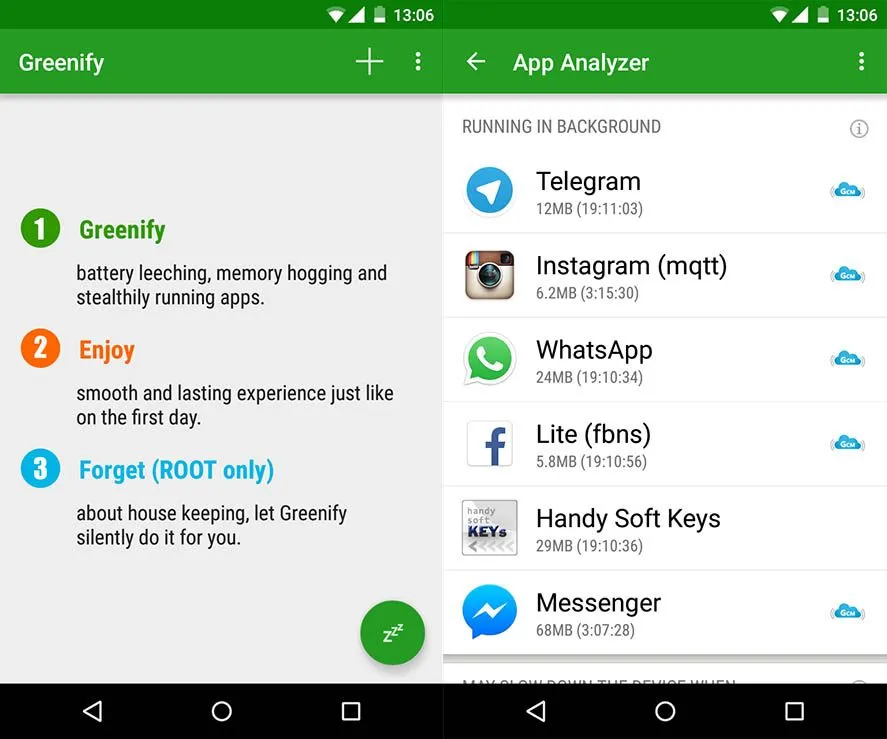
    Greenify – putting battery hogging, always-on apps in hibernation

    Remember how fast your Android device was, fresh out of the store when you first turned it on? Each phone or tablet gets bogged down with apps and user data over time, not unlike a PC, turning increasingly sluggish. There are ways to get around that, luckily. For instance, Greenify is an app designed to customize your Android device to function as smoothly as it originally did.

    This does not accomplish this by removing stale data, but by helping you to recognise apps that misbehave, sustain their operation, and consume battery life when you do not use them. It puts certain apps in hibernation mode upon discovery, which prevents them from bogging down the computer and draining its battery. Well, it sounds neat, no?

    greenify en screenshot

    But when they are off the grid, what happens to those apps? Well, when you need them, or other applications call upon them, you can launch them again. When the foreground is going, their full functionality is maintained-it ‘s just not active. Greenify doesn’t “freeze” programs and it’s not a killer of tasks.

    Greenify ‘s Software Analyzer only displays applications that have a POTENTIAL effect on battery or system output usage. Only those you occasionally use are recommended to hibernate, along with the apps you are sure to have a detrimental effect. It’s best to contact the Battery Manager of your Android phone, or your favorite 3rd party battery status app, for that.

    Greenify does not support devices running Android 2.x, but something above Android 4.x is gaming! The software is free, but it needs a computer with roots.

    Greenify is a well-known Android app that detects and suspends background programs that use excessive amounts of resources in order to enhance device performance and battery life. Greenify is a straightforward yet efficient method of extending battery life without the need for intricate setups, regardless of whether you’re using an older or more recent smartphone model. It automatically pauses apps when they’re not in use, avoiding needless background activity, as opposed to freezing or force-stopping them like some harsh task killers.

    Anything suitable for users looking to optimize their Android experience, Greenify remains a trusted choice among power users and casual users alike.

  • How to enable Verified Calls feature

    How to enable Verified Calls feature

    You can immediately allow Google’s Verified Call feature if you are looking to get even more privacy on your Android phone.

    Verified Calls is Google’s way of amplifying caller ID in such a way that you can quickly tell if a caller is a legitimate business or not. With this feature now available, businesses can sign up to use Verified Calls which makes it possible for them to better inform you why they are calling. In other words, you won’t even have to answer the call to know why that legit business is trying to contact you. 

    It will help to make it easier for users to stop spam calls and make it easy to check instantly if a call is from a company they trust. This new feature will improve call response times for businesses and could help create trust between you and potential customers / consumers.

    The feature started rolling out to Android in September and is only available for the Google Phone app. If your device works with stock Android you should be good to go. However, if your Android phone of choice is a Samsung (or from another manufacturer that uses a different phone app), you’ll need to install the Google Phone app from the Google Play Store. Without the Google Phone app, you cannot make use of this feature–one that many will eventually be considered a must-have.

    To enable the Verified Calls feature, open the Phone app and tap on the menu button in the upper-right corner. From the popup menu, tap Settings. From the list of options, tap Caller ID and spam.

    In the resulting window, tap the On/Off slider for Verified Calls until it’s in the On position

    This website has send us the tip on the article.