Tag: adb

  • Google strikes a smart compromise instead of removing Android sideloading

    Google strikes a smart compromise instead of removing Android sideloading

    Since its launch, sideloading has been a crucial component of Android, giving it a great deal of flexibility as well as a feeling of freedom and openness. The community (quite understandably) panicked when Google announced it would make significant changes to sideloading. However, since Google has now demonstrated how its new sideloading flow on Android will operate, I’m not only relieved that sideloading won’t completely disappear, but also that Google’s compromise is as close to ideal as I believe we can get.
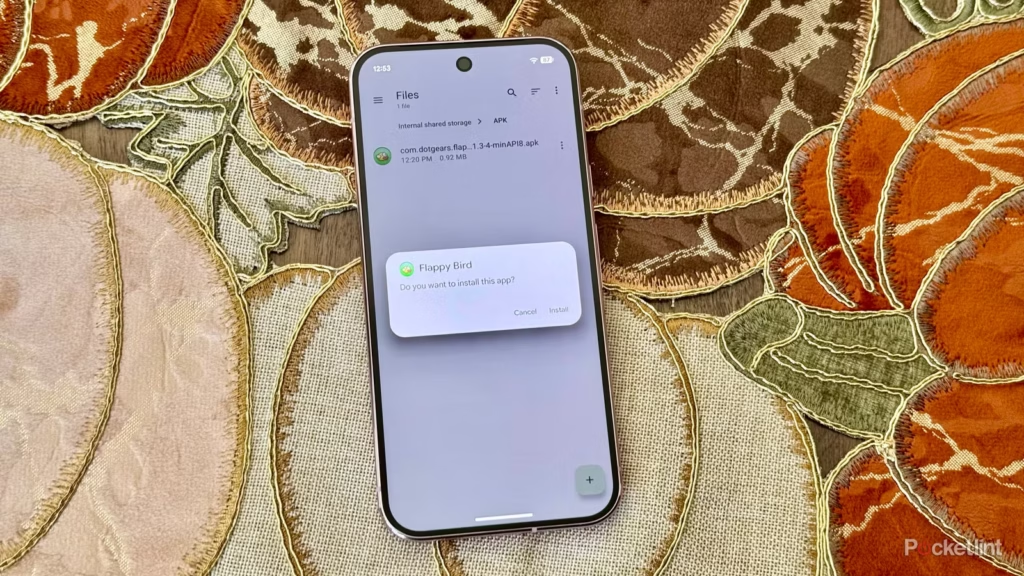
    android sideloading an app

    Some have called “Android Developer Verification” the demise of Android’s open nature. The change, which would require developers to register with Google in order to permit their apps to be installed on Android devices, was introduced by Google last year as a restriction on app installation, including sideloading. At first, Google described this as verifying the “who” of an app, similar to an airport ID check.

    Combating scams, such as “convincing” bogus apps, and reducing malware and other harmful attacks—particularly those caused by sideloading from sources outside the Google Play Store—were always the main priorities here. Over the years, Google has been more aggressively combating Android frauds, with some degree of success. One way it has done this is by preventing sideloaded apps that are used in scams.

    Google officially unveiled the new “advanced flow” this week, which enables users (and developers) to sideload apps that aren’t created by registered developers.After asking the user to certify that “no one is directing me,” the four-step procedure begins a 24-hour delay. In order to initiate the timer, the user must restart their device. After admitting the risks once more, they can resume the sideloading procedure 24 hours later; if they choose to leave it on “indefinitely,” the delay just occurs once. In actuality, this is really a one-time obstacle. Developer options must be enabled, but you can later disable them, which is the largest “headache.”
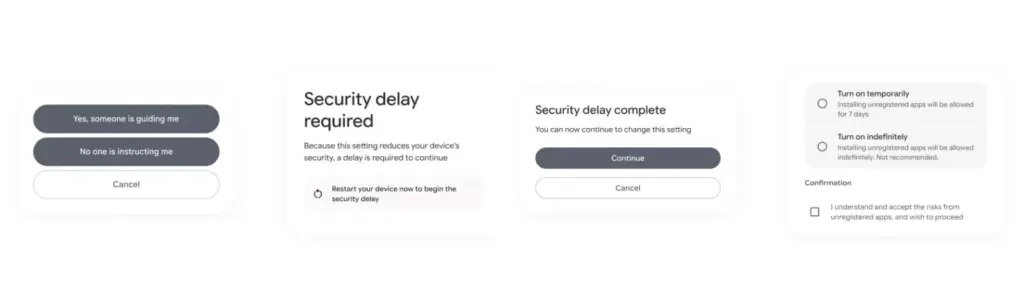
    activate android apk sideloading

    Google has stated time and time again that a “crackdown” on sideloading is not about taking away freedom or functionality, but rather about protecting users and, most importantly, stopping scams that are common on Android in particular areas. Google doesn’t prevent developers or even consumers from accomplishing what they truly want to do by restricting sideloading as planned, but it puts a huge barrier in the way of con artists.

    Scammers frequently use timed pressure and a sense of urgency. A waiting period of twenty-four hours with a few additional warnings? That is a difficult barrier against those kinds of frauds. For people who are being duped by more prevalent scams, it’s also a major inconvenience. For instance, a few weeks ago, after purchasing a low-cost fitness tracker, a family member called me to inquire as to why their homescreen had changed. It turns out that the product needed them to sideload an unidentified software in place of their launcher. I guided them through the uninstall process, but a 24-hour wait and all these extra warning screens? The installation would never have taken place.

    It’s a careful method of striking a balance between functionality and user protection. Because developers and enthusiasts who need or want to sideload an app immediately may still utilize the standard ADB tools, whereas the “ordinary Joe” must wait for that 24-hour period to end. Those who truly can’t wait the 24-hour period (which, once again, only needs to be once) still have options, although that is a headache for “regular” users and even more so for fraudsters.

    Not to mention that you won’t often have to deal with this anyhow. After developers apply for Google’s developer verification program, sideloading is no longer a problem and there are no waiting times or other “in the way.”

    How do you feel about Google’s modifications to Android sideloading? There are undoubtedly still many people who disagree with this, but as previously stated, I don’t think there is a better solution.
  • How to uninstall system apps on Android (without root)

    How to uninstall system apps on Android (without root)

    Unnecessary system apps and bloatware can be annoying. They drain your battery, take up important storage, operate in the background, and are frequently impossible to remove with standard methods. Although rooting your Android device gives you complete control over system programs, most users are not advised to do so because it violates your warranty and jeopardizes security.

    Thankfully, there are secure and efficient methods for disabling or removing system programs without rooting, particularly when using ADB (Android Debug Bridge). We will go over every technique in this article, from basic settings adjustments to more sophisticated (yet secure) desktop tools.

    android system apps unistall with adb

    What are system apps and why can’t you delete them easily

    Applications that are pre-installed by the manufacturer or carrier of the device are known as system apps. These consist include third-party programs like Facebook or Netflix that OEMs package, stock utilities, or branded services.

    They cannot be removed using the standard app menu since they are installed in the system partition. ADB commands, however, can be used to disable or even uninstall many.

    Common examples of pre-installed system apps include:

    • Duplicate media players or browsers
    • OEM app stores
    • Partner bloatware like Amazon Shopping, LinkedIn, or TikTok
    • Preloaded games or theme services

    Disable system apps from settings

    This is the simplest method and doesn’t require a PC.

    Steps:

    1. Open Settings > Apps.
    2. Tap See all apps to view the complete list.
    3. Select the system app you want to disable.
    4. Tap Disable. You may be asked to confirm your choice.

    What happens when you disable an app:

    • It is removed from the app drawer.
    • It can no longer run in the background.
    • It won’t receive updates or use system resources.
    • The app is still stored on your device but rendered inactive.

    Limitations:

    • Not all system apps can be disabled (depends on OEM).
    • Disabled apps can be re-enabled manually.

    This is the safest approach for beginners.

    Uninstall system apps using ADB (no root)

    You can use ADB to perform advanced commands on your Android device by connecting it to a computer. This technique allows you to remove system programs for the current user without requiring root access.

    Step 1: Set up ADB on your computer

    1. Download the Android SDK Platform Tools for Windows, macOS, or Linux from Google’s official site.
    2. Extract the contents to a folder (e.g., C:\adb).

    Step 2: Enable developer options and USB debugging

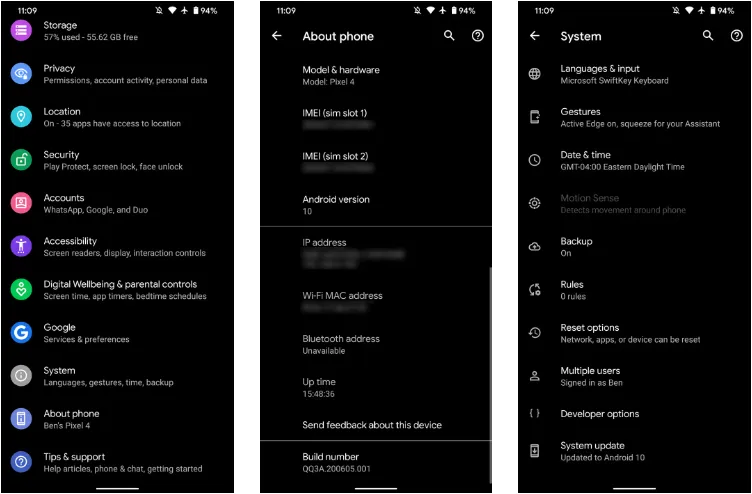
    1. Go to Settings > About phone.
    2. Tap Build number 7 times until you see a message saying “You are now a developer.”
    3. Go back to Settings > System > Developer options.
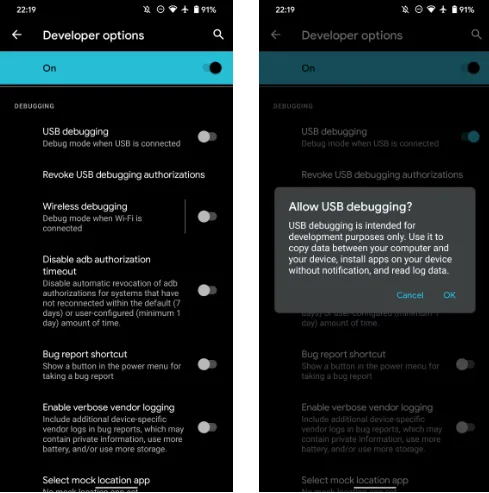
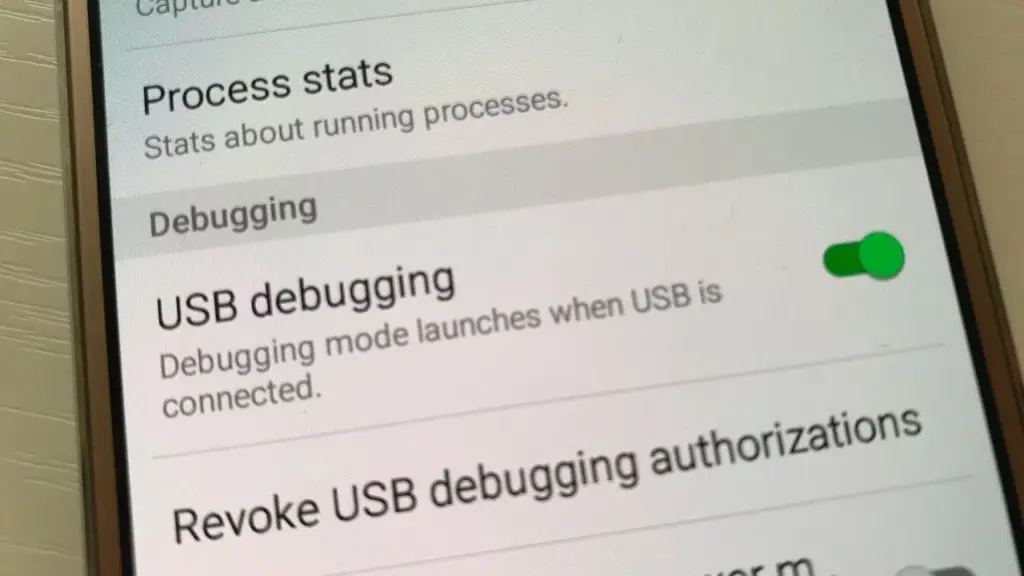
    4. Enable USB debugging.

    Step 3: Connect your phone to your PC

    • Use a USB cable to connect your device.
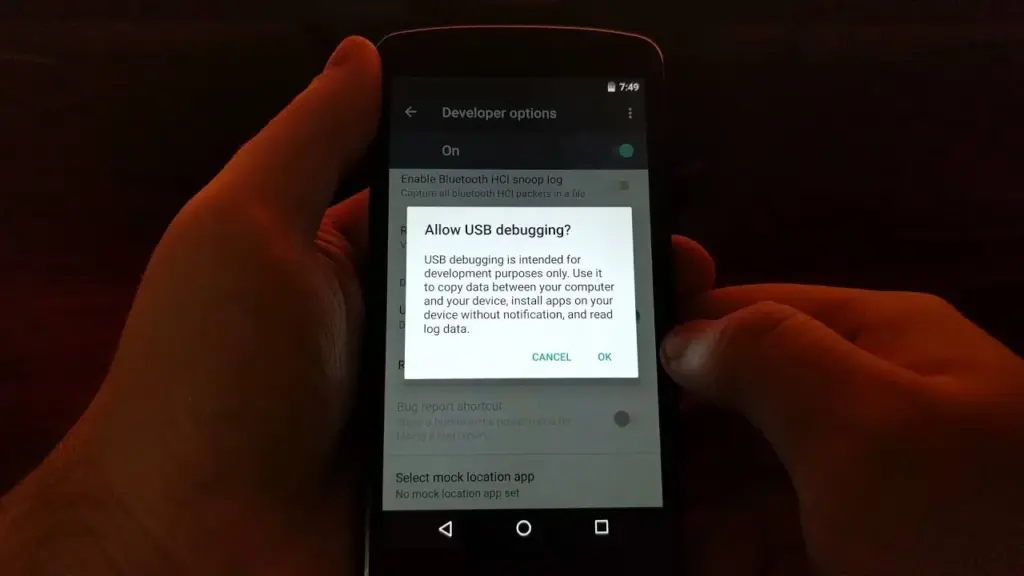
    • When prompted on your phone, allow USB debugging.

    Step 4: Open ADB and check the connection

    1. Open a terminal or command prompt in the ADB folder.
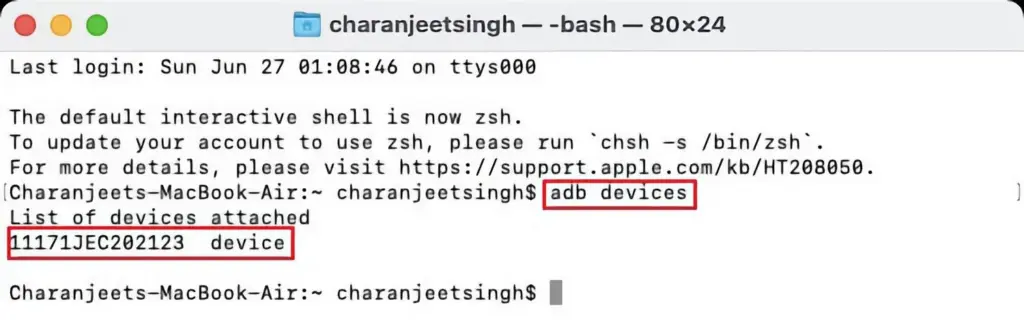
    2. Type: adb devices – you should see your device listed.

    Step 5: Find the package name of the app

    To uninstall an app, you need its package name. You can find this using:

    adb shell pm list packages | grep [app name]

    For example, to find Facebook‘s package name:

    adb shell pm list packages | grep facebook

    Step 6: Uninstall the app

    Use the following command:

    adb shell pm uninstall --user 0 com.facebook.katana

    That command will remove Facebook from your user profile, freeing up memory and removing it from the interface.

    Note: The app is only removed for the current user, not deleted from the system partition.

    Method 3: Use a no-root app debloater tool (GUI)

    If you’re not comfortable with the command line, you can use a graphical tool like:

    • Universal Android Debloater (UAD)
    • ADB AppControl
    • Android Debloater by XDA Developers

    These tools allow you to:

    • Browse installed system apps
    • Uninstall or disable them safely
    • See app names with friendly UI
    • Restore apps if needed

    Most tools require:

    • ADB installed on your system
    • USB debugging enabled
    • Windows PC (some versions work with Linux/macOS)

    They’re beginner-friendly and support a wide range of devices.

    Should you uninstall or disable every system app?

    No. Some system apps are critical to core Android functions. Removing them may cause:

    • Boot loops
    • Broken system features (e.g., notifications, calls, camera)
    • Incompatibility with future updates

    Always check what a system app does before removing it. You can research package names or use a debloater tool with built-in safety warnings.

    Safe-to-remove examples:

    • Social media bloatware
    • OEM-specific cloud services you don’t use
    • Built-in browser (if you use Chrome)
    • AR apps, Game Launcher, or duplicate music players

    Unsafe-to-remove examples:

    • com.android.systemui
    • com.google.android.gms
    • com.android.providers.*

    How to restore system apps uninstalled via ADB

    If you want to bring back an app removed via ADB:

    adb shell cmd package install-existing [package name]

    For example:

    adb shell cmd package install-existing com.facebook.katana

    This will restore the app for the current user, assuming it wasn’t fully deleted from the system partition.

    Uninstalling system apps without root gives you more control over your Android phone without compromising safety. ADB is a powerful tool that helps remove bloatware, reclaim storage, and speed up your device. If you’re cautious and avoid critical system packages, you can safely declutter your phone and enjoy a cleaner experience.

    Whether you’re using the built-in disable function or running ADB commands, you don’t need root access to take control of your device anymore.

  • Here are 3 reasons why you should enable ADB on your Android device

    Here are 3 reasons why you should enable ADB on your Android device

    You have heard about ADB and that you ought to turn it on for your Android phone. But why?

    Here are three reasons to enable ADB on your smartphone right now.

    Wirelessly mirroring phone to PC

    The most recent versions of macOS and iOS allow you to mirror the screen of your iPhone to your Mac. In certain situations, this can be really helpful. However, what about Android? Unfortunately, there is not a built-in method for mirroring the screen of your Android handset to a Windows computer—or any computer, really.

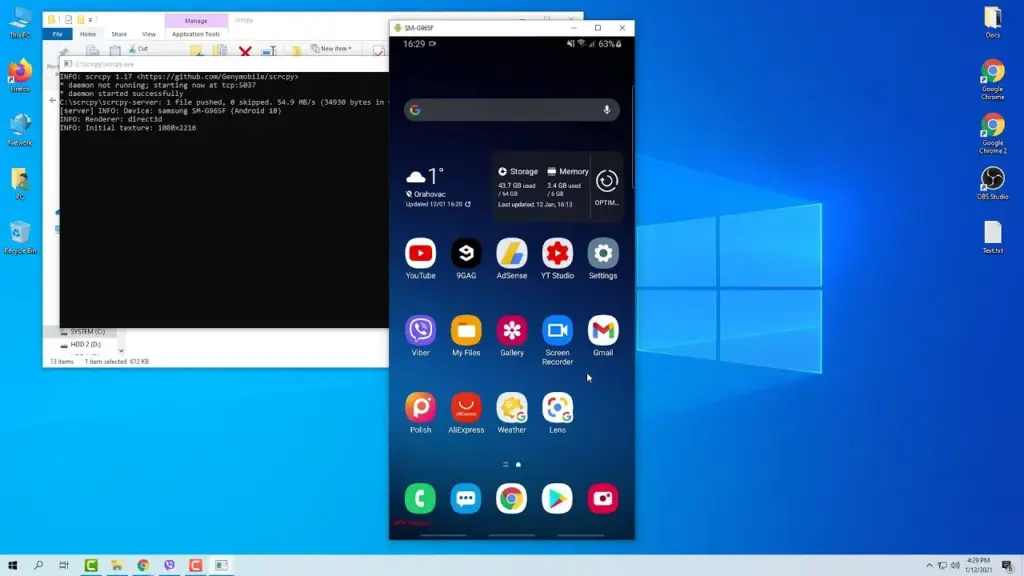
    But that is where scrcpy is useful. “Screen copy” is represented by the unusual name, and the application’s name is bolded. I was able to utilize scrcpy with ADB over my home network on my OnePlus 13R, and it was great, despite the strange name.

    The mirrored display functions just as it would if you were physically touching it, and there was hardly any lag when using Scrcpy. Everything worked as I had anticipated, and I could utilize gestures just like I could with the OnePlus 13R.

    scrcpy mirror android via adb

    You can use the command scrcpy in the terminal to remotely connect to your phone and display (and interact with) its screen on your computer after it has been installed on macOS, Windows, or Linux.

    I have two devices linked to my PC: a Wi-Fi device and a USB device. To force the connection over Wi-Fi, I used the command scrcpy -e, and it worked perfectly. Using scrcpy -d would force the connection over USB, but unless you do not have a reliable Wi-Fi network, I do not see why you should do this.

    In any case, utilize scrcpy to keep your phone’s screen shown on your computer. Just be aware that the program will only function if your phone is unlocked and the screen is turned on. You will also need to input any passcodes on your phone’s screen, not your computer’s.

    Sync files between your computer and phone

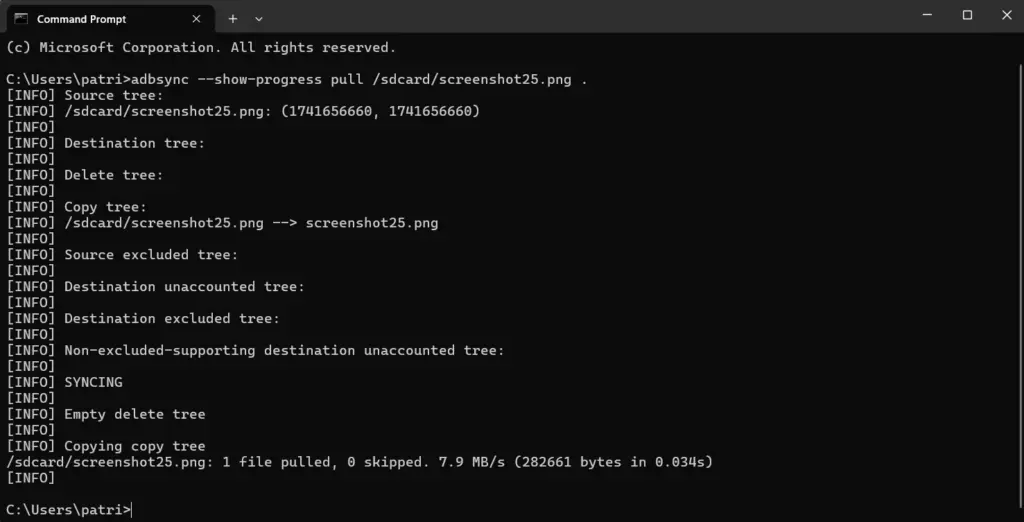
    Even though ADB comes with the adb push and adb pull commands built in, I much like use the program better-adb-sync than the built-in options. It is more akin to an rsync tool that allows you to synchronize files between your phone and computer.

    The –show-progress parameter is one feature that sets it apart from the built-in commands, even if the core operation is fairly similar to that of adb push and adb pull. This will display the status of the file transmission between your computer and phone. After installation, the better-adb-sync command is simply adbsync. If you want to transfer a video file from your phone’s storage to your computer while displaying the progress, you would use a command like adbsync –show-progress pull /sdcard/video.mp4.

    screenshot 2025 03 10 203417

    Personally, I think it is essential to know the status of a transfer. Sending a command and then waiting for a blank response till it fails or succeeds is something I detest. Does it still function? Does the transfer continue? Was it stalling? Is it moving slowly? Is it taking so long because of that? I frequently ask all of these questions when transferring files in the terminal.

    I think it is essential to be able to use the –show-progress flag with better-adb-sync, and I am sure you will find it useful as well.

    Move files to your computer wirelessly

    ADB is the answer if you have ever wished to quickly take a screenshot of your phone and transfer the image to your computer.

    To take a screenshot of your phone’s screen, just type the command adb shell screencap /sdcard/screen.png. After that, the file will be pulled to your computer using a program like adbsync pull /sdcard/screen.png. If you are also wirelessly connected to your phone, you may accomplish all of this over Wi-Fi without the need for wires.

    When you require the information from your phone but are attempting to send anything from your computer, this can be helpful. If you have multiple phones and are unable to recall which button shortcut to use to capture a screenshot, you could also just utilize it.

    There are several justifications for using this command, and I believe each one is sound. Additionally, it works well with better-adb-sync, which makes it simple to transfer the file to your computer after taking a screenshot.

    Do you want to know additional ADB commands for your Android phone? Every Android user should be familiar with these nine of the greatest ADB commands.

  • How to configure and use Android’s ADB wirelessly

    How to configure and use Android’s ADB wirelessly

    ADB is a command-line tool that makes it easier for your Android smartphone and a PC to communicate. The tool has many more applications besides only rooting and updating Android ROMs (more on this later).

    The traditional method for using ADB entails connecting your Android device to the Desktop through USB. But there is an alternative. Let’s examine at some wireless ADB usage options.

    Set up ADB

    You can skip this step if ADB has previously been configured on your Android and PC. If you haven’t, remember that everything is new to you!

    You must first download and unzip the Android SDK Platform Tools from the Android developer website before you can use ADB on your machine.

    By executing the command: brew install homebrew/cask/android-platform-tools, Mac users can use Homebrew to install ADB.

    Before you may connect your Android smartphone using ADB, you must first enable USB debugging in the developer settings.

    wireless adb setup

    Go to Settings > About phone then tap on the Build number several times. Once again, go to Settings > Developer options, then toggle on USB debugging.

    Once that is finished, use a USB cord to connect the Android device to your Desktop. You must utilize a cable initially even though we’re going to set up a wireless connection. The USB debugging prompt that will display on your Android device should always be accepted.

    enable usb debugging for ADB

    Open the command line or Terminal and navigate to the Platform Tools folder.

    If you’re on Windows, you can head to the downloaded Platform Tools folder and open the PowerShell window by pressing Shift and right-clicking anywhere in the folder, and selecting Open PowerShell Window here. On a Mac, open the Platform Tools folder and go to Finder > Services > New Terminal at Folder.

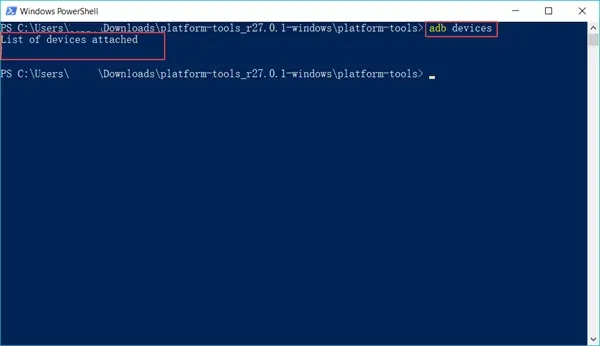
    If you’re using Windows, use the command adb devices into the command prompt. All instructions should be prefixed by a dot-slash on Linux and Mac, so it would be./adb devices.

    You should be able to find your device’s serial number in the list of attached devices if everything functions as it should.

    adb devices

    How to use Android wireless ADB

    The main topic at hand right now is how to connect your Android smartphone wirelessly to an ADB server. To use ADB wirelessly after configuring it and connecting your Android device to your PC, follow the instructions below.

    1. Type adb tcpip 5555 in the command line or Terminal and press Enter.
    2. Find your phone’s IP address in Settings > About Phone > Status > IP Address.
    3. Back in the command line or Terminal, type adb connect [your Android device’s IP address].
    4. Finally, press Enter again.

    The Android device should now be connected to ADB over a wireless connection. You can safely remove the USB cable.

    Is wireless ADB not working?

    Try installing Minimal ADB and Fastboot from the XDA Forums if your Android device won’t connect to Windows using ADB (you are getting errors in the command line). The required Android drivers are installed by this package, which may also assist you in fixing any command line issues.

    You can also utilize WebADB, which transfers all of ADB’s capabilities to your web browser. You can use the online tool to use ADB via Wi-Fi. In other words, you can completely forego installing ADB.

    What is ADB used for?

    The idea that Android ADB is solely helpful when rooting Android is a common one. It, however, is merely one of the several uses for the Android Debug Bridge.

    For example, you can use an ADB command to delete pre-installed apps from your Android device that is not rooted. Unwanted apps may be tough to remove from some Android cellphones, but ADB can assist.

    Without needing to root your device, you may also mirror your Android screen to a Desktop using the command line utility. This can be done using the free program Scrcpy. The tool’s wireless ADB connection results in extremely fantastic performance.

    Is safe to use?

    Using the utility won’t be a problem if you are familiar with ADB commands. There are risks involved with using ADB, especially if you are new to this field. If you are trying to root your device, using the incorrect commands could result in problems or, at worse, brick your phone.

    Although your Android smartphone won’t have any problems once you set up wireless ADB, you should always keep a backup of your data in the cloud or on an external storage device as a safety measure.

    No cables anymore

    Although though you first require a USB cord to set up ADB, the ability to utilize it wirelessly is incredibly useful. It allows you to walk around more freely while you work, allows you to simultaneously charge your phone at full speed, and is just much more practical in general. It’s definitely worth a go if you use ADB.

  • How to use ADB and Fastboot on Android device

    How to use ADB and Fastboot on Android device

    You have probably come across ADB and Fastboot if you have ever rooted an Android device. Although they are a crucial component of the rooting toolset, these utilities can be challenging to grasp, let alone master.

    So read on if you’re interested in learning more about ADB and Fastboot, need assistance setting them up, or want to know what you can do with them.

    What are ADB and Fastboot?

    While your phone is linked to a desktop computer via a USB cable, the tools ADB and Fastboot enable access to the Android operating system. There is no app for this, and while you may use ADB wirelessly, the setup is considerably more difficult, therefore the computer and cord are essential.

    ADB is typically used when Android is active. It gives you access to system folders or lets you change hidden settings that are otherwise inaccessible to users. ADB can be used to copy system files to and from the device. System updates can also be installed via the sideload capability.

    When Android is not active and the device is booted into “Fastboot mode,” Fastboot functions. It gives you access to every partition on your device, including the data partition, boot partition, and others in addition to the Android operating system.

    Fastboot is a diagnostic tool for Android. It is frequently used to install a custom recovery and is necessary if you need to unbrick your phone.

    Both are included in the Platform Tools collection of the Android software development kit.

    android platform tools

    Both tools run through the Command Prompt on Windows, or Terminal on Mac and Linux. This means they aren’t especially user-friendly, even though they are quite easy to get the hang of.

    How to set up ADB and Fastboot

    windows drivers

    First, you need to set up your phone to use the tools. If you haven’t already, enable the Developer Options by going to Settings > About phone and tapping on Build number seven times.

    Then, in Settings > Developer options, check the box next to USB debugging and walk through the dialog box that follows.

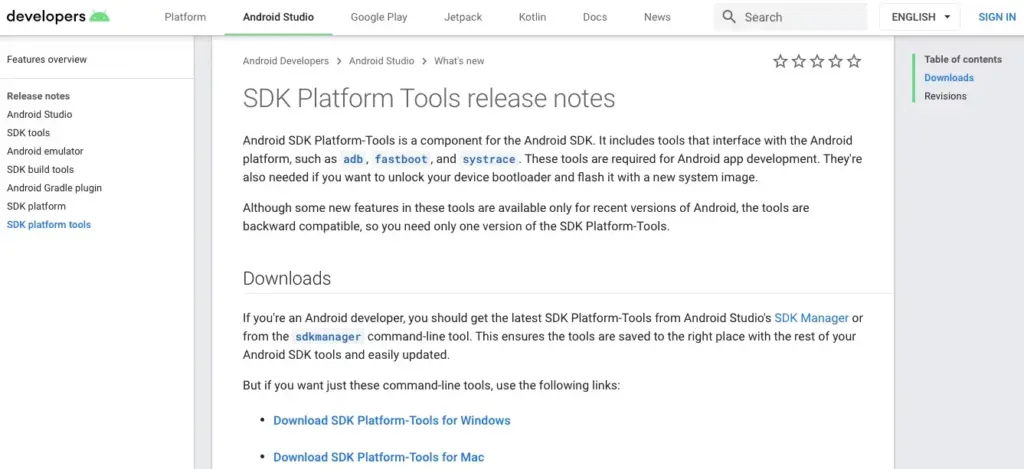
    Download ADB and Fastboot from the Android Developer website. When you unzip the download, the contents will be collected together into a folder called platform-tools. There are several other items in the folder, but you can ignore these.

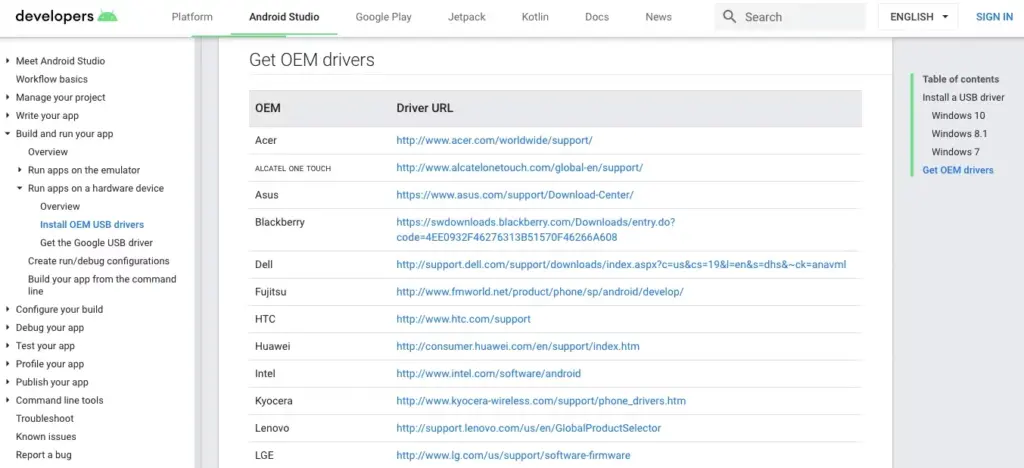
    If you’re on Windows, you will also need to download drivers for your device. There’s a list of links for most popular manufacturers on the Android developer website. Drivers aren’t needed on Mac or Linux.

    Using the command prompt or terminal

    Use the cd command to accomplish this: type cd [path to platform-tools]. The path will automatically fill in for you if you type cd[space] and then drag the platform-tools folder into the Command Prompt window.

    Even simpler, on Windows you may pick Open Command Prompt Here by right-clicking the platform-tools folder while holding the shift key down.

    The difference between Windows and Mac/Linux

    There’s one small but essential difference between using Windows and Mac or Linux. On the latter two, every ADB and Fastboot command must be preceded by a dot-slash.

    So where you type adb on Windows, you must type ./adb on Mac and Linux. And fastboot on Windows needs to be ./fastboot on Mac and Linux.

    For the sake of simplicity, we’ll stick with the Windows commands going forward.

    How to use ADB

    adb devices 1

    Launch Android on your phone, then use a USB cord to connect it to your desktop computer. Open the Command Prompt on your PC and modify the directory to point to the platform-tools folder.

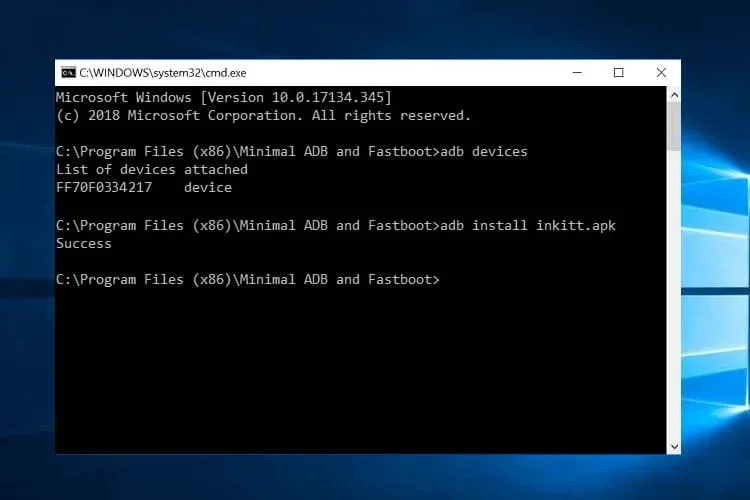
    Hit Enter after entering adb devices. The list of attached devices should now be visible, along with their serial numbers. This indicates that it is effective.

    How to use fastboot

    Fastboot works the same way as ADB, except you need to boot your phone into Fastboot mode instead of Android. You normally do this by holding a combination of the power and volume keys when turning on the phone.

    Alternatively, use ADB and type adb reboot bootloader.

    After that it’s the same. Enter fastboot devices to check that your phone is being recognized. Enter fastboot reboot to relaunch Android.

    Things you can do with ADB and Fastboot

    Now that you know how to use ADB and Fastboot, what can you do with them? Here are a few tools to try:

    • adb pull [path to file] [path to folder] This copies a file stored anywhere on your phone, and saves it to a specified folder on your computer.
    • adb push [path to file] [path to folder] The opposite of pull; send a file from your desktop to your phone.
    • adb install [path to file] Installs an APK app on your phone. This is of most use to app developers.
    • adb uninstall [package name] Uninstalls an app. You need to enter the full package name—usually something along the lines of com.devname.appname—instead of the common app name.
    • adb shell wm density [dpi] Changes the pixel density of your display. A lower number fits more content onto the screen, while a higher number will fit less. For example, older devices like the OnePlus 3 have a native DPI of 480. Setting it to 400 makes text, icons, and everything else smaller.
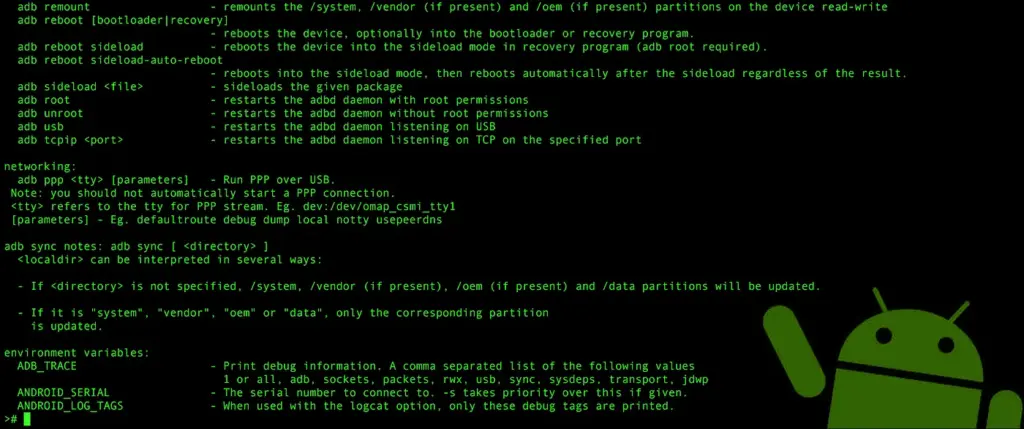
    • adb sideload [path to update.zip] Sideloads an update.zip firmware update. This one runs via the custom recovery on your phone. Useful if you can’t wait for an update to get pushed to your device.
    • fastboot oem unlock OR fastboot flashing unlock Which command you should use depends on which version of Android you’re running. From Android 6 onwards you also need to enable OEM unlocking in Developer Options. Unlocking the bootloader this way wipes your phone completely.
    • fastboot flash recovery [filename.img] Installs a custom recovery, such as TWRP, on your device. For ease of use, we suggest changing the recovery filename to something easy—twrp.img, for instance—and moving it into the platform-tools folder.
    • fastboot -w Completely wipes your phone in preparation for flashing a custom ROM.
    • fastboot update [path to rom.zip] Flashes a custom ROM. A useful option if you haven’t rooted your phone.

    Why you should learn ADB and Fastboot

    Obviously, the aforementioned instructions are simply meant to provide general direction. On some gadgets, they might not all function. Only use them if you are aware of what they will do and how to reverse any modifications they could cause.

    The Android rooting and modding process depends heavily on ADB and Fastboot. It’s crucial to learn how to use them because doing so will enable you to employ more sophisticated tweaks.

    As previously indicated, you must first enable the Developer Options in order to use ADB and Fastboot. Once you’ve done that, you’ll have access to a number of other handy settings.

  • The complete guide to install ADB on any platform

    The complete guide to install ADB on any platform

    Whether you want to install a custom ROM, turn on some hidden Android features, or take screenshots from apps that prevent you from doing so, you’ll need the Android Debug Bridge (ADB) and fastboot. They’re part of the Google SDK platform tools and give you some lower-level access to your phone. You’ve got to prepare a few things before you can start, so here’s a comprehensive guide showing you how to get the platform tools up and running on any platform.

    Setup your phone

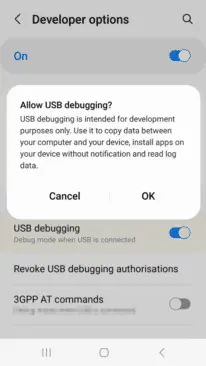
    You need to set up your Android device first. If you haven’t already activated the developer options in your system settings, you will have to do so by going to the About section and taping the Build number entry seven times. You will be congratulated on becoming a developer, and a new entry called Developer Options will appear in your system settings. Enter them, look for the USB debugging toggle, and turn it on.

    Installing ADB

    Windows, macOS, Linux, and Chrome OS with Android Studio

    If you’re a developer or looking to get into Android app development, you should install the Android Studio. It’s Google’s official IDE (Integrated Development Environment) for Android applications and has all the tools on board you need for creating your projects, including ADB and fastboot. The software will also ensure that your tools are always up to date. You can download Android Studio on the Android Developers website. The installation process is straight-forward — just follow the on-screen instructions from the installer.

    android adb

    Since Android Studio is quite huge when installed, the standalone SDK platform tools could be a better option if you want to save some precious space on your computer’s storage, especially if you don’t want to get into app development. The tools are comprised of the same interfaces you get when you install the Android Studio: ADB, fastboot, and systrace. They’re available on the Android Developers website. You’ll have to extract them and add them to your system’s path, but there are some scripts that simplify the process:

    Nexus Tools

    If you ask me, Nexus Tools is the fastest way to get ADB and the other platform tools up and running on your computer. It’s an open-source tool created by our own Corbin Davenport. Nexus Tools automatically downloads the latest platform tools from the Google website mentioned above, extracts them, and adds them to your system’s path for ease of use. You just need to paste the following command into a macOS or Linux terminal and hit enter:

    bash <(curl -s https://raw.githubusercontent.com/corbindavenport/nexus-tools/master/install.sh)

    Once it’s finished installing, open a new terminal window and confirm that ADB works with the ADB devices command. If your phone is connected with USB debugging enabled, you should then be able to see its ID.

    The script also works for the latest Macs with the M1 chip, Linux on Chromebooks (here’s how to enable Linux on Chrome OS), and Bash for Windows. However, the Windows subsystem for Linux doesn’t support USB, so you’ll have to rely on a wireless connection. That’s only really feasible if you have Android 11 or a rooted phone, and even then, there are some limitations.

    You can find more information on Nexus Tools on Github, including uninstall and update instructions.

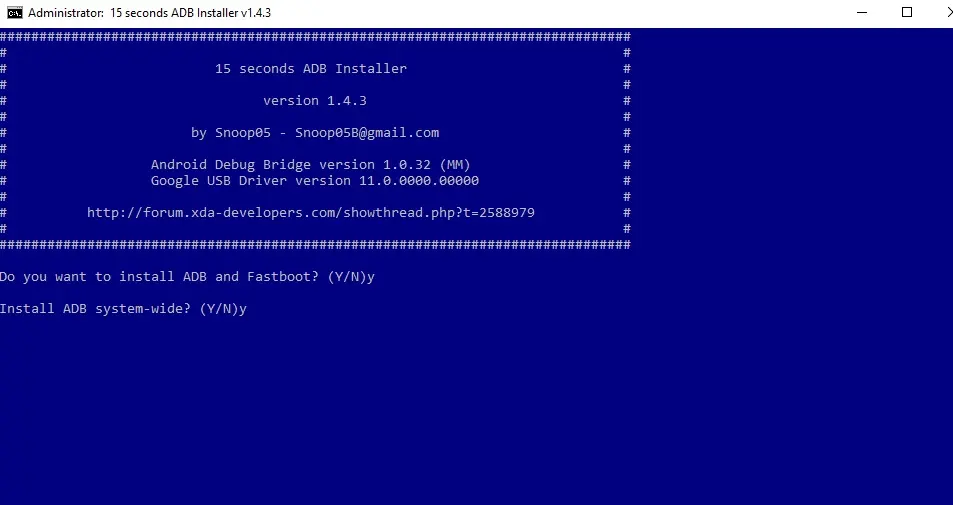
    15 seconds ADB installer

    adb installer

    For Windows, you can rely on another automatic tool from an XDA Developers Forum member, the 15 seconds ADB installer. However, some users report that the script doesn’t properly work for them, and it hasn’t been updated by the original maintainer for a long time. You can try using some of the recent revisions from another forum member or set up the platform tools manually:

    1. Download the SDK platform tools for Windows from the Android Developers website.
    2. Extract the ZIP file into a folder you can easily remember (like C:/platform-tools)
    3. Open a command window in the folder by holding shift and right-clicking in an empty spot in the folder and selecting “Open command prompt/PowerShell here” in the menu. Then you can start using ADB — connect your phone and try .\ADB devices to see if it’s working. A list with attached devices should show up.
    4. If you computer doesn’t recognize your phone, you may need to install its respective Windows USB driver additionally. Alternatively, there’s an open-source universal driver if you don’t want to go through the hassle of finding the correct one for your device.

    If you want to be able to just open a command window and start using ADB without navigating to your platform-tools folder first, you’ll need to add the folder to your Windows path:

    1. Search for “system environment” in the Windows 10 Start search and select “Edit the system environment variables” from the results.
    2. Click “Environment Variables…” towards the bottom of the window that just opened.
    3. In the lower section of the next window under “System variables,” look for the “Path” row. Select it and click “Edit…”
    4. In the “Edit environment variable” window, you can hit the “New” button and add the path with the platform tools. In our example, that’s “C:/platform-tools.”
    5. Exit all windows and save the changes you’ve made by selecting “OK.”
    6. Open a new command prompt or PowerShell and see if ADB devices now works without navigating to your platform-tools folder first. You also won’t have to add .\ in front of it anymore. You might have to restart your computer before the change takes effect.

    On your phone

    Lev2.2 206x366 1

    If you don’t want to root your phone or install a custom ROM and just need access to the ADB shell, you don’t even need to connect your handset to a computer. The open-source LADB app allows you to run a shell locally, utilizing the wireless ADB protocol. However, setting it up is a little convoluted, and you’ll need to be on Android 11 to be truly free from a computer. We’ve got a tutorial that walks you through the process.

    Web

    ADB

    If you don’t have the Android 11 yet, or prefer to work with a larger screen, the WebADB might be for you. It’s an open-source web app that you can use to run the ADB shell, but it also comes with a file manager and supports SCRCPY for screenshots and screencasts in apps that don’t allow you to run them on a regular basis. The biggest caveat: being a web tool, you have to trust that developers don’t do anything fishy with your phone—you’re giving an unknown party low-level access, after all. Here’s our tool hands-on.

    Using ADB

    Depending on which install method you opted for, you may have to add a .\ in front of ADB commands to make them work. If you haven’t added your SDK tools installation to your path on Windows, keep in mind that you always have to run a terminal from the SDK tools folder.

    There are tons of advanced features and tweaks you can enable or disable via ADB and the ADB shell. Here are just a few of the things we covered, but there are plenty of other things you can find all around the internet. Some of our favorites include SCRCPY, APK installation, stock-ifying Amazon Fire tablets, and more.

  • Install ADB on Windows, macOS, and Linux

    Install ADB on Windows, macOS, and Linux

    There will be a lot of guides on Droid Tools about how to access certain features of the Android platform that simply are not visible to the user. 

    Theese will be done generally with the help of some command line Android Debug Bridge (ADB) commands, a tool that Google offers for developers to debug various parts of their applications or the system, but which we can use for all kinds of neat and hidden tricks. Using the command line isn’t something that everyone is comfortable with, though, so in an attempt to teach everyone how to do these tweaks (no matter what skill level you’re at), we have been including some basic steps about how to install ADB in each of our tutorials where necessary.

    Setup the Android Debug Bridge (ADB)

    Phone Setup

    • Launch the Settings application on your phone.
    • Tap the About Phone option generally near the bottom of the list (this is hidden behind the “System” option in Google’s latest Android Oreo version).
    • Then tap the Build Number option 7 times to enable Developer Mode. You will see a toast message when it is done.
    • Now go back to the main Settings screen and you should see a new Developer Options menu you can access.
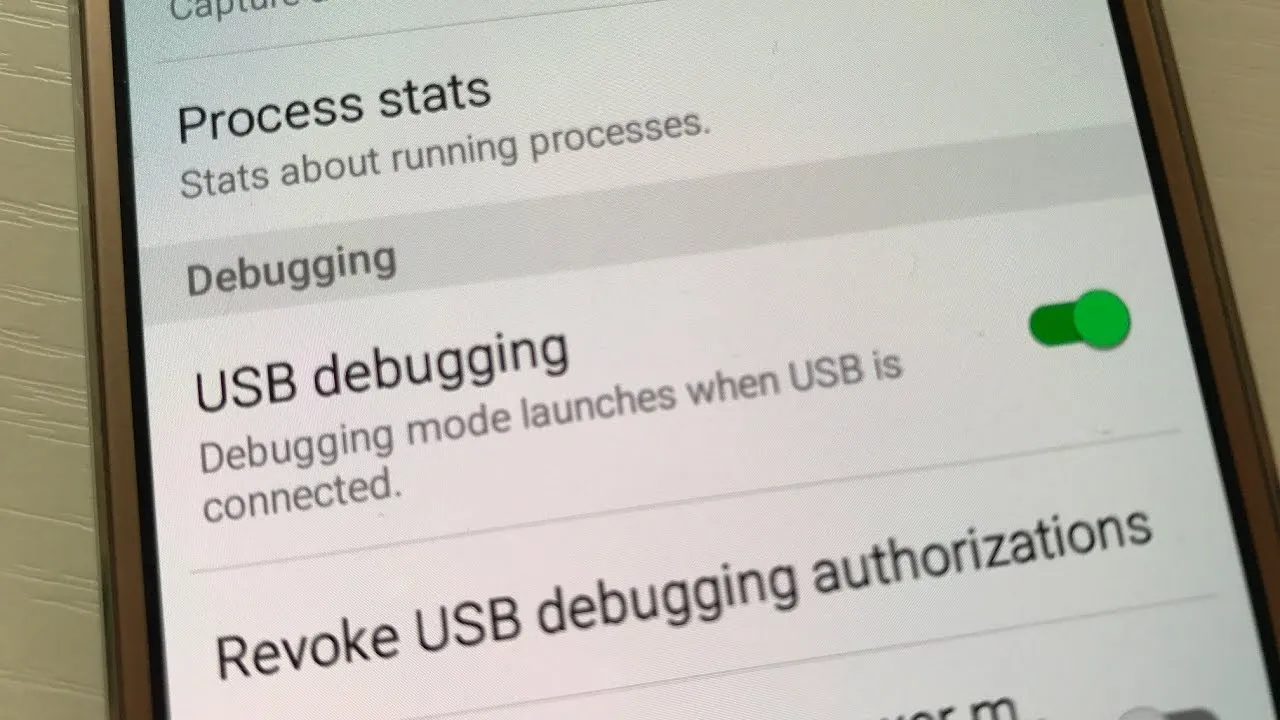
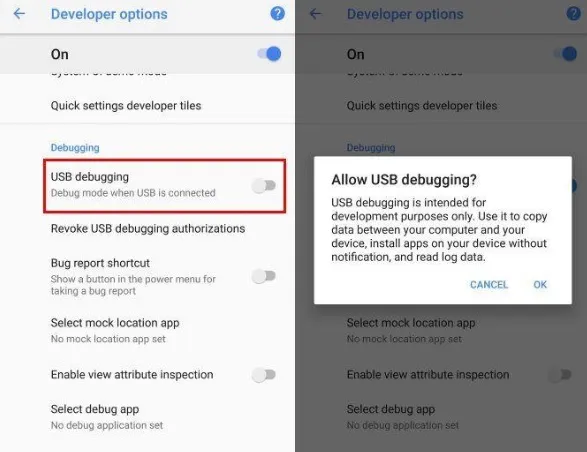
    • Go in there and enable the USB Debugging mode option.
    usb debugging

    Next up, you will need to scroll below and follow the rest of the instructions for your operating system.

    Windows 10 ADB Setup

    • Download the ADB ZIP file for Windows
    • Extract the contents of this ZIP file into an easily accessible folder (such as C:\adb)
    • Open Windows explorer and browse to where you extracted the contents of this ZIP file
    • Then open up a Command Prompt from the same directory as this ADB binary. This can be done by holding Shift and Right-clicking within the folder then click the “open command prompt here” option. (Some Windows 10 users may see “PowerShell” instead of “command prompt”.)
    windows adb
    Windows ADB folder
    • Connect your smartphone or tablet to your computer with a USB cable. Change the USB mode to “file transfer (MTP)” mode. Some OEMs may or may not require this, but it’s best to just leave it in this mode for general compatibility.
    • In the Command Prompt window, enter the following command to launch the ADB daemon: adb devices
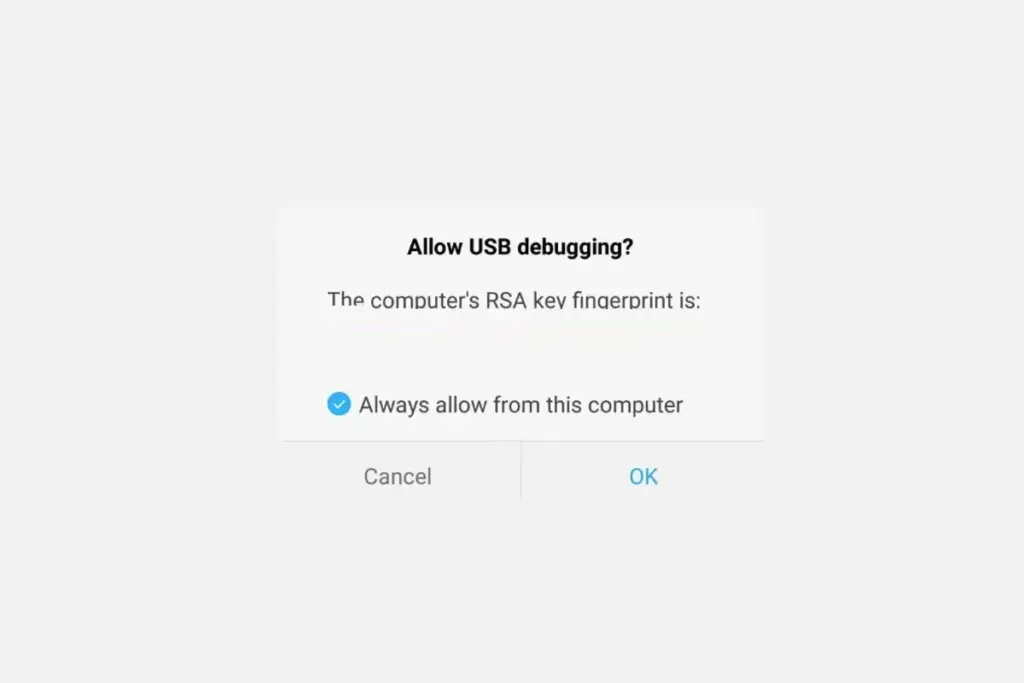
    • On your phone’s screen, you should see a prompt to allow or deny USB Debugging access. Naturally, you will want to grant USB Debugging access when prompted (and tap the always allow check box if you never want to see that prompt again).
    maxresdefault 2

    Finally, re-enter the command adb devices. If everything was successful, you should now see your device’s serial number in the command prompt. 

    Install ADB on macOS

    • Download the ADB ZIP file for macOS
    • Extract the ZIP to an easily-accessible location (like the Desktop for example).
    • Open Terminal.
    • To browse to the folder you extracted ADB into, enter the following command: cd /path/to/extracted/folder/
    • For example, on my Mac it was this:cd /Users/Doug/Desktop/platform-tools/
    • Connect your device to your Mac with a compatible USB cable. Change the USB connection mode to “file transfer (MTP)” mode. This is not always required for every device, but it’s best to just leave it in this mode so you don’t run into any issues.
    • Once the Terminal is in the same folder your ADB tools are in, you can execute the following command to launch the ADB daemon: adb devices
    • On your device, you’ll see an “Allow USB debugging” prompt. Allow the connection.
    maxresdefault 3
    • Finally, re-enter the command adb devices. If everything was successful, you should now see your device’s serial number in macOS’s Terminal window. Congratulations! You can now run any ADB command on your device! Now go forth and start modding your phone by following our extensive list of tutorials!

    Install ADB on Linux

    1. Download the ADB ZIP file for Linux
    2. Extract the ZIP to an easily-accessible location (like the Desktop for example).
    3. Open a Terminal window.
    4. Enter the following command: cd /path/to/extracted/folder/
    5. This will change the directory to where you extracted the ADB files.
    6. So for example:cd /Users/USER/Desktop/platform-tools/
    7. Connect your device to your Linux machine with your USB cable. Change the connection mode to “file transfer (MTP)” mode. This is not always necessary for every device, but it’s recommended so you don’t run into any issues.
    8. Once the Terminal is in the same folder your ADB tools are in, you can execute the following command to launch the ADB daemon: adb devices
    9. Back on your smartphone or tablet device, you’ll see a prompt asking you to allow USB debugging. Go ahead and grant it.
    10. Finally, re-enter the command adb devices. If everything was successful, you should now see your device’s serial number in the Terminal window output. Congrats! You can now run any ADB command on your device! Now go forth and start modding your phone by following our extensive list of tutorials!
    usbdebugging

    Some Linux users should be aware that there can be an easier way to install ADB on their computer. The guide above will certainly work for you, but those own a Debian or Fedora/SUSE-based distro of Linux can skip steps 1 and 2 of the guide above and use one of the following commands. . .

    • Debian-based Linux users can type the following command to install ADB: sudo apt-get install adb
    • Fedora/SUSE-based Linux users can type the following command to install ADB: sudo yum install android-tools