It’s likely that you carry an Android phone in your pocket if you’re not using an iPhone. Google’s mobile operating system, Android, powers a variety of phones, including the Google Pixel and Samsung Galaxy. The lithium-ion battery is a feature shared by almost all Android phones. Only when these batteries are in good health can they be strong and effective. Your phone may start to drain more quickly, take longer to charge, or even shut down without warning as it ages or wears out. Because of this, monitoring the condition of your battery is more crucial than you may imagine.
You can check the condition of your Android phone’s battery in two major ways. You can access your phone’s diagnostics by dialing a code. But not every phone can use this dial code. You can also utilize a third-party or internal app, such as Samsung’s Members app, to keep an eye on the condition of your phone’s battery.
Using a dial code to check the battery health
A dial code is a string of characters and digits that you enter as though you were making a phone call. You can access an automated system that gives you a summary of your phone’s diagnostics by dialing a code on compatible phones. This will cover the temperature and condition of the battery.
Enter ##4636## on the dial screen of your phone. After that, access your battery health diagnostics by navigating through the menu. In the menu, this is typically called Battery Information. Depending on the phone kind you own, the options could change.
Regretfully, not all Android smartphones are compatible with this code. Some are in favor of it, while others are not. You can determine whether the model of your phone supports this dial code in advance if you still have the manual or can get it online. However, just dialing it and seeing what happens might be quicker.
Using an app to check the battery health
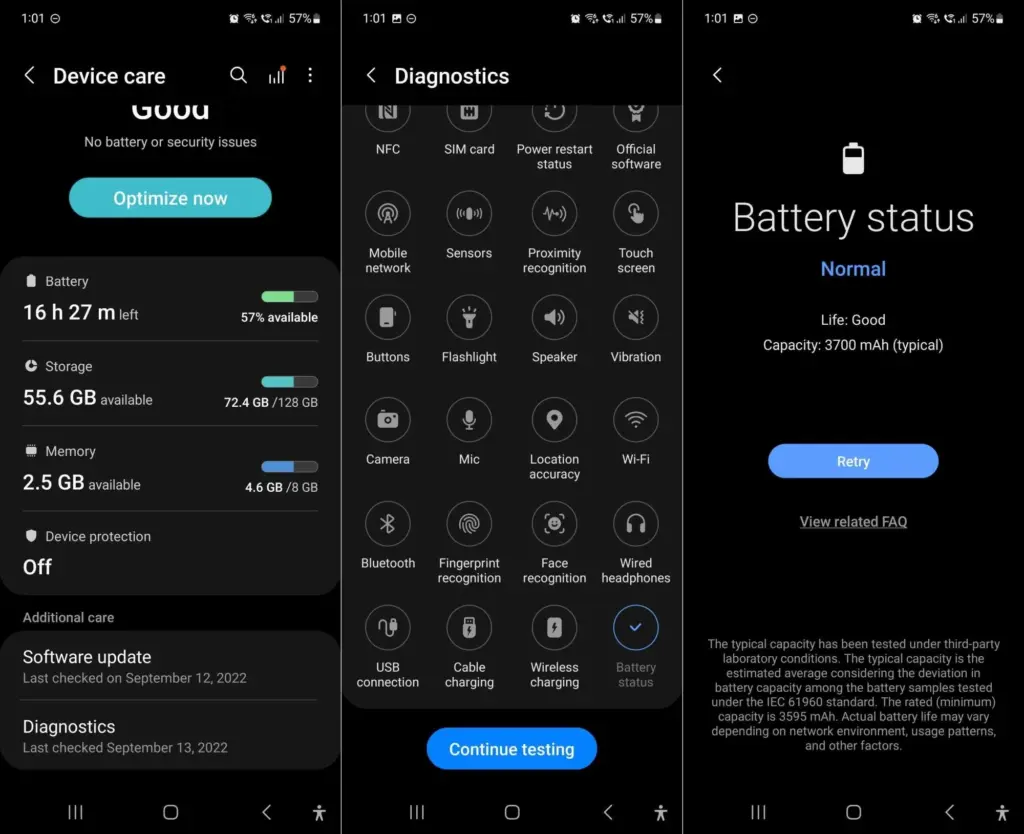
To check the health of the battery, several Android phones offer a personal app option. The Samsung Members app is available from Samsung. You navigate to Support and then Phone Diagnostics using that app. From there, you can test the phone’s battery and other systems.
AccuBattery
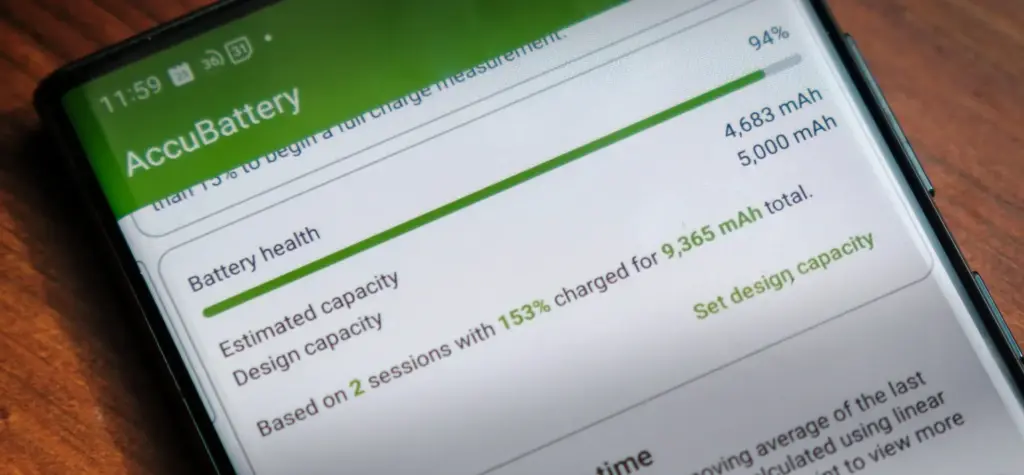
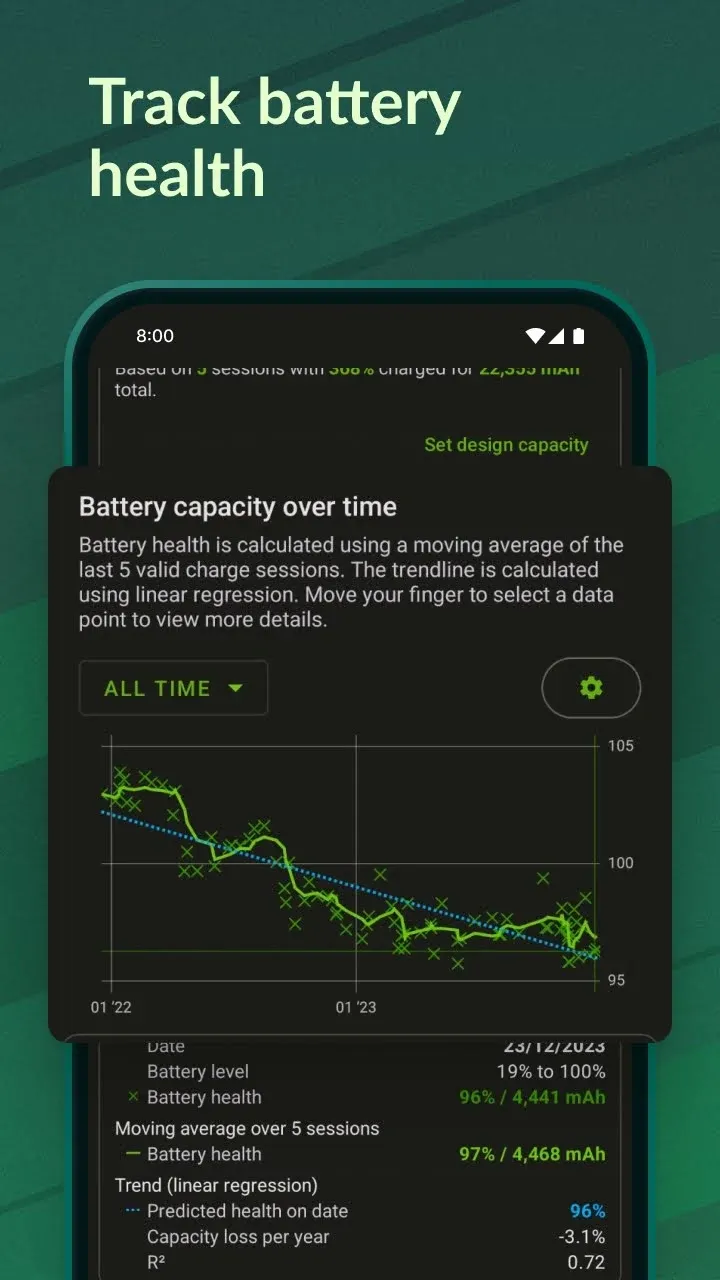
AccuBattery displays battery usage information, and measures battery capacity (mAh) based on science.
Another option is to use a third-party app, such as AccuBattery. AccuBattery can be downloaded from the Google Play Store. To demonstrate how well the battery is charging, it has a health monitor. Additionally, it offers up-to-date information about the battery life of your phone. This can help you maximize the battery’s performance and extend its lifespan.
Maintaining the health of your Android’s battery is essential to its long-term functionality. The dial code is a fast way to check the battery, but not all phones can use it. By downloading an app, you can keep an eye on the condition of your battery and receive real-time reports to improve battery performance. With these resources at your disposal, you can properly care for your phone.
Is the battery on your smartphone giving you trouble? Is your phone running out of battery or is it no longer charging? You should check your smartphone’s battery immediately, regardless of whether it is a Xiaomi, Samsung, or another brand.
“Why has my smartphone suddenly stopped charging?”
If, like most users, you have an Android smartphone with a non-removable lithium battery, it is hard to answer this question. The repairable Fairphone 5 and older cellphones are among the few that have a detachable battery.
Thankfully, there is a method for assessing the state of the battery in your smartphone so that you can evaluate whether or not to replace it. Discover which of the several options—some of which are also provided directly by the manufacturer – is best for you here.
How to check the battery status on Samsung
Since Samsung’s Galaxy smartphones are the most popular, let us start with them. There are now two ways to check the battery level of your Samsung phone: using the diagnostic feature using the secret code *#0228#. The latter is accessible through the Samsung Members app as well as the settings.
But it appears that the USSD code is no longer functional. We have spoken with Samsung and will keep you informed of developments. Therefore, until further notice, we have deleted the portion about the Samsung code from a previous version of the text.
You can start a variety of diagnostic features with Samsung to see if your smartphone is operating correctly at the hardware level. Twenty-five functions and components are available for testing. from network connectivity and sensors to the battery. There are two ways to use this diagnostic feature, depending on whether One UI 6 or a later version is installed.
Open the Samsung Members app (or install it).
Tap Help in the bottom navigation bar.
Tap on Show tests in the Diagnostics section.
Select Battery status and start the test.
Now you can see your battery’s state, which should be “Good” in the best scenario. Additionally shown is the charging capacity, which should match the details on the data sheet for your smartphone.
Please be aware that the most recent in-house user interface, One UI 6, which is based on Android 14, is now installed on your Samsung Galaxy smartphone. Without utilizing Samsung Members, you can utilize the battery settings to manually invoke this diagnostic feature.
Go to the Settings.
Tap on Device maintenance.
Scroll down to Diagnostics and follow steps 3 and 4 mentioned above.
How to check the battery status on Xiaomi
Sadly, there are not many ways to find out how well your Xiaomi smartphone is doing. Compared to Samsung, these are less diversified. Entering the secret code is your only choice.
Enter the code *#*#6485#*#* on the keyboard of your phone app (native).
Check that MB_06“Good” is displayed.
MB_06 refers to your battery’s current state of health. However, this specific menu contains additional information that might be useful. Since the official sources are once more somewhat dubious, I have compiled a list for you using the information I have discovered in the several Xiaomi forums:
The “MB_” codes:
MB_00 Percent of battery remaining
MB_01 Battery status: charged/discharged
MB_02 Charging protocol (fast, etc.)
MB_03 Voltage of the charging process
MB_04 Voltage used (volts), e.g. 117000 corresponds to 1.17 volts.
MB_05 Temperature of the battery, here 260 corresponds to 26 °C.
MB_06 Health of the battery
MB_07 Temperature of the charger/adapter.
MB_08 Temperature monitoring status
MB_09 Maximum voltage of the battery at full charge.
The “MU_” codes:
MU_00 Type of charger
MU_01 Charging mode
MU_02 Direction of charging: (0: no charging / 2: charging / 3: reverse charging)
MU_03 Maximum input voltage via USB
MU_04 Current input voltage via USB.
The “MF_” codes:
MF_01: Current state of charge. If this value differs from the value under MB_00, this is an indication of a battery problem.
MF_02: Number of charging cycles (charging from 0 to 100 % since first use).
MF_05: Actual capacity of the battery
MF_06: The charging capacity specified by the manufacturer.
The “MM_” codes:
MM_00: AICL result (adaptive input current limitation)
MM_01: USB input current
MM_02: Maximum charging voltage of the charger
MM_03: Current maximum charging capacity. If it differs from the values specified in MF_06 or MF_05 (or in the data sheet), your battery is damaged.
Apps to check the health of your battery
Thus far, we have examined methods that are highly manufacturer-specific and, similar to secret codes, may not be the most obvious. Installing an Android app that lets you monitor the battery level of your phone is the simplest method.
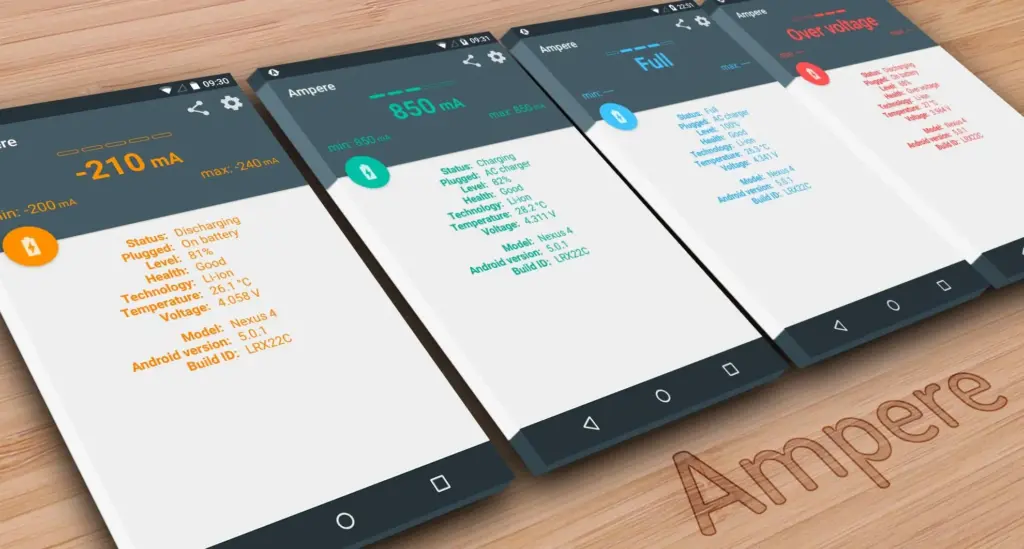
Ampere
When charging your smartphone, Ampere shows the electrical current. This enables you to evaluate various chargers and select the most suitable one for your smartphone. The app also allows you to monitor the rate at which your battery is depleting.
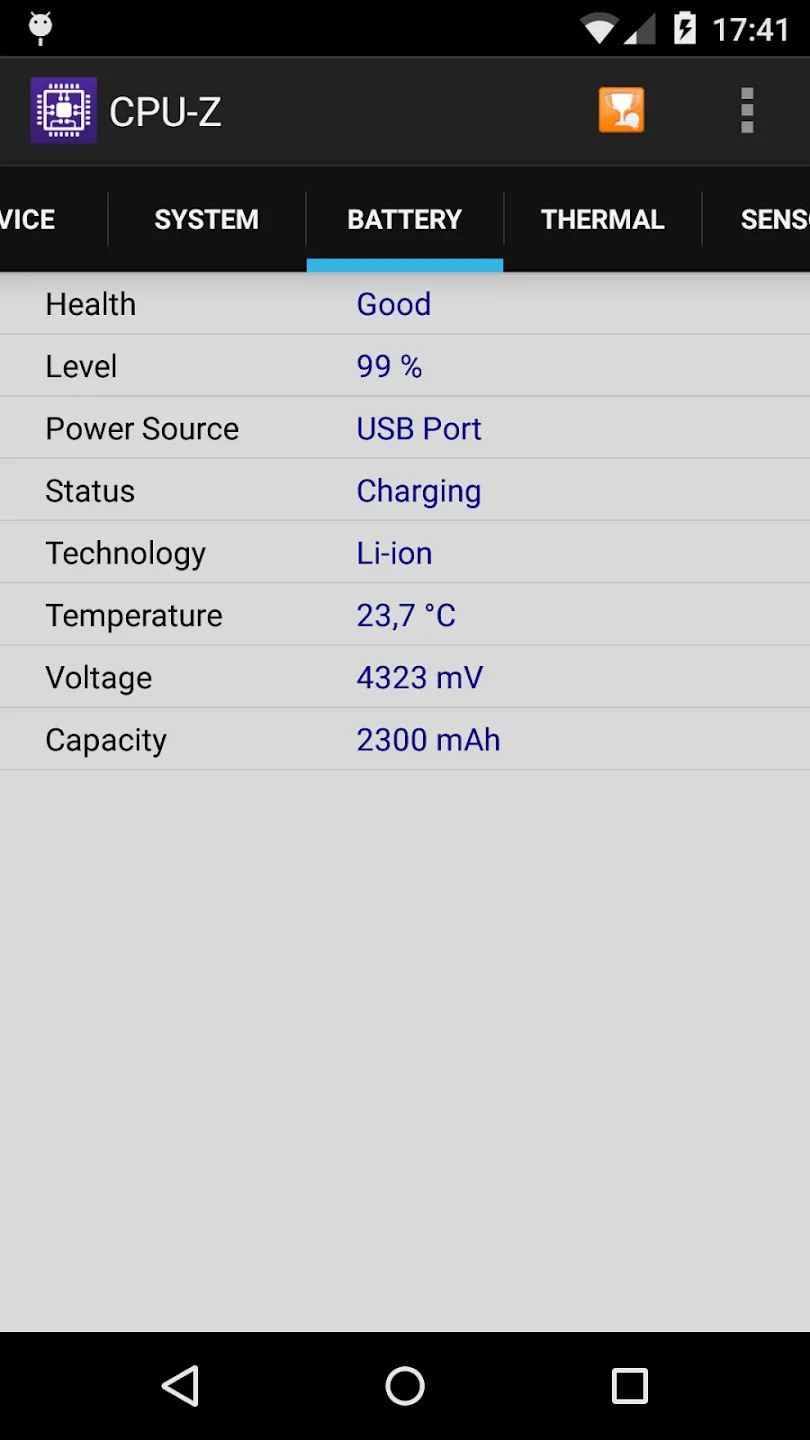
Another option is to look at CPU-Z, which provides details about your smartphone’s battery as well as numerous other components. The build number, processor core speed, temperature, and sensor information are all shown.
I would only suggest the AccuBattery app to those of you who are truly interested in knowing the precise condition of your battery. AccuBattery is not for you if you are only curious because it requires time for the program to measure usage and generate estimations.
AccuBattery’s analysis of your battery performance gets more precise the more you use it. The four tabs of AccuBattery are History, Health, Charging, and Discharging. AccuBattery calculates the charge capacity when you charge your phone. AccuBattery can assess your battery’s state by comparing it to the “official” charge capacity, which you must manually enter.
Like USSD codes, Android secret codes frequently begin with an asterisk. The secret codes can be activated without a network, which is how USSD codes differ from one another. Depending on the version that is loaded on the smartphone, they are kept in system files.
When moving to Android 4.3 Jelly Bean and then Lollipop, many codes become obsolete. Actually, codes are added and removed with every new edition. Not to mention the particular codes for some Android overlays, like MIUI or One UI, which were discussed before in this post.
Please take note that the code ##4636##, which displays an information menu that includes, among other things, your battery status, is compatible with practically all Android devices in addition to the Samsung and Xiaomi codes. However, we tested it on an Asus with Zen UI 9, a Xiaomi with MIUI 13, a OnePlus with OxygenOS 13, and a Samsung with OneUI 6.