Author: Robert Haba

  • Galaxy S20 clock app lets you set Spotify as the alarm

    Galaxy S20 clock app lets you set Spotify as the alarm

    Samsung finally lifted the covers off the Galaxy S20 series early last month after weeks of leaks and speculation about her flagships for 2020. Like last year, as a part of the series, the company launched three devices including the Galaxy S20, Galaxy S20+, and Galaxy S20 Ultra. As you would imagine, with the high-end Galaxy S20 Ultra featuring a 100x Space Zoom feature, the smartphones sport top-of – the-line specifications. Samsung also rolled out One UI 2.1 along with the Galaxy S20 series— their latest Android-based software update 10.

    samsung spotify alarm

    While One UI 2.1 is largely the same as One UI 2.0, some additional features that are not yet available on older devices are packaged. These include features such as Quick Share, which is an alternative for Samsung to Apple’s AirDrop which allows you to easily share images or files with other users with a supported device. The update to One UI 2.1 also includes redesigned AR Emoji, a new feature of Music Share, and simplified integration with Google Duo. This isn’t all that is fresh in One UI 2.1 though.

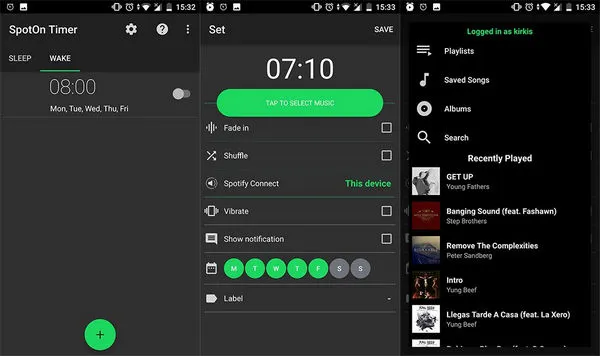
    Samsung has also updated its stock Clock app in One UI 2.1 and it now gives users the ability to choose “Spotify” as the alarm sound. As you’d expect, choosing the streaming service as your alarm will allow you to wake up to your favorite songs, which is always better than using the stock alarm sounds included on the device. The new feature can be found in the “Alarm sound” settings within the Clock app on all Galaxy S20 devices. It goes without saying that you’ll also need to install the Spotify app on your device in order to use this feature.
  • Fastest wireless charging – Xiaomi breaks a record

    Fastest wireless charging – Xiaomi breaks a record

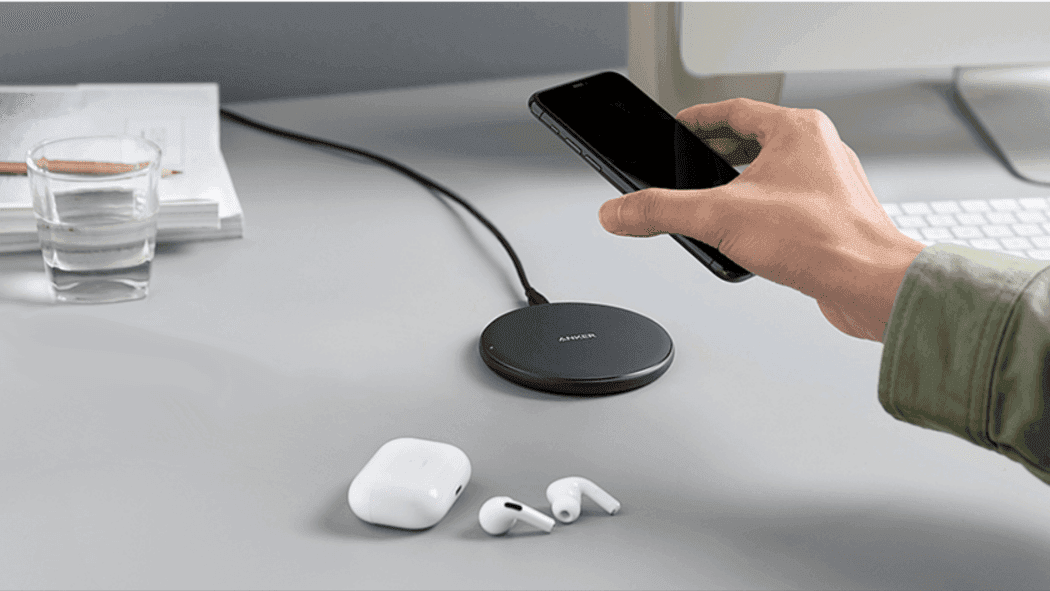
    Xiaomi Vice President Chang Cheng announced on Weibo this afternoon that Xiaomi Wireless Charging’s charging rate has improved in recent years from 10W-30W mode. The company is however currently developing a new wireless charging that breaks its current 30W power. The company has a new 40W wireless fast charging system, according to Xiaomi VP, Chang Cheng. The Xiaomi 40W wireless charging capability is fairly impressive.

    The new Xiaomi smartphone uses a wireless 30W charging system. Now, the company is doing more to make future flagships more appealing. Wireless charging is clearly going to be a big growth field this year. The aim of Xiaomi is to achieve charging speeds which some OEMs are struggling to achieve with wired charging.

    Xiaomi’s latest flagships, Xiaomi Mi 10 and Xiaomi Mi 10 Pro but uses fast wireless charging solutions. The Xiaomi Mi 10 comes with a 4780 mAh custom strip fast charge battery, which supports 30W wired fast flash charging + 30W wireless fast flash charging + 10W wireless reverse charging. On the other hand, the Xiaomi Mi 10 Pro uses a 4500 mAh strip battery. However, it comes with a faster 50W fast flash charging technology. This charging solution achieves a full charge in just 45 minutes. In addition, it uses Xiaomi’s latest 30W wireless charging solution which is quite fast.

  • Install GCam 7.3 on any Android device

    Install GCam 7.3 on any Android device

    One of the wonders of Android devices is the Google Phone. It is Google Pixel smartphones ‘ holy grail. After all, while other companies rely on multiple-cameras to produce high quality images, powerful software supports Google Pixels. This technology has blessed pixel smartphones making them some of the best smartphones in the photography industry. They have official support for advanced features such as portrait and astrophotography mode. Recently Google rolled out the Google Camera App v7.3 with several new features and enhancements. The group is strong and now all Android smartphones have Gcam 7.3 app.

    Gcam?

    In short, Gcam is a plugin aimed at bringing the Google Camera app to multiple smartphones and ensuring all features work with them. There are several variations of Gcam. Some are intended for multiple Android devices, while others are specifically designed for a single smartphone. Multiple developers are working on Gcam and we have today an active community of users using the Mod.

    gcam

    Gcam 7.3 features:

    • Automatic DND mode while using video-recording.
    • Re-arranged settings UI.
    • 24FPS video recording.
    • Exposure controls to adjust brightness and HDR of your photo.
    • Astrophotography implemented to Night Sight.
    • Received Frequent Faces to help you capture Top Shot photos.
    • Touch and Hold shortcut in the shutter button to capture Top Shot photos.

    How to install Gcam 7.3 on your device:

    1. Download the APK provided (It’s a beta build, so might carry some bugs) (Click Save As)
    2. Select and Install it ( You’ll be prompted with the request for allowing app installation from external sources, don’t worry the app is safe).
    3. Open the Google Camera once the icon appears in your launcher
    4. Done!
    5. For older versions of Android, you can try and download Gcam 7.2, 7.1 or any mod that is compatible with your version.
  • Xiaomi Mi A3 updates to Android 10

    Xiaomi Mi A3 updates to Android 10

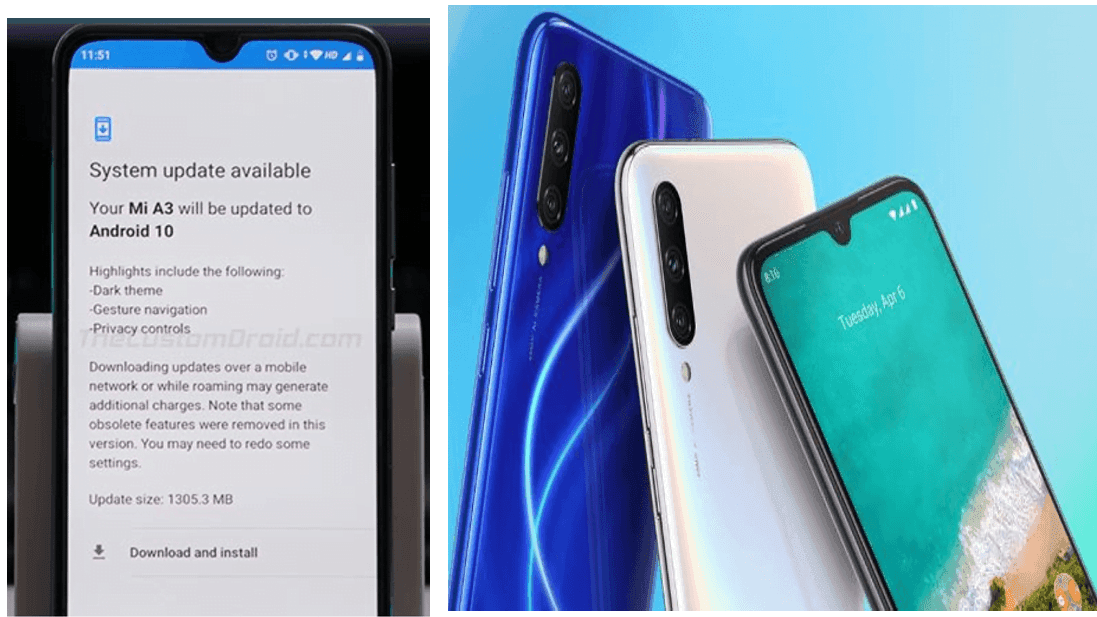
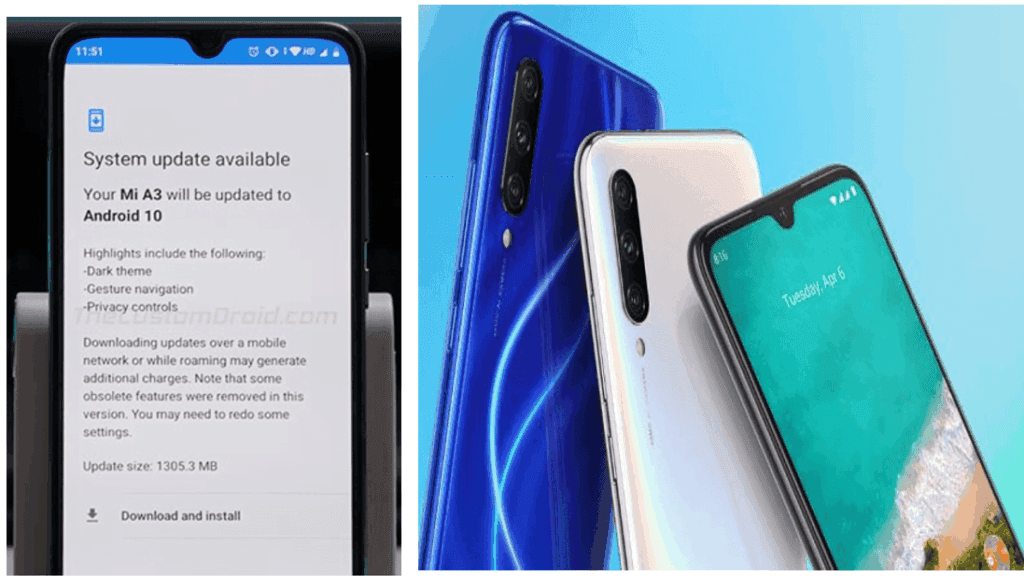
    After rolling out last month’s Android 10 update for the Mi A2 smartphone, Xiaomi today started rolling out the update for its latest Mi A3 smartphone after a slight delay, even though last month it released Android 10-based Kernel Sources for that app. Last year in August the smartphone debuted running Android 9.0 (Pie).

    Android 10 provides users with a number of additional privacy and security features, including Dark Theme, Smart Reaction, Focus mode, dedicated’ Privacy’ portion, and much more. After the update, you need to select “Show fingerprint icon when the screen if off” option in the fingerprint settings so that the fingerprint icon appears in the lockscreen when you raise the device or tap the screen. Xiaomi claims this raises power consumption though.

  • Realme 5 PRO received Pixel Experience custom ROM

    Realme 5 PRO received Pixel Experience custom ROM

    Warning Disclaimer: Droid Tools is not responsible for any damage or loss caused to your device.

    Droid Tools

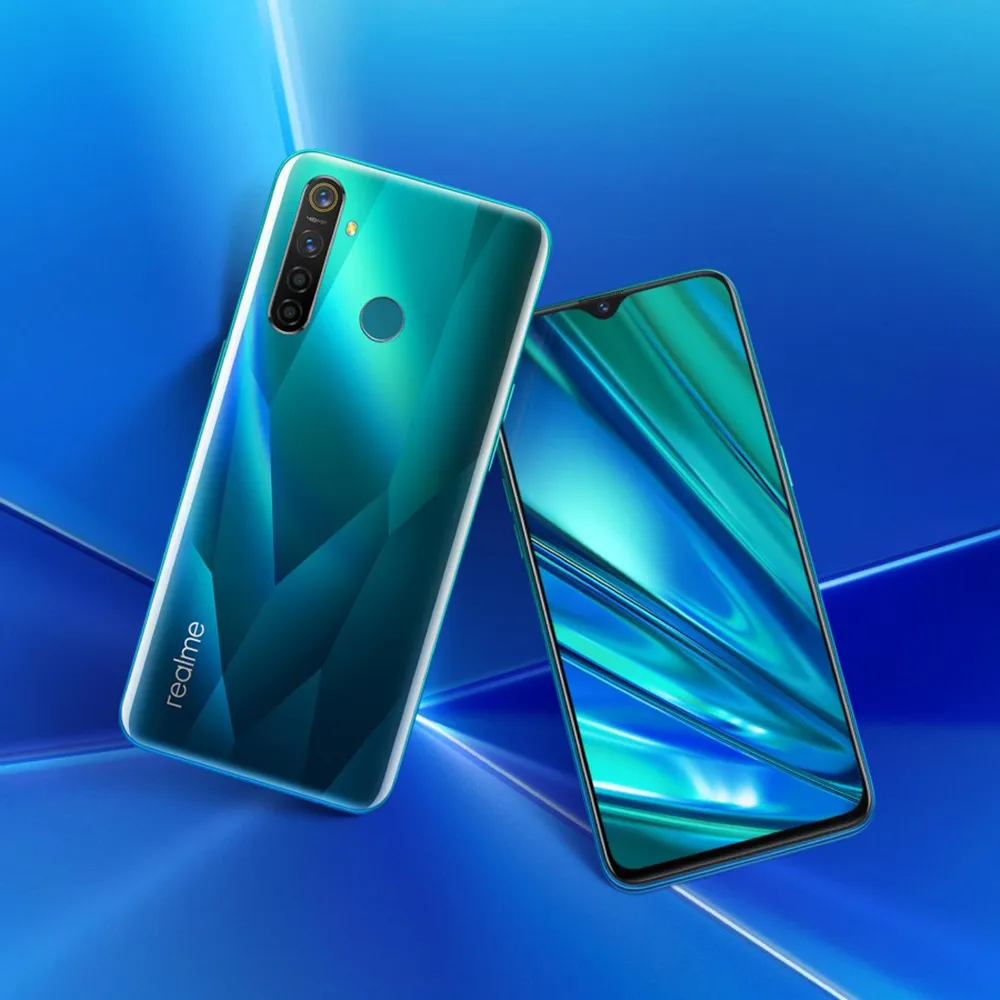
    Realme launched Realme 5 Pro to India with Android 9 Pie in tow. The handset later became known in China as Realme Q. Remember that the handset received Android 10-based Reame UI 1.0 during this week. While the brand new app of Realme comes with a host of new features like dual earphone link, animated wallpapers, customizable icon design, new charging animation, Realme Share and more. The firm is promising a close-to-vanilla Android approach with Realme UI, but we all know this isn’t exactly the case.

    Although Realme UI is designed to provide an Android experience close to stock, it still feels like ColorOS. There’s good news for you in case you want to enjoy a real pixel like Android experience on your 5 Pro. The Realme 5 Pro finally gets official support for Pixel Experience (based on Android 10). If you are not aware, Pixel Experience is a custom ROM that brings to the supported smartphones all the Pixel features, sounds, boot animations. If you like Realme 5 Pro hardware but aren’t a software fan, now is the time to enjoy a true Android vanilla experience.

    To flash a custom ROM, users will need to unlock the bootloader of their devices. Then, the next step is to flash a custom recovery. Worth noting that flashing a custom ROM does not affect the warranty of the Realme devices. After all, the company is very friendly to Custom ROM developers

    Whats working:

    • Wifi
    • RIL
    • Mobile data
    • GPS
    • Camera
    • Flashlight
    • Camcorder
    • Bluetooth
    • FMRadio

    No reported bugs until.

    Flash Pixel Experience on Realme 5 PRO

    1. Unlock bootloader.
    2. Flash recovery over fastboot mode. Follow this guide here
    3. Download rom and copy it into sdcard (not internal memory).
    4. Put your device into recovery mode.
    5. Flash rom from sdcard
    6. Format data (factory reset).
    7. Come back fastboot mode and flash vbmeta.img
    8. Reboot system.
  • Realme 5 PRO – flash TWRP recovery

    TWRP is an open source, community project. TWRP development is done by roughly 4 people at this point. We also have a large support community with many people who are willing to answer questions and help people with their devices either through our IRC channel or on forums like xda-developers.

    Features:

    • – Decryption works
    • – Otg works
    • – Backups works
    • – Flash Rom works
    • – Sdcard works

    Flash TWRP on Realme5 PRO

    fastboot flash recovery twrp-RMX1971-20191017.img

  • Install Magisk – root Android any device

    Install Magisk – root Android any device

    If you’ve been around the world of Android for the past couple of years, you’ve probably heard the term “Magisk” thrown around. It is a relatively best method for Android devices to be customised. It was created in 2016 by topjohnwu of XDA Developer. Magisk is an alternative to the SuperSU of long standing, but it is much more than just a root process. Until you dive in there are some key things you should know about this famous method.

    Required to flash Magisk

    • A device running Android 4.2+
    • Custom Recovery (how to install). We’ll be using TWRP in this guide

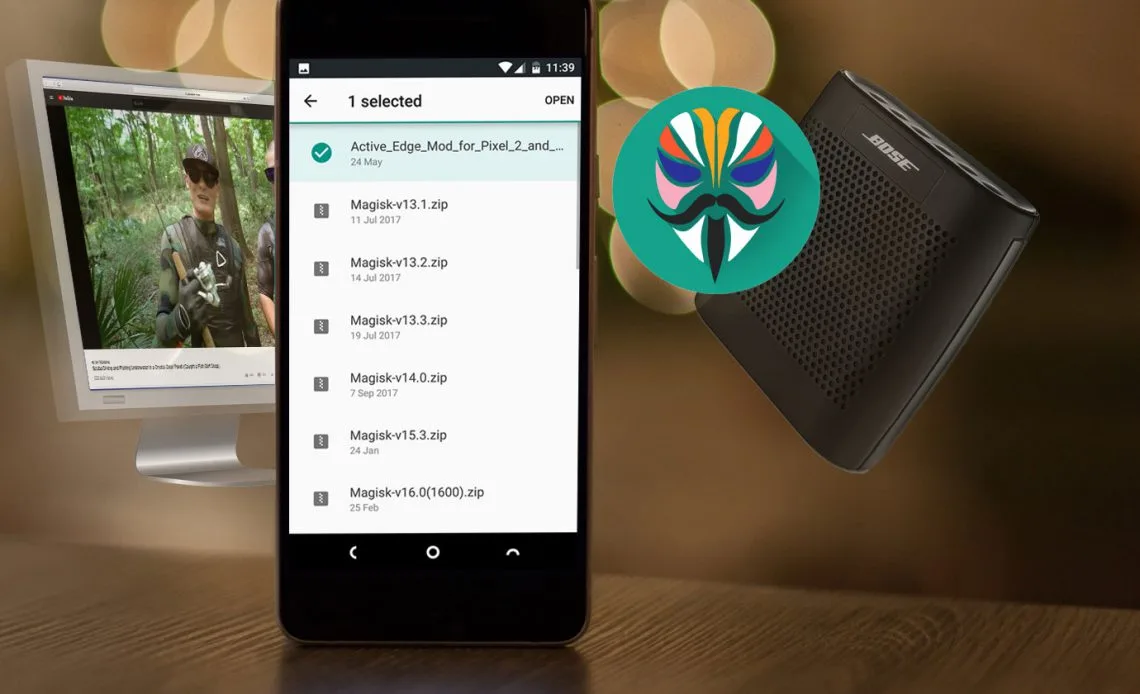
    The first thing you’ll need is the Magisk zip file, assuming your phone got a custom recovery. This is the file that we are going to flash up in the next step. The most recent version of the zip can be found on the official XDA thread. Install and pass the new zip to your phone / tablet, or install it directly to your phone / tablet. An easy way to do this is to install the Magisk Manager app (found in Step 3) that will prompt you to download the latest zip available at the moment.

    Now let’s flash Magisk

    Go to recovery mode and flash the zip. Using this guide to find out how to boot to recovery mode on your computer. Typically this will be a combination of the power button and the volume key. Follow these steps once you boot up into your custom recovery:

    1. In recovery mode, select the Install button.
    2. Find the folder where you download the zip file.
    3. Select the zip file
    4. Swipe the slider to install Magisk
    5. Tap Reboot System

    Now you have the Magisk system installed on your computer. You’ll need the suitably appointed Magisk Director to handle it. That’s what lets you install modules. Download the latest Magisk Manager APK here and make sure that you have enabled “Unknown Sources” in the Settings. Download the document, and open it.

    The Manager software allows you to adjust root settings and also to add modules which are plugins that can be installed. The software serves as a repository for a whole bunch of great plugins that can quickly expand your device’s functionality. An important part of getting the most out of this root system is using the Manager software.

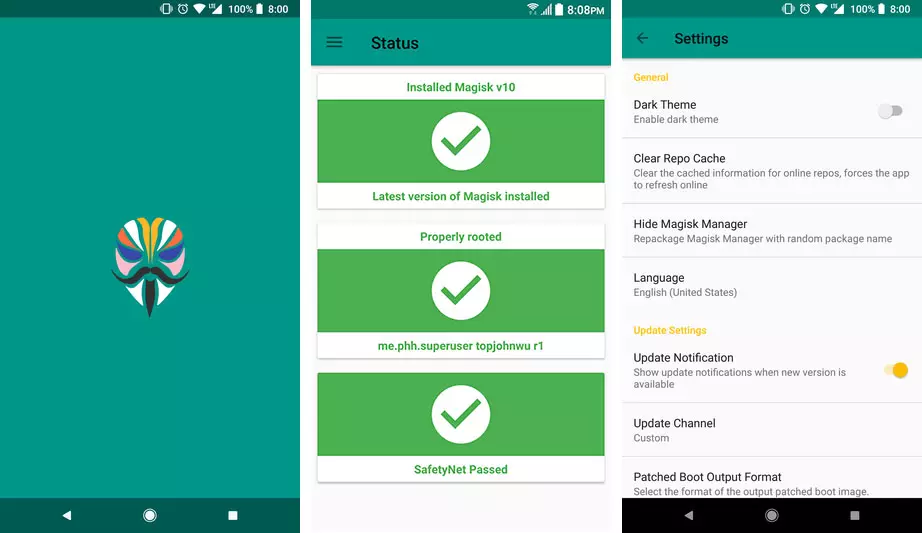
    The final step is to verify that all is working properly. Open the Manager app that has just been installed. We want a bunch of green check marks to appear in the script. It means you got root successfully. Good job! 

    magisk manager app
  • Download Magisk – latest official

    Download Magisk – latest official

    Installing Magisk will give you ROOT, a super powerful Systemless Interface, Magisk Modules support, and hide from tons of integrity tests like SafetyNet!

    Download Magisk

    Downloads

    Magisk features:

    • Open Source:
      100% open source and easy to build on all Google supported platforms.
    • Magic Mount:
      Modify system (vendor) without tampering the partitions.
    • MagiskSU:
      Unleash your device’s root access.
    • MagiskHide:
      Hide Magisk from detections: Google SafetyNet, enterprise / bank system integrity checks, game tamper checks.
    • Resetprop:
      Modify or delete any system properties, including read-only props.
    • Online Module Repo:
      Install Magisk Modules from the community driven Magisk Module Repo.
  • OrangeFox Recovery

    OrangeFox Recovery

    orange fox recovery

    OrangeFox Recovery is one of the most popular custom recoveries, with amazing additional features, fixes and bunch of supported devices.

    OrangeFox have been operating for over 18 months. In that time it improved the quality, stability, and device support of the recovery. Today OrangeFox is the leader in stability, UI design, and UX. Installing OrangeFox means being with the latest code and fastest fixes.

    OrangeFox recovery features

    • Supports Treble and non-Treble ROMs
    • Up-to-date Oreo kernel, built from sources
    • Increased compatibility with TWRP
    • Updated with latest TWRP commits
    • Built-in support for installing init.d functionality
    • Built-in support for installing Magisk
    • Built-in support for installing SuperSU (v2.82-201705271822 – non-Treble ROMs only)
    • AromaFM
    • White Flashlight
    • Password, torch, led
    • Support for Miui and Custom ROMs
    • MIUI OTA support
    • Better language support
    • Optimized versions of community scripts
    • Alternative lockscreen
    • Fox theme engine: choice of theme (black, dark, etc), choice of color scheme, choice of splash screen
    • And many more!
  • Samsung Galaxy M31 will be available on Amazon.in

    Samsung Galaxy M31 will be available on Amazon.in

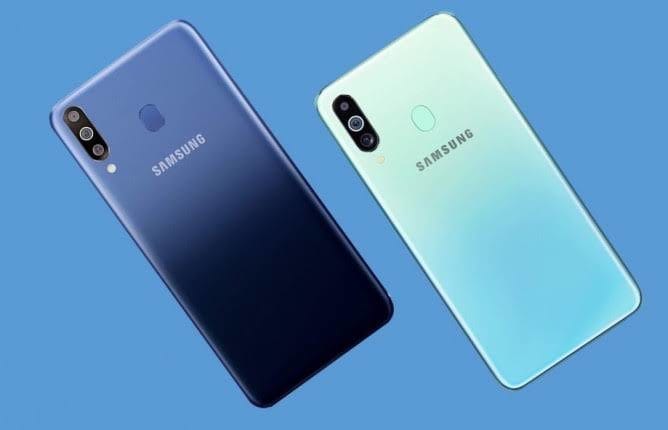
    Samsung will bring the M31 to the Indian market through Amazon just like its immediate predecessor, the Galaxy M30s. This site is currently teasing the phone as one that would in many ways mimic the famous “battery monster,” including its 6000mAh battery. The camera features, however, are somewhat improving.

    The Samsung Galaxy M30s was well-received as they paired triple cameras with an AMOLED FHD+ screen and a 6000mAh battery. According to new teasers released by Amazon.in, their immediate counterpart, the M31, won’t be much different-except that this time the number of cameras is 4. A’ best-in-class’ 64MP sensor is also the main shooter here.

    Amazon also notes that it will be joined by others for ultra-wide angle, macro and depth-sensing functions, but its resolutions or other specs are not yet revealed. Similarly, it reveals that the Galaxy M31 will display the same quality (at least on paper) as the M30s but not its size. It will however have a U-shaped knot, a featurethat